
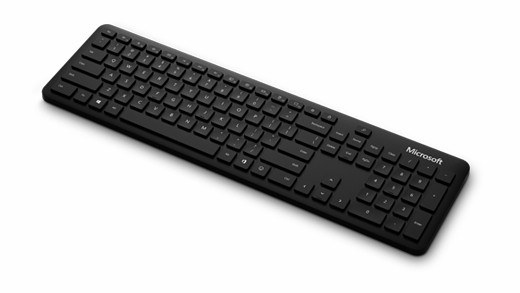
Correct keyboard layouts in Windows: Use the On-Screen Keyboard to inspect input
Correct keyboard layouts in Windows
Unexpected characters often reflect the active Windows input layout rather than a damaged keyboard. Compare the selected layout with the physical keys and test a short sample. Keyboard layout, app proofing language and Windows display language serve different purposes, so change the setting that matches the actual problem.
Open a keyboard without physical keys
Windows includes an On-Screen Keyboard under Accessibility, Keyboard. Microsoft explains that it can be used with a mouse or another pointing device and does not require a touchscreen. It can also be opened through the Accessibility control at sign-in, providing another way to enter text when a physical keyboard is unavailable.
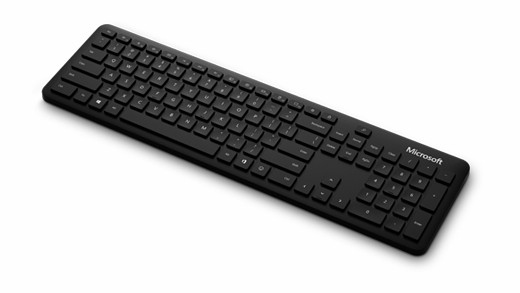
Distinguish its two layouts
The tool has a full General layout and a simplified Nav layout containing navigation keys. It remembers the selected layout when reopened, so switching back requires its General or Nav control. Options also support clicking, hovering and scanning to enter characters. These accessibility choices are different from selecting a language layout, but the visual keyboard can help check what Windows currently expects from input.
Windows includes an On-Screen Keyboard under Accessibility, Keyboard. Unexpected characters often reflect the active Windows input layout rather than a damaged keyboard.


Leave a Comment
Comments (0)