
Correct keyboard layouts in Windows: Review the default input language used by Office
Correct keyboard layouts in Windows
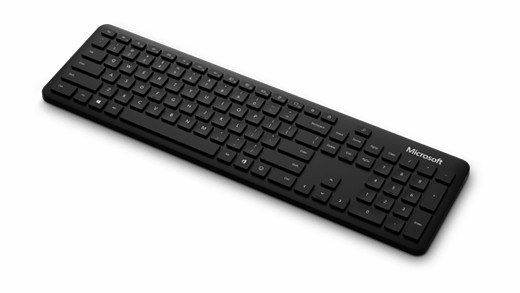
Unexpected characters often reflect the active Windows input layout rather than a damaged keyboard. Compare the selected layout with the physical keys and test a short sample. Keyboard layout, app proofing language and Windows display language serve different purposes, so change the setting that matches the actual problem.
Understand the Windows connection
Microsoft explains that Office uses the default Windows input language when determining certain default language behavior. That does not mean every multilingual Office task requires changing the entire operating system. Editing language, proofing language and interface language are separate choices, and the appropriate adjustment depends on what is actually wrong.
Add the keyboard you need
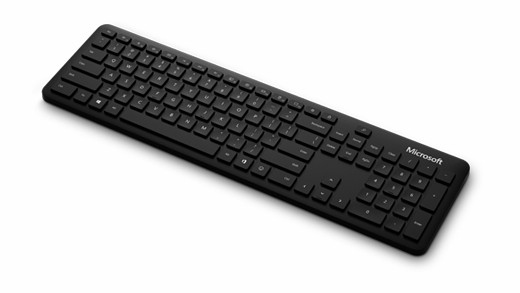
The guide directs users to Windows Settings, Time and language, Language and region. Select a preferred language, open its language options and add the required keyboard. This is useful when an external keyboard's printed symbols do not match the active layout. Confirm the intended layout in the application before making broader language changes that affect menus or other Windows behavior.
Microsoft explains that Office uses the default Windows input language when determining certain default language behavior. Unexpected characters often reflect the active Windows input layout rather than a damaged keyboard.


Leave a Comment
Comments (0)