
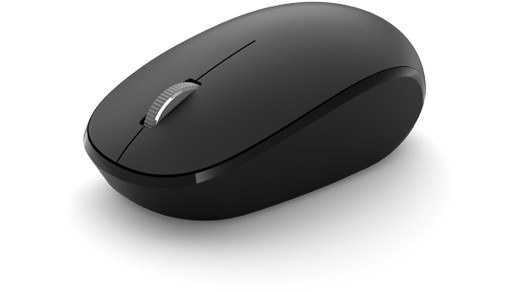
Fix an unreliable wireless mouse connection: Check a Surface mouse or keyboard before replacing it
Fix an unreliable wireless mouse connection
First identify whether the mouse uses Bluetooth or a dedicated USB receiver, because the troubleshooting paths differ. Check power and simplify the connection. A mouse that works on another computer needs different investigation from one that remains inactive everywhere, regardless of software sensitivity settings.
Confirm power and discoverability
Microsoft's troubleshooting guide starts with correctly positioned batteries and fresh replacements where necessary. Rechargeable devices should use their supplied charging cable. Hold the pairing button long enough to make the light blink; that indicator helps distinguish a powered but unpaired device from one that is not receiving power at all.
Test the connection in a simpler environment
Remove the accessory's existing Windows pairing and add it again, and temporarily turn off other Bluetooth accessories if interference is suspected. The guide also suggests testing the mouse or keyboard on another PC. These tests help determine whether the problem follows the accessory or remains with the original computer, which is more useful than repeatedly changing unrelated Windows typing or pointer settings.
Microsoft's troubleshooting guide starts with correctly positioned batteries and fresh replacements where necessary. First identify whether the mouse uses Bluetooth or a dedicated USB receiver, because the troubleshooting paths differ.


Leave a Comment
Comments (0)