
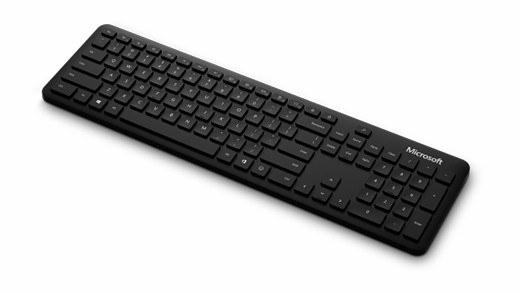
Correct keyboard layouts in Windows: Use Windows shortcuts when changing input layouts
Correct keyboard layouts in Windows
Unexpected characters often reflect the active Windows input layout rather than a damaged keyboard. Compare the selected layout with the physical keys and test a short sample. Keyboard layout, app proofing language and Windows display language serve different purposes, so change the setting that matches the actual problem.
Choose the shortcut for the intended action
Microsoft's keyboard shortcut reference covers combinations for navigation, editing and system controls. Windows plus Spacebar switches input language and keyboard layout, while other combinations can move through related input choices. A shortcut changes the active software layout; it cannot alter the labels printed on a physical keyboard.
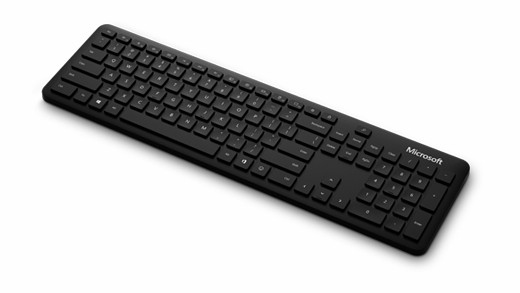
Verify the result in the application
Watch the input indicator after switching, then type a short sample to check punctuation and letters. Microsoft's reference notes that some shortcuts vary between applications or may be intercepted by software. When a combination does not behave as expected, select the layout from the visible Windows control instead. This separates an application-specific shortcut conflict from a problem with the installed keyboard layout.
Microsoft's keyboard shortcut reference covers combinations for navigation, editing and system controls. Unexpected characters often reflect the active Windows input layout rather than a damaged keyboard.


Leave a Comment
Comments (0)