
Correct keyboard layouts in Windows: Switch active layouts with the language controls
Correct keyboard layouts in Windows
Unexpected characters often reflect the active Windows input layout rather than a damaged keyboard. Compare the selected layout with the physical keys and test a short sample. Keyboard layout, app proofing language and Windows display language serve different purposes, so change the setting that matches the actual problem.
Enable more than one layout first
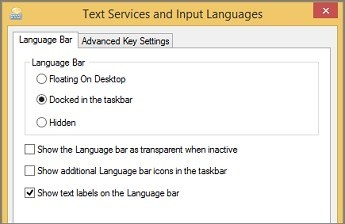
Microsoft's Language bar guide explains that switching input languages selects a different keyboard layout. Once the desired languages and layouts are enabled, place the cursor in the document and choose the language indicator near the clock. The guide also documents Alt plus Shift as a keyboard shortcut for switching layouts.
Check why the indicator is absent
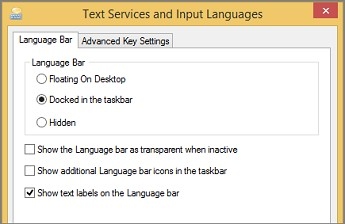
A language indicator may not appear when only one layout is configured or when the relevant control is hidden. If several layouts belong to the same language, choose the correct layout as well as the language name. For occasional accented symbols, inserting a character may be enough; changing the full input layout is most helpful when you intend to type regularly using a different key arrangement.
Microsoft's Language bar guide explains that switching input languages selects a different keyboard layout. Unexpected characters often reflect the active Windows input layout rather than a damaged keyboard.


Leave a Comment
Comments (0)