
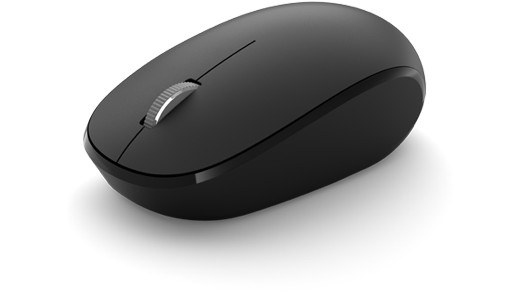
Fix an unreliable wireless mouse connection: Match Bluetooth drivers to the computer
Fix an unreliable wireless mouse connection
First identify whether the mouse uses Bluetooth or a dedicated USB receiver, because the troubleshooting paths differ. Check power and simplify the connection. A mouse that works on another computer needs different investigation from one that remains inactive everywhere, regardless of software sensitivity settings.
Use Windows and manufacturer updates
Microsoft recommends Device Manager and Windows Update as starting points for Bluetooth driver updates. Select the Bluetooth adapter, search for an updated driver and restart when the update completes. If Windows reports that the best driver is installed, the PC manufacturer's support page may still provide a newer package for the exact model.
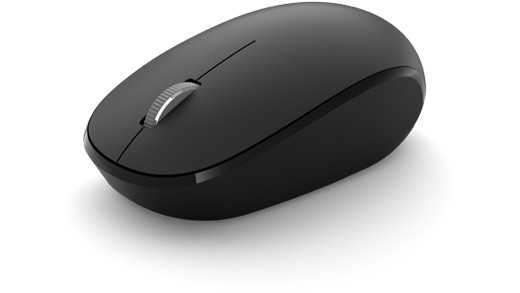
Consider when the failure began
If Bluetooth stopped working immediately after a driver change, an available Roll Back Driver option can help test whether that change caused the problem. Microsoft's guide also describes reinstalling the adapter driver and restarting Windows. Download packages for the correct computer and Windows version; a driver intended for a similarly named wireless adapter is not a reliable substitute for a supported model-specific release.
Microsoft recommends Device Manager and Windows Update as starting points for Bluetooth driver updates. First identify whether the mouse uses Bluetooth or a dedicated USB receiver, because the troubleshooting paths differ.


Leave a Comment
Comments (0)