
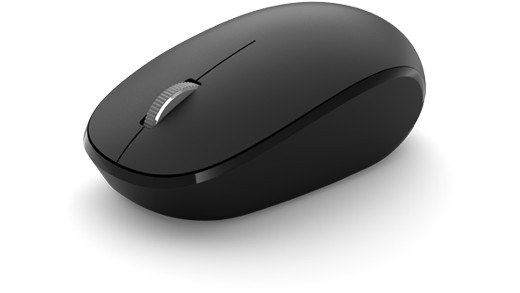
Fix an unreliable wireless mouse connection: Investigate repeated Bluetooth dropouts
Fix an unreliable wireless mouse connection
First identify whether the mouse uses Bluetooth or a dedicated USB receiver, because the troubleshooting paths differ. Check power and simplify the connection. A mouse that works on another computer needs different investigation from one that remains inactive everywhere, regardless of software sensitivity settings.
Check power-saving behavior
Microsoft identifies power management, outdated drivers and temporary system problems as possible causes of a Bluetooth link that keeps disconnecting. Its guide suggests the Windows 11 Get Help troubleshooter, followed by checks of Energy Saver and the Bluetooth adapter's power-management settings. Those settings can affect an accessory that pairs successfully but will not remain connected.
Review the driver and service
Where the adapter exposes a Power Management tab in Device Manager, the guide describes the option allowing Windows to switch it off to save power. Restarting the Bluetooth Support Service and updating the Bluetooth driver are additional diagnostic steps. These checks address repeated dropouts; an accessory that never enters pairing mode still needs its own power and discovery checks first.
Microsoft identifies power management, outdated drivers and temporary system problems as possible causes of a Bluetooth link that keeps disconnecting. First identify whether the mouse uses Bluetooth or a dedicated USB receiver, because the troubleshooting paths differ.


Leave a Comment
Comments (0)