
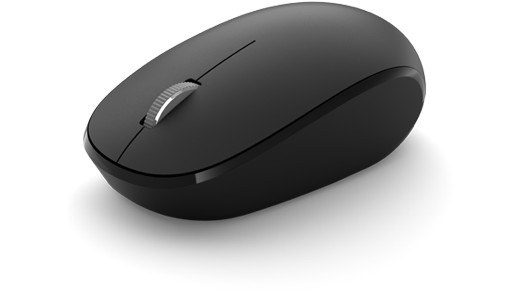
Fix an unreliable wireless mouse connection: Recover a Bluetooth accessory that will not connect
Fix an unreliable wireless mouse connection
First identify whether the mouse uses Bluetooth or a dedicated USB receiver, because the troubleshooting paths differ. Check power and simplify the connection. A mouse that works on another computer needs different investigation from one that remains inactive everywhere, regardless of software sensitivity settings.
Check discovery range and battery
Microsoft distinguishes a visible Bluetooth adapter from a successful accessory connection. Confirm that Bluetooth is on, place the accessory in pairing mode and move it close to the computer. A weak battery may prevent either discovery or a stable link, so charge or replace batteries before concluding that the Windows adapter has failed.
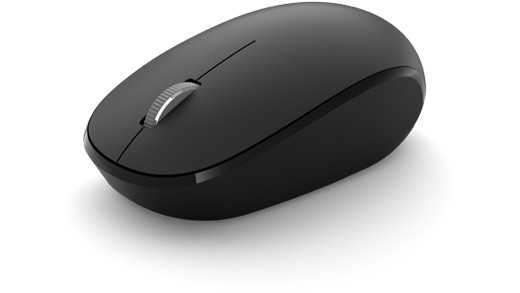
Rebuild the pairing if necessary
Remove the affected device from Bluetooth settings and add it again. Turning Bluetooth off briefly and back on can also clear a temporary connection problem. The Windows 11 Get Help troubleshooter and available Windows updates provide further checks. Change one condition at a time so a successful reconnection can be traced to the pairing, battery, range or software adjustment that resolved it.
Microsoft distinguishes a visible Bluetooth adapter from a successful accessory connection. First identify whether the mouse uses Bluetooth or a dedicated USB receiver, because the troubleshooting paths differ.


Leave a Comment
Comments (0)