
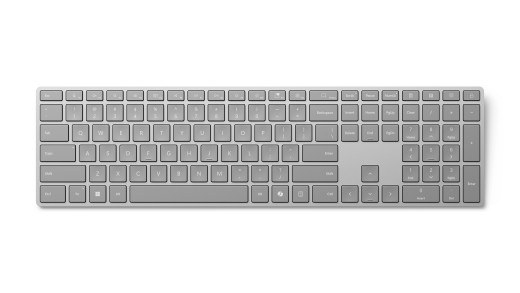
Pair a Bluetooth keyboard with Windows: Pair Surface Keyboard with its displayed PIN
Pair a Bluetooth keyboard with Windows
Put the keyboard into its documented pairing mode, then add it through Windows Bluetooth controls. Check battery power and follow any displayed PIN instruction. Pairing-button locations and supported device slots vary by model, so a procedure for one keyboard should not be applied blindly to another.
Follow the edition-specific instructions
Microsoft's Surface Keyboard guide describes the second-edition model with Bluetooth 4.0 or later and Windows 11. Removing the battery tab powers the keyboard initially. Hold the side pairing button until the indicator above the Up arrow flashes, then choose the keyboard from the Windows notification or Bluetooth device list.
Finish the security prompt
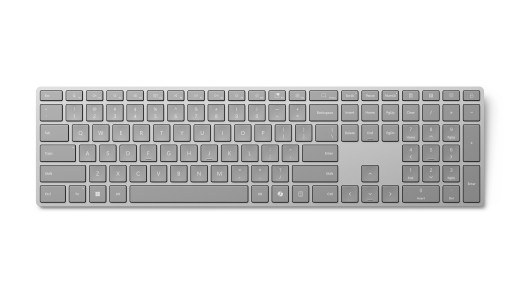
When Windows displays a PIN, type that code on the keyboard and press Enter to complete setup. The light stops flashing after successful pairing. The Surface app provides supported keyboard customization, while Time and language, Typing holds Windows typing preferences. Check the model before applying these steps to another Surface keyboard edition, because buttons and supported features can differ.
Microsoft's Surface Keyboard guide describes the second-edition model with Bluetooth 4.0 or later and Windows 11. Put the keyboard into its documented pairing mode, then add it through Windows Bluetooth controls.


Leave a Comment
Comments (0)