
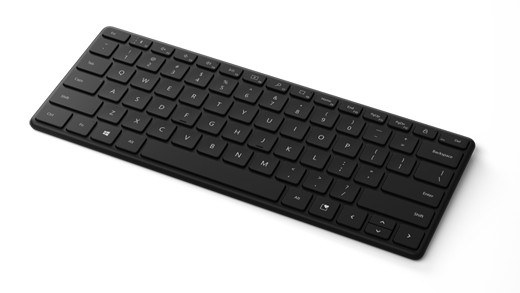
Pair a Bluetooth keyboard with Windows: Use separate pairing slots on Designer Compact
Pair a Bluetooth keyboard with Windows
Put the keyboard into its documented pairing mode, then add it through Windows Bluetooth controls. Check battery power and follow any displayed PIN instruction. Pairing-button locations and supported device slots vary by model, so a procedure for one keyboard should not be applied blindly to another.
Pair up to three devices
Microsoft Designer Compact Keyboard supports three paired devices, making it a concrete example of a keyboard designed for switching between computers. Turn it on and watch for the flashing pairing light. If necessary, hold its pairing button for about five seconds, then accept the Windows notification or select it in Bluetooth settings.
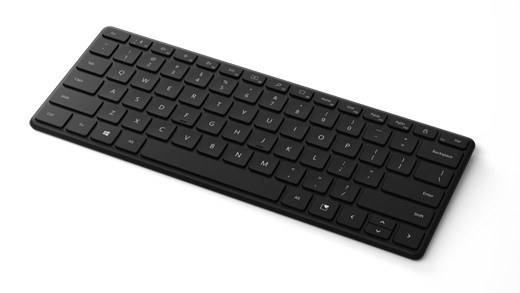
Choose the intended slot and computer
To connect another device, press the pairing button to advance to the next Bluetooth slot and repeat the pairing process. When several nearby computers show a connection notification, accept it on the intended computer. This slot-based procedure should not be assumed for every Bluetooth keyboard. Windows typing preferences and the keyboard's battery status can be checked separately once each connection is established.
Microsoft Designer Compact Keyboard supports three paired devices, making it a concrete example of a keyboard designed for switching between computers. Put the keyboard into its documented pairing mode, then add it through Windows Bluetooth controls.


Leave a Comment
Comments (0)