
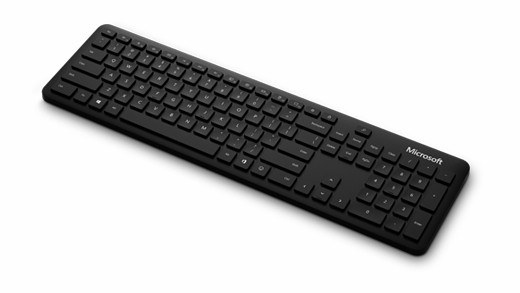
Pair a Bluetooth keyboard with Windows: Connect Microsoft's Bluetooth Keyboard
Pair a Bluetooth keyboard with Windows
Put the keyboard into its documented pairing mode, then add it through Windows Bluetooth controls. Check battery power and follow any displayed PIN instruction. Pairing-button locations and supported device slots vary by model, so a procedure for one keyboard should not be applied blindly to another.
Use its dedicated pairing button
Microsoft's Bluetooth Keyboard requires Bluetooth 4.0 or later on a supported Windows computer. Hold the button underneath for about five seconds until the light flashes. Accept the Swift Pair notification if it appears, or open Bluetooth and devices, add a Bluetooth device and choose the keyboard from the list.
Adjust typing after the link works
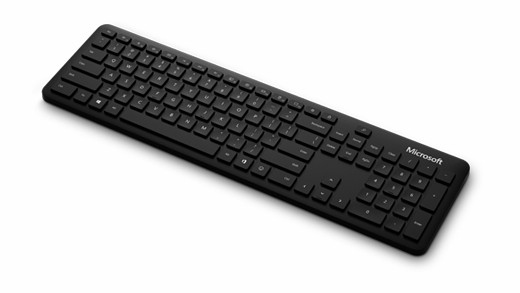
After pairing, Windows typing preferences are available under Time and language, Typing. The keyboard's Emoji key provides another shortcut, and Microsoft Mouse and Keyboard Center offers supported customization. These settings affect the typing experience rather than repairing a missing wireless connection. Establish a reliable Bluetooth link first, then check language and layout if the keys produce unexpected characters.
Microsoft's Bluetooth Keyboard requires Bluetooth 4.0 or later on a supported Windows computer. Put the keyboard into its documented pairing mode, then add it through Windows Bluetooth controls.


Leave a Comment
Comments (0)