
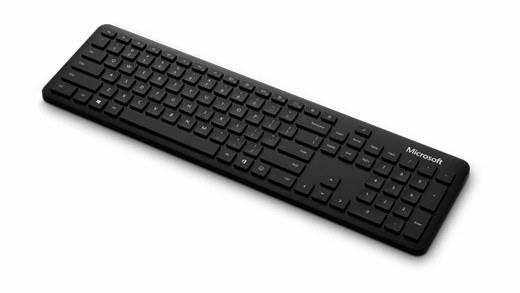
Pair a Bluetooth keyboard with Windows: Pair a discoverable Bluetooth accessory
Pair a Bluetooth keyboard with Windows
Put the keyboard into its documented pairing mode, then add it through Windows Bluetooth controls. Check battery power and follow any displayed PIN instruction. Pairing-button locations and supported device slots vary by model, so a procedure for one keyboard should not be applied blindly to another.
Prepare both ends of the connection
Windows must support Bluetooth and have it switched on before it can pair with a keyboard, mouse or other Bluetooth device. Microsoft notes that a USB Bluetooth adapter can add the feature to a computer that lacks it. Put the accessory into its manufacturer-specified discovery mode; simply powering it on may not be enough.
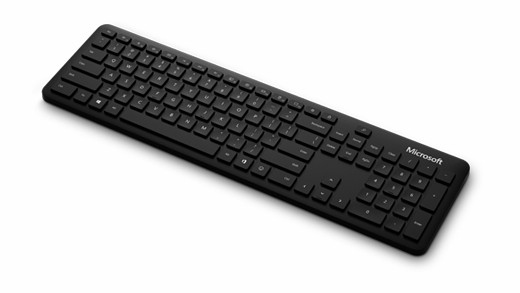
Complete pairing in Windows
Open Bluetooth and devices or use the taskbar Bluetooth controls, choose the newly discovered device and follow any additional prompts. If the accessory is absent, the guide suggests checking discovery settings as well as its pairing mode. Once paired, the computer and accessory can reconnect when Bluetooth is enabled and they are within range, without repeating the initial setup every time.
Windows must support Bluetooth and have it switched on before it can pair with a keyboard, mouse or other Bluetooth device. Put the keyboard into its documented pairing mode, then add it through Windows Bluetooth controls.


Leave a Comment
Comments (0)