
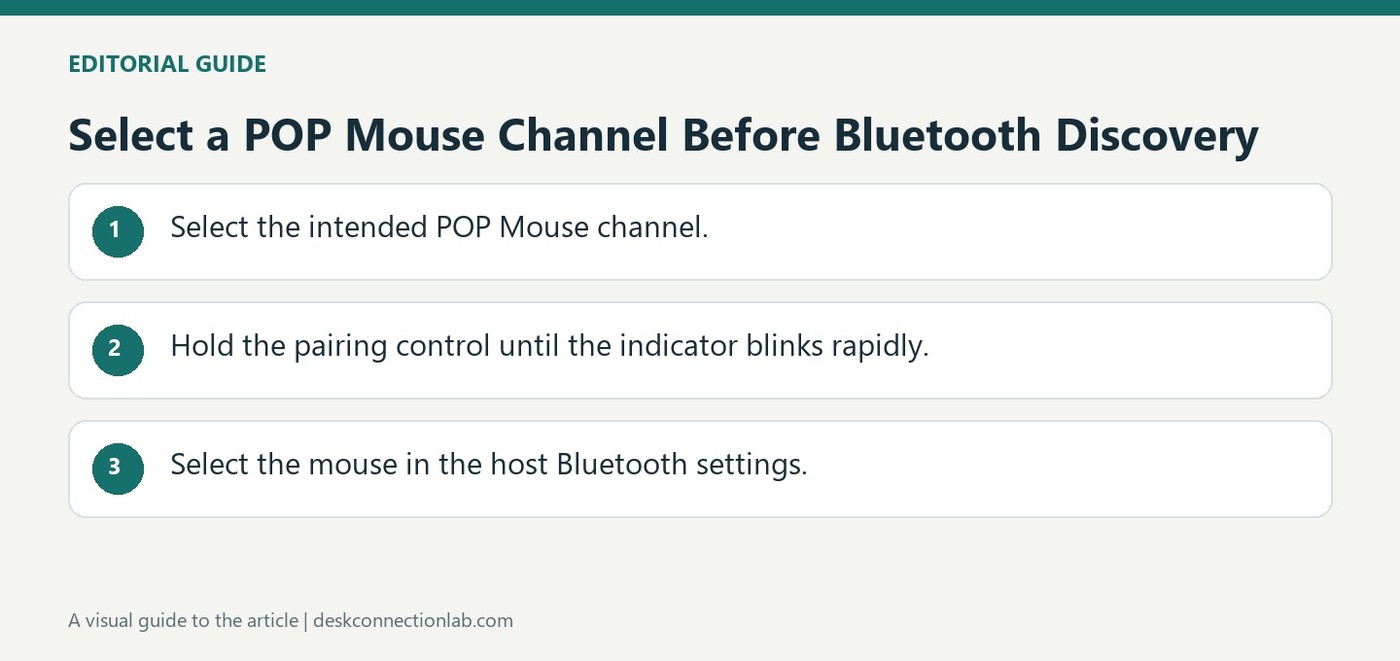
Select a POP Mouse Channel Before Bluetooth Discovery
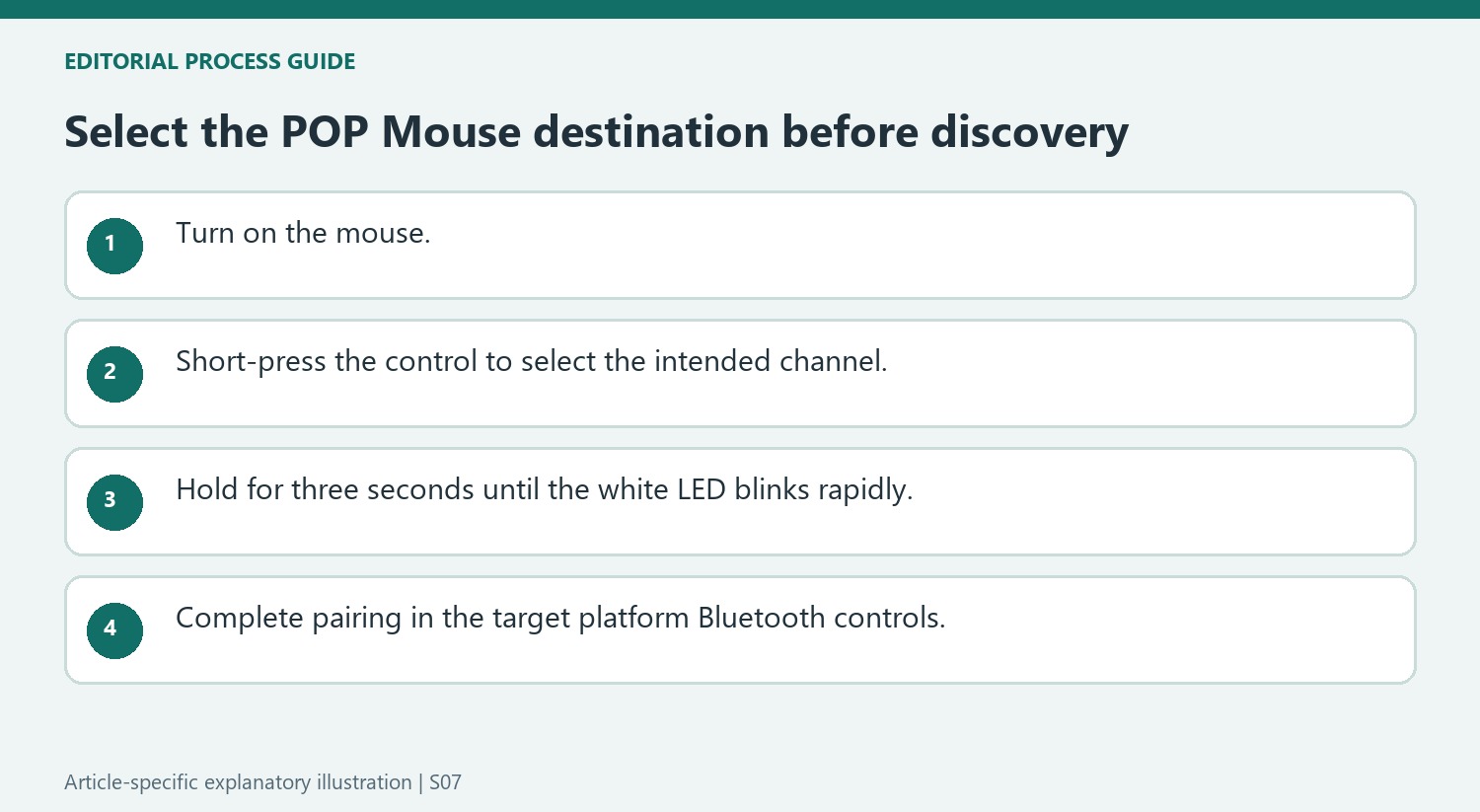
To connect a POP Mouse, turn it on and briefly press the button underneath to choose the desired channel. Then hold the button for three seconds until the white indicator flashes quickly, showing that Bluetooth discovery is active.
On Windows, respond to the connection notification or add Logi POP Mouse from Bluetooth settings. On a Mac or iPad, select it from the available Bluetooth device list. The difference between choosing a channel and entering pairing mode explains why a short button press alone may not make the mouse discoverable.
Use the operating-system route when the prompt is absent
The Windows notification is a convenient entry point, but the source also provides Bluetooth settings and Add a Device as the manual route. Select the Logi POP Mouse entry after the indicator shows rapid blinking. On a Mac, use its Bluetooth settings to choose Logi POP. These routes depend on the host seeing the mouse in its current pairing state. A missing notification alone does not establish that discovery has failed or that a receiver is required for this Bluetooth workflow.
Keep channel selection distinct from a new pairing
The bottom button performs different actions according to the press duration. A short press selects the intended channel; a longer press starts discovery for that channel. Confirm the chosen channel before creating or repairing a connection, particularly when the mouse is used with several devices. The iPad instructions likewise require a rapidly blinking indicator and selection in the device list. After pairing, test pointer movement on the intended host. If input reaches another device or no new item appears, describe the channel and indicator state before changing unrelated mouse sensitivity or application settings.
Select the channel before starting a new association
Logitech's sequence begins with the mouse turned on, then uses a short press of the underside Connect control to select the desired channel. Only after that selection does the three-second hold begin discoverability. The order matters because the channel identifies the association being configured. A user adding the mouse to another computer should know which channel is intended rather than holding the button immediately and assuming the software chooses an unused one. Observe the indicator and keep the target computer in view. The rapidly blinking white LED is the stated cue that the POP Mouse is ready to be found, not a final confirmation that the computer has already completed pairing.
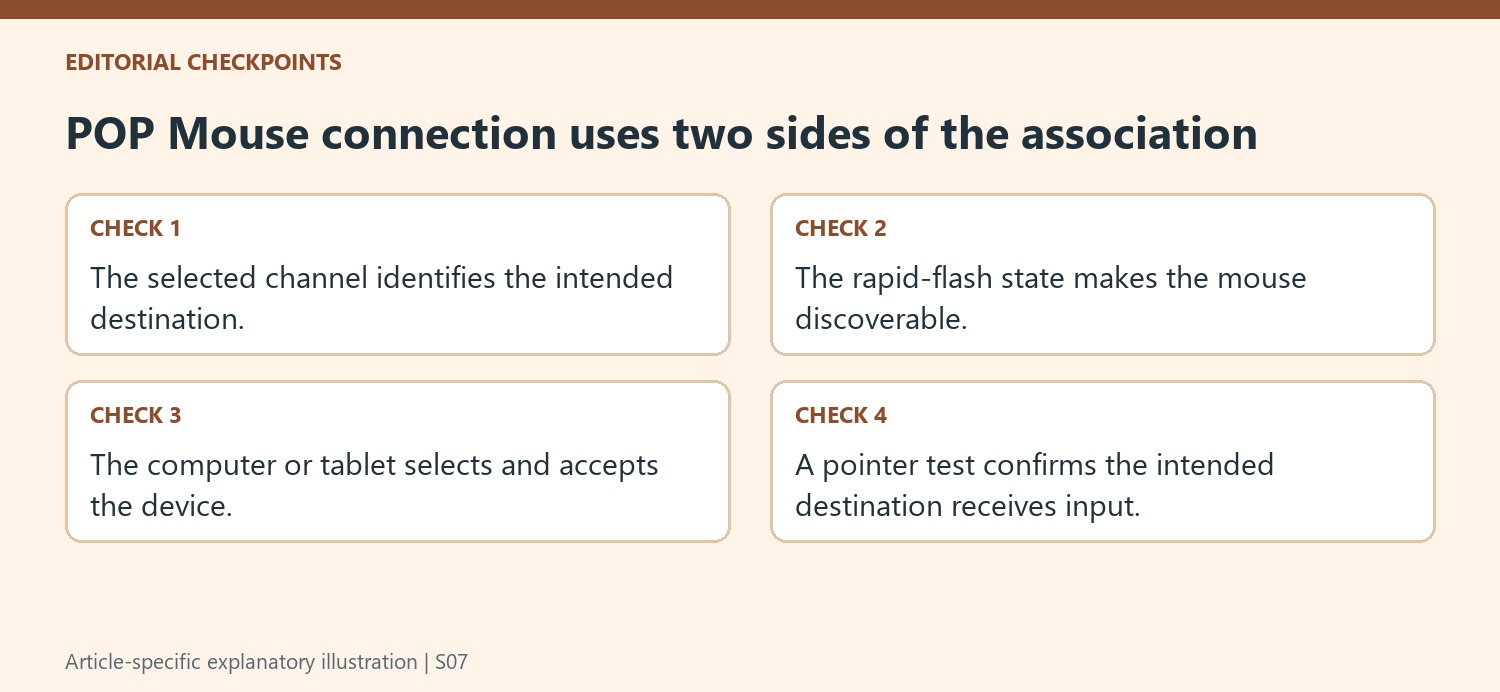
Use the target platform's Bluetooth list
The Mac procedure selects Logi POP in Bluetooth settings, while the Windows instructions first allow for a connection notification and then provide a manual Add a Device route if no notification appears. The absence of a Windows pop-up therefore does not, by itself, invalidate the setup. Use the documented device list and select the intended name. The iPad procedure similarly opens its Bluetooth settings and chooses the mouse from Devices, with a long press available if the indicator is not already blinking quickly. These platform-specific steps complete the other side of the association. Starting discovery on the mouse alone does not make a computer or tablet select and accept it automatically.
Check the intended destination after pairing or reconnecting
After setup, confirm pointer movement on the chosen computer or tablet before leaving the Bluetooth screen. In a multi-channel arrangement, successful pairing with one device does not prove that another channel is selected for ordinary use. Keep a simple assignment between channels and their intended machines, especially when the same mouse moves between a laptop and tablet. If it does not respond, review power, selected channel, and whether the Bluetooth association was completed before repeating the entire process. The short support note gives a specific connection sequence rather than a universal repair for all wireless problems. Its most useful distinction is between selecting an existing destination and holding the control to create or refresh an association on that destination.
References
- How to connect your POP Mouse to Windows or Mac with Bluetooth. Logitech Support.
To connect a POP Mouse, turn it on and briefly press the button underneath to choose the desired channel. Then hold the button for three seconds until the white indicator flashes quickly, showing that Bluetooth discovery is active.


Leave a Comment
Comments (0)