
Install Craft Application Profiles After Connecting the Keyboard
A Logitech Craft keyboard can connect through Bluetooth or a Unifying receiver. For Bluetooth, hold the intended Easy-Switch button until its light flashes rapidly, then complete pairing on the computer. Logitech Options provides the next stage of setup for the keyboard's Crown.
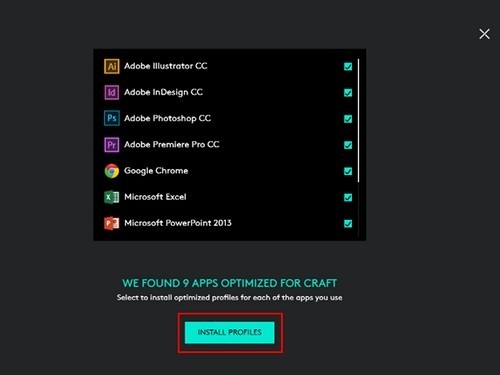
Select Craft in Options and follow the introduction before installing profiles for detected compatible Adobe or Microsoft Office applications. Wireless pairing makes the keyboard available, while these software profiles provide the application-specific Crown behaviour; one step does not automatically replace the other.
Keep receiver choice and Easy-Switch pairing separate
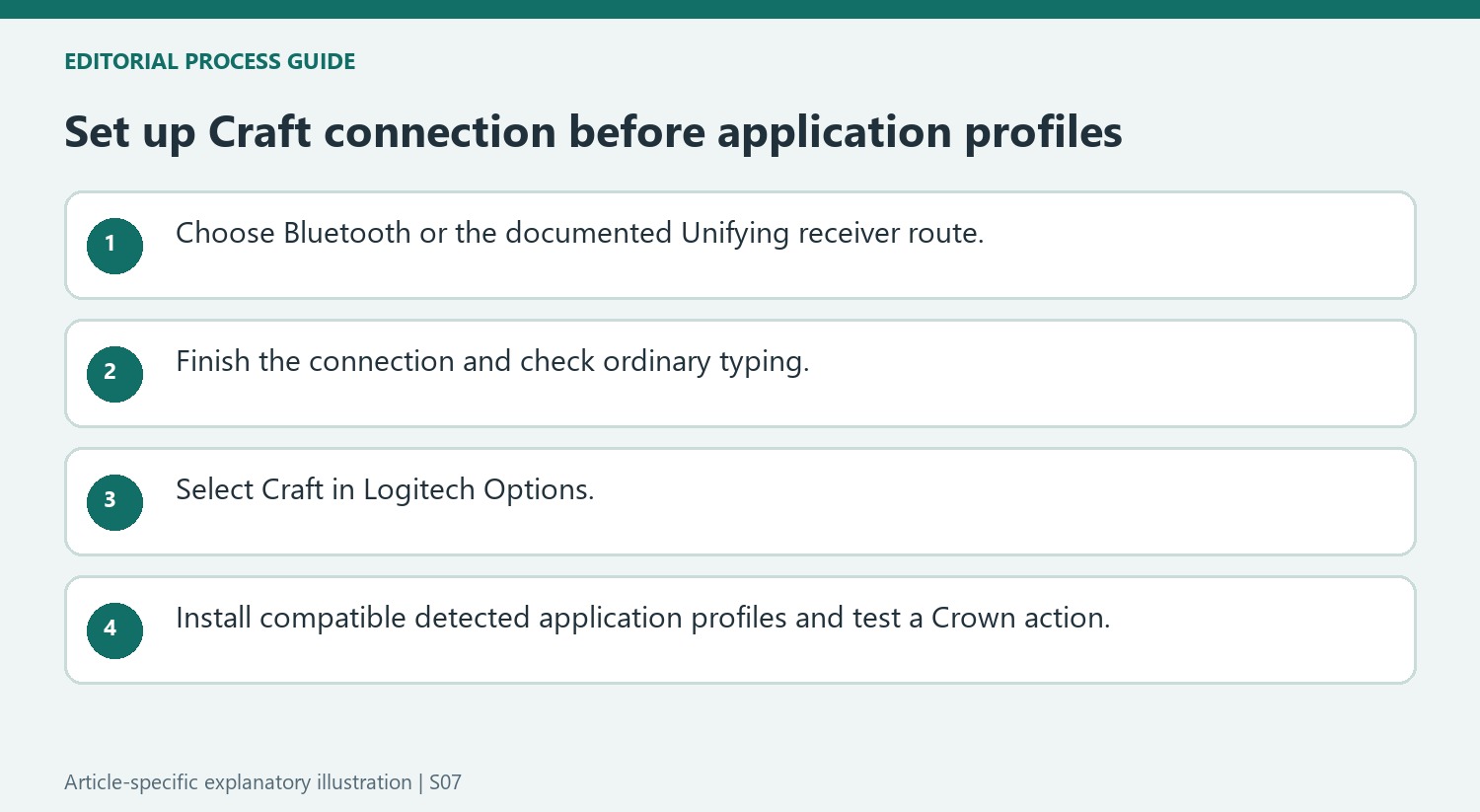
Craft provides Bluetooth and Unifying routes, and the source describes three Easy-Switch buttons for Bluetooth connections. Hold the intended button until its light flashes rapidly to prepare that connection for discovery, then complete the host's Bluetooth pairing. Select the button deliberately when several computers are involved so a new pairing does not create confusion about the active slot. If using the receiver instead, follow the Craft-specific Unifying guidance. The two connection routes should be checked against the actual computer rather than combined into an assumed universal pairing procedure.
Test the Crown in a supported application after profile setup
Logitech Options detects compatible installed Adobe and Office applications and offers profile installation after its introduction. Review any legitimate installation prompt in that documented workflow, then inspect the available application tutorials where useful. A working typing connection does not by itself confirm that the Crown has the intended application-specific behavior. Open a supported program and test the relevant action after profiles are installed. If typing works but the Crown does not behave as expected, describe the application, software version and selected profile rather than repeatedly re-pairing an otherwise functioning wireless keyboard.
Establish the keyboard connection before expecting application integration
Craft can connect through Bluetooth or a Unifying receiver, while Logitech Options handles the profile setup described in the article. Those layers have different jobs. A basic working connection allows the computer to receive keyboard input; application profiles enable the supported Crown experience within compatible programs. Start by choosing the intended connection path and finishing it, then select Craft in Options. This avoids treating a missing application profile as proof that Bluetooth has failed. Conversely, installing profiles cannot replace the physical receiver connection or the Bluetooth pairing exchange. Keep the input path and the application-specific functions as separate checkpoints during the first setup.
Use the selected Easy-Switch slot for the intended computer
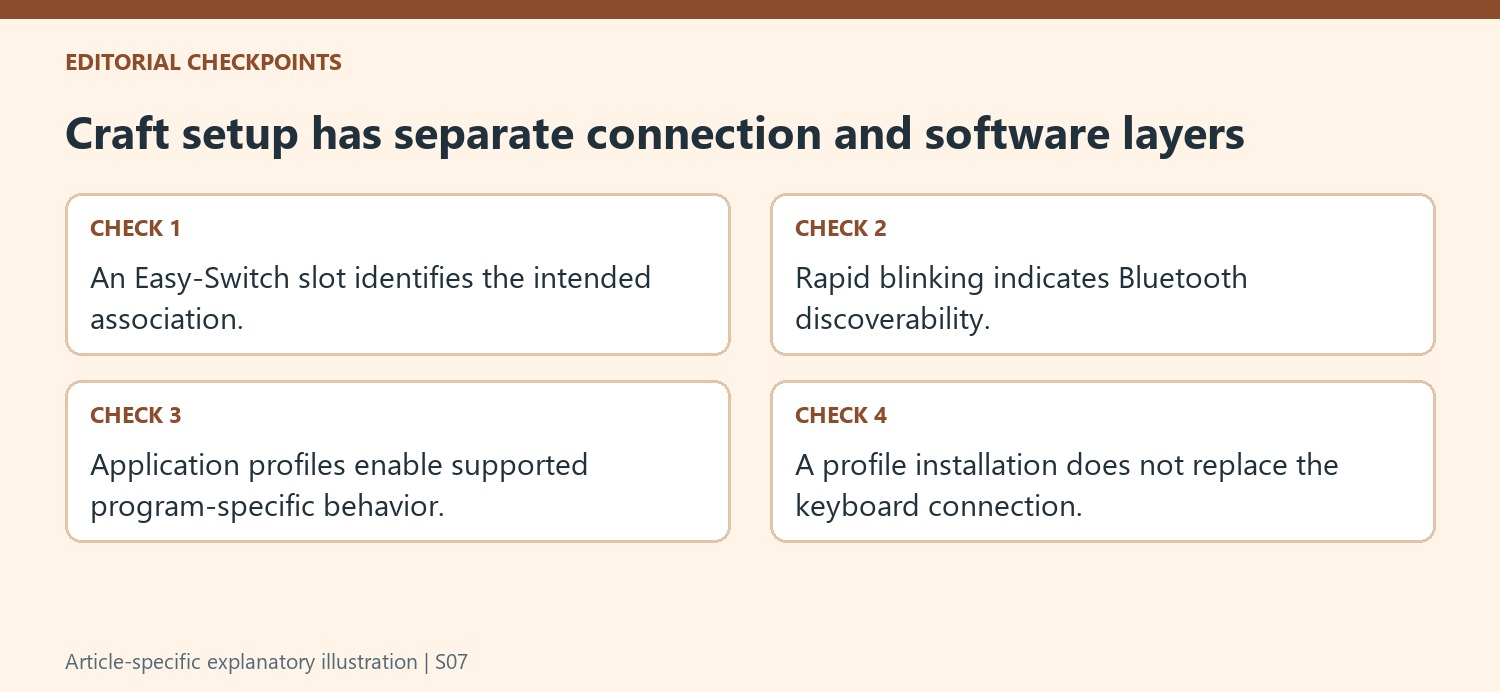
Craft has three Easy-Switch controls with Bluetooth status lights. Holding the chosen one starts a pairing sequence, with rapid blinking showing discoverability. The selected control matters because it identifies the association being configured. When preparing a multi-computer desk, decide which computer belongs to each slot before pairing rather than relying on proximity to choose the target. The receiver route has its own linked Logitech instructions and should not be merged with a Bluetooth sequence simply because both can connect the keyboard. After the chosen path works, check ordinary typing on the intended machine. A clear slot plan makes later use easier and keeps software customization attached to the correct computer.
Install profiles only for the compatible applications found
The Options introduction leads to detection of supported Adobe and Microsoft Office software, followed by Install Profiles. That is not a promise that every installed creative or office application supports every Crown function. Review the current compatibility information for the exact application and version. Keep the supported profile list available during installation. The article also describes a possible Microsoft Office Customization Installer prompt as part of the supported setup. Complete the applicable instructions, then use the offered tutorials to understand what the profile actually changes. The tutorials can be skipped to finish, but checking one relevant example is useful before expecting a particular control behavior. Confirm both normal keyboard input and the supported application action so the connection and the profile installation each have a visible result.
References
- Craft keyboard startup and connection. Logitech Support.
A Logitech Craft keyboard can connect through Bluetooth or a Unifying receiver. For Bluetooth, hold the intended Easy-Switch button until its light flashes rapidly, then complete pairing on the computer. Logitech Options provides the next stage of setup for the keyboard's Crown.


Leave a Comment
Comments (0)