
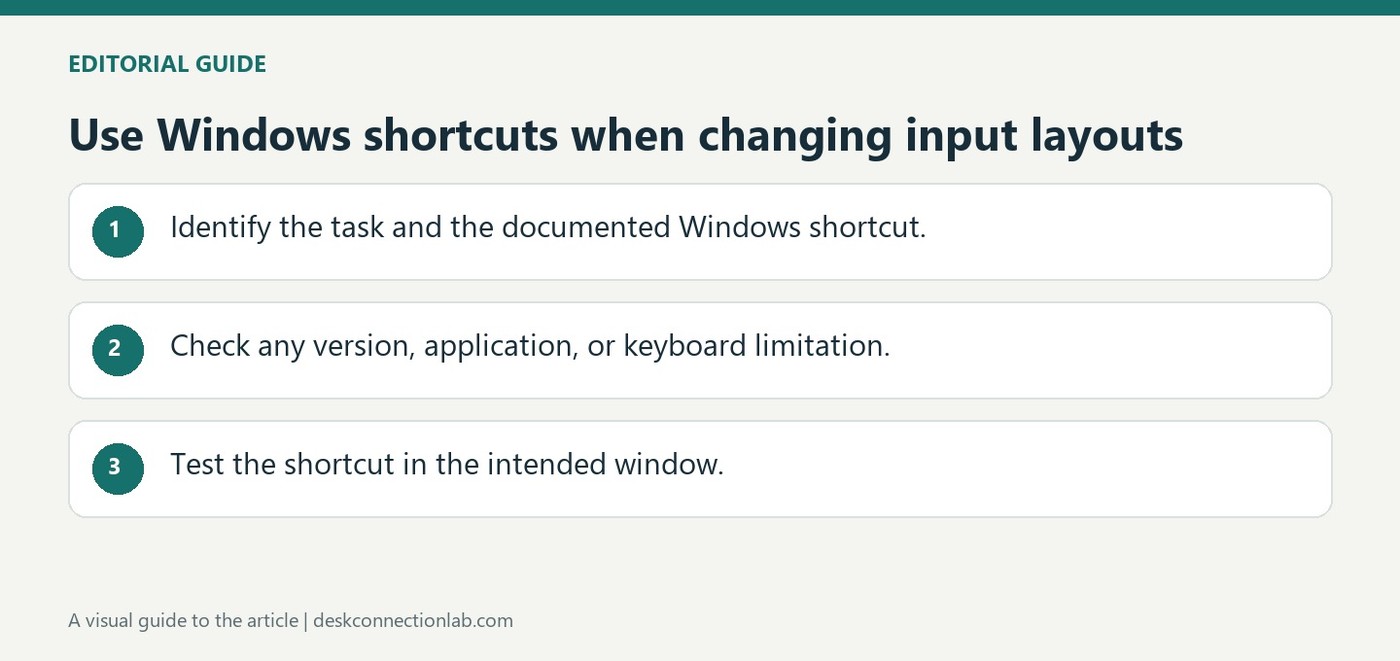
Use Windows shortcuts when changing input layouts
Choose the shortcut for the intended action
Microsoft's keyboard shortcut reference covers combinations for navigation, editing and system controls. Windows plus Spacebar switches input language and keyboard layout, while other combinations can move through related input choices. A shortcut changes the active software layout; it cannot alter the labels printed on a physical keyboard.
Verify the result in the application
Watch the input indicator after switching, then type a short sample to check punctuation and letters. Microsoft's reference notes that some shortcuts vary between applications or may be intercepted by software. When a combination does not behave as expected, select the layout from the visible Windows control instead. This separates an application-specific shortcut conflict from a problem with the installed keyboard layout.
Use editing shortcuts with the current application in mind
Microsoft lists common editing combinations such as Ctrl+C for copy, Ctrl+V for paste and Ctrl+Z for undo, alongside navigation shortcuts. The reference also notes that applications can change default behavior and that plain-text paste is not supported identically everywhere. Check the focused window before invoking a shortcut, especially when a utility, remote session or editor intercepts the same keys. A failed command in one application does not establish that the keyboard itself is sending the wrong input.
Separate navigation commands from input-method changes
Windows shortcuts can switch windows, move through text, open system tools or change input methods. Identify which action occurred rather than describing every unexpected result as a layout error. For example, a window-switching command affects focus, while a language-switching command affects how subsequent key presses are interpreted. Reproduce the issue with a short harmless text sample and the visible input indicator. If a shortcut conflict is suspected, use the corresponding menu control and compare results before changing broader keyboard or system settings.
Use the direction of the shortcut to control a long layout list
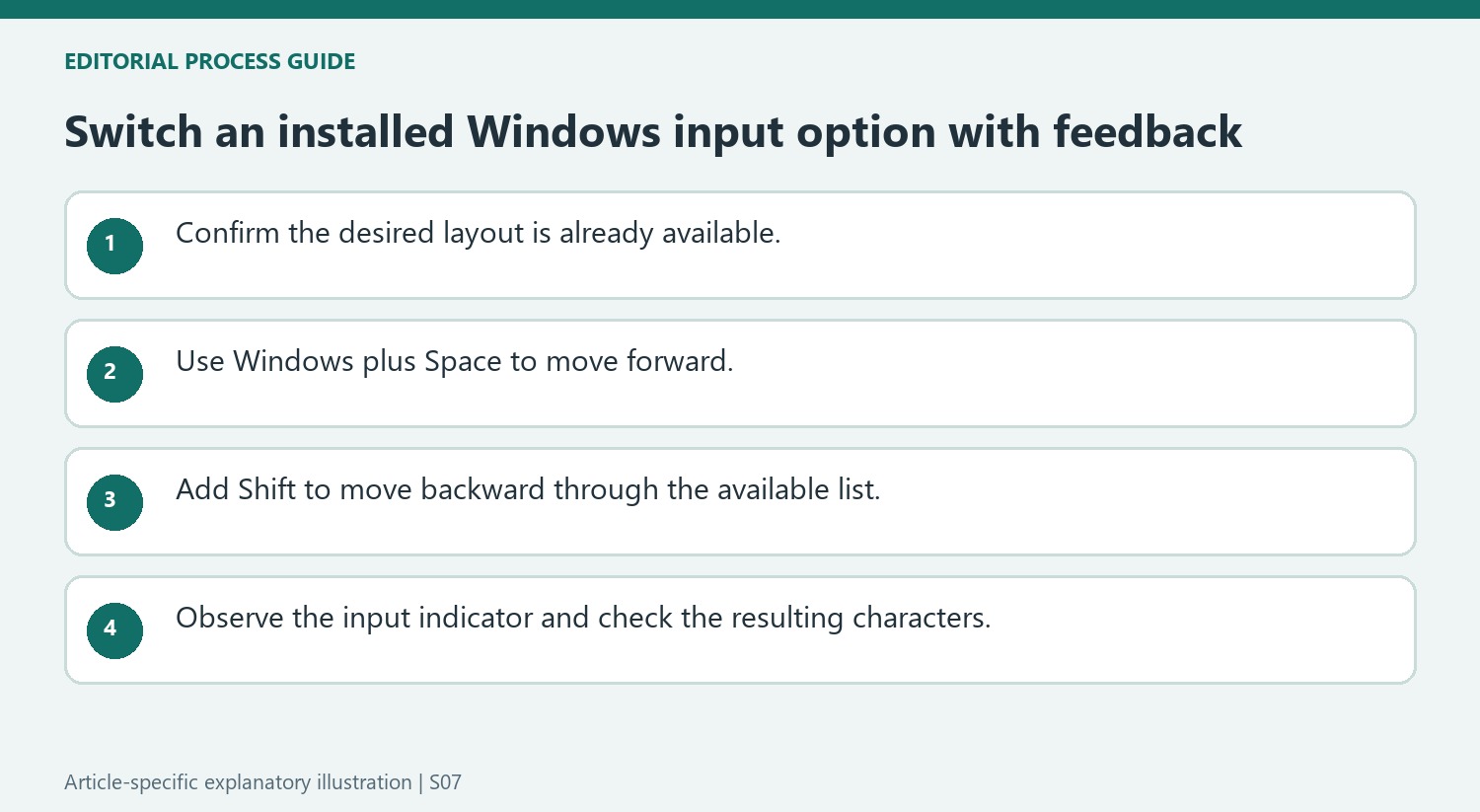
Microsoft lists Windows-plus-Space for moving forward through input languages and keyboard layouts, and Windows-plus-Shift-plus-Space for moving backward. The reverse direction becomes useful when several options are installed and the intended one has just been passed. Windows-plus-Control-plus-Space provides a route to the previously selected input option. These are selection commands, so their usefulness depends on what is already installed and available. Watch the input indicator while trying them rather than assuming the last key combination produced the desired layout. A brief check of ordinary characters in a safe text field can confirm the result before continuing an important document or entering information at sign-in.
Keep the target application and keyboard focus in mind
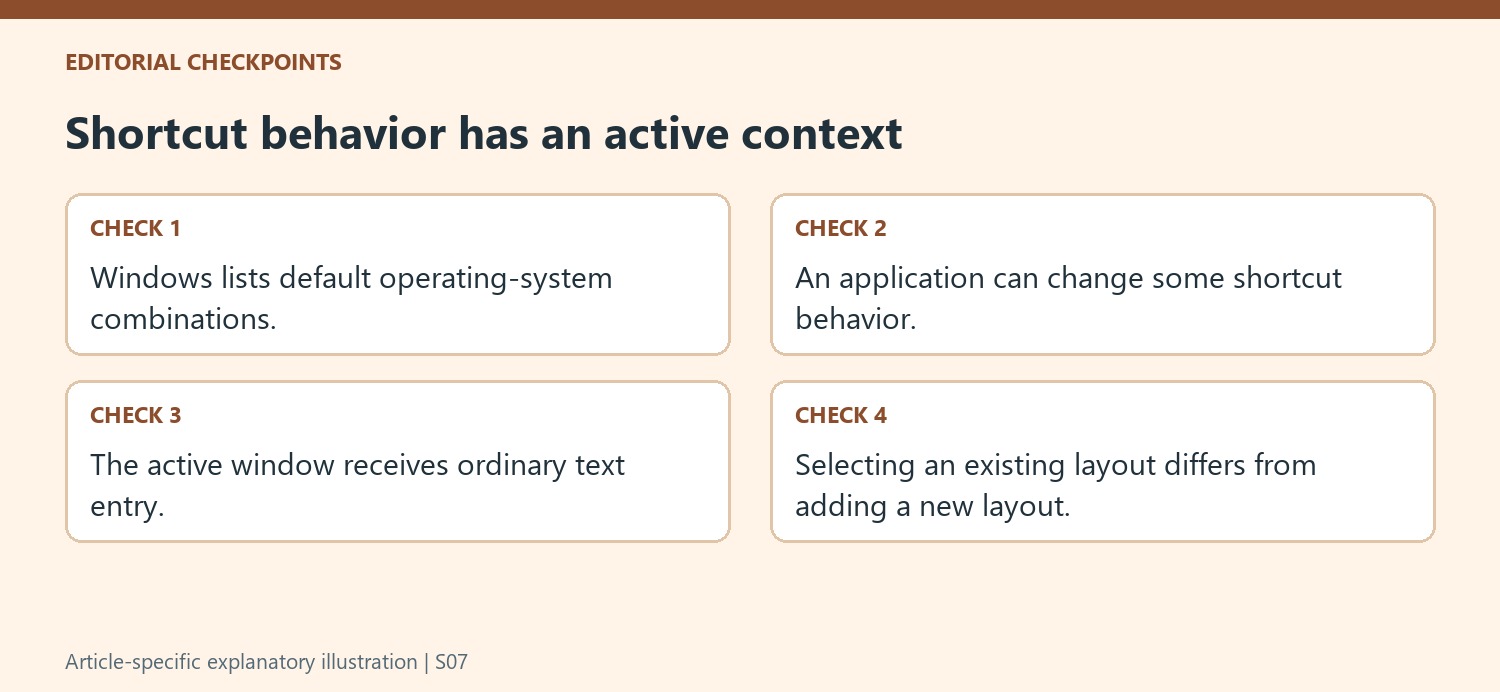
The shortcut guide notes that applications can change the behavior of some key combinations. That qualification matters when a command works on the desktop but behaves differently inside a particular program. Keyboard focus also determines where ordinary typing and many commands go. Confirm the active window and intended text field before testing an unfamiliar combination. The same guide includes navigation keys such as Tab and Shift-plus-Tab for moving through controls, which can help reach a visible selector without the mouse. Treat an input-layout command, a text-editing command, and a window-management command as distinct operations. They may all involve modifier keys, but they act on different parts of the Windows experience.
Learn a small set of commands with visible feedback
A few well-understood shortcuts are easier to use reliably than a long list memorized without checking results. Start with the layout switch, its reverse direction, and a way to open Settings when configuration needs review. Microsoft's Windows-plus-I shortcut provides that settings route, while the visible input indicator can confirm the selected layout. If a combination produces an unexpected result, stop and check the active application and installed choices instead of repeatedly pressing more modifiers. The guide describes default Windows behavior, with feature-specific and application-specific qualifications. An application-specific help page can clarify a command that differs from the documented default. Using that context alongside visible feedback makes keyboard navigation predictable while preserving the distinction between choosing an existing input option and changing the underlying language configuration.
References
- Keyboard shortcuts in Windows. support.microsoft.com.
Microsoft's keyboard shortcut reference covers combinations for navigation, editing and system controls. Windows plus Spacebar switches input language and keyboard layout, while other combinations can move through related input choices. A shortcut changes the active software layout; it cannot alter the labels printed on a physical keyboard.


Leave a Comment
Comments (0)