
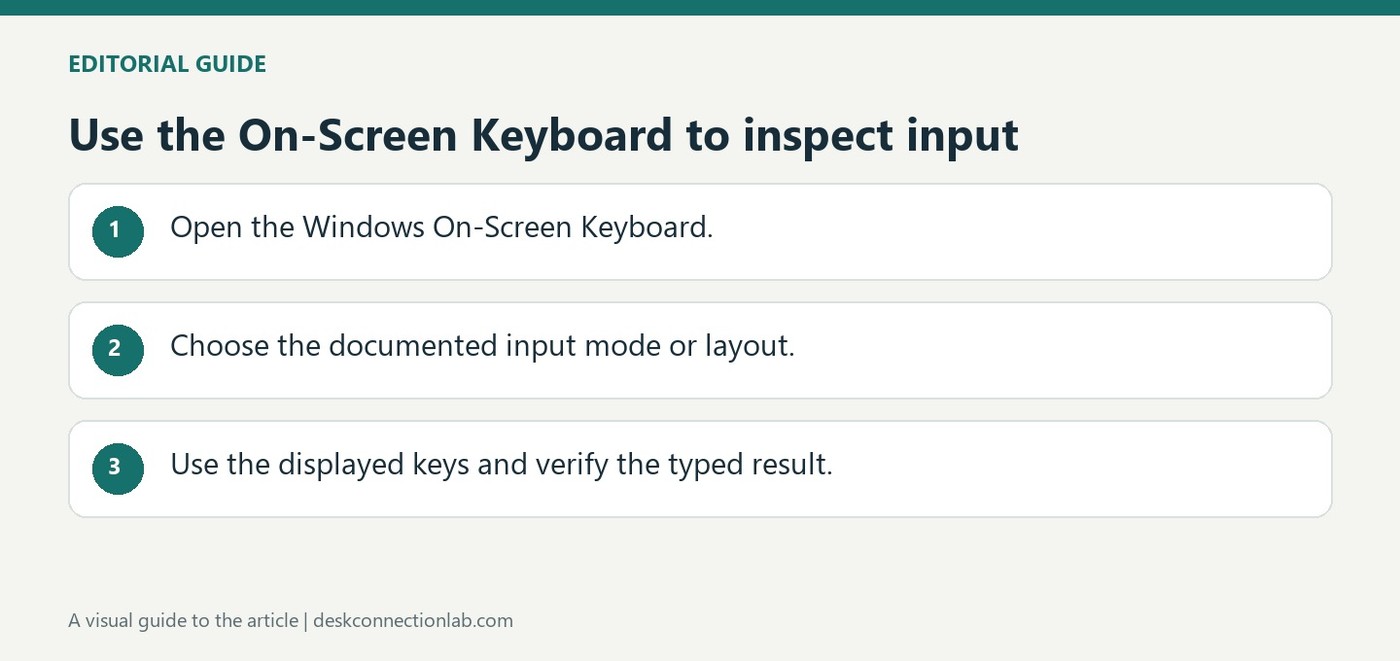
Use the On-Screen Keyboard to inspect input
Open a keyboard without physical keys
Windows includes an On-Screen Keyboard under Accessibility, Keyboard. Microsoft explains that it can be used with a mouse or another pointing device and does not require a touchscreen. It can also be opened through the Accessibility control at sign-in, providing another way to enter text when a physical keyboard is unavailable.
Distinguish its two layouts
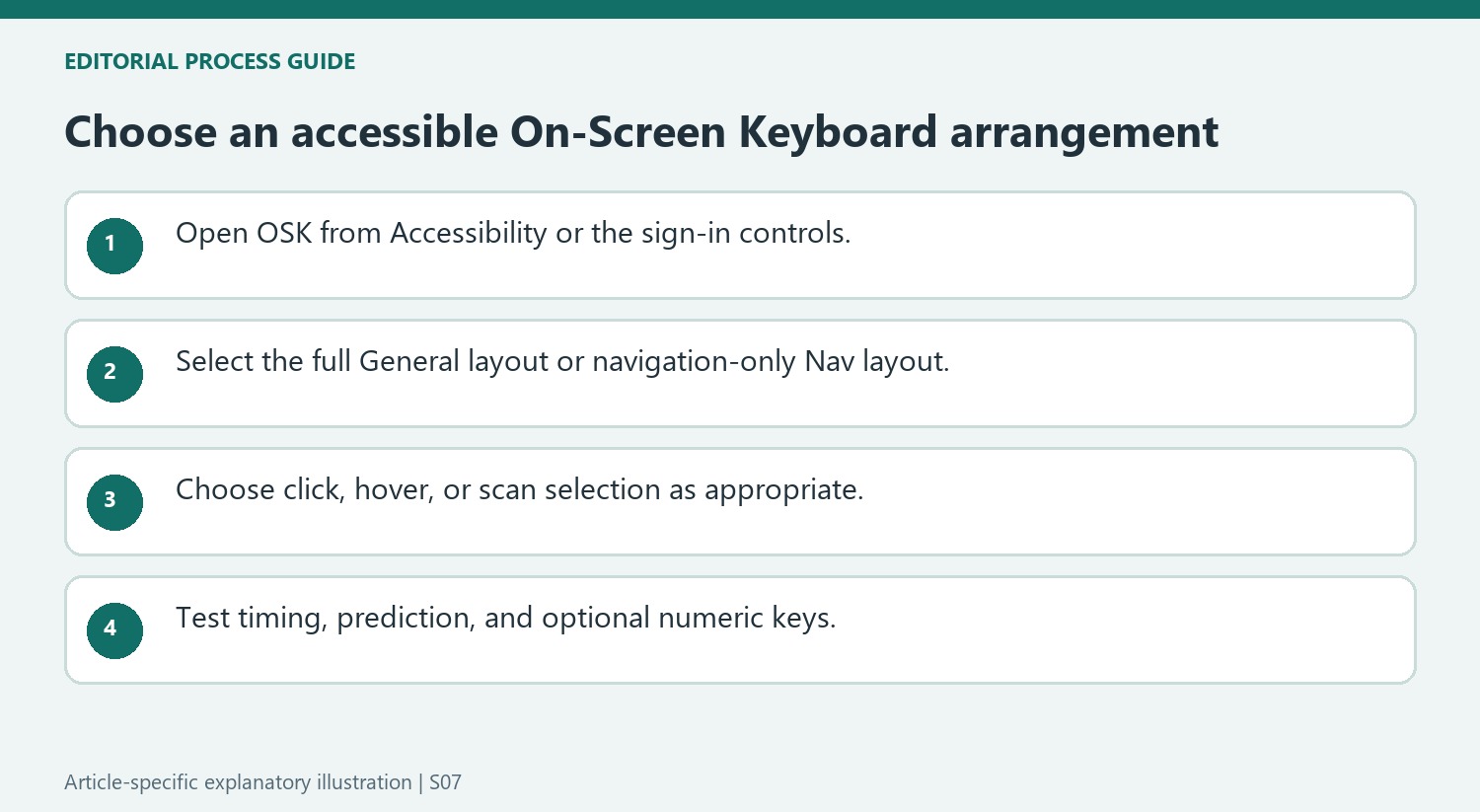
The tool has a full General layout and a simplified Nav layout containing navigation keys. It remembers the selected layout when reopened, so switching back requires its General or Nav control. Options also support clicking, hovering and scanning to enter characters. These accessibility choices are different from selecting a language layout, but the visual keyboard can help check what Windows currently expects from input.
Choose an interaction mode suited to the user
The OSK Options panel supports clicking keys, hovering for a configured delay or scanning through groups with a chosen input control. Adjust the hover duration or scanning speed to make selection practical. The source also describes optional click sounds and a numeric keypad. These choices determine how someone enters characters through the visual keyboard; they are not the same setting as the document's proofing language or the physical keyboard's regional layout. Test the chosen method in a simple text field first.
Distinguish the OSK from the touch keyboard
Microsoft identifies the touchscreen-oriented touch keyboard separately from the accessibility OSK. Do not assume that one appearing or disappearing explains the other tool's behavior. The OSK remains available until closed, and its General or Nav choice persists across reopening. If only navigation keys appear, use its own layout control rather than reinstalling the keyboard. Text prediction also has language requirements in the documented workflow. Check the current language support and selected options when a predicted-word feature is missing, while keeping a usable method of entering text available during troubleshooting.
Choose General or Nav according to the immediate task
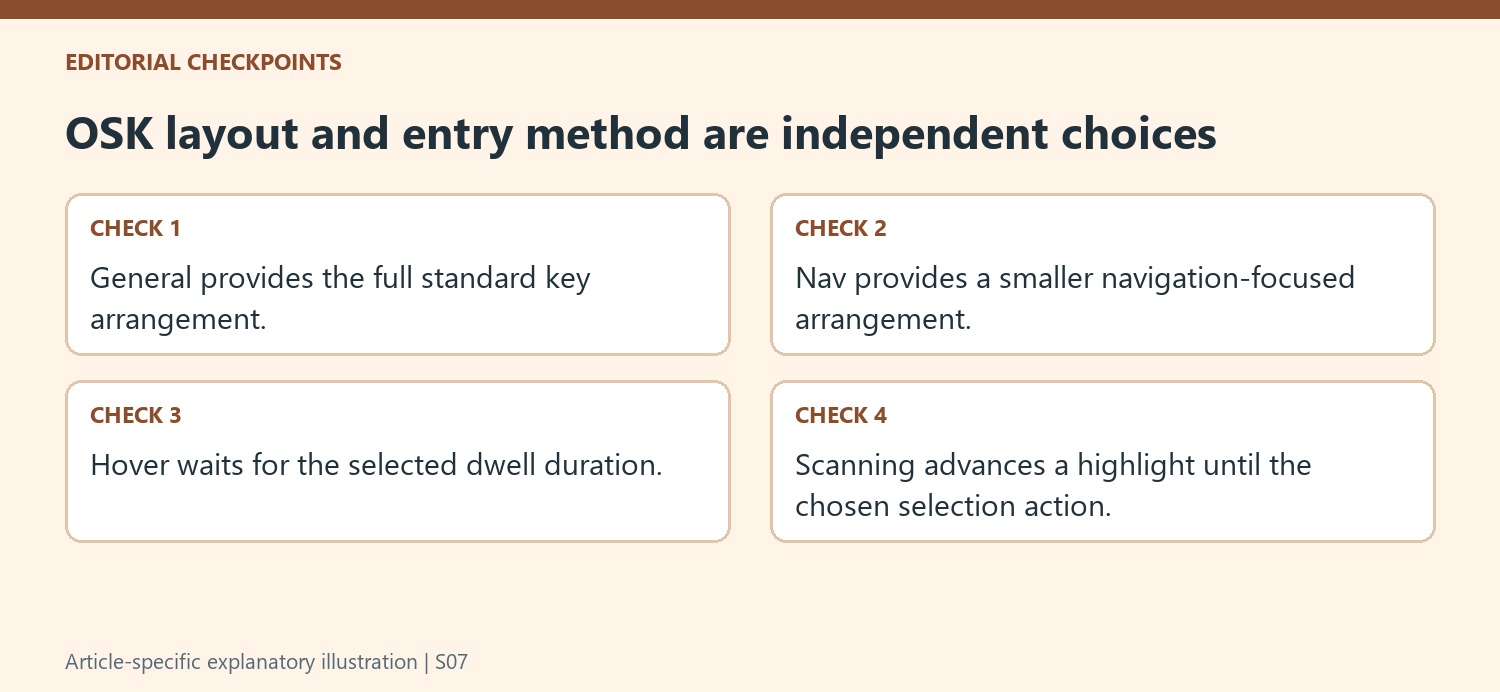
Microsoft describes two On-Screen Keyboard layouts: General for the full standard keyboard and Nav for a smaller selection of navigation keys. A user entering text needs a different set of controls from someone moving through buttons and fields. The OSK remembers the last selected layout, including a choice made at sign-in, so closing and reopening it does not necessarily restore the full arrangement. If letters appear to be missing, check whether Nav is active before treating the tool as incomplete. Use the General or Nav control to change it deliberately. This makes the retained layout a useful preference rather than an unexpected obstacle at the next session.
Match the selection method to the available input
The OSK can accept clicks, timed hovering, or a scanning method, and it does not require a touchscreen. These alternatives address different ways of selecting a visible key. Hover mode waits for the chosen duration while a pointer rests on a key; scan mode moves a highlight and uses a supported selection action. Choose the timing and trigger that fit the available pointing device, keyboard key, or switch input. Test the method in a simple field before relying on it for a longer entry. A slower or faster delay is a preference to adjust, not evidence that the underlying physical keyboard layout has changed.
Use prediction and the numeric pad as optional aids
The Options control can add a numeric keypad, key sounds, and text prediction, with prediction limited to the languages listed in Microsoft's guidance. Suggested words and automatic spaces can reduce the number of selections needed, but they remain separate from the basic method of choosing individual keys. The accessibility OSK is also distinct from the touch keyboard that can appear on a touchscreen in tablet mode. Identify which tool is open when following settings instructions. The documented sign-in Accessibility route gives another way to open the OSK when needed before reaching the desktop. Together, those details make it a flexible input tool whose layout and selection behavior should be checked explicitly rather than assumed from its last use.
References
- Use the On-Screen Keyboard (OSK) to type. support.microsoft.com.
Windows includes an On-Screen Keyboard under Accessibility, Keyboard. Microsoft explains that it can be used with a mouse or another pointing device and does not require a touchscreen. It can also be opened through the Accessibility control at sign-in, providing another way to enter text when a physical keyboard is unavailable.


Leave a Comment
Comments (0)