
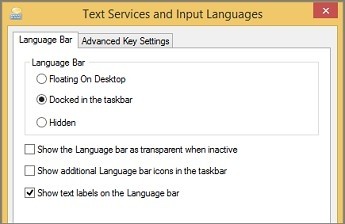
Switch active layouts with the language controls
Enable more than one layout first
Microsoft's Language bar guide explains that switching input languages selects a different keyboard layout. Once the desired languages and layouts are enabled, place the cursor in the document and choose the language indicator near the clock. The guide also documents Alt plus Shift as a keyboard shortcut for switching layouts.
Check why the indicator is absent
A language indicator may not appear when only one layout is configured or when the relevant control is hidden. If several layouts belong to the same language, choose the correct layout as well as the language name. For occasional accented symbols, inserting a character may be enough; changing the full input layout is most helpful when you intend to type regularly using a different key arrangement.
Choose the layout within the language when necessary
A language name alone may not identify the correct arrangement if several keyboards have been enabled for it. Use the layout selector as well as the language selector, and check the indicator after switching. Place the cursor in the document before typing the sample. The source recommends the Language bar for recurring work across different scripts or preferred native layouts; for a few occasional symbols, the application's character-insertion tools may be sufficient without changing the active input method.
Match language-bar visibility instructions to the Windows version
The article includes older Control Panel routes for showing a floating or taskbar-docked Language bar. Those labels should not be assumed to match every current Windows release. First confirm that two or more layouts are installed, because a missing selector can be expected when only one is available. Then inspect the relevant input and taskbar settings in the installed version. This sequence separates a hidden interface control from an absent keyboard configuration and avoids treating both conditions as a hardware failure.
Add the intended layout before trying to switch to it
The language controls operate on keyboard layouts that have already been enabled in Windows. They cannot select an unavailable layout simply because a document contains text in another language. Start by confirming the installed options and deciding whether a complete alternate typing layout is actually needed. Microsoft's guide notes that inserting a few symbols or accented characters can sometimes be handled without switching the whole layout. This is useful for occasional characters in otherwise familiar text. A full layout change makes more sense when sustained typing requires another key arrangement or writing system. Choose the scope of the change according to the work rather than adding several unfamiliar options at once.
Watch the active indicator while changing the typing arrangement
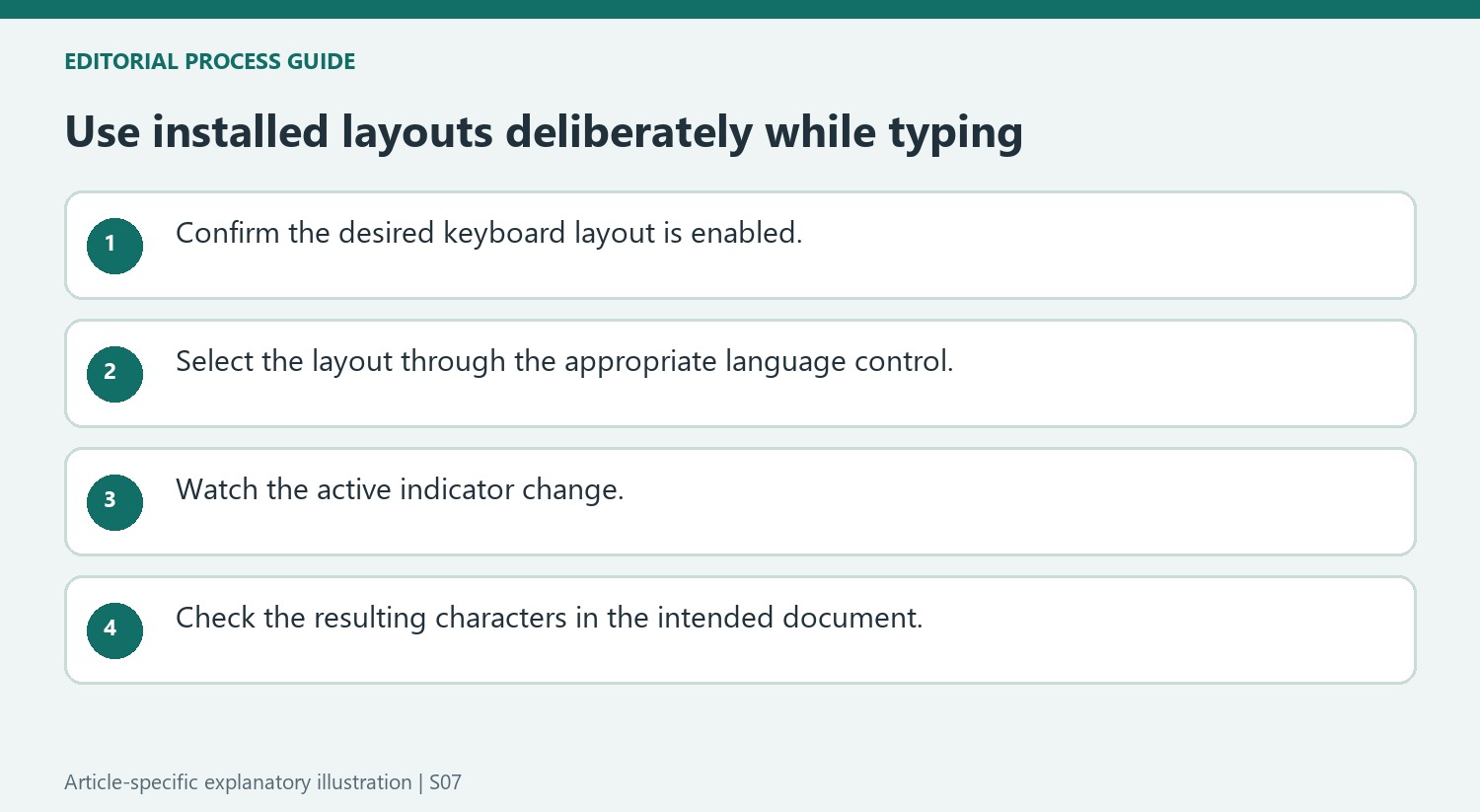
The Language bar's icon and layout name describe the currently selected input arrangement. The source gives Alt-plus-Shift as a switching shortcut in its documented context and describes choosing a layout through the visible language controls. Observe the indicator after switching, especially when several layouts belong to the same language. The language name by itself may not identify every difference in key mapping. Place the cursor in the intended document before typing and make a brief check of the resulting characters. Switching the input layout changes how keystrokes are interpreted; it does not translate text already written or automatically choose the document's proofing language.
Investigate a missing selector without duplicating the setup
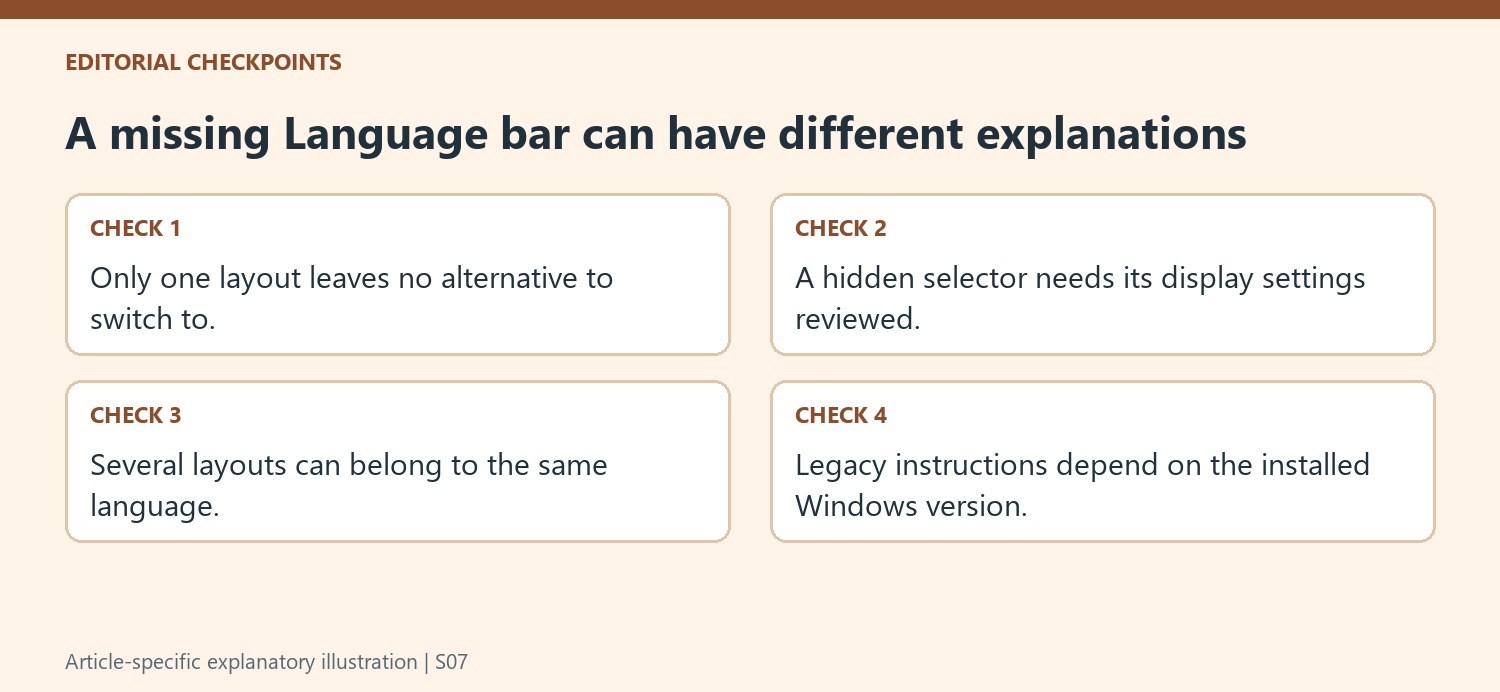
Microsoft identifies two common reasons the Language bar may be absent: it is hidden, or only one keyboard layout is enabled. Those lead to different actions. With one installed layout, another option must be configured before there is anything to switch between. With several installed layouts, the display settings for the relevant Windows version may need review. The article includes legacy Control Panel instructions, so use guidance appropriate to the machine rather than expecting every Windows release to show the same screens. Keep the installed choices and visible selection control easy to understand. That provides a predictable routine for multilingual typing and makes an unexpected key mapping easier to identify without repeatedly reconfiguring Office or reinstalling a physical keyboard.
References
- Switch between languages using the Language bar. support.microsoft.com.
Microsoft's Language bar guide explains that switching input languages selects a different keyboard layout. Once the desired languages and layouts are enabled, place the cursor in the document and choose the language indicator near the clock. The guide also documents Alt plus Shift as a keyboard shortcut for switching layouts.


Leave a Comment
Comments (0)