
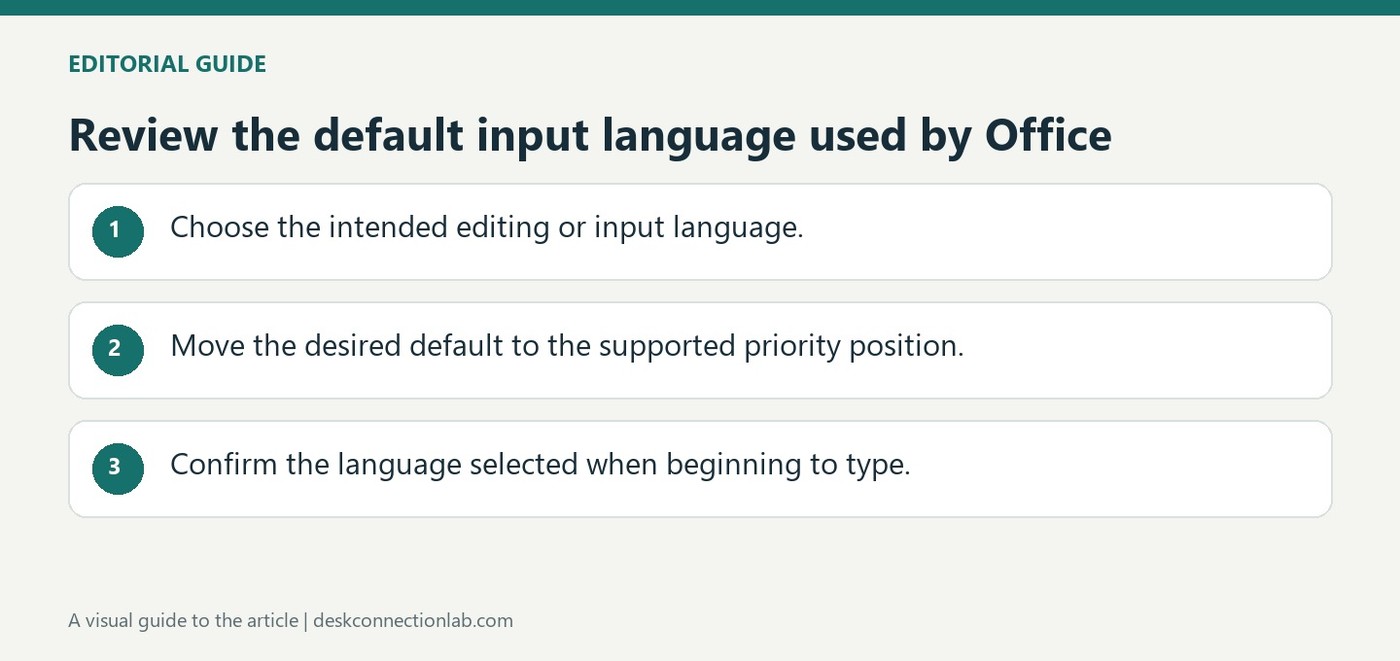
Review the default input language used by Office
Understand the Windows connection
Microsoft explains that Office uses the default Windows input language when determining certain default language behavior. That does not mean every multilingual Office task requires changing the entire operating system. Editing language, proofing language and interface language are separate choices, and the appropriate adjustment depends on what is actually wrong.
Add the keyboard you need
The guide directs users to Windows Settings, Time and language, Language and region. Select a preferred language, open its language options and add the required keyboard. This is useful when an external keyboard's printed symbols do not match the active layout. Confirm the intended layout in the application before making broader language changes that affect menus or other Windows behavior.
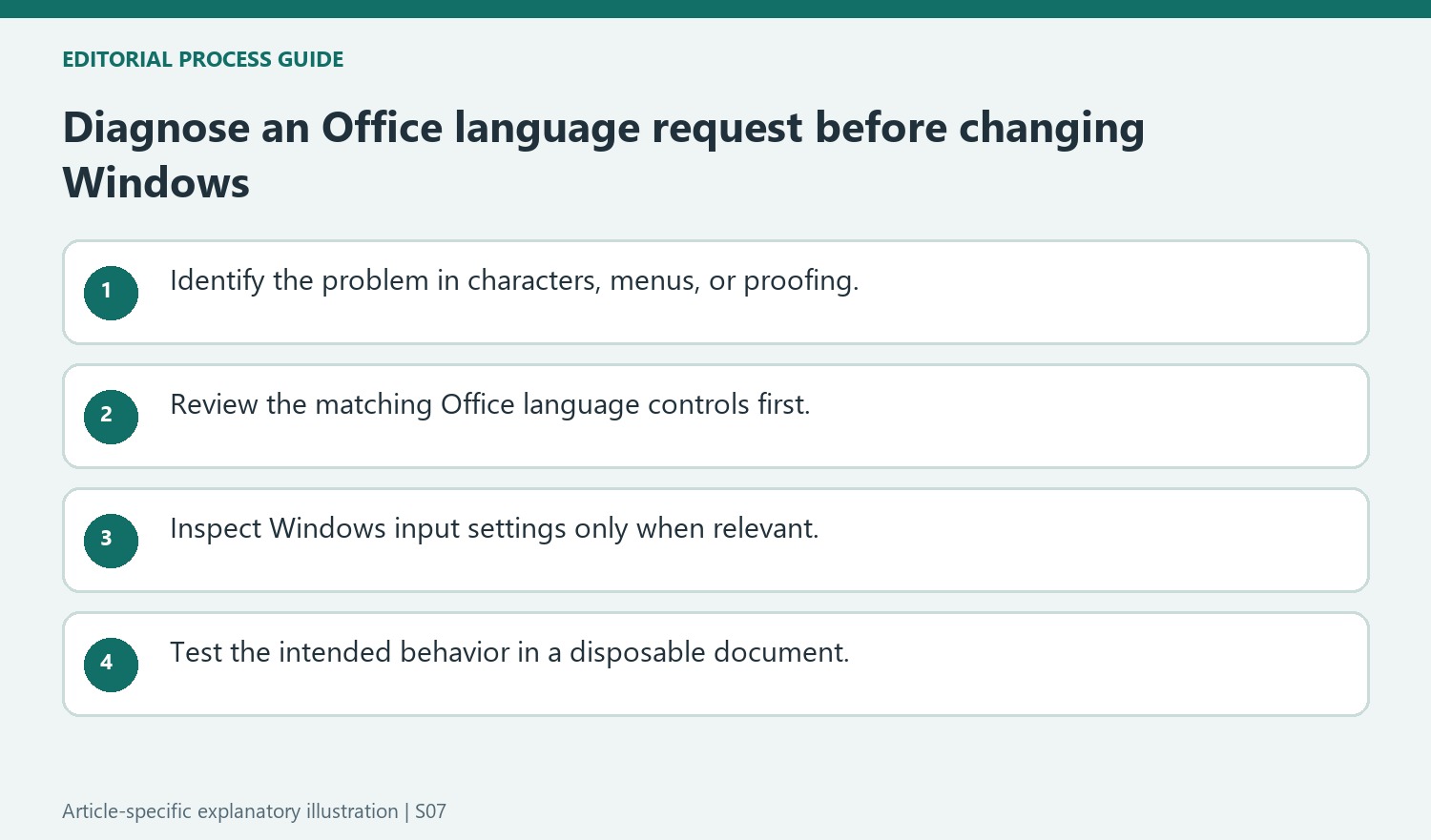
Check Office-specific language needs before changing Windows
Microsoft explicitly says that multilingual Office work does not usually require changing the Windows input language. Spelling and grammar checks, display text and the keyboard arrangement can be configured for different purposes. If the problem is a document marked with the wrong proofing language, changing the entire system may introduce unrelated differences without addressing that mark. Identify the application and behavior first, then use the relevant Office language controls when they meet the need.
Inspect the installed keyboard rather than only the language label
In Language and region, open the options for the selected preferred language and review its Keyboards section. The source directs users to add the required keyboard there. A language can have more than one physical key arrangement, so check the specific layout against the keyboard on the desk. Test a few characters whose positions differ before changing wider defaults. Keep the distinction between the desired typing layout and a permanent Office installation-language change clear, since Microsoft documents those as different choices with different consequences.
Decide whether the problem belongs to input or proofing
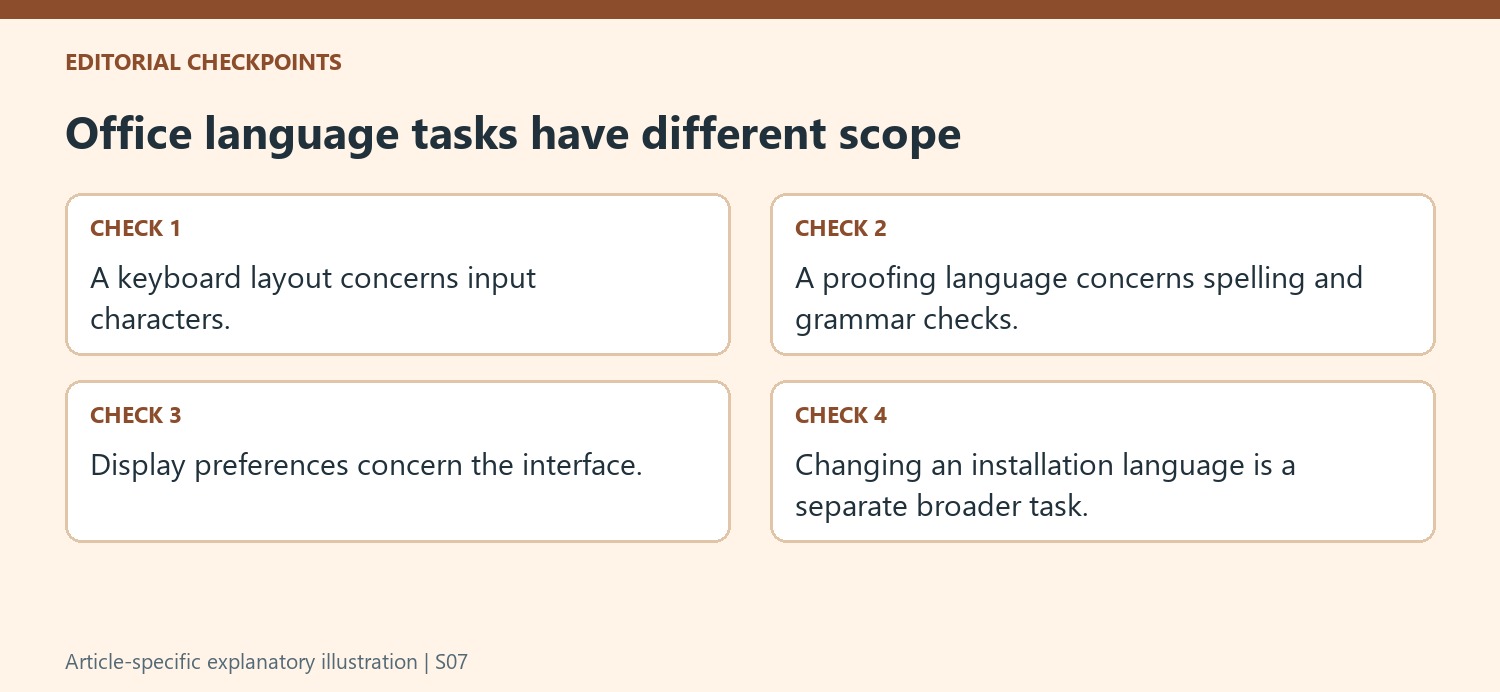
Microsoft explains that Office uses the Windows default input language as part of determining its default language, but it also stresses that most multilingual Office tasks do not require changing Windows input settings. A document with spelling suggestions in the wrong language may need its proofing language reviewed. A request for different menus concerns Office's display configuration. A keyboard producing unexpected characters points toward the input layout. These are different goals, even when all are described casually as changing the language. Identify the visible problem first so a local document or Office preference can be adjusted without unnecessarily changing how the whole computer interprets keyboard input.
Check the existing Windows language arrangement before adding another
The documented Windows route opens Time and language, then Language and region, with Language options leading to the installed keyboards. That gives a place to inspect what is already present before choosing Add a keyboard. Adding another option is not the same as selecting it for immediate use, and a list of installed languages does not alone identify the active layout in a document. Review the current choices and the actual typing result. If the desired arrangement is already installed, the task may be selecting the correct option rather than downloading or configuring a new one. This helps keep the setup understandable for anyone who shares or maintains the computer.
Keep a permanent Office installation change as a separate decision
The support article directs Microsoft 365 Personal or Family users and one-time Office purchasers to separate guidance when they want to change the language of the installation permanently. That is a broader decision than typing a passage in another language or checking its spelling. Read the appropriate Office language guidance before treating a Windows input change as the complete solution. After any adjustment, test the specific behavior that motivated it: type the intended characters, inspect the relevant menus, or check the proofing language in the document. A quick test in a disposable document can reveal the result without changing an important file. Confirming those results separately makes it clear what was fixed and avoids assuming that one language control governs every part of the Office experience.
References
- Change the default input language for Windows. support.microsoft.com.
Microsoft explains that Office uses the default Windows input language when determining certain default language behavior. That does not mean every multilingual Office task requires changing the entire operating system. Editing language, proofing language and interface language are separate choices, and the appropriate adjustment depends on what is actually wrong.


Leave a Comment
Comments (0)