
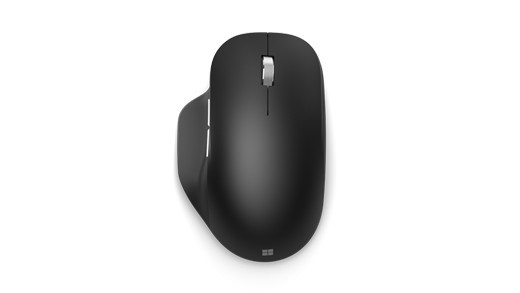
Switch supported ergonomic mice between PCs
Use the mouse's separate device slots
Microsoft Bluetooth Ergonomic Mouse supports pairing with up to three PCs and requires Bluetooth 4.0 or later. Turn it on, hold the pairing button if the light does not flash, and select it in Windows Bluetooth settings. Pressing the pairing button changes the selected device slot for another computer's setup.
Choose manual switching or Smart switch
After the computers are paired, the button can switch manually between them. Microsoft's Smart switch feature instead allows cursor movement between configured screens, but requires Microsoft Mouse and Keyboard Center on each PC. That software requirement and the mouse's explicit multi-device support are central to the feature; ordinary Bluetooth pairing does not grant every mouse seamless switching between unrelated computers.
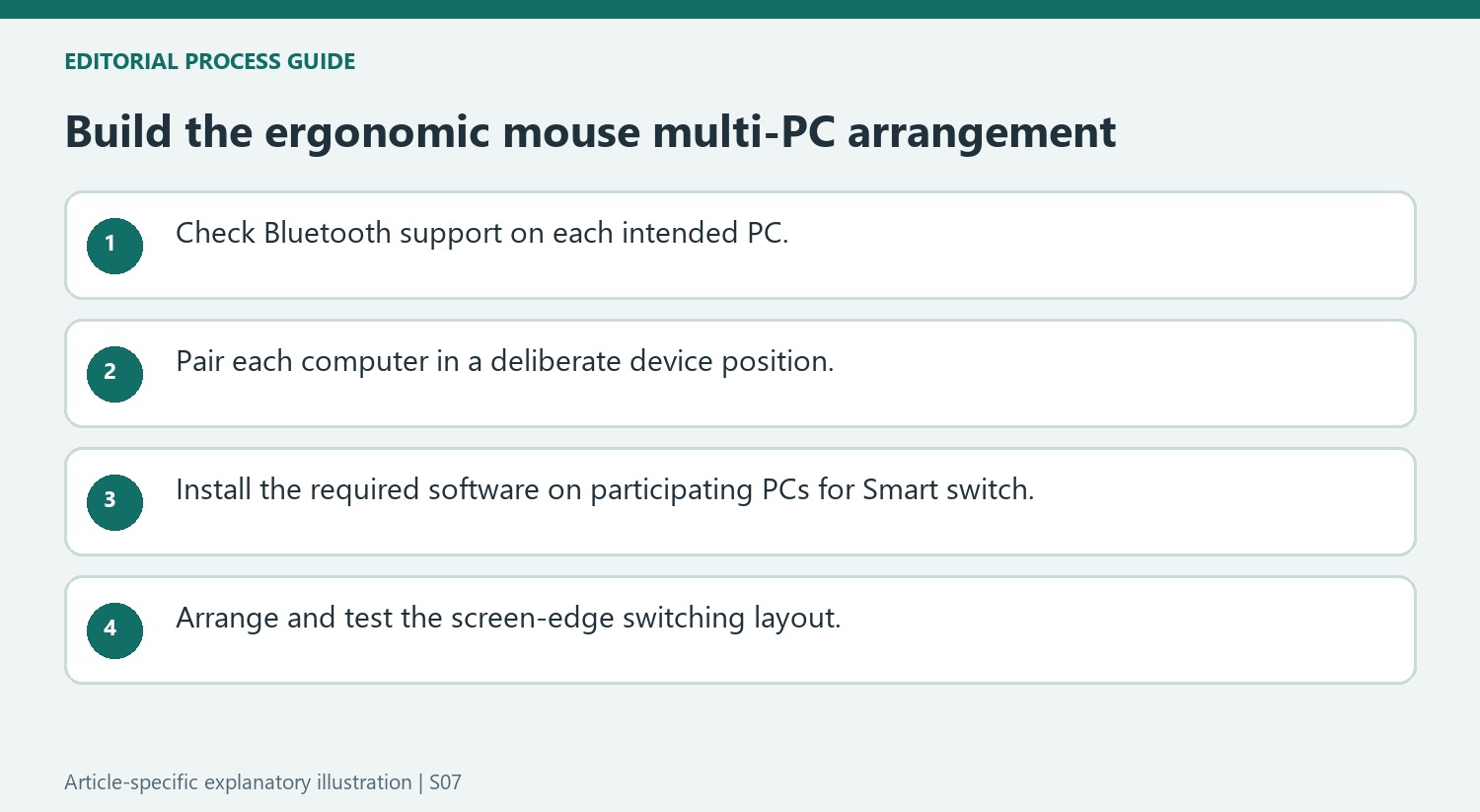
Map the Smart switch layout to the actual computers
Microsoft Mouse and Keyboard Center lists the paired devices in their pairing order and provides the Smart switch arrangement controls. Configure that arrangement to match the computers' physical screen positions. Moving to an edge then has a predictable destination instead of unexpectedly changing the active machine. Verify that every participating PC is paired and has the required software installed. A mouse supporting three slots does not remove those setup requirements or establish that any unconfigured computer beside it can receive input.
Check power and customization for this specific model
This ergonomic model uses two AAA batteries, which differs from the single-AA Microsoft Bluetooth Mouse described in other guidance. Check its battery level in Windows and turn the bottom power switch off when it is not needed. The source also identifies customizable thumb buttons and a software requirement for full configuration. If manual switching works but the automatic screen-edge transfer does not, investigate Smart switch and its layout before repeating Bluetooth pairing. Recording which slot, computer and switching method failed makes the diagnosis more useful than a general report that the mouse cannot connect.
Build the three-computer arrangement one association at a time
The Microsoft Bluetooth Ergonomic Mouse can remember up to three PCs, but each needs its own completed pairing. The underside pairing control selects another device position before the next association is created. Decide which machine belongs to each position and confirm its connection before moving on. This avoids treating nearby computers as interchangeable targets when Swift Pair notifications appear. Microsoft lists Bluetooth 4.0 or later and identifies Windows 10 or Windows 11 as the intended environment. Check that requirement for every machine in the planned arrangement. Remembering three PCs is a feature of the mouse, not a guarantee that every older computer already has the necessary wireless support.
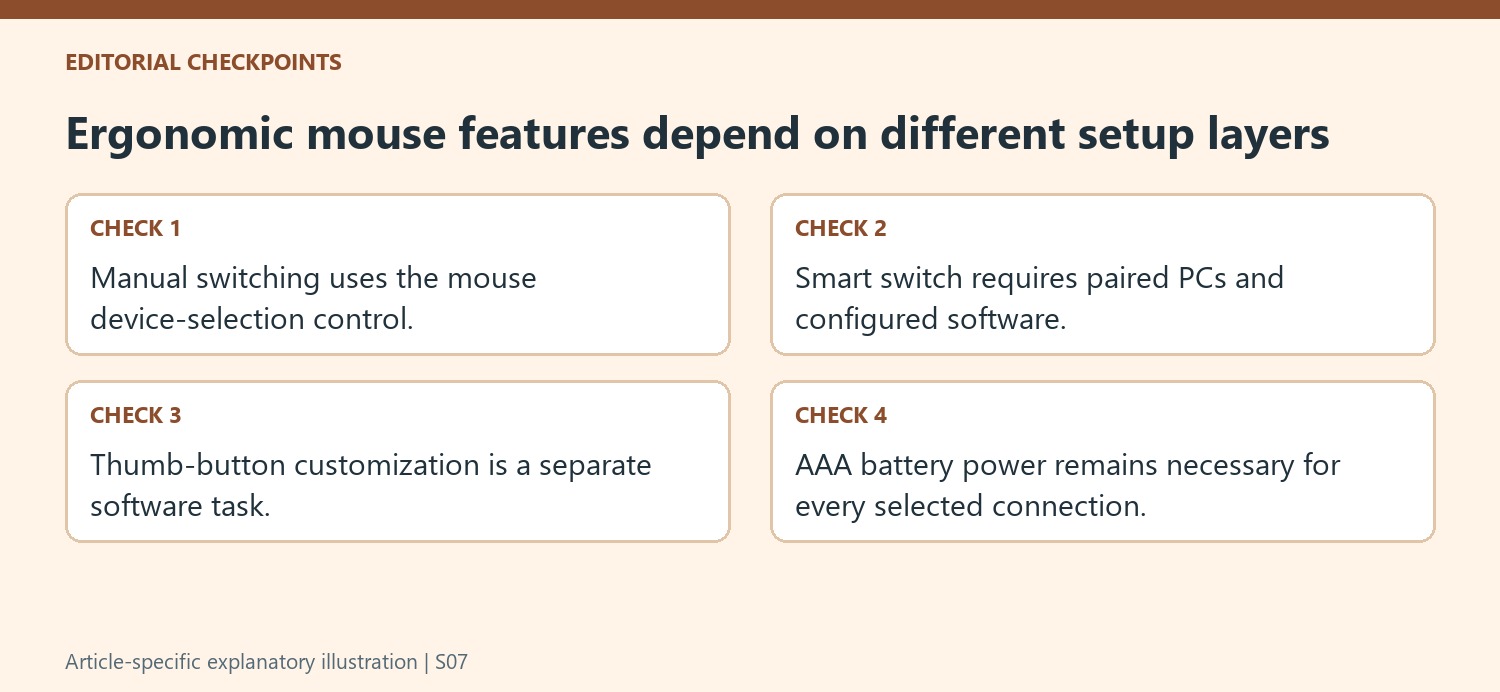
Separate manual switching from Smart switch
Pressing the mouse's pairing control can switch manually between paired PCs. Smart switch adds a different interaction: moving the pointer to an edge transfers control to another configured screen. Microsoft requires pairing first and Mouse and Keyboard Center on each participating PC for that feature. It is therefore not an automatic consequence of simply connecting the mouse to two computers. The layout in the software should correspond to where the screens actually sit. Test an ordinary edge crossing and return movement before relying on it during work. A clear distinction between the manual selection and the configured screen-edge behavior makes unexpected switching easier to investigate.
Keep customization and power maintenance identifiable
The two thumb buttons support customization through the stated software, while Windows Mouse settings provide the usual behavior controls. These adjustments come after establishing a working connection and should be checked against the intended computer. The mouse's two AAA batteries and underside power switch introduce another independent consideration: power state can interrupt use regardless of the chosen button mapping or screen layout. Microsoft describes checking the reported battery level in Windows and switching off when the mouse is unused. If an otherwise working multi-PC arrangement stops responding, inspect the selected PC and the mouse's power before changing all the customization settings. This preserves the useful setup while directing attention toward the part that actually changed.
References
- Use Microsoft Bluetooth Ergonomic Mouse. support.microsoft.com.
Microsoft Bluetooth Ergonomic Mouse supports pairing with up to three PCs and requires Bluetooth 4.0 or later. Turn it on, hold the pairing button if the light does not flash, and select it in Windows Bluetooth settings. Pressing the pairing button changes the selected device slot for another computer's setup.


Leave a Comment
Comments (0)