
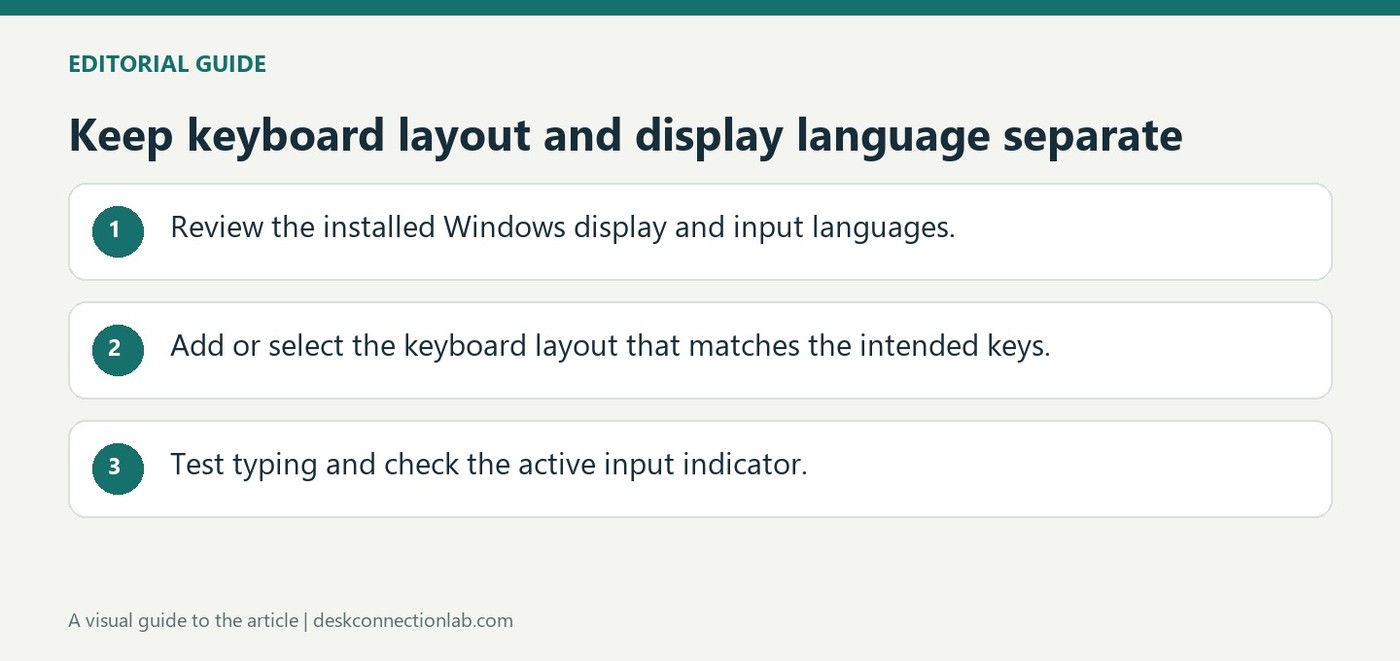
Keep keyboard layout and display language separate
Choose the setting that matches the problem
Windows language settings control several different things, including the interface language, installed language packs and keyboard layouts. Microsoft's guide explains that changing the keyboard layout does not change the Windows display language. If a physical keyboard produces unexpected punctuation or letters, inspect the active input layout before reinstalling the device.
Install and select the desired layout
Open Time and language, Language and region to review installed languages and their options. Add the required keyboard layout, then use the input selector to switch to it. A display-language change can also alter the default keyboard arrangement, which matters at sign-in. Check the input indicator before entering passwords so a layout mismatch is not mistaken for a faulty keyboard or an incorrect account credential.
Install language features only when they are needed
A language pack download requires an internet connection, and Microsoft recommends saving work before installation or a display-language change. Review optional speech and other language features instead of assuming they are all required for one keyboard layout. A single-language Windows license can restrict display-language choices without establishing that the physical keyboard is defective. Identify the actual requirement first: typing a different character arrangement is a different task from changing the language of Settings and File Explorer.
Verify input after a display-language change
The source warns that changing the Windows display language can also change the keyboard layout. Review the input indicator at the sign-in screen before entering credentials, and choose the expected layout if necessary. After signing in again, test ordinary text and punctuation in the relevant application. The preferred-language order can also influence supported Microsoft Store apps and websites. Record which setting was changed so a later language difference is investigated at the correct level instead of repeatedly replacing keyboard drivers or changing unrelated Office proofing preferences.
Choose the setting that matches the desired change
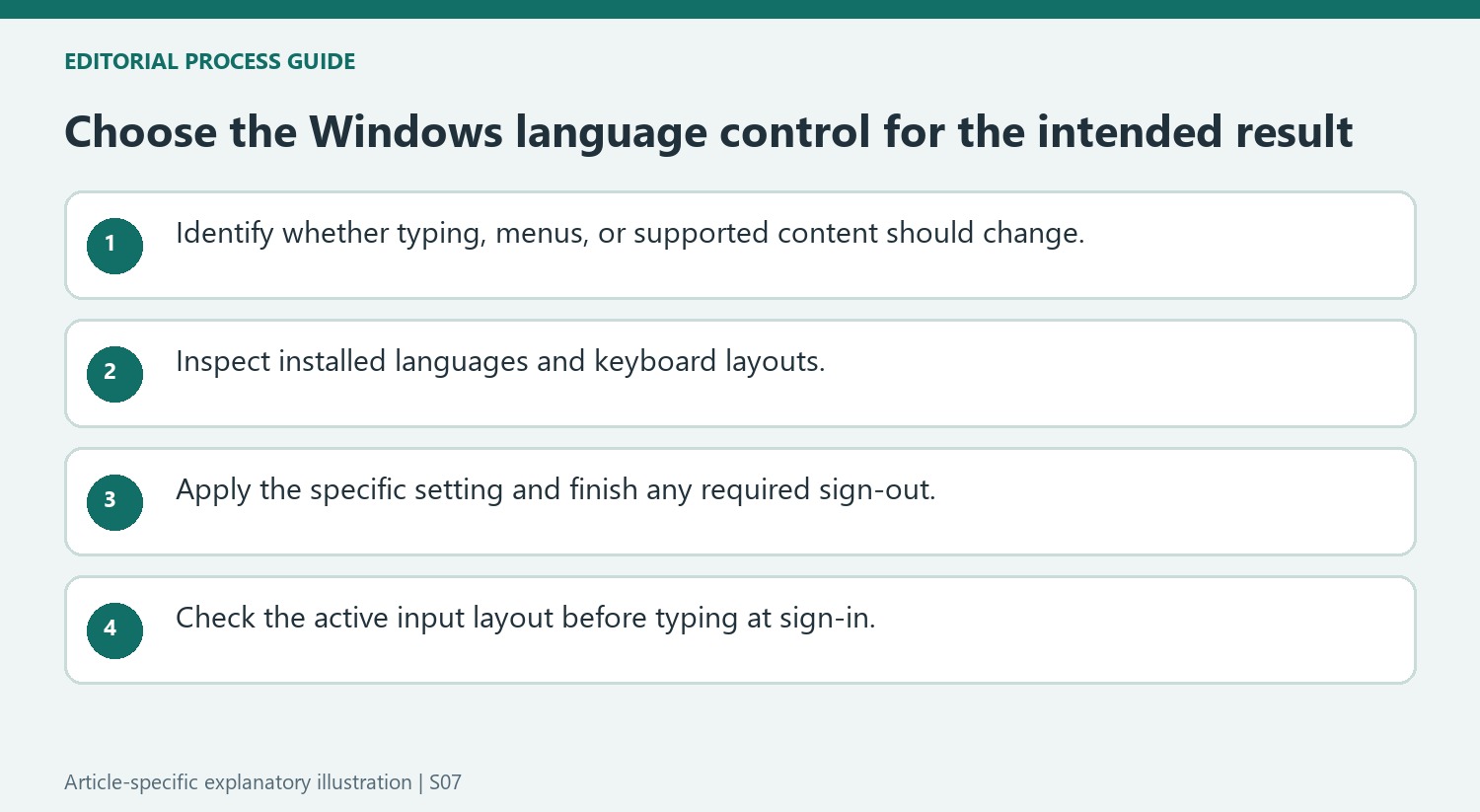
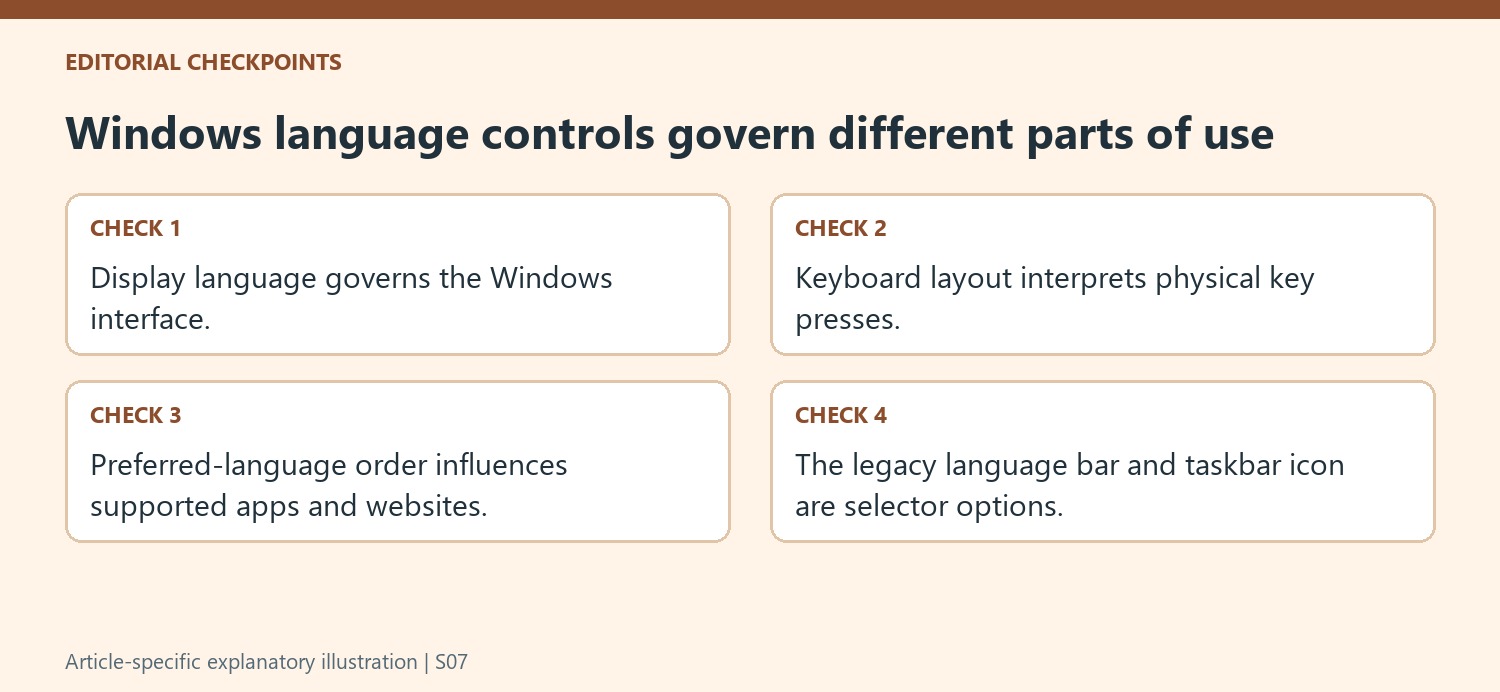
Windows separates the language of its interface from the keyboard layout used to interpret key presses. It also keeps an ordered language preference list for supported apps and websites. Someone who wants a different typing layout does not necessarily need a completely different Windows display language. Conversely, changing the interface language is more than selecting another layout from the taskbar. Microsoft's guide explains these controls separately, which is useful when a multilingual setup begins to behave unexpectedly. State the intended result first: different characters from the keyboard, different Windows menus, or a different preferred language for supported content. Then change the corresponding setting rather than adjusting the whole group at once.
Remember the sign-in consequences of a display-language change
The documented display-language procedure requires signing out and signing back in. Microsoft also notes that the keyboard layout may change to match, making the input indicator at the sign-in screen particularly relevant. A password typed under an unexpected layout can produce different characters even though the physical keyboard has not changed. Check the displayed layout before concluding that the credentials are incorrect. Save open work before signing out, and make sure the intended language has finished installing. A language download also needs an internet connection, so an incomplete installation is a different issue from a layout that is installed but not currently selected. These checks make the transition easier to follow.
Keep the installed layouts and their visible selector understandable
The taskbar input icon and Windows-plus-Space provide ways to move between installed layouts. If there is only one layout, cycling cannot reveal a second option that has never been added. Microsoft's guide also explains that a layout may sit under a language entry other than the one its name initially suggests, which matters when adding or removing it. The legacy desktop language bar is another display option, and enabling it can replace the taskbar input icon. A missing icon therefore has more than one possible explanation. Review the installed layouts and the selected display control before adding duplicates. Keep only the intended choices available so the active layout is easy to recognize during ordinary typing and at sign-in.
References
- Manage the language and keyboard/input layout settings in Windows. support.microsoft.com.
Windows language settings control several different things, including the interface language, installed language packs and keyboard layouts. Microsoft's guide explains that changing the keyboard layout does not change the Windows display language. If a physical keyboard produces unexpected punctuation or letters, inspect the active input layout before reinstalling the device.


Leave a Comment
Comments (0)