
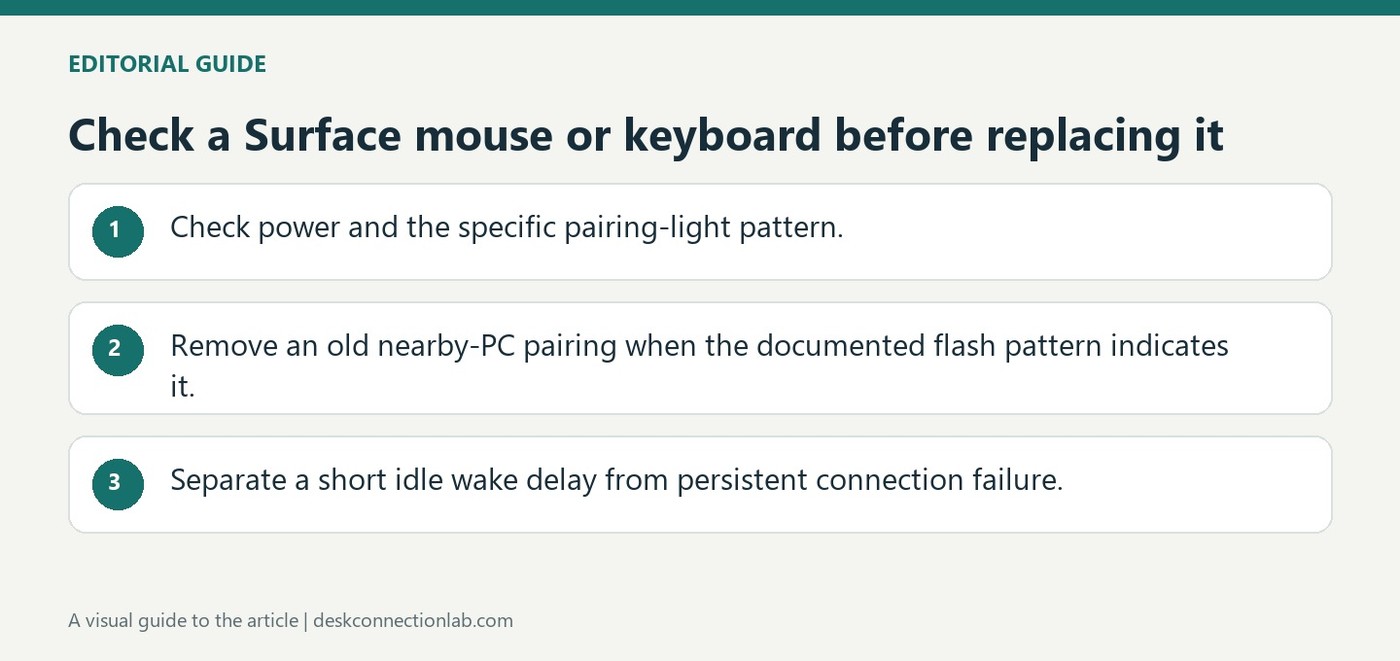
Check a Surface mouse or keyboard before replacing it
Confirm power and discoverability
Microsoft's troubleshooting guide starts with correctly positioned batteries and fresh replacements where necessary. Rechargeable devices should use their supplied charging cable. Hold the pairing button long enough to make the light blink; that indicator helps distinguish a powered but unpaired device from one that is not receiving power at all.
Test the connection in a simpler environment
Remove the accessory's existing Windows pairing and add it again, and temporarily turn off other Bluetooth accessories if interference is suspected. The guide also suggests testing the mouse or keyboard on another PC. These tests help determine whether the problem follows the accessory or remains with the original computer, which is more useful than repeatedly changing unrelated Windows typing or pointer settings.
Interpret a brief pairing flash before repeating setup
Microsoft says a pairing light that flashes three times and then stops can mean the mouse or keyboard is already paired to another nearby PC. The documented remedy is to remove it from that computer, then pair it with the intended one. That pattern differs from no light, which calls for checking batteries, and from the sustained discovery indication started by holding the pairing button. Record the observed light behavior before deciding that another driver or a stronger radio is needed, because the existing relationship can explain why the accessory does not follow the expected setup path.
Distinguish idle wake delay from persistent input failure
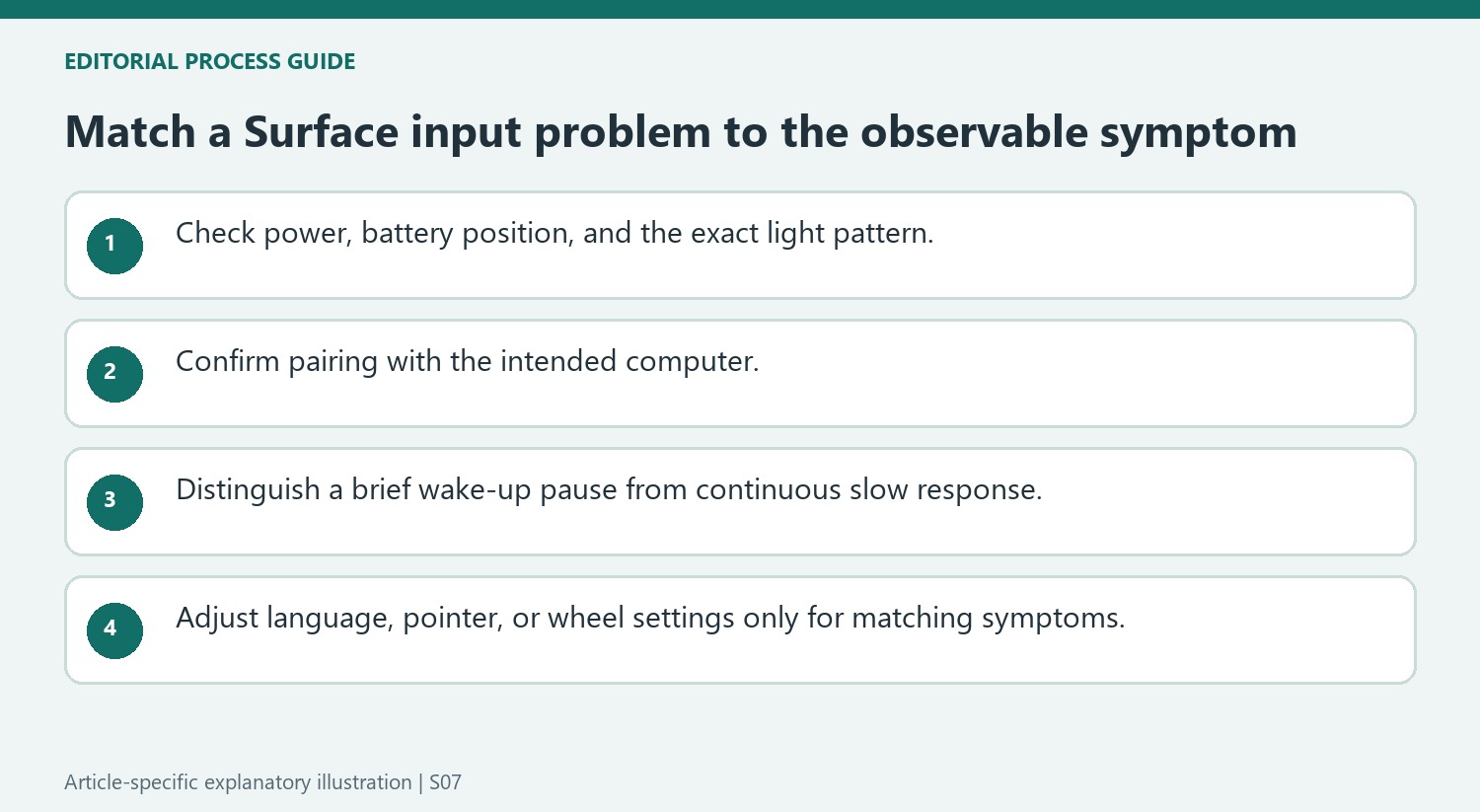
The guide explains that Bluetooth devices can enter hibernation after eight to ten minutes without activity, with a reconnection taking several seconds when use resumes. A short delay after inactivity is therefore a different symptom from continuing slow input or complete loss of connection. For persistent slowness, Microsoft suggests checking battery levels, closing open applications and restarting after updates. Pointer speed, scrolling and typing-language choices have separate settings. Use those controls for the behavior they affect rather than treating a sensitivity adjustment as a remedy for a mouse that has no power or is paired to another computer.
Use the light pattern to choose the next check
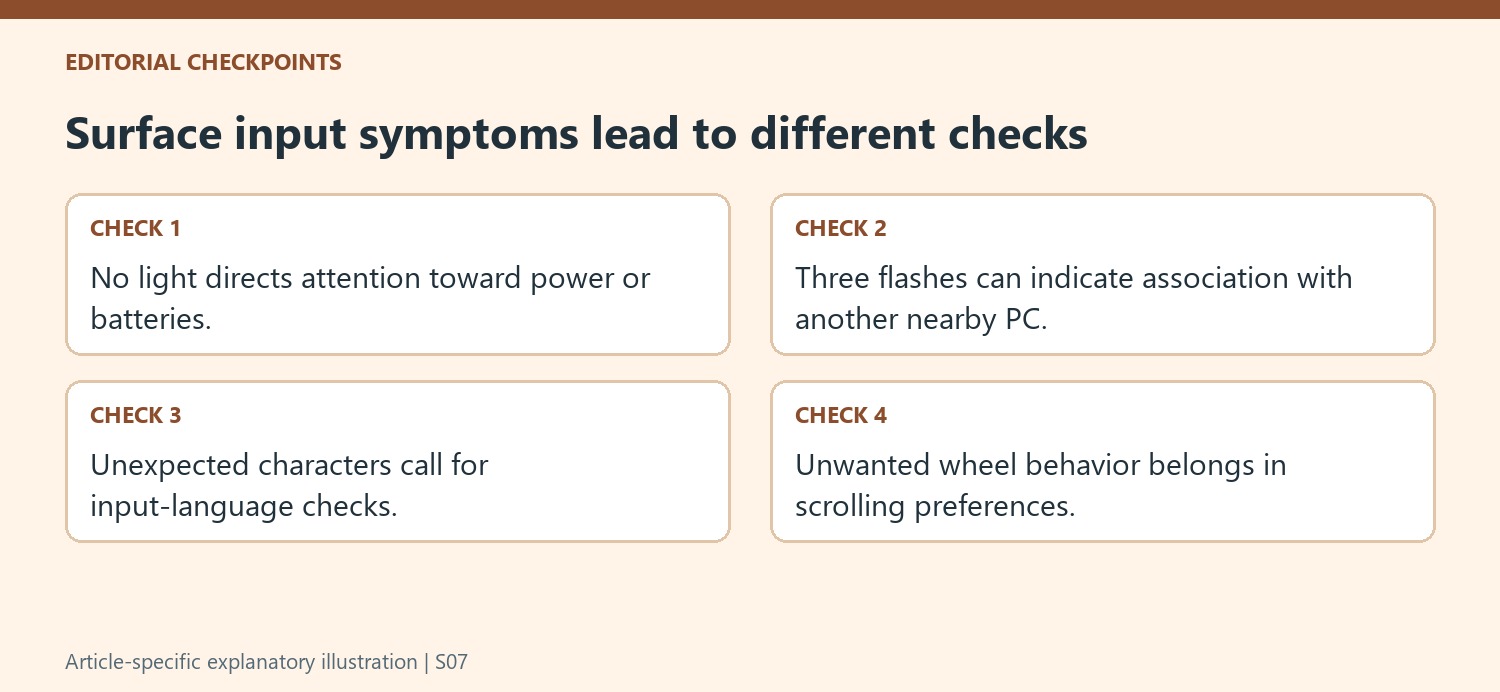
Microsoft's guidance gives different meanings to an unlit device, a discoverable flashing light, and a light that flashes three times before stopping. Those observations should not be collapsed into a single diagnosis of failed Bluetooth. An absent light leads back to battery position, battery replacement, or charging as appropriate. The three-flash pattern described in the article can mean the accessory is already associated with another nearby PC. In that case, the page directs the user to remove it from the other machine before pairing with the intended one. Observe the exact pattern and identify the model before selecting a remedy, rather than repeatedly starting the same unsuccessful pairing sequence.
Separate a wake-up pause from persistent poor response
The support page explains that Bluetooth accessories can enter a low-power state after inactivity, with a short delay while a mouse reconnects. That specific pause differs from a pointer that remains slow throughout active use. For continuing poor response, Microsoft suggests checking battery condition, closing open applications as a comparison, restarting the PC, and reviewing pointer settings where appropriate. These steps address several possible explanations without proving any one is universal. Note when the delay occurs and whether it clears after activity resumes. A clear description such as a brief first-movement pause or continuous slow input makes the next check more useful than describing every behavior as a broken mouse.
Choose settings according to what is actually wrong
Unexpected characters, unwanted scrolling behavior, and a failed wireless association involve different settings. The article points to language configuration for mismatched typing, Mouse settings for pointer and wheel preferences, and Bluetooth guidance for connection issues. Supported customization tools can change how buttons and keys behave after the device is connected. They are not substitutes for restoring power or completing pairing. If a comparison computer is available, a working test there can also redirect attention toward the original PC. Start with the symptom that can be observed, confirm power and connection, and only then adjust the relevant behavior. This keeps a preference problem from prompting an unnecessary replacement and a power problem from being hidden under unrelated customization changes.
References
- Troubleshoot problems with your Surface mouse or keyboard. support.microsoft.com.
Microsoft's troubleshooting guide starts with correctly positioned batteries and fresh replacements where necessary. Rechargeable devices should use their supplied charging cable. Hold the pairing button long enough to make the light blink; that indicator helps distinguish a powered but unpaired device from one that is not receiving power at all.


Leave a Comment
Comments (0)