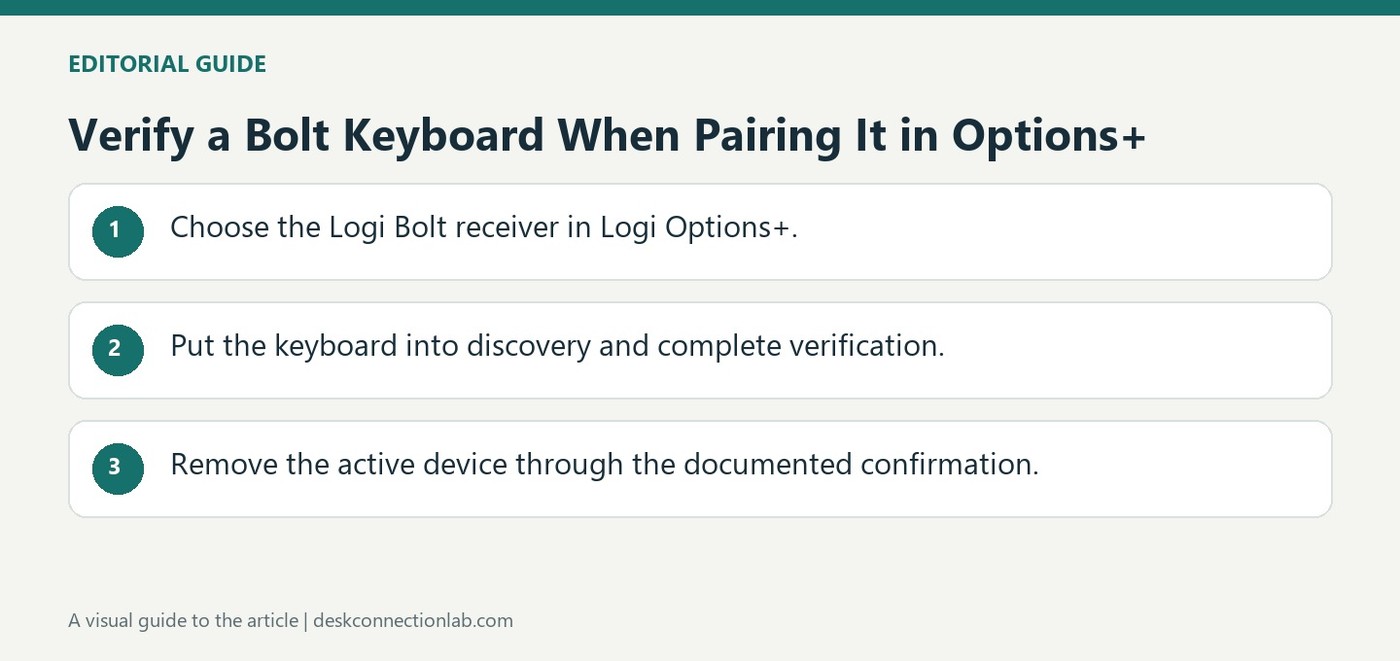
Install Logi Options+ before starting a new Bolt keyboard pairing. In the app, choose Add Device and select the Logi Bolt receiver connection. Hold the keyboard's connect button for three seconds, until its light flashes rapidly, then choose Connect beside the detected device. Discovery alone does not complete the process.
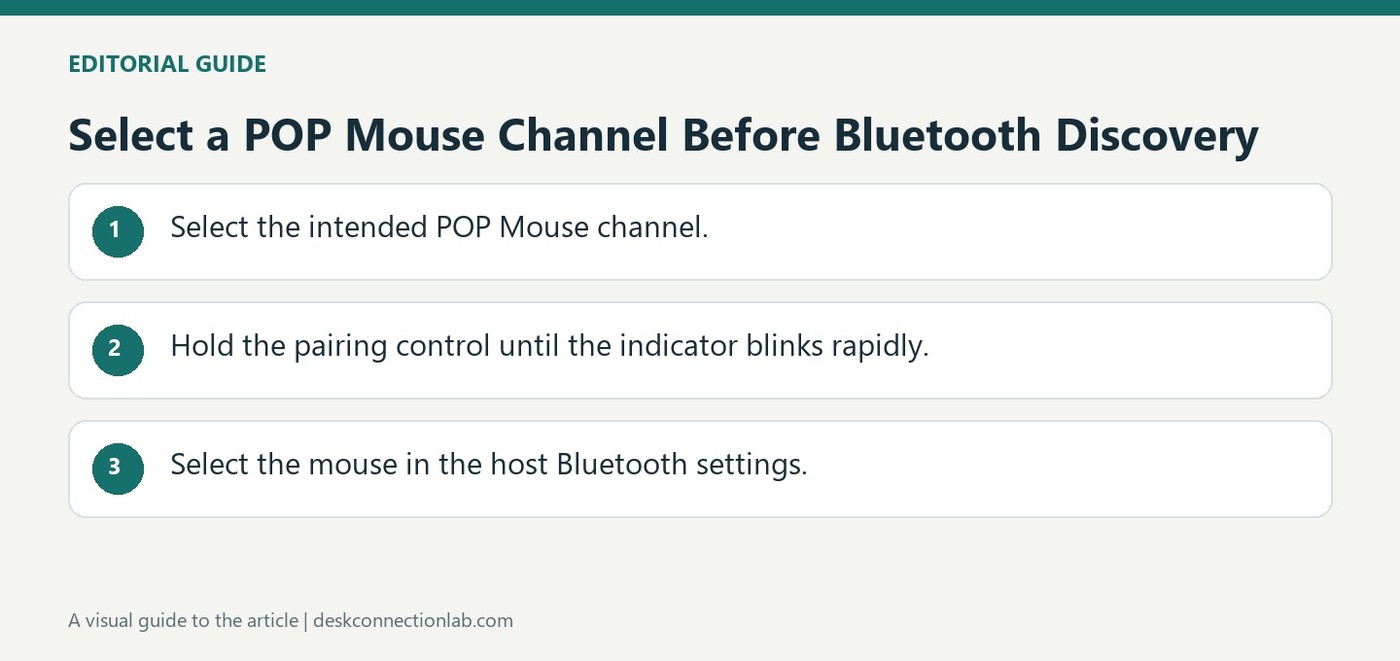
To connect a POP Mouse, turn it on and briefly press the button underneath to choose the desired channel. Then hold the button for three seconds until the white indicator flashes quickly, showing that Bluetooth discovery is active.
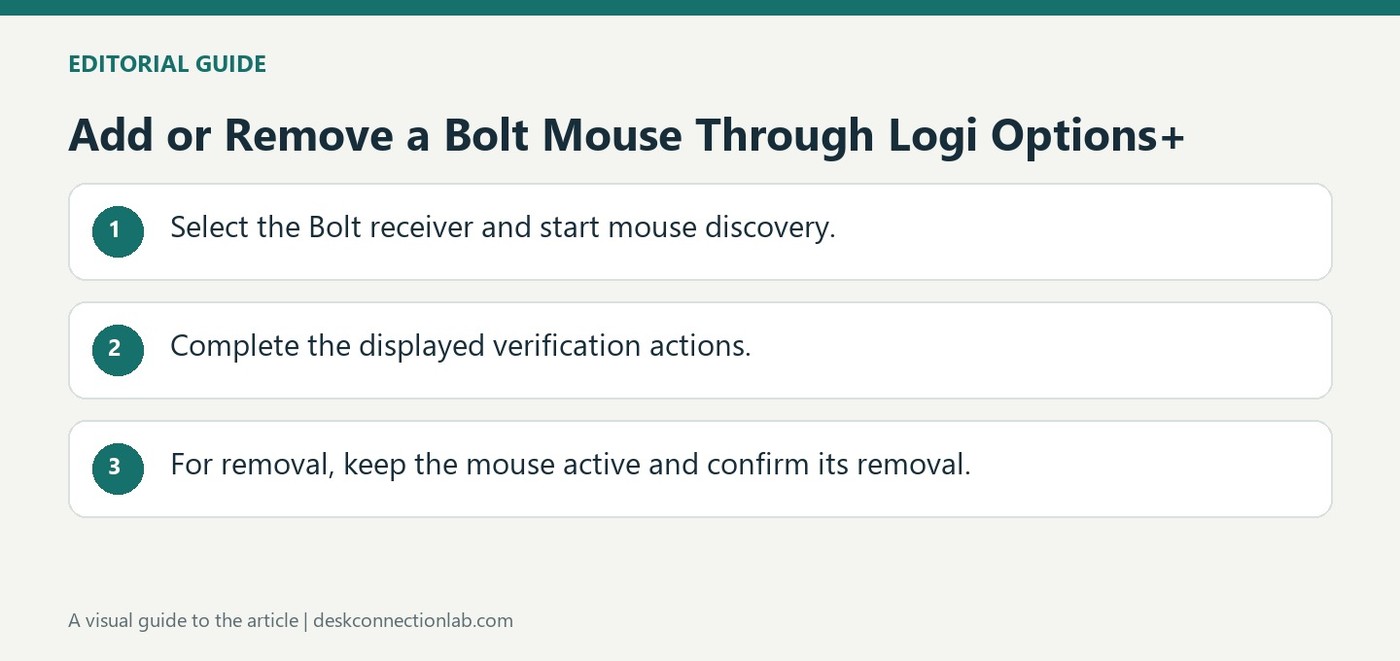
A Bolt mouse can be paired from the Add Device control in Logi Options+. Choose the Logi Bolt receiver, then hold the mouse's connect button for three seconds until the indicator blinks quickly. When the device appears, select Connect and follow the verification instructions shown by the app rather than assuming detection means the mouse is ready.
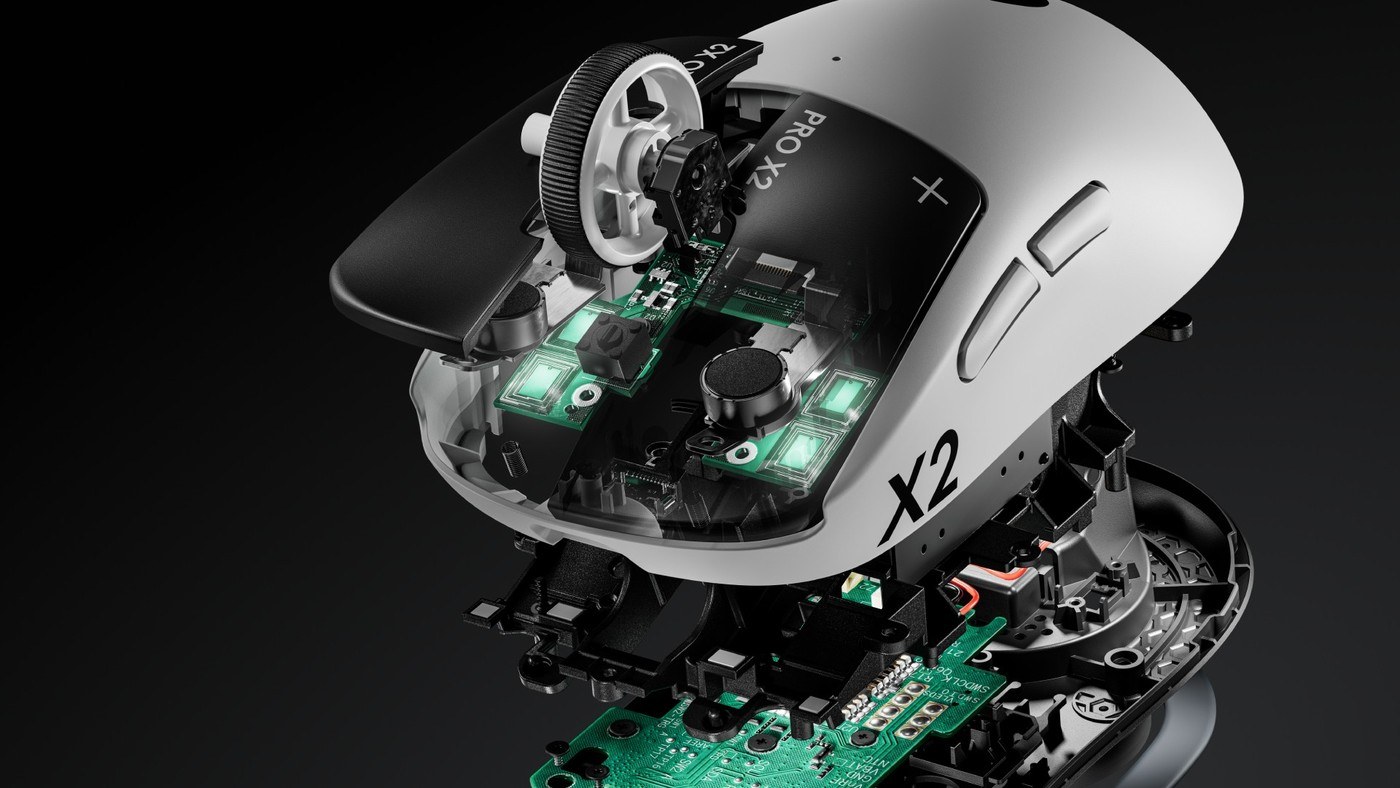
TechRadar's Logitech Pro X Superlight 2 Dex review describes wireless 8K polling, low weight and a well-constructed body. Its reviewer nevertheless found the long, sharply contoured shape difficult to grip securely and some buttons awkward to reach. A fast reporting rate therefore did not overcome every practical issue during use.
A Tom's Guide commentary argues that a good mouse still needs comfortable grip, dependable tracking and suitable controls. Its author found that 8,000 Hz polling was not the most valuable feature of several otherwise enjoyable gaming mice. The article explains that polling rate measures how often the mouse reports its position to the computer.
TechRadar explains polling rate as the frequency of reports sent from an input device to the computer. At 1,000 Hz, the interval is one millisecond; at 8,000 Hz it is 0.125 milliseconds. This describes one part of the input path, rather than the total time between hand movement and a visible change on a monitor.
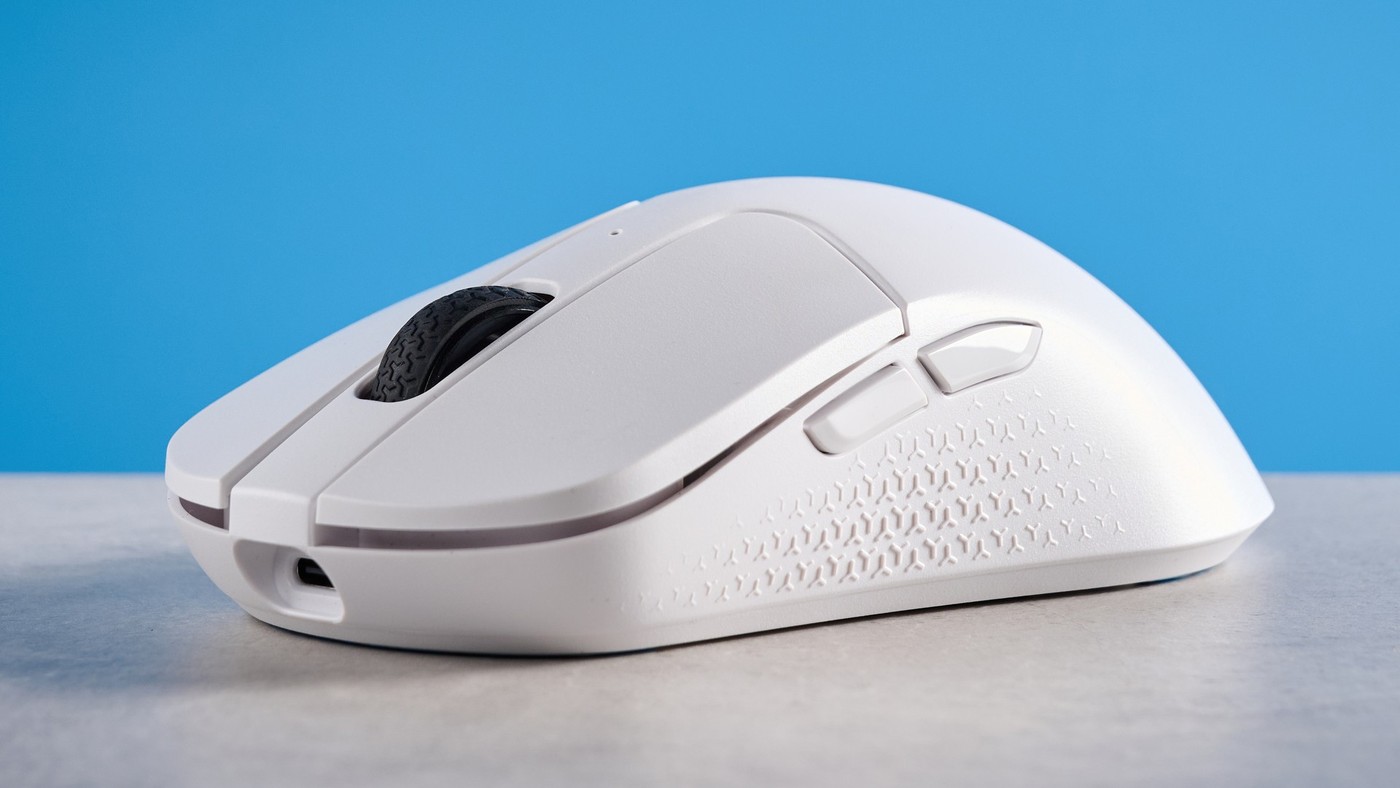
Tom's Guide reviewed the Keychron M3 Mini V2 8K with Bluetooth, 2.4 GHz wireless and wired connectivity. The review reports that its supplied wireless receiver can operate at 8,000 Hz, illustrating why the supported rate must be checked for the particular connection mode rather than inferred from the mouse's general wireless label.
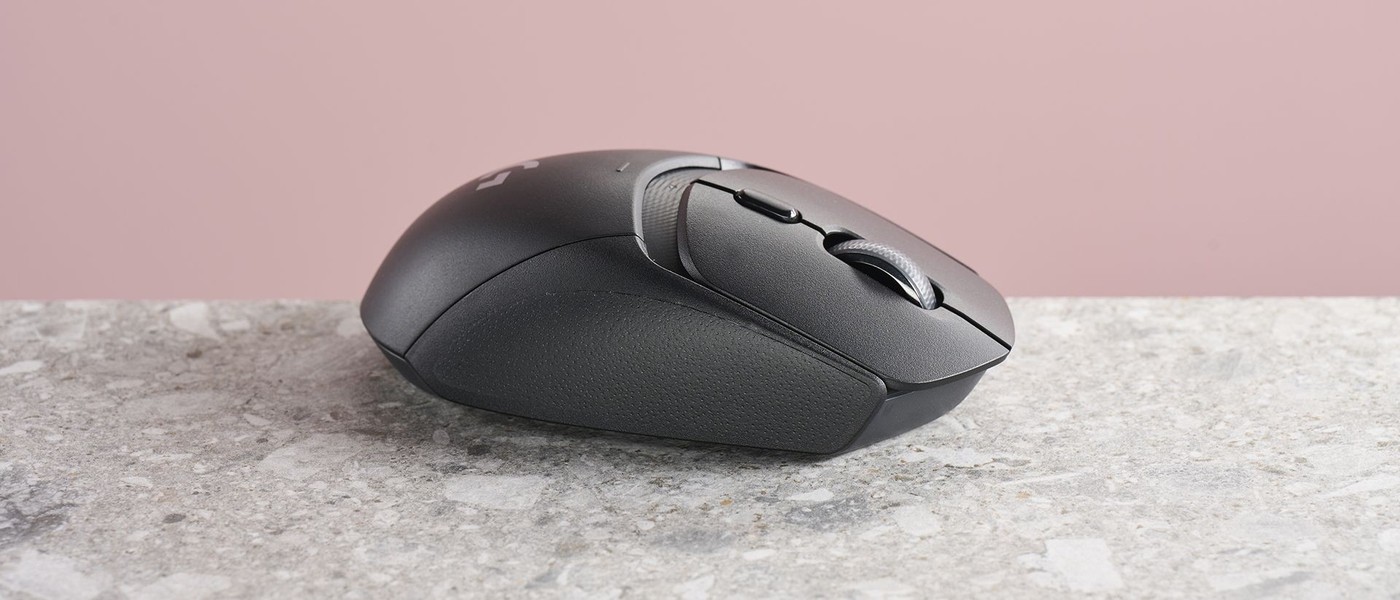
TechRadar describes Logitech G309 Lightspeed as a wireless gaming mouse with both Lightspeed receiver operation and Bluetooth. It uses an AA battery and does not provide a conventional wired operating mode. The review positions it below more expensive performance models, with a maximum polling rate of 1,000 Hz rather than an 8K headline specification.
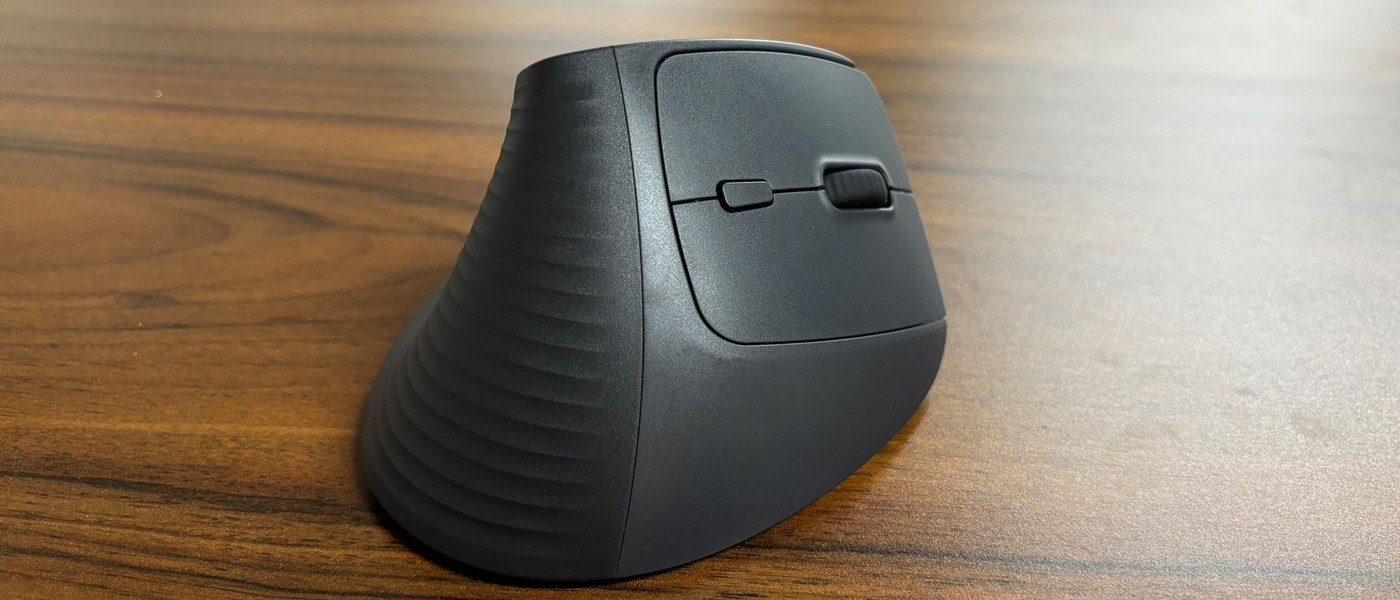
TechRadar's Ugreen M571 review describes a vertical mouse with a near-handshake grip and a larger base. The reviewed SKU uses a 2.4 GHz USB receiver, while another version adds Bluetooth. That difference is particularly relevant to laptops without spare USB-A ports: the product family name alone does not confirm that direct Bluetooth pairing is available.
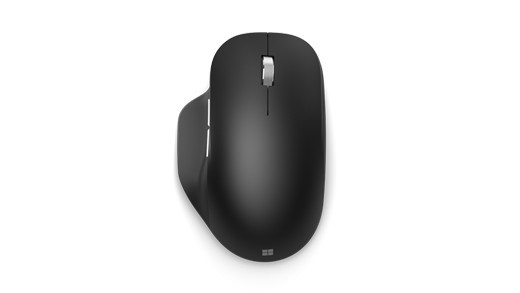
Microsoft Bluetooth Ergonomic Mouse supports pairing with up to three PCs and requires Bluetooth 4.0 or later. Turn it on, hold the pairing button if the light does not flash, and select it in Windows Bluetooth settings. Pressing the pairing button changes the selected device slot for another computer's setup.
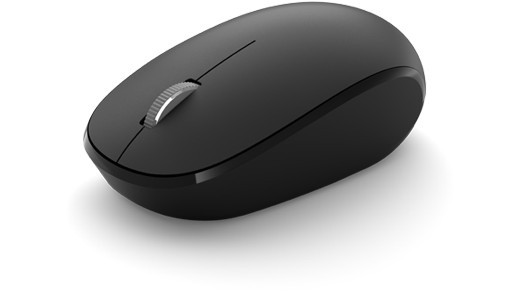
Microsoft Bluetooth Mouse connects through the computer's Bluetooth rather than requiring its own USB radio receiver. The guide requires Bluetooth 4.0 or later on supported Windows versions. Turn the mouse on, hold the pairing button until the indicator flashes, then accept Swift Pair or choose Microsoft Bluetooth Mouse in Bluetooth and devices.
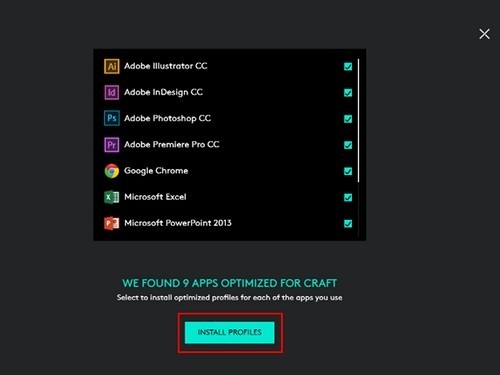
A Logitech Craft keyboard can connect through Bluetooth or a Unifying receiver. For Bluetooth, hold the intended Easy-Switch button until its light flashes rapidly, then complete pairing on the computer. Logitech Options provides the next stage of setup for the keyboard's Crown.
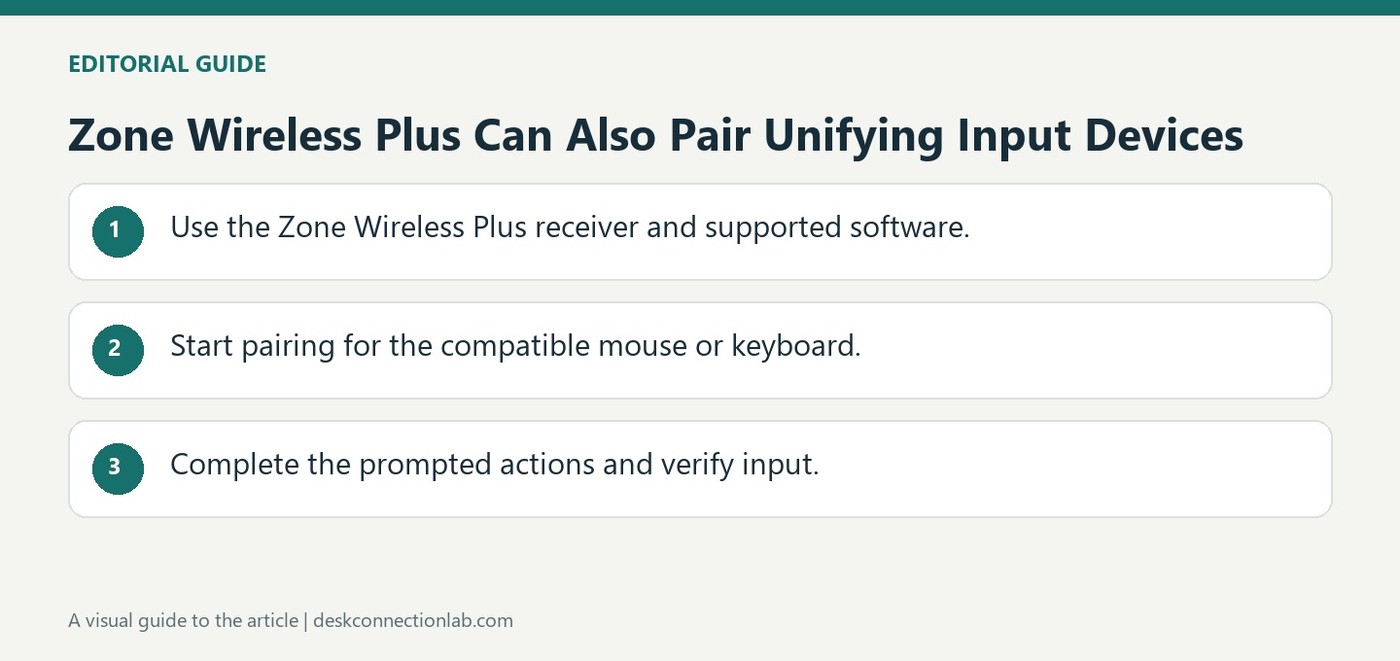
A Zone Wireless Plus receiver can pair up to six Logitech Unifying peripherals in addition to its headset role. Insert the receiver into the computer's USB-A port and open Unifying software, removing any unrelated Unifying receiver so the intended one is used.
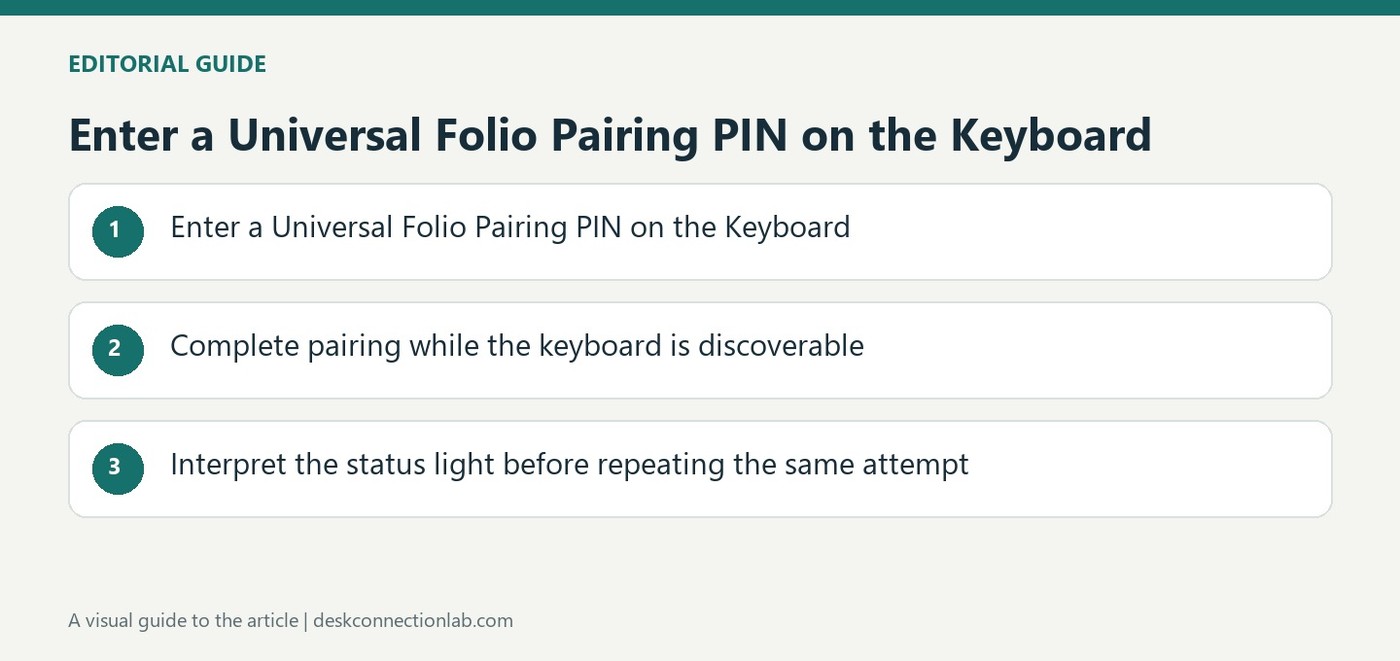
A Universal Folio keyboard case becomes discoverable when first switched on, with a blinking blue status light. Enable Bluetooth on the tablet and select Universal Folio from its device list to begin linking the two devices.
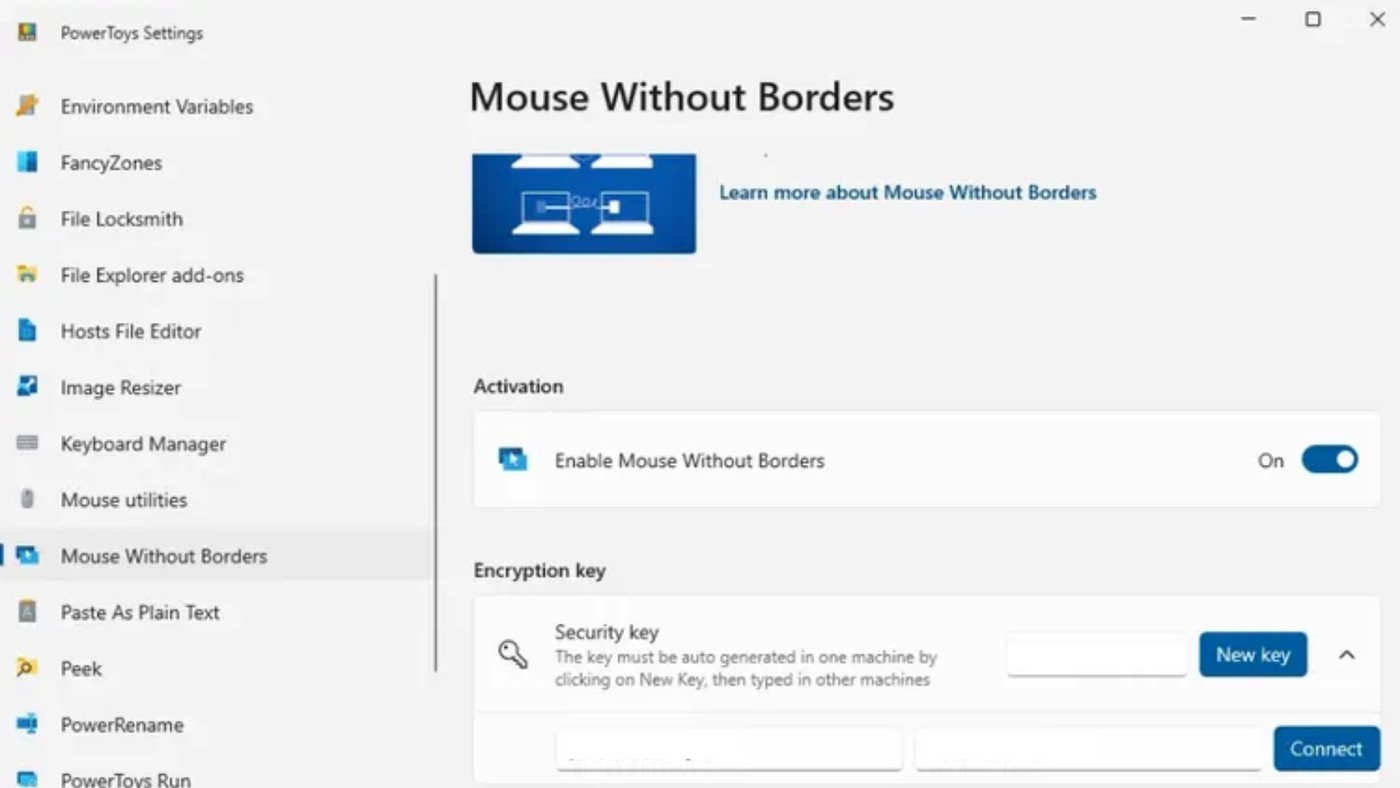
TechRadar describes software that lets one keyboard and mouse control several computers, each with its own screen. This differs from extending one PC's desktop and from selecting a Bluetooth slot on the keyboard. Some applications switch when the cursor crosses a screen edge, while others use a hotkey to transfer control.
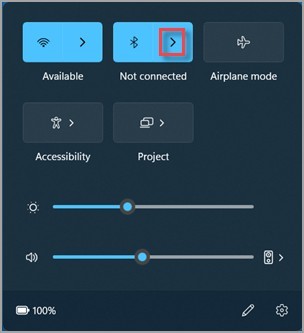
Windows must support Bluetooth and have it switched on before it can pair with a keyboard, mouse or other Bluetooth device. Microsoft notes that a USB Bluetooth adapter can add the feature to a computer that lacks it. Put the accessory into its manufacturer-specified discovery mode; simply powering it on may not be enough.
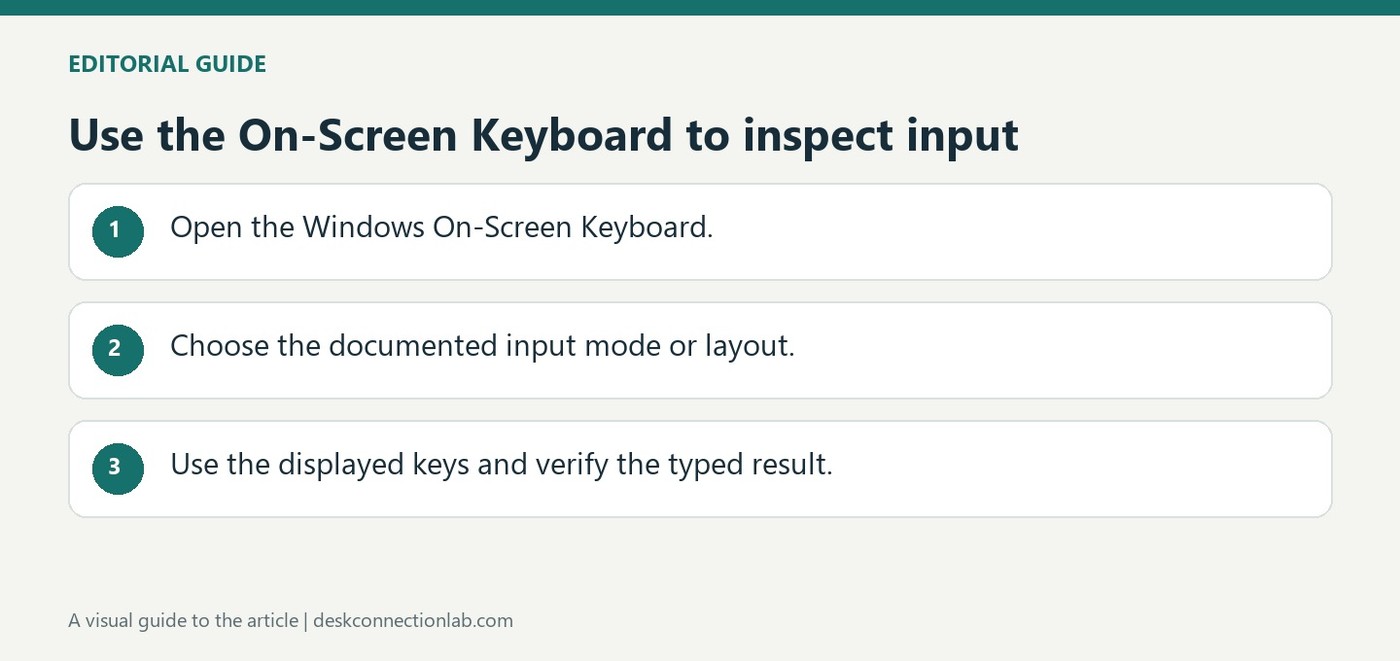
Windows includes an On-Screen Keyboard under Accessibility, Keyboard. Microsoft explains that it can be used with a mouse or another pointing device and does not require a touchscreen. It can also be opened through the Accessibility control at sign-in, providing another way to enter text when a physical keyboard is unavailable.
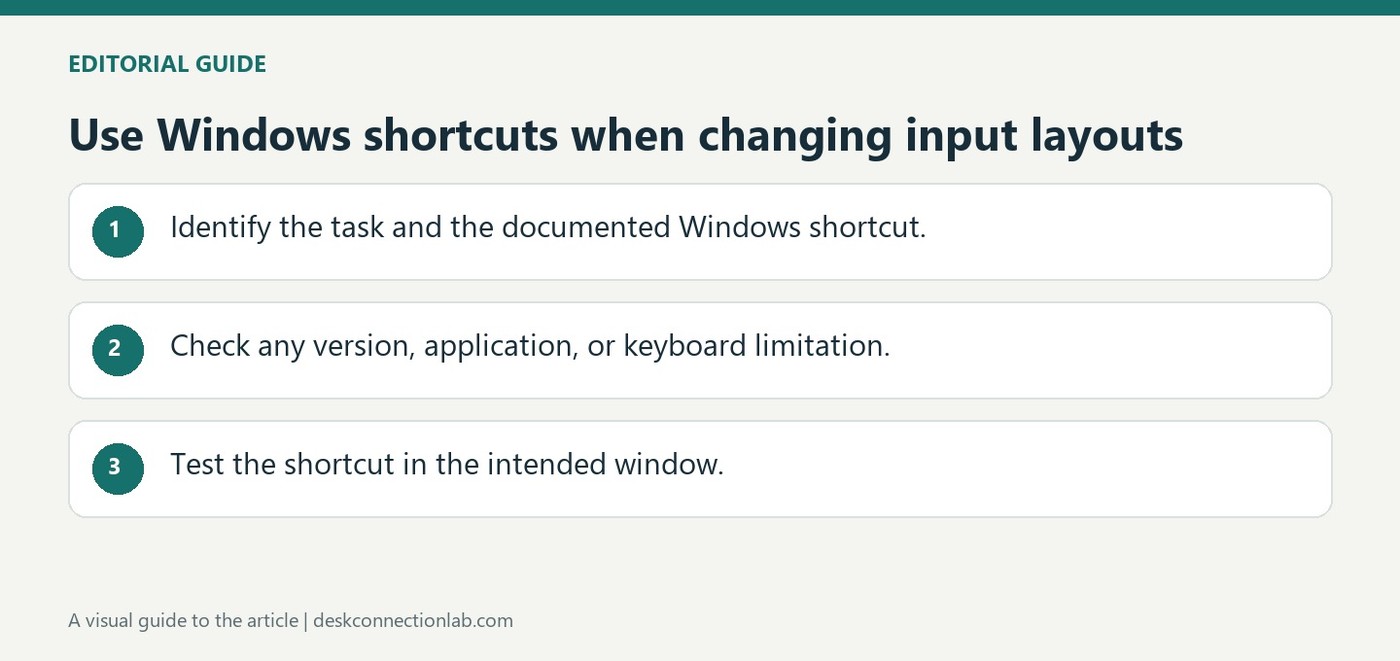
Microsoft's keyboard shortcut reference covers combinations for navigation, editing and system controls. Windows plus Spacebar switches input language and keyboard layout, while other combinations can move through related input choices. A shortcut changes the active software layout; it cannot alter the labels printed on a physical keyboard.
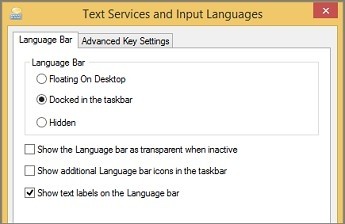
Microsoft's Language bar guide explains that switching input languages selects a different keyboard layout. Once the desired languages and layouts are enabled, place the cursor in the document and choose the language indicator near the clock. The guide also documents Alt plus Shift as a keyboard shortcut for switching layouts.
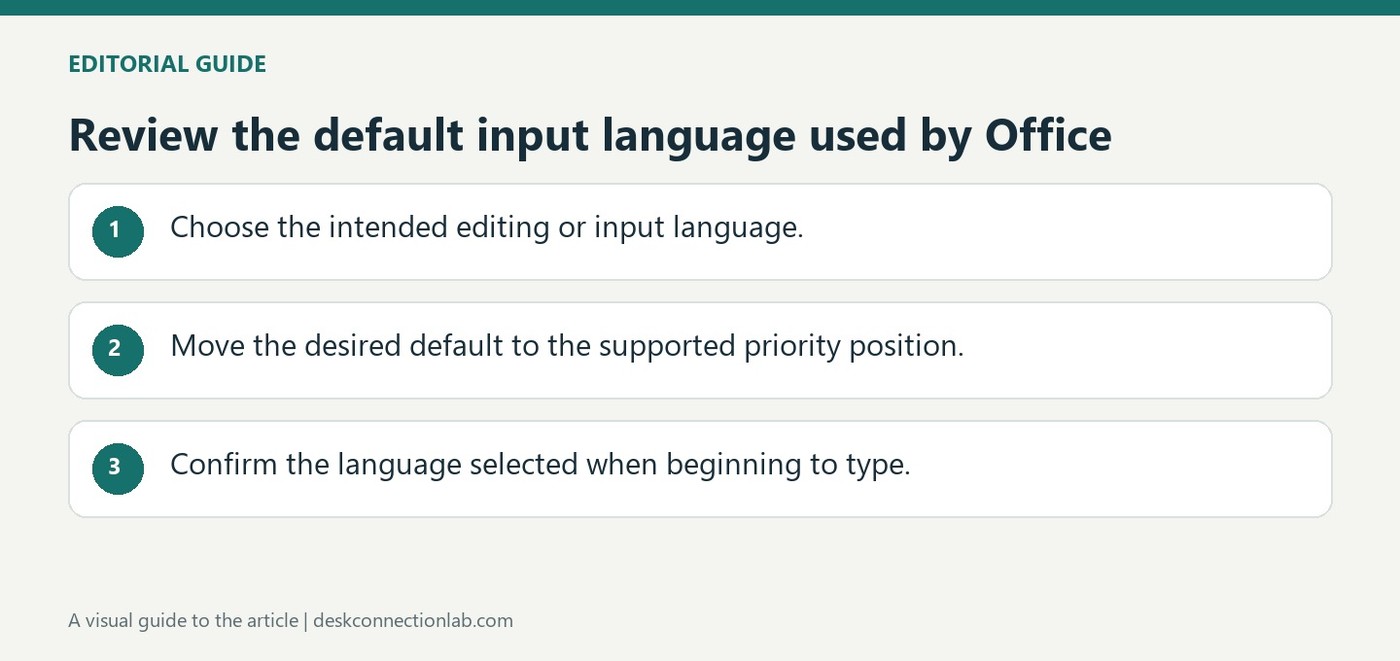
Microsoft explains that Office uses the default Windows input language when determining certain default language behavior. That does not mean every multilingual Office task requires changing the entire operating system. Editing language, proofing language and interface language are separate choices, and the appropriate adjustment depends on what is actually wrong.