
Verify a Bolt Keyboard When Pairing It in Options+
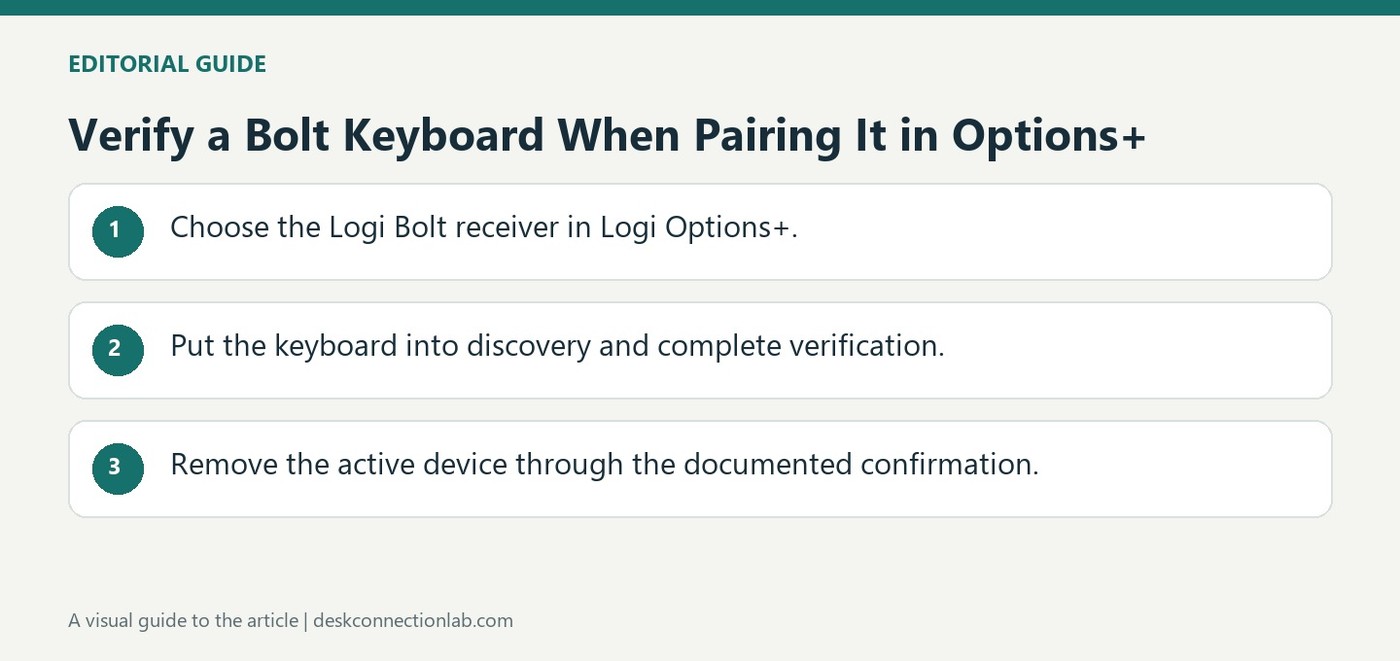
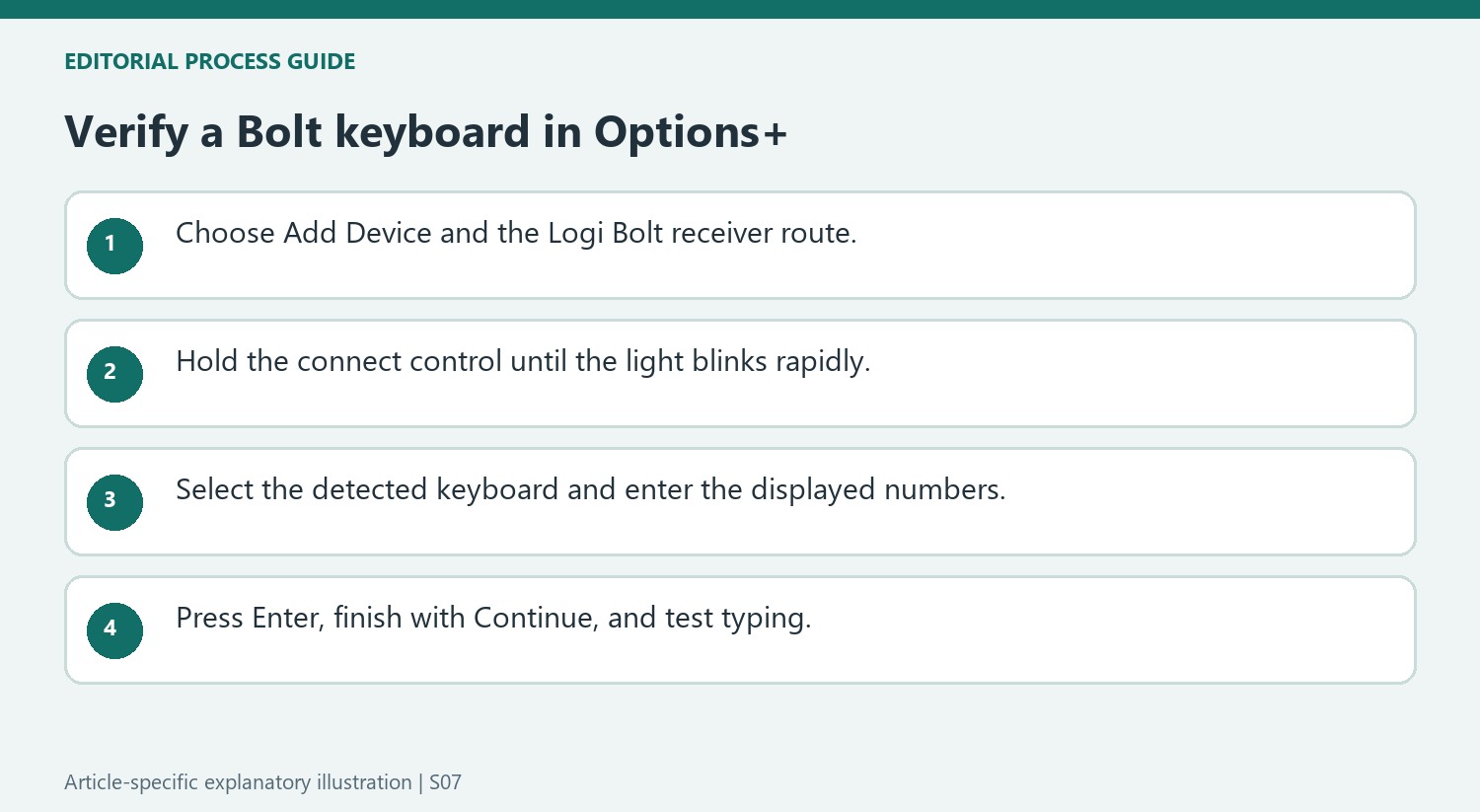
Install Logi Options+ before starting a new Bolt keyboard pairing. In the app, choose Add Device and select the Logi Bolt receiver connection. Hold the keyboard's connect button for three seconds, until its light flashes rapidly, then choose Connect beside the detected device. Discovery alone does not complete the process.
Type the numbers displayed by the app on the keyboard and press Enter. A correct sequence produces a connected notification; an incorrect sequence requires another verification attempt. For removal, use the trash icon and confirm Yes, Remove. Logitech recommends keeping the device active while removing it so that unpairing completes safely.
Use the verification result as the completion check
A detected keyboard name means the receiver and app have found a candidate, not that the keyboard has completed its verification. Enter the displayed sequence on that keyboard and confirm it with Enter. If the app reports a failed attempt, repeat the verification using the current numbers rather than assuming discovery established a working link. After a successful result, select Continue and inspect the device page for the reported connection type and battery information before closing the application.
Unpair the intended active device deliberately
Logitech recommends removing a Bolt device while it is activated. Select the correct keyboard in Options+ and review the removal confirmation before proceeding. A device list may contain several peripherals, so match the displayed identity to the one being retired or moved. Confirm that the app reports the removal, then test the intended remaining input method. Pairing and unpairing are separate receiver-management tasks; neither should be confused with changing a keyboard language layout, installing an application profile or simply turning the keyboard off temporarily.
Select the receiver connection that matches the intended setup
Logitech's procedure begins in Options+ with Add Device and the Logi Bolt receiver option. That is a specific connection route, not a generic instruction for every Logitech keyboard or for all Bluetooth pairing. Confirm the keyboard supports Bolt and that the intended receiver arrangement is in use before following it. The keyboard's connect control is then held for three seconds until the light blinks rapidly, allowing the app to search. The app finding a device is only one stage: select CONNECT beside the correct device name before the verification exchange. Keeping the receiver choice, discoverability, and detected-device selection separate makes the setup easier to follow when several accessories are nearby.
Finish verification with the numbers currently shown by the app
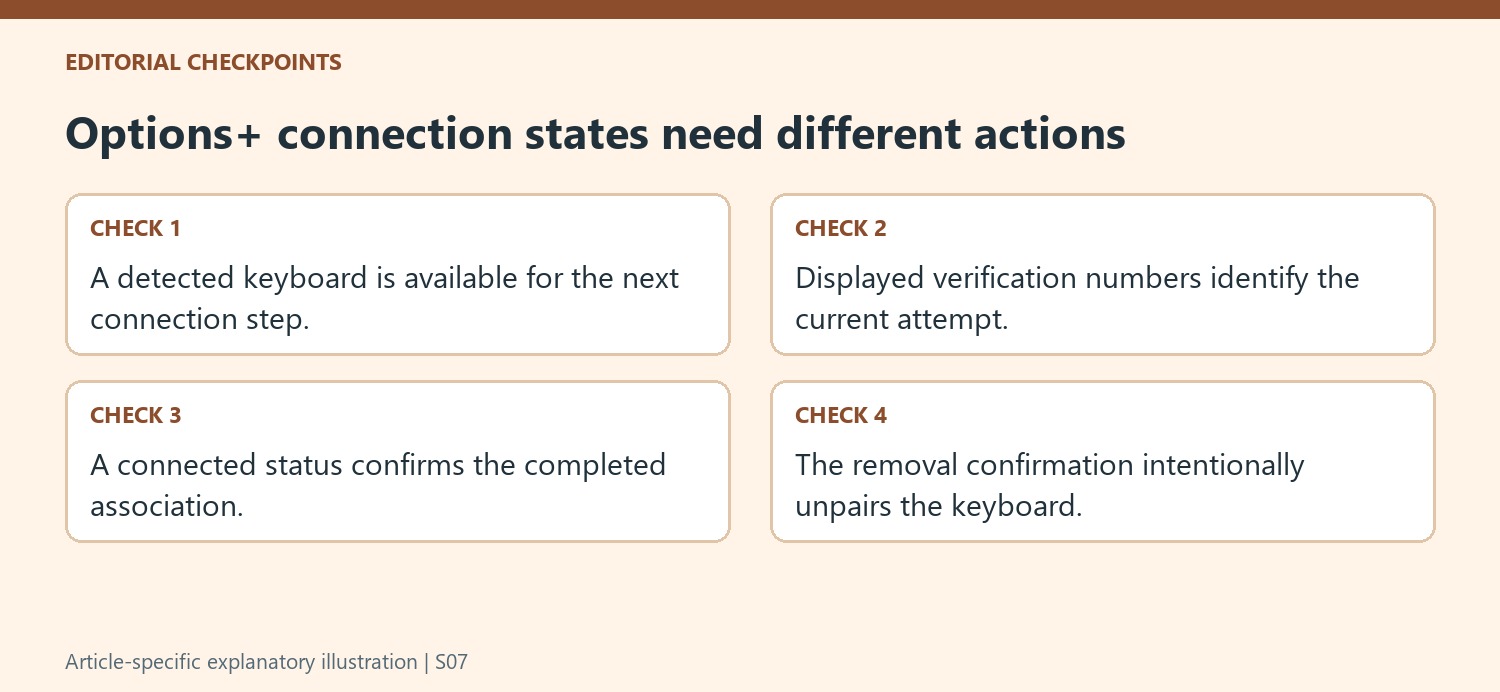
The support article asks the user to enter the displayed numbers on the keyboard and press Enter. These numbers belong to the verification attempt shown in Options+, so use the current prompt instead of looking for a permanent code on the receiver or keyboard packaging. Correct entry produces a connection notification and a Continue step to finish. Incorrect entry produces a verification failure with an opportunity to try again. That distinction matters because a failed verification does not necessarily mean the keyboard was never detected or that its batteries are empty. Read the result and repeat the specific verification step as directed, rather than rebuilding the entire connection arrangement without first understanding the message.
Confirm the connected state before closing the app
Once pairing is complete, Options+ shows the device, how it is connected, and battery information. Check that ordinary key presses reach the intended computer too. That summary is a useful final checkpoint before closing the app and returning to ordinary typing. Unpairing is a separate operation using the removal controls and the final YES, REMOVE confirmation. Logitech recommends carrying out removal while the device is active. Do not use the unpair action merely as a way to leave the setup screen, because it intentionally removes the association just created. A clear distinction between finishing setup, reviewing status, and removing the device helps preserve a working connection and makes a later deliberate transfer to another arrangement less confusing.
References
- How to pair and unpair a Logi Bolt keyboard using the Logi Options+ app. Logitech Support.
Install Logi Options+ before starting a new Bolt keyboard pairing. In the app, choose Add Device and select the Logi Bolt receiver connection. Hold the keyboard's connect button for three seconds, until its light flashes rapidly, then choose Connect beside the detected device. Discovery alone does not complete the process.


Leave a Comment
Comments (0)