
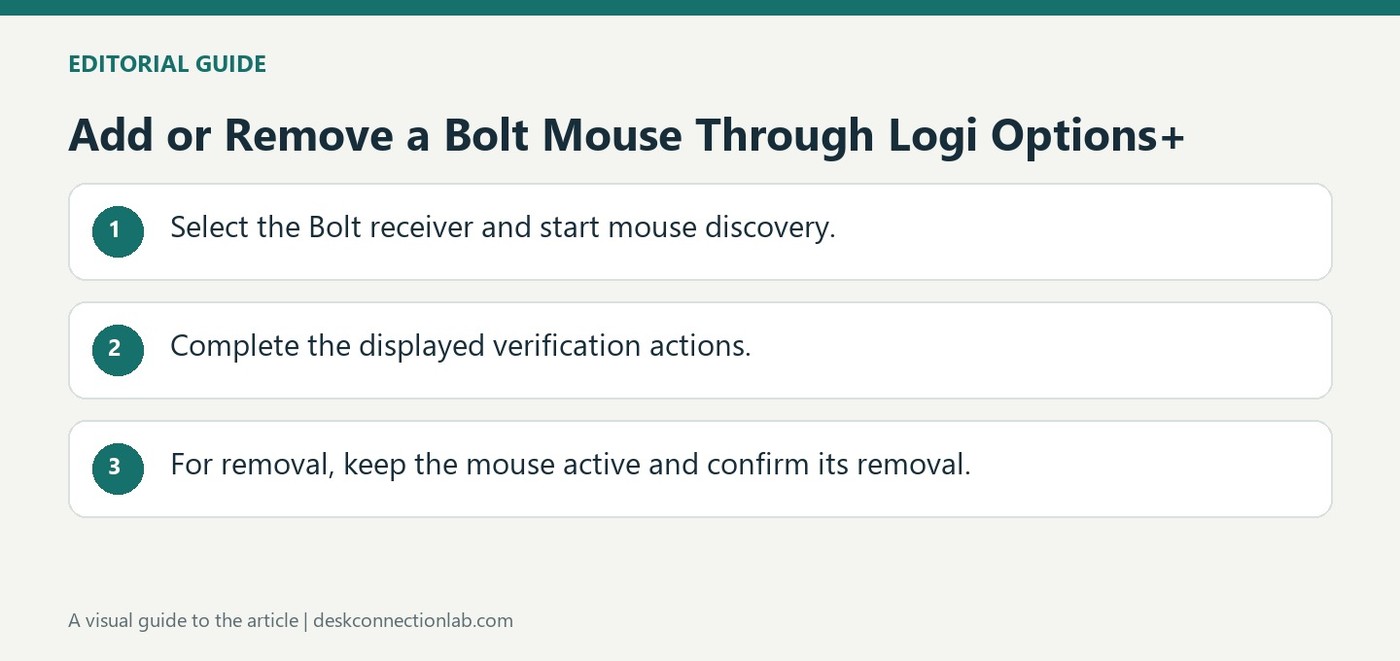
Add or Remove a Bolt Mouse Through Logi Options+
A Bolt mouse can be paired from the Add Device control in Logi Options+. Choose the Logi Bolt receiver, then hold the mouse's connect button for three seconds until the indicator blinks quickly. When the device appears, select Connect and follow the verification instructions shown by the app rather than assuming detection means the mouse is ready.
After successful verification, Options+ displays the connection method and battery information. If verification fails, repeat the instructed actions. To unpair, use the device's trash icon and confirm removal. Logitech advises performing that removal while the mouse is active, which makes the software action and the peripheral's pairing state easier to keep aligned.
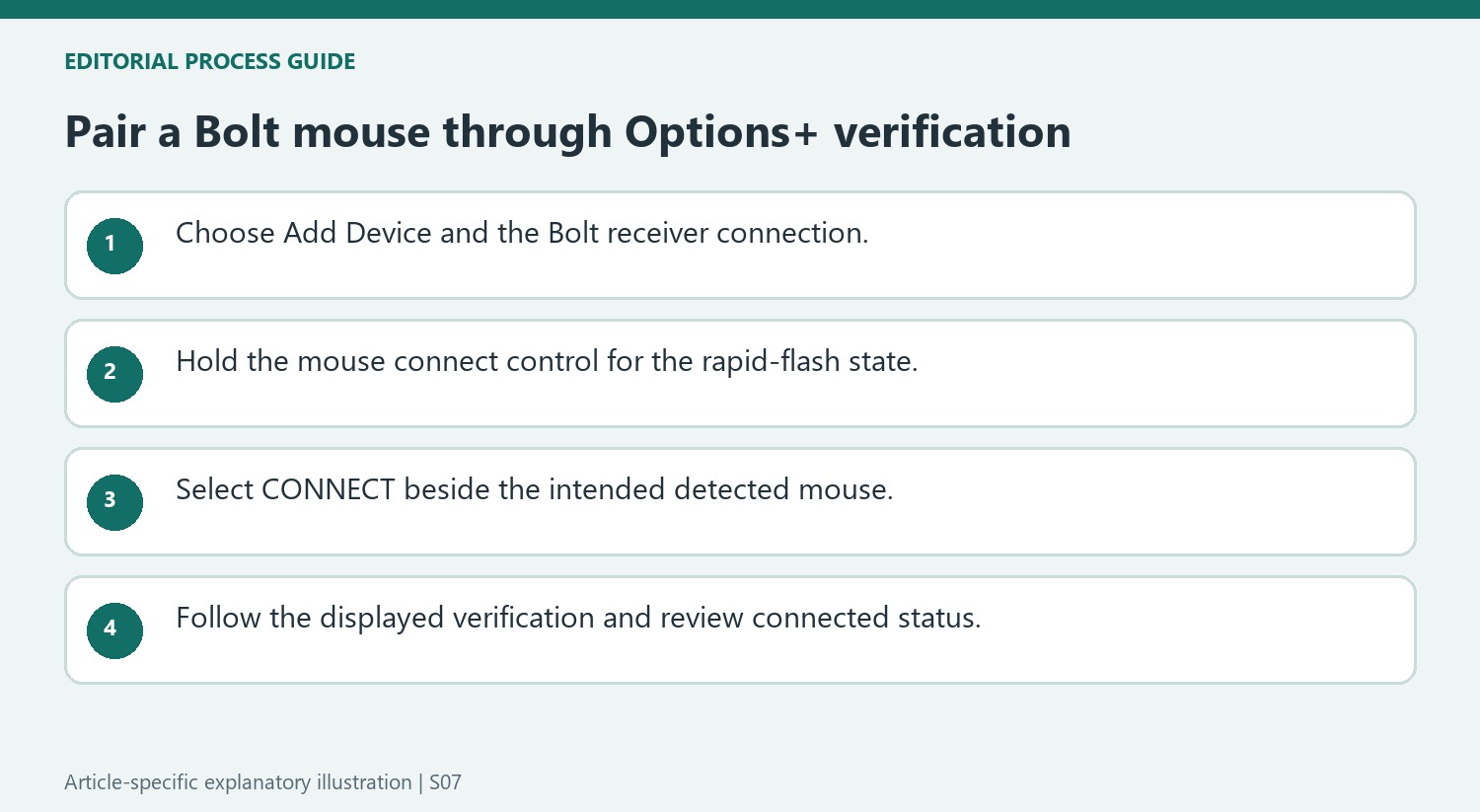
Verify the receiver route and complete the requested actions
Install the appropriate Logi Options+ application before opening Add Device. The source specifies selecting the Bolt receiver, so do not assume the same sequence applies to another Logitech radio family or to an ordinary Bluetooth connection. Confirm that the flashing mouse is the device shown in the app. Follow the displayed verification actions exactly, then check for the connected state. A mouse appearing in a discovery list is a useful intermediate result, while a completed verification and working pointer establish that the intended pairing succeeded.
Use an active-device removal when changing the pairing
Logitech recommends keeping the mouse activated while removing it through Options+. Select the intended device, use the removal control and review the Yes, Remove confirmation. Check that the entry is actually removed before assuming the receiver relationship has changed. If the mouse must be paired again later, return to the documented discovery and verification steps rather than treating a power cycle as a new pairing. Keep another usable input method available during a receiver change, and record whether failure occurred during discovery, verification or later pointer use so the next troubleshooting step addresses the right stage.
Choose the Bolt receiver path before starting discovery
Options+ provides several connection choices, and the support procedure specifically selects the Logi Bolt receiver after Add Device. Confirm that the mouse and intended receiver belong to that system before using the instructions. A USB receiver from a different Logitech family is not established as compatible by its appearance or branding. The mouse's connect control is then held for three seconds until its light blinks rapidly, allowing the app to search. These steps prepare the radio association, while selecting CONNECT beside the detected device starts the next stage. Keep those stages clear when several mice or receivers are present so the app is working with the intended accessory.
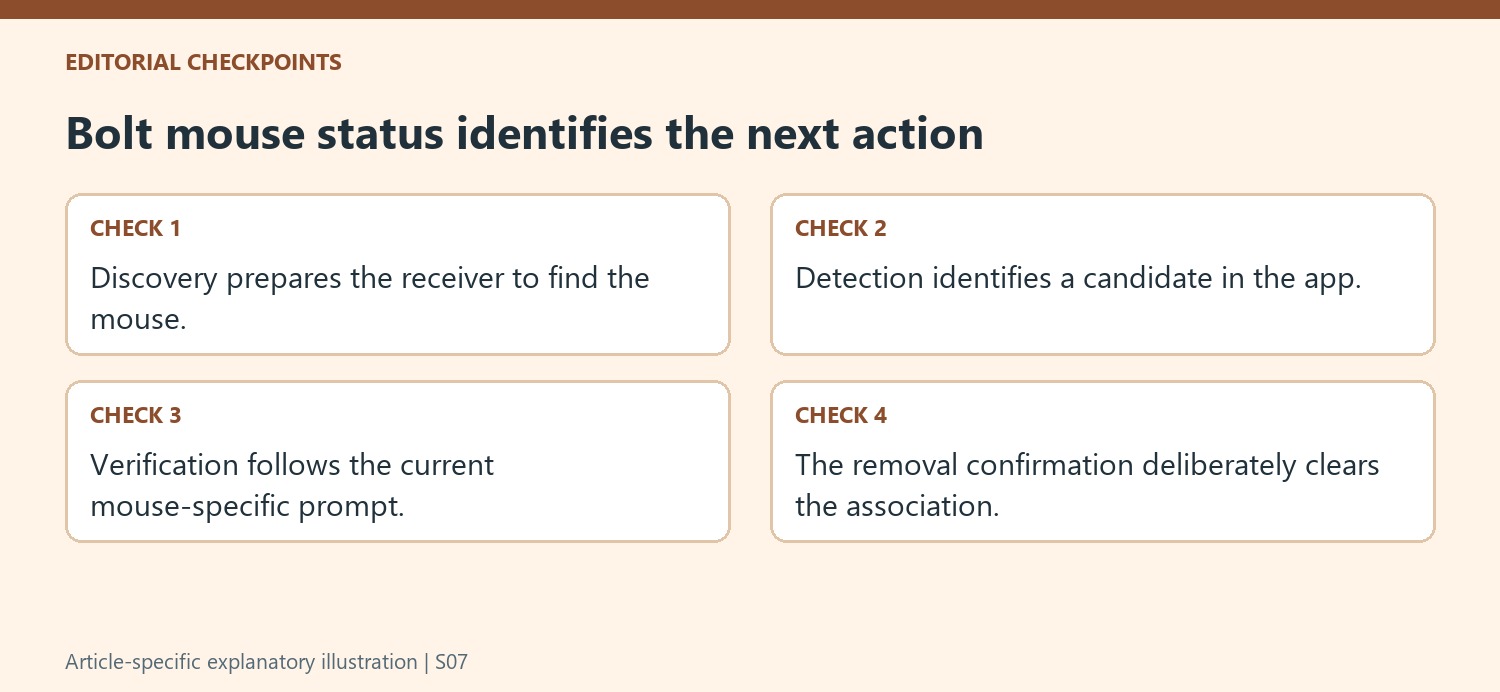
Follow the mouse-specific verification displayed in Options+
The source tells the user to verify the detected mouse by following the app's instructions. It does not describe the mouse procedure as identical to entering a keyboard PIN. Read the current prompt and perform the action on the accessory being added. If verification fails, Options+ reports that result and offers another attempt. Detection, verification, and successful connection are therefore distinct statuses, each with a different next action. A failure at verification does not by itself establish that the receiver cannot see the mouse. Use the message to repeat the relevant step rather than changing unrelated settings or swapping hardware before understanding how far the association progressed.
Review status and remove the device only deliberately
After successful pairing, Options+ shows that the mouse is connected, the connection type, and battery information. That is the point at which the app can be closed and ordinary pointer behavior tested. Unpairing uses the trash-can removal controls and the final YES, REMOVE confirmation; Logitech recommends doing this while the device is active. This intentionally removes the association, so it is not an exit button for the setup process. Use it when transferring or clearing the intended mouse arrangement, and check the selected device name before confirmation. A clear final status check and a separate deliberate removal process help keep a working mouse available while making later connection changes understandable.
References
- How to pair and unpair a Logi Bolt mouse using the Logi Options+ app. Logitech Support.
A Bolt mouse can be paired from the Add Device control in Logi Options+. Choose the Logi Bolt receiver, then hold the mouse's connect button for three seconds until the indicator blinks quickly. When the device appears, select Connect and follow the verification instructions shown by the app rather than assuming detection means the mouse is ready.


Leave a Comment
Comments (0)