
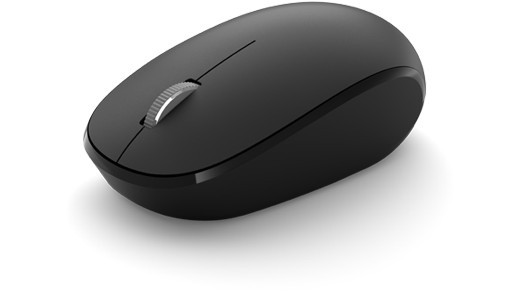
Set up a mouse without a dedicated receiver
Pair the Bluetooth Mouse directly
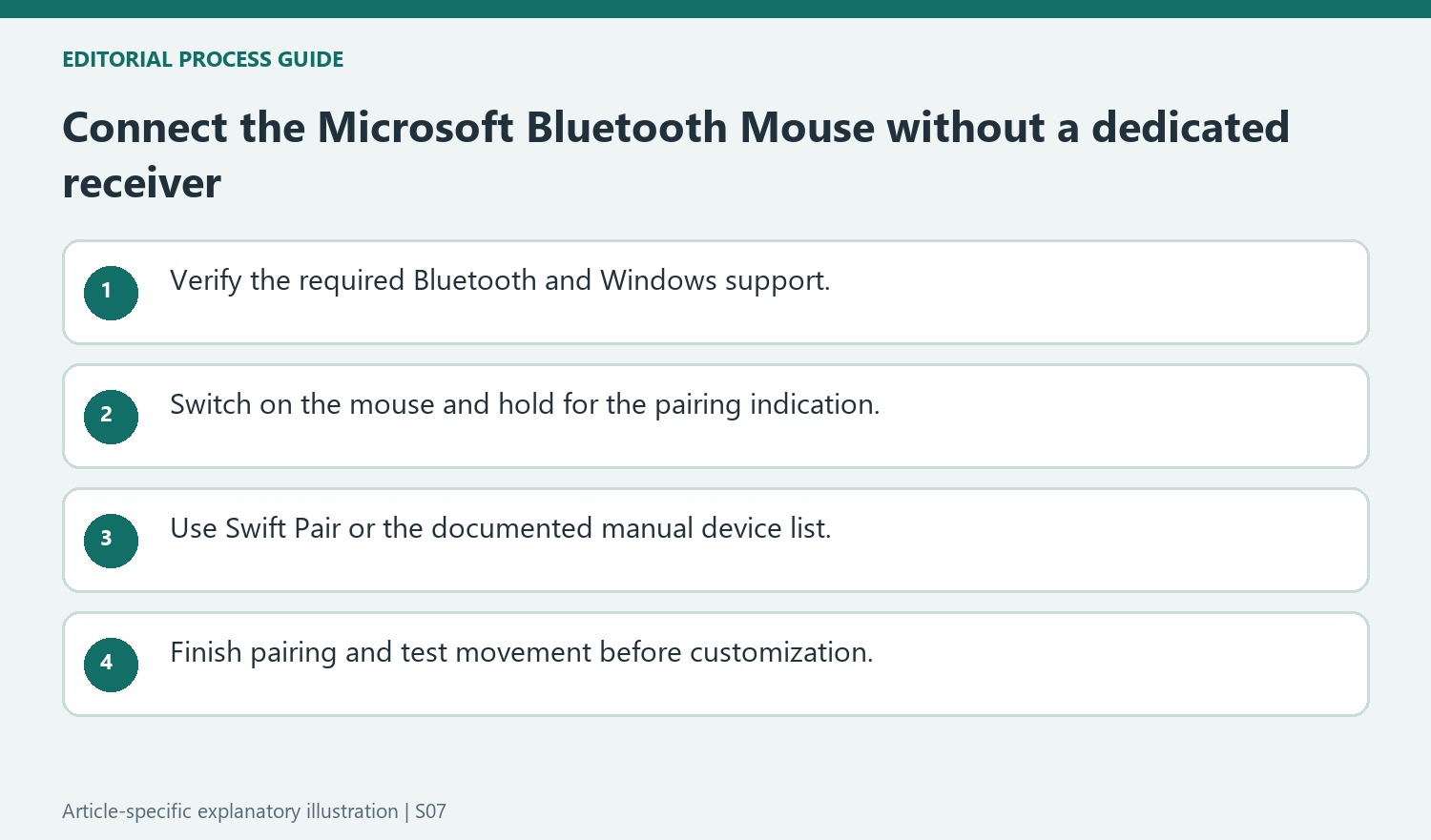
Microsoft Bluetooth Mouse connects through the computer's Bluetooth rather than requiring its own USB radio receiver. The guide requires Bluetooth 4.0 or later on supported Windows versions. Turn the mouse on, hold the pairing button until the indicator flashes, then accept Swift Pair or choose Microsoft Bluetooth Mouse in Bluetooth and devices.
Check battery and pointer preferences
This model uses one AA battery, and Windows can display its remaining battery level. The Bluetooth button also turns the mouse off to conserve power when it is not being used. Pointer behavior can be changed in Windows mouse settings after connection. These controls are separate from the initial pairing, so test discovery and battery condition before changing sensitivity to solve an apparent connection problem.
Follow the pairing indicator rather than the notification alone
Microsoft gives about five seconds of holding the bottom pairing button as the route to a flashing indicator. Swift Pair can offer a convenient notification, but the manual Add device path remains available if no prompt appears. Select the exact Microsoft Bluetooth Mouse entry and wait for setup to complete. This distinguishes a missing convenience notification from an unavailable Bluetooth adapter. Confirm the documented Bluetooth requirement on the computer before interpreting repeated discovery failures as a reason to replace the mouse.
Test ordinary pointer use before adjusting preferences
After pairing, move the pointer, click and scroll in a simple application. If power is uncertain, inspect the AA battery and the bottom power button before changing sensitivity or button assignments. Windows battery reporting can help identify maintenance needs without opening the compartment on every occasion. The mouse-settings route differs between Windows 10 and Windows 11, so use the path for the installed system. Keep connection diagnosis separate from customization: a pointer that moves differently from preference is a different condition from a device that has not connected at all.
Check Bluetooth support instead of searching for a receiver
The Microsoft Bluetooth Mouse connects through the computer's Bluetooth capability, with Windows 10 or Windows 11 and Bluetooth 4.0 or later listed as requirements. That makes the computer's support the first check for a desktop that has never used Bluetooth accessories. A dedicated mouse receiver is not part of the documented pairing path. If the PC's capability is uncertain, use Microsoft's version-checking guidance rather than assuming a USB port itself provides Bluetooth. Once support is established and Bluetooth is enabled, the mouse can be made discoverable and selected through Windows. This keeps hardware requirements separate from the later questions of pointer speed, button preferences, or decorative theme downloads.
Distinguish the power action from the pairing action
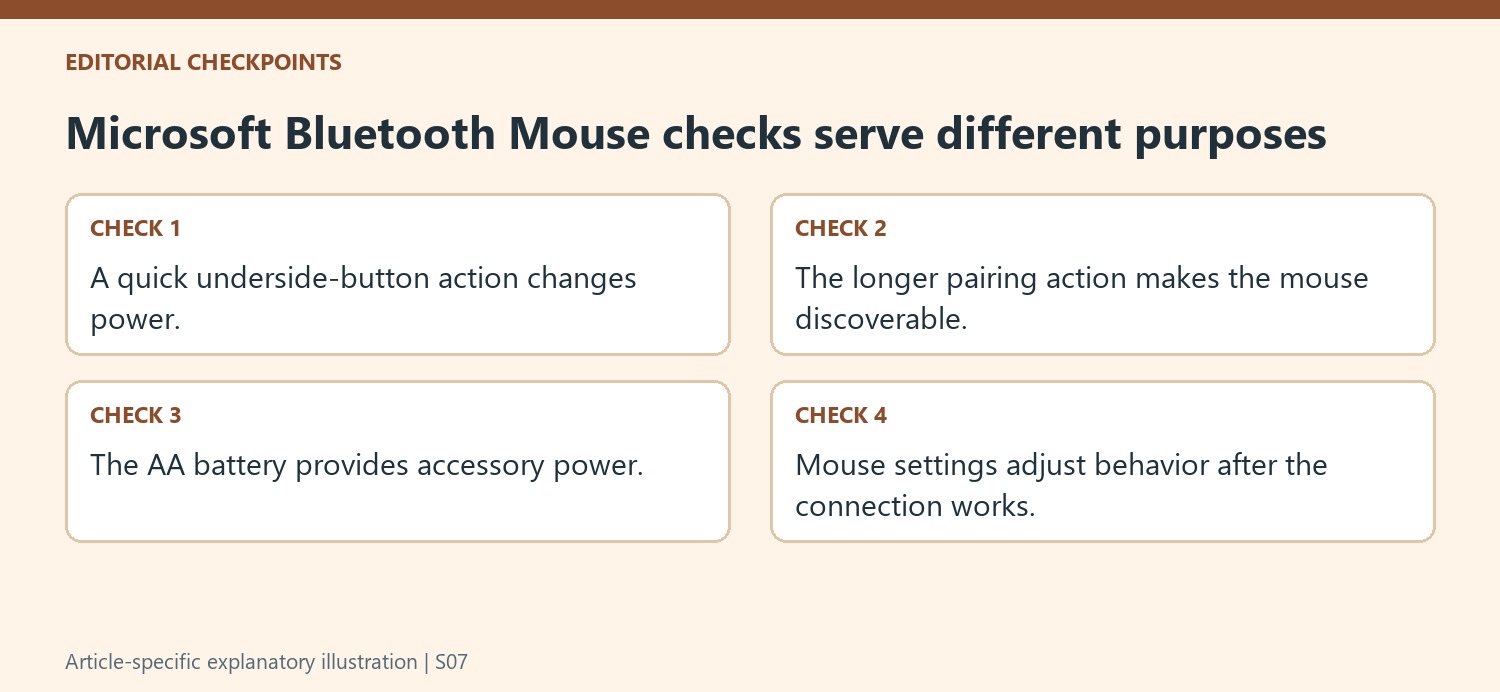
The underside Bluetooth control is used to switch the mouse on and off, while holding the pairing control for about five seconds starts the flashing indication for discovery. Those actions serve different stages of use. A quick press intended to change power should not be confused with the longer pairing sequence. Windows may present a Connect notification through Swift Pair; if not, Microsoft gives a manual Add device path. Wait for that setup to complete and check the intended device name. The source describes the pairing light stopping its flash after success, which offers a more useful completion cue than continuing to hold the control after the mouse has already been found.
Treat battery maintenance and preferences as later checks
This mouse uses one AA battery, accessed through the underside door. Microsoft also describes checking its reported level in Bluetooth settings and switching the mouse off when unused to conserve power. These physical power checks are distinct from customizing the pointer behavior in the Mouse settings page. The Windows 11 and Windows 10 routes to that page differ, so follow the one appropriate to the machine. A coordinated theme package is an optional appearance feature, not a connection requirement. Test normal pointer movement after pairing, then adjust the settings that affect the desired behavior. If response stops later, confirm power and battery state before assuming that a preference change or another theme installation will restore the wireless connection.
References
- Use Microsoft Bluetooth Mouse. support.microsoft.com.
Microsoft Bluetooth Mouse connects through the computer's Bluetooth rather than requiring its own USB radio receiver. The guide requires Bluetooth 4.0 or later on supported Windows versions. Turn the mouse on, hold the pairing button until the indicator flashes, then accept Swift Pair or choose Microsoft Bluetooth Mouse in Bluetooth and devices.


Leave a Comment
Comments (0)