
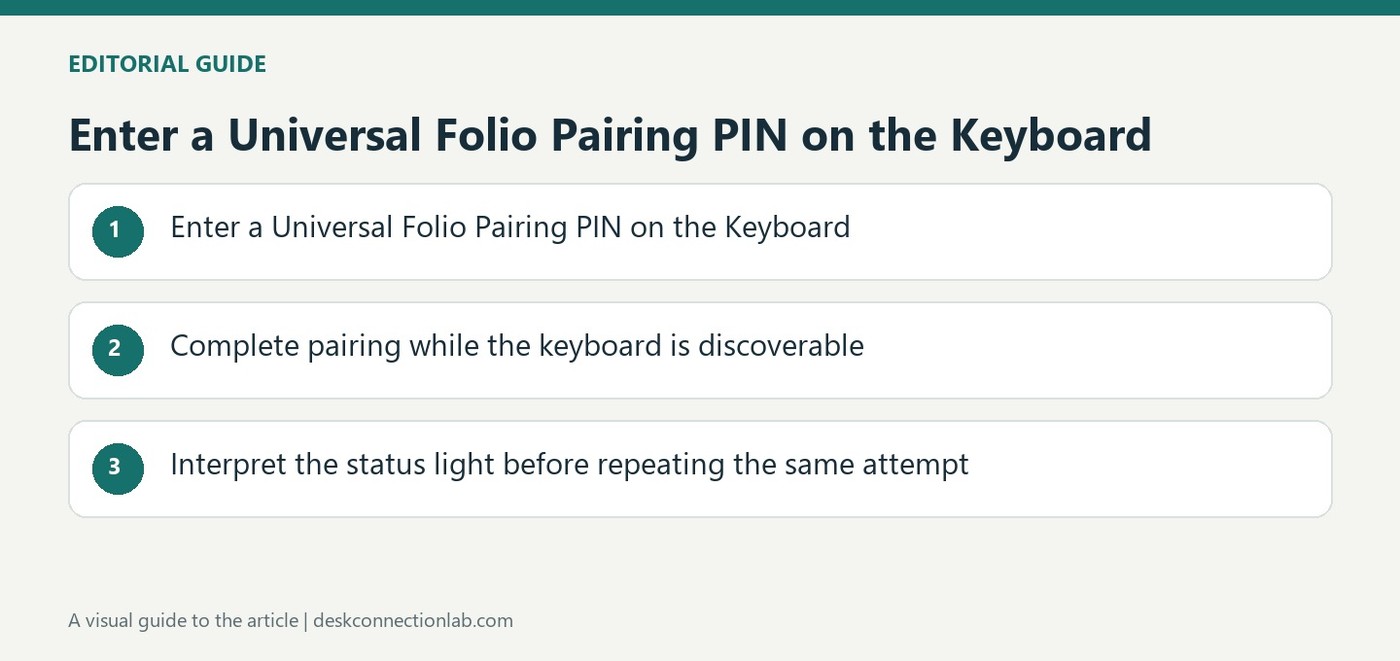
Enter a Universal Folio Pairing PIN on the Keyboard
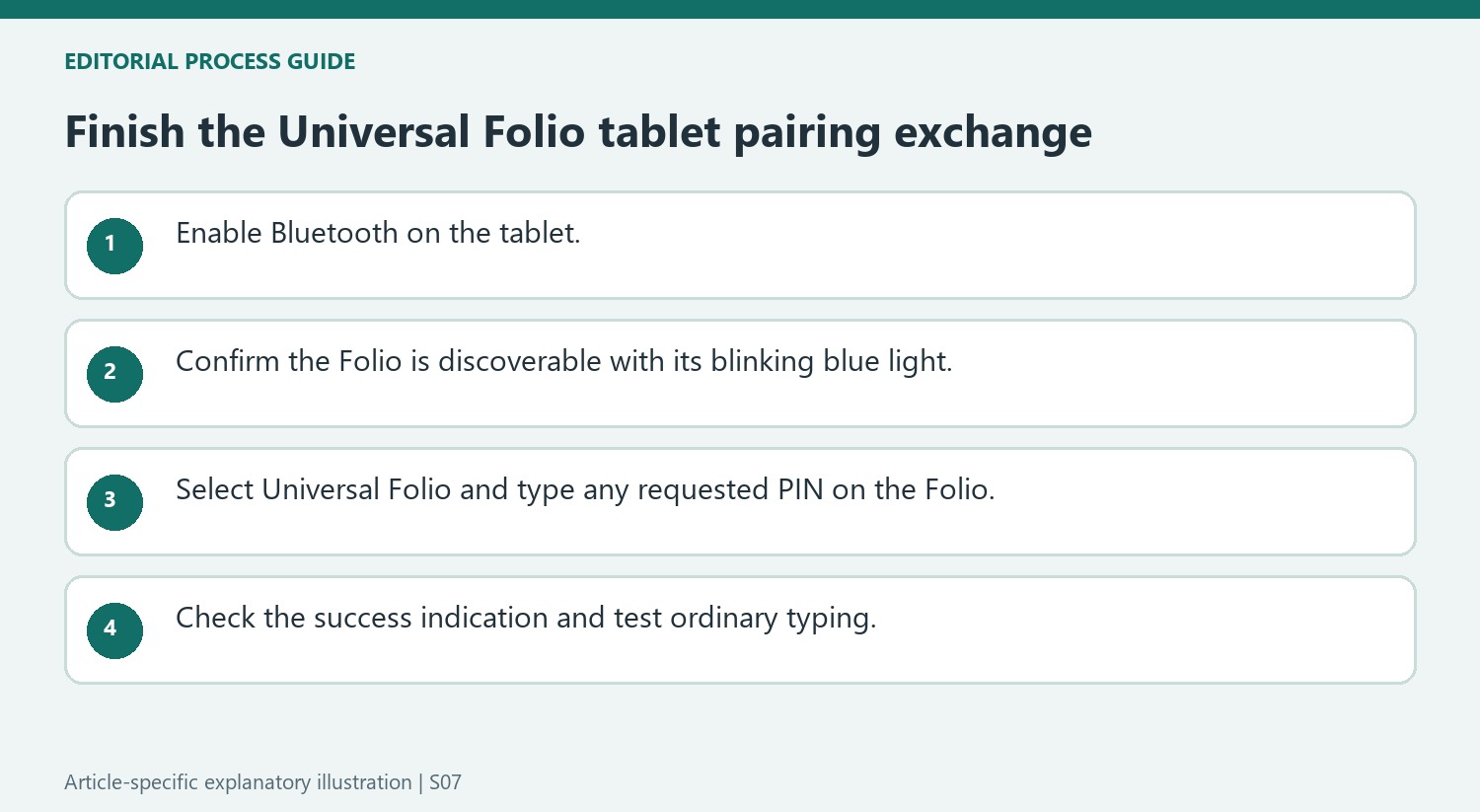
A Universal Folio keyboard case becomes discoverable when first switched on, with a blinking blue status light. Enable Bluetooth on the tablet and select Universal Folio from its device list to begin linking the two devices.
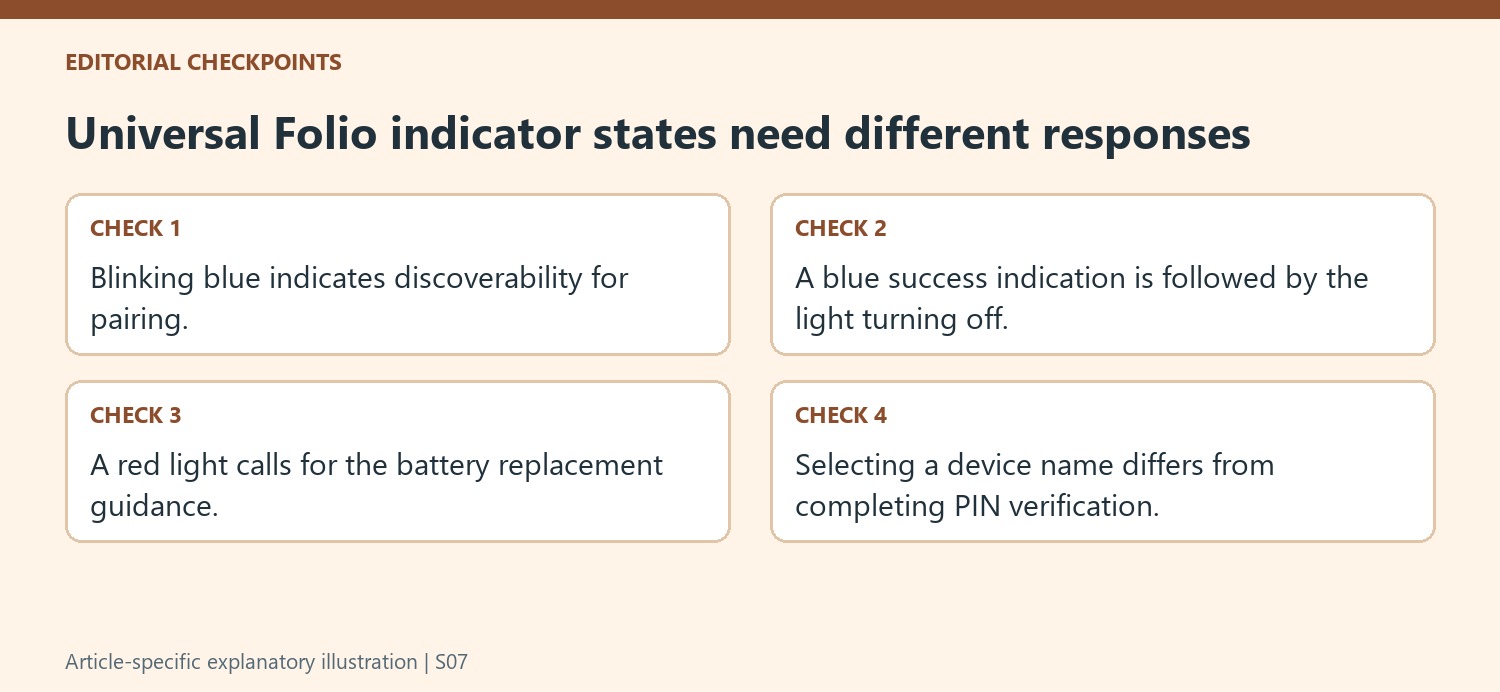
If the tablet requests a PIN, type it on the physical Folio keyboard rather than on the tablet's screen. A successful connection turns the status light blue briefly before it goes out. A red light instead signals that the keyboard batteries need replacement, pointing to a different cause of connection difficulty.
Complete pairing while the keyboard is discoverable
Logitech states that the Universal Folio is discoverable for fifteen minutes when first turned on. A blinking blue light identifies that pairing state in the documented workflow. Have the tablet's Bluetooth controls ready and select the named keyboard rather than another nearby accessory. The time window is part of discovery, not a promise that typing will work before the tablet completes its pairing steps. If the device is no longer shown, review its current status and the product's pairing instructions instead of repeatedly selecting an old saved entry without checking the keyboard.
Interpret the status light before repeating the same attempt
The source distinguishes blue pairing and connection indications from a red battery warning. If the light is red, follow the battery-replacement guidance rather than assuming another tablet setting will restore normal discovery. When a PIN is requested, enter it on the Folio's physical keys so the tablet can verify the accessory. After the successful blue indication ends, test ordinary typing in an appropriate field. Keep the tablet, selected Bluetooth entry and keyboard status together when describing a failure so support can distinguish power, discovery, verification and actual text input.
Treat the tablet and keyboard as two sides of the same setup
The Universal Folio communicates with the tablet through Bluetooth, so the tablet's Bluetooth setting and the keyboard's discoverable state both matter. On first power-on, Logitech says the keyboard remains discoverable for fifteen minutes, with a blinking blue status light. That gives a visible cue for when to look for Universal Folio in the tablet's device menu. A keyboard that is switched on but no longer in the described state should not be assumed to be available indefinitely for a new pairing attempt. Follow the product's guidance for the current state instead of repeatedly choosing an old device entry while ignoring the keyboard's indicator.
Enter a requested PIN on the accessory being verified
The article emphasizes an easy-to-miss detail: when the tablet requests a PIN, the numbers should be typed using the Universal Folio keyboard rather than the tablet's on-screen keyboard. That step links the discovered accessory to the pairing request. Keep the displayed request visible while completing this accessory verification. Read the current prompt and use the physical keyboard involved in the setup. A tablet offering an on-screen number pad can make the other route seem natural, but it is not the procedure Logitech describes here. Complete the displayed verification sequence before testing normal typing, and watch the status indicator for the documented successful connection rather than assuming that selecting the device name alone finishes the association.
Read the indicator in the context of the task
Logitech identifies blinking blue as discoverability, a blue light followed by the light turning off as a successful connection, and red as a reason to replace the batteries. Those are distinct messages. In particular, the light switching off after the success indication is not, by itself, evidence that pairing failed. A red status calls for the battery guidance rather than a different PIN, while a discoverable light points toward completing the tablet's Bluetooth steps. Once setup succeeds, test a short entry in an ordinary text field. If it does not work, retain the exact light behavior and the stage reached in the tablet menu. That information gives further troubleshooting a clearer starting point than restarting the whole process without identifying where it stopped.
References
- Connect the Universal Folio keyboard to a Bluetooth device. Logitech Support.
A Universal Folio keyboard case becomes discoverable when first switched on, with a blinking blue status light. Enable Bluetooth on the tablet and select Universal Folio from its device list to begin linking the two devices.


Leave a Comment
Comments (0)