
Share a keyboard through software across PCs
A different approach from device pairing
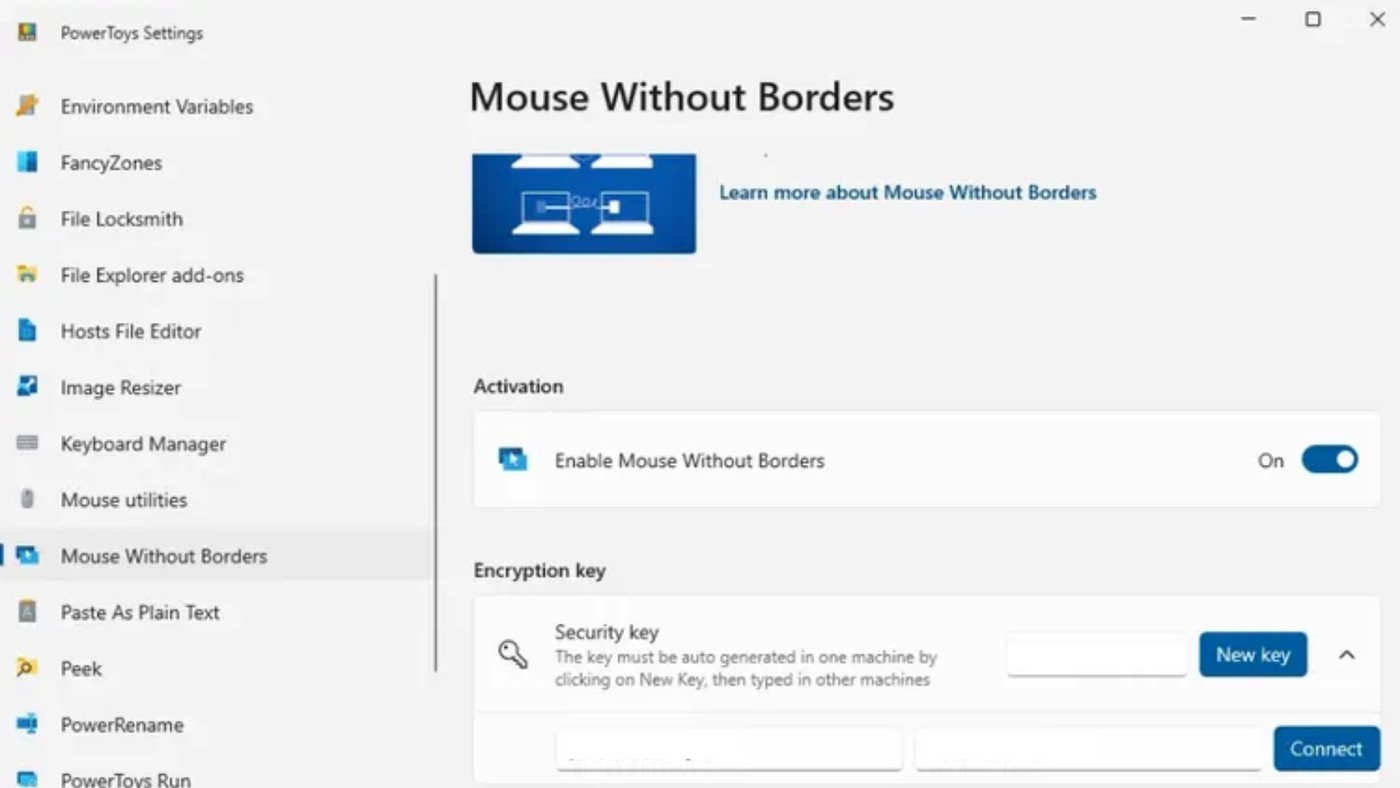
TechRadar describes software that lets one keyboard and mouse control several computers, each with its own screen. This differs from extending one PC's desktop and from selecting a Bluetooth slot on the keyboard. Some applications switch when the cursor crosses a screen edge, while others use a hotkey to transfer control.
Check network and platform support
The article discusses Mouse Without Borders, including its PowerToys availability, and other software options with different platform support. Such tools generally need a working shared network and can become unreliable on restricted or unstable Wi-Fi. Clipboard or file-sharing features also vary. Check those requirements before assuming a keyboard can control every nearby computer without additional setup, software or permission on the receiving systems.
Arrange the software layout to match the physical screens
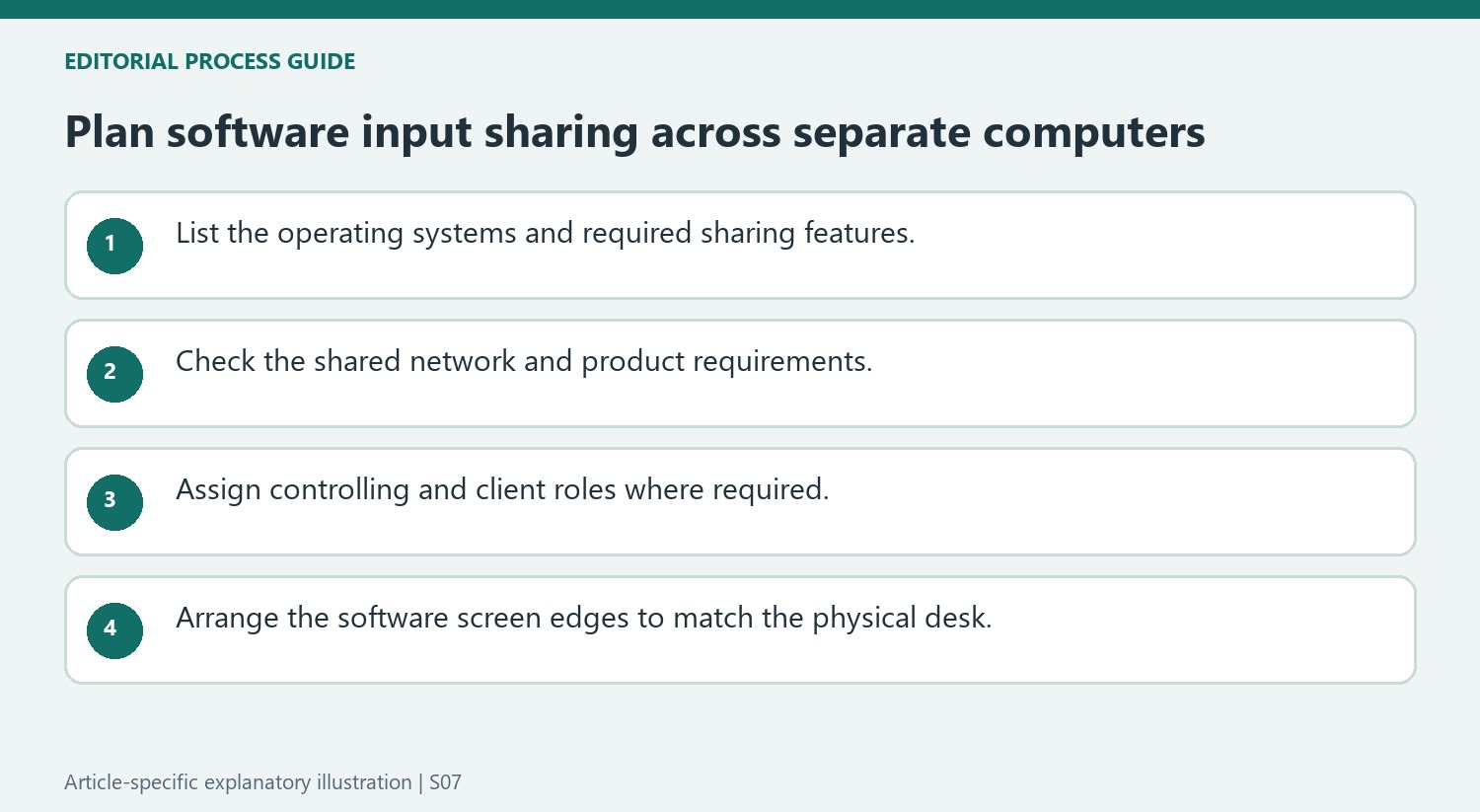
The source describes server-and-client arrangements and a grid defining which display edge transfers control to the other computer. Configure that map to match the desk so cursor movement is predictable. A hotkey route can be useful when crossing a screen boundary is inconvenient, but the user still needs to recognize which computer currently receives input. Clipboard and file-transfer behavior differs between products; a supported copy-and-paste operation should not be assumed to establish unrestricted drag-and-drop between every application on both machines.
Evaluate software sharing against the actual environment
Mouse Without Borders is described as a Windows option, while the article discusses Synergy and DeskFlow for other desktop platforms as well. Check current support and the network arrangement before choosing one. Public or restricted networks can prevent peer discovery even when both computers have internet access. A software bridge also depends on its participating computers and connection remaining available. Compare those requirements with a hardware switch or a keyboard's built-in device slots when reliability, platform support or the ability to install software is the deciding constraint.
Distinguish input sharing from extending a single computer's desktop
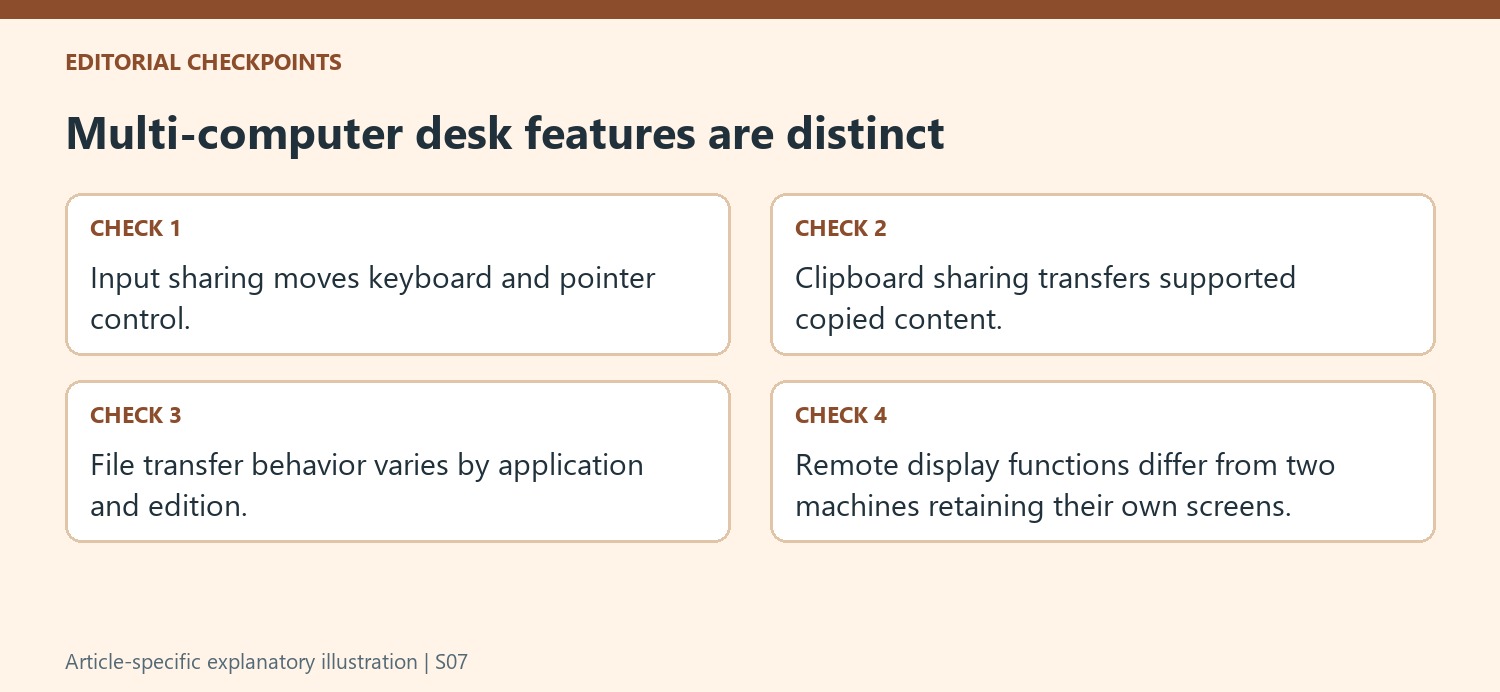
The article's main arrangement uses two computers, each with its own display, while one keyboard and mouse control them. That differs from adding a second monitor to one PC, even if moving the pointer between screens feels similar. The applications and work remain on separate machines. Some products add other capabilities, such as clipboard sharing, file transfer, remote display, or audio routing, but those vary by application and edition. Define which of these jobs is actually needed before choosing software. A tool that moves the pointer successfully may still lack the particular file-handling or screen-sharing behavior that a user expected from the broader term KVM.
Lay out the computer positions in the software
The source describes tools that let the user specify whether another computer is reached through the left, right, top, or bottom edge of a display. That software arrangement should reflect the physical positions on the desk so movement feels understandable. A hotkey-based switch is another option, with the article noting that the new cursor position can require a moment of reorientation. Test the chosen method with ordinary pointer movement before making it part of a demanding workflow. Also check the server and client roles: some programs use the input devices attached to the controlling machine and do not provide identical switching behavior from every attached laptop's own pointer.
Check platform and network conditions before comparing prices
The article separates Windows-only options from programs supporting Windows, macOS, and Linux. It also identifies a shared network as a common requirement and notes that public networks can prevent the required peer connections. A weak or interrupted wireless connection can affect the experience, so software cannot be evaluated independently of that environment. Use current product documentation to confirm supported systems, encryption, feature limits, and licensing, since the source's prices and editions describe a publication snapshot. The strongest match is the program that covers the actual computer combination and sharing tasks on the available network, with the physical screen arrangement and everyday switching method tested in advance.
References
- The clever software I use to control two PCs with one keyboard. TechRadar; Ross Rubin.
TechRadar describes software that lets one keyboard and mouse control several computers, each with its own screen. This differs from extending one PC's desktop and from selecting a Bluetooth slot on the keyboard. Some applications switch when the cursor crosses a screen edge, while others use a hotkey to transfer control.


Leave a Comment
Comments (0)