
Compare Mac Docks by Host Link and Charging
Choose the role before comparing the model names
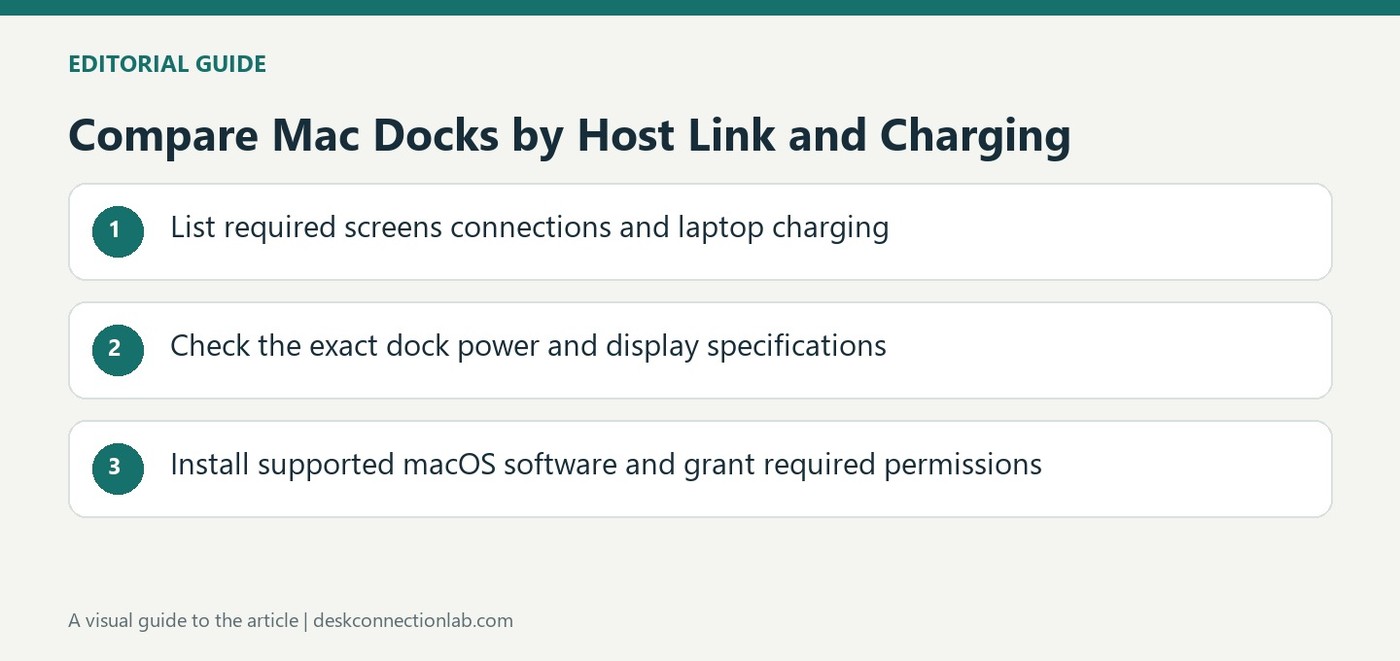
Plugable's recommended macOS products include conventional docking stations and smaller graphics adapters using DisplayLink. Some docks provide USB-A or USB-C host connectivity, while another group includes USB-C Power Delivery for compatible computers. These categories answer different questions: adding displays and accessories is separate from replacing the laptop's charging lead. Start by deciding which functions are needed, then check the exact model's host connection, charging output and display capabilities. A long model list is useful only when those requirements are clear. Similar product names should not be treated as evidence that every port and charging feature is identical.
Check the specific power arrangement
The source lists docks with different advertised charging levels and also adapters using pass through power. Verify the current product page for what is included and how the host receives power, rather than assuming that every USB-C product contains its own equivalent power supply. The computer must support the required charging method as well. Consider the complete desk arrangement, including existing chargers and monitors, before choosing a product primarily from its display count. A model that provides enough screens may still be unsuitable if its power arrangement or host compatibility does not meet the intended routine.
Include macOS software requirements in setup
DisplayLink controlled outputs on macOS require DisplayLink Manager and the appropriate operating system permissions, as Plugable's guide explains. Follow the current installation instructions for the macOS version in use instead of assuming the hardware alone completes setup. The source also highlights limitations affecting certain protected or encrypted video playback workflows. Check those requirements before relying on a dock for a particular application. Record which outputs use DisplayLink where a product combines technologies. A clear match between hardware features, software permissions and the intended work is more useful than selecting a dock solely because it appears in a general Mac compatibility list.
Turn the recommended-model list into a requirements comparison
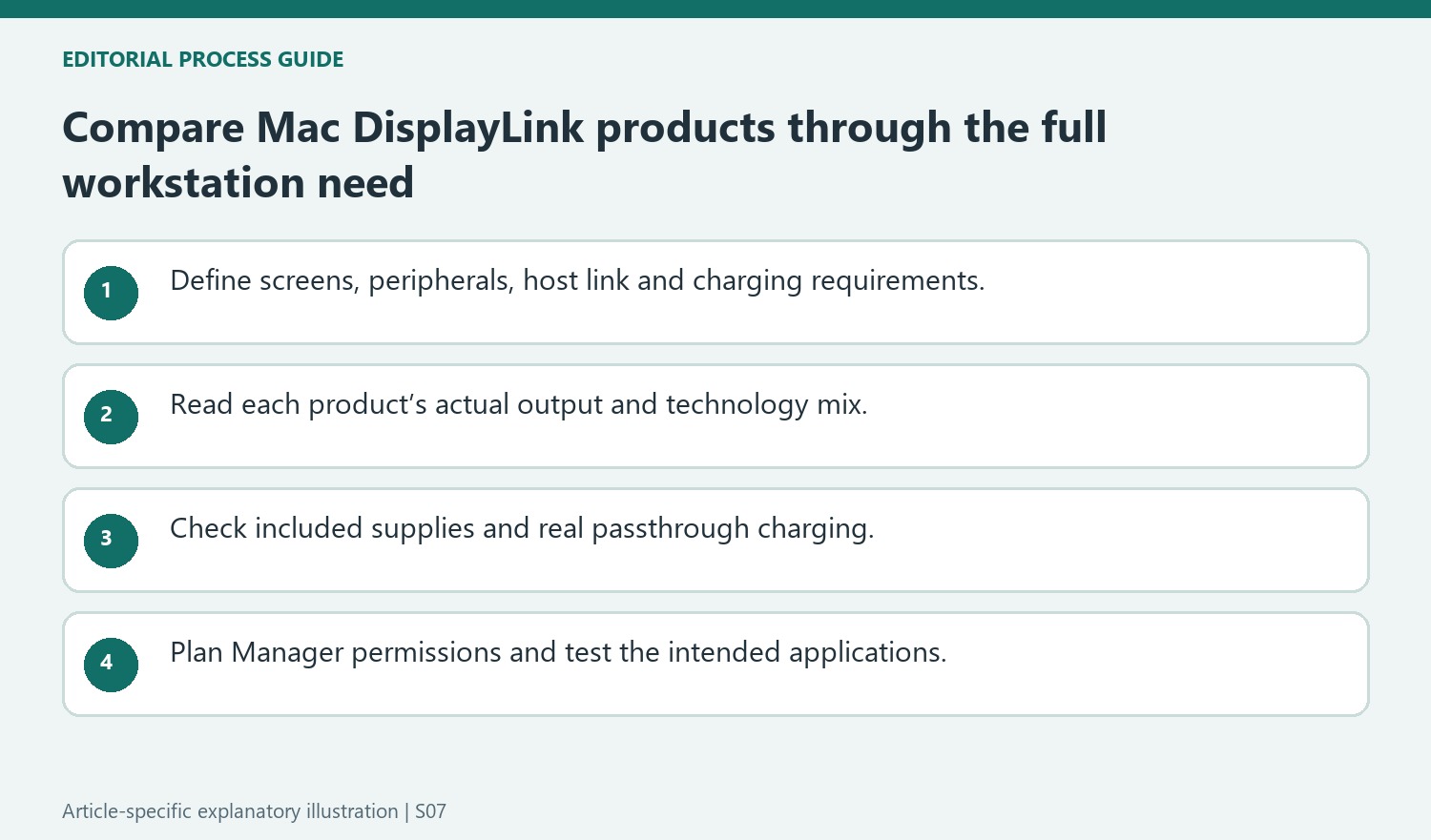
Decide whether the setup needs only additional screens, a complete peripheral dock or a replacement for the laptop’s charging connection. The source separates products with standard host connectivity, Power Delivery docks and smaller graphics adapters because those categories solve different parts of the workstation problem. Similar model names should not substitute for checking their actual functions.
Record the required screen count and modes, host port and accessory needs before comparing products. Where a dock combines technologies, identify which outputs are DisplayLink-controlled and which require another native host feature. A product appearing in a Mac recommendation list does not mean every port provides identical behavior on every Mac or that all outputs share one software path.

Read included power and passthrough charging carefully
Check the current product page for the host charging allowance and whether the intended supply is included. Passthrough designs depend on another suitable power source and should not be described as identical to a dock shipping with its own equivalent adapter. Compare the actual available host power with the computer’s documented needs rather than selecting solely by the largest wattage in the list.
Keep accessory power separate from laptop charging and include any existing charger in the desk plan. The complete arrangement may reduce or retain separate cables depending on the product and host support. Verify the chosen connection under the intended routine, rather than assuming that a compatible USB-C plug establishes adequate charging or that adding screens automatically solves the power requirement.
Include the Mac software and application requirements in the decision
DisplayLink-controlled outputs need Manager installed, running and permitted to access the required screen information. Use the guide matching the actual macOS version and test the ordinary login and docking sequence. The source also flags protected-content limitations, so include the intended media applications before standardizing the product. A careful comparison combines host compatibility, working power, supported display paths and software readiness. That makes the model list a route to a concrete workstation plan instead of a collection of names treated as universally interchangeable Mac accessories.
References
- Plugable Help Center. Plugable Knowledge Base.
Plugable's macOS list separates USB host docks, USB-C Power Delivery models and graphics adapters with different roles.


Leave a Comment
Comments (0)