
Reset a DisplayLink Dock During a Clean Reinstall
Disconnect the device before changing software
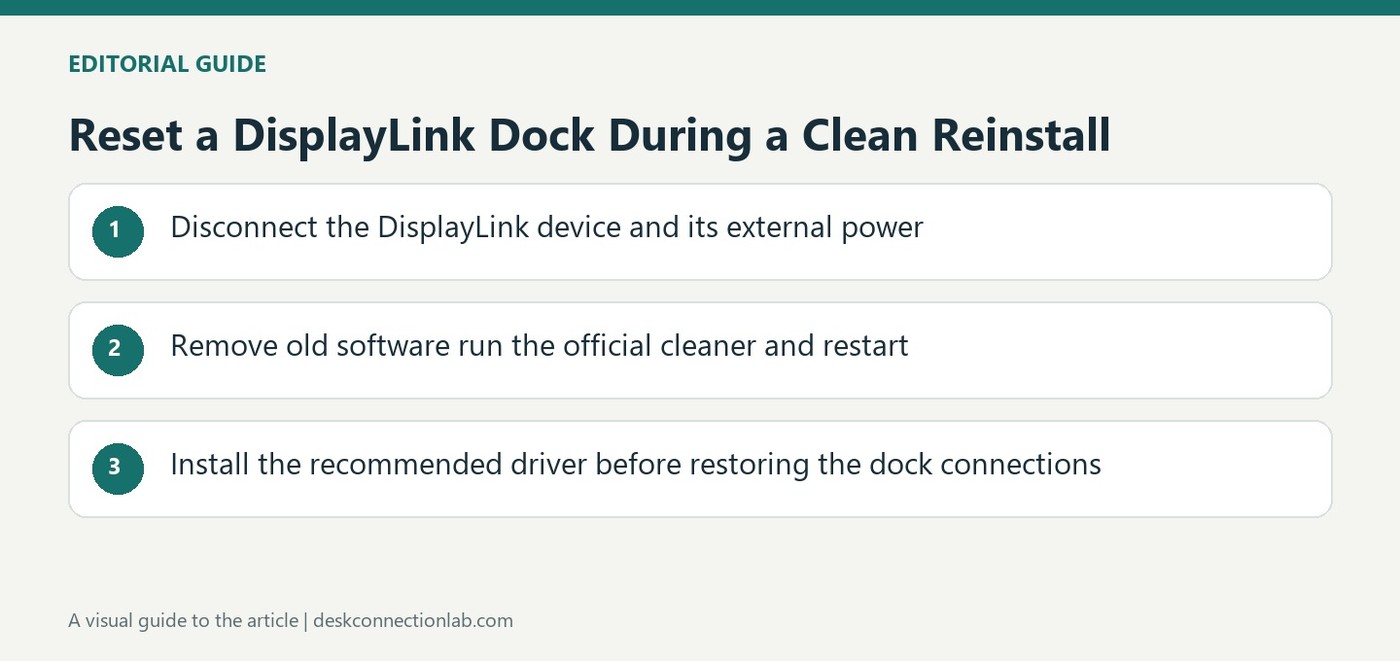
When a Plugable DisplayLink device behaves unexpectedly on Windows, the company's guide recommends a clean manual installation of its recommended DisplayLink software. Begin by disconnecting the dock or graphics adapter from the computer. If the product has an external power adapter, unplug that from the device as well so the hardware resets. Keep it disconnected until the procedure calls for reconnection. This sequence matters because changing software while leaving the device continually attached does not reproduce the clean starting condition described in the guide. The instructions are for Windows; macOS uses a separate DisplayLink Manager installation process.
Remove the old software and restart
The guide next removes software with DisplayLink in its title through the Windows application management interface. If an entry is absent or the uninstall does not complete, Plugable directs the user to continue to its next step rather than stop at that point. Run the official DisplayLink Installation Cleaner linked from the current support article, then restart the computer even if no prompt appears. Obtain tools and the recommended driver through the vendor's support page so the version and source are clear. The restart is part of the cleanup sequence, not an optional delay that should be skipped to save time.
Install before restoring the connections
Install the DisplayLink driver recommended by Plugable, then restore the dock's external power if it was removed. Reconnect the device to the computer afterwards. The source suggests one further host restart if the product still does not work as expected. If the problem remains, provide Plugable Support with diagnostic information from its supported PlugDebug utility rather than repeating the same installation indefinitely. Record the product, operating system and observed behavior so the next investigation starts from what has already been tried. A clean reinstall establishes a more controlled baseline; it does not prove that every possible hardware or compatibility issue has been resolved.
Identify the product and preserve the failed behavior first
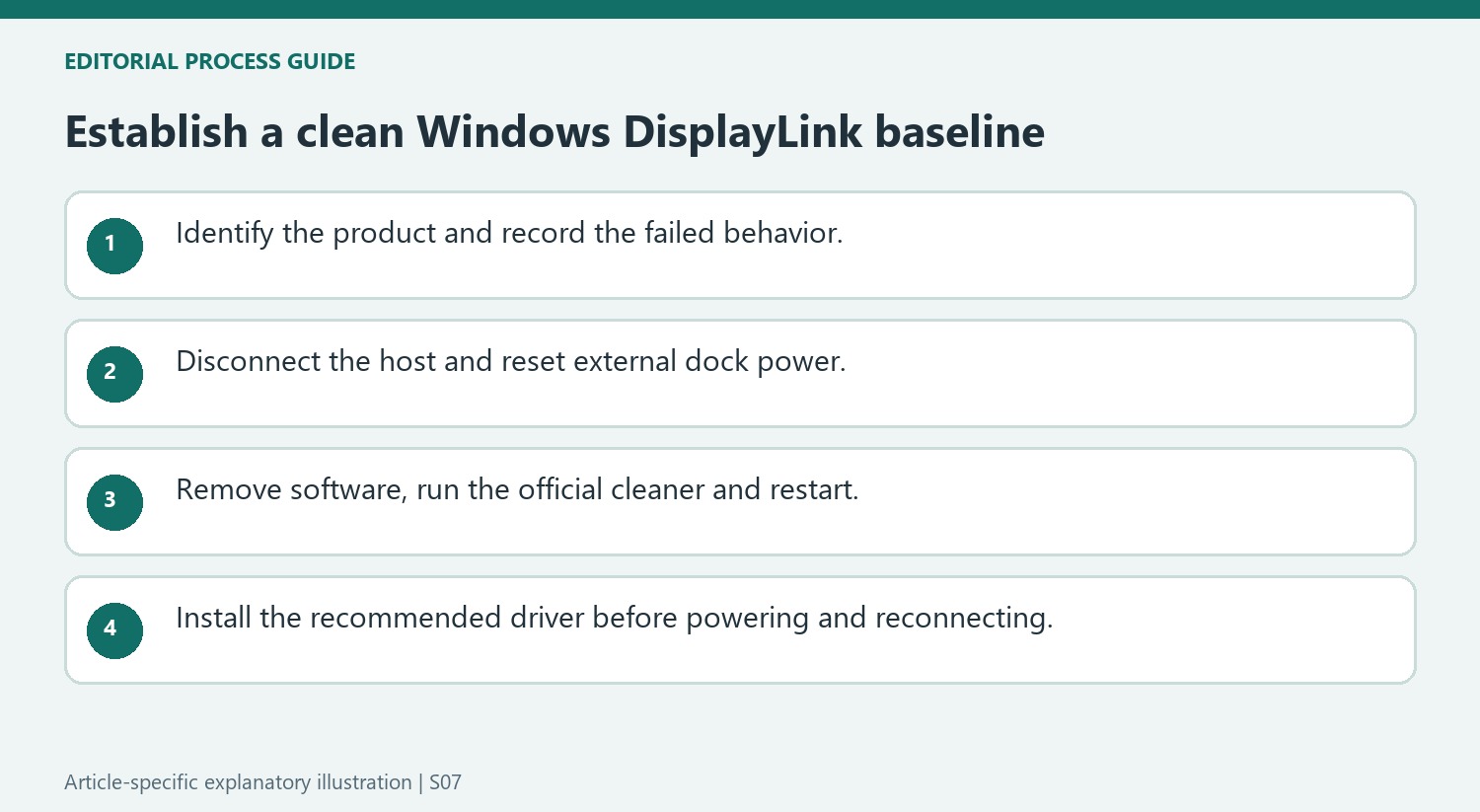
Confirm that the dock or adapter uses DisplayLink and that the host is running the Windows version covered by the guide. Other USB graphics technologies and the Mac installation process use separate instructions. Record the product model and whether the symptom is missing detection, a blank image or another unexpected behavior before the cleanup begins.
Save open work and keep the current support instructions available across the required restart. The source calls for a defined sequence, including resetting powered hardware while the software is removed. Beginning with a clear symptom makes it possible to judge whether the subsequent clean baseline changes the original problem rather than merely noting that an installer finished.
Keep removal, cleanup and restart as distinct stages
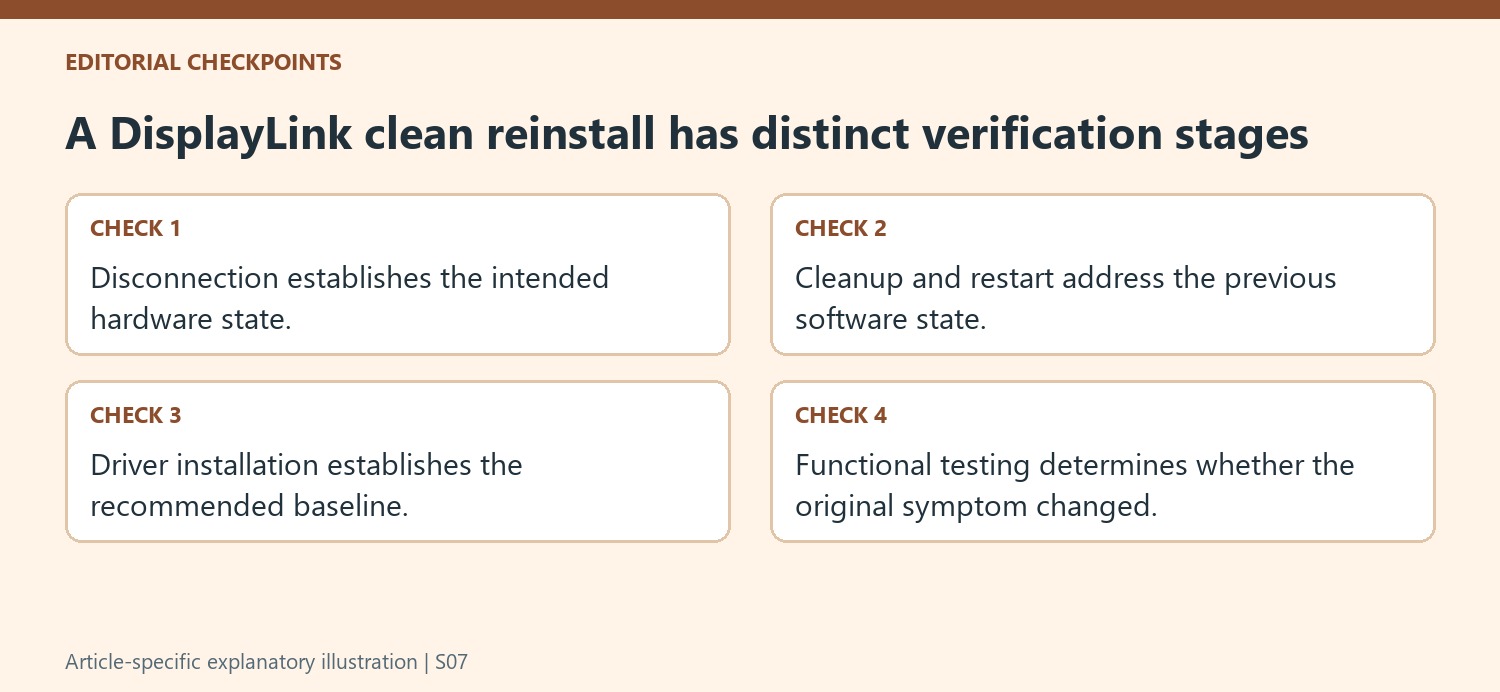
Disconnect the device from the host and remove its external power where present, keeping it disconnected until the documented reconnection point. Remove the relevant DisplayLink software entries and continue to the official cleaner as directed if entries are missing or removal is incomplete. That bounded guidance does not call for removing unrelated graphics software just because a display is involved.
Run the cleaner obtained through the vendor’s current support route and restart even when Windows does not explicitly ask. Then install the recommended driver before restoring power and reconnecting the product. Preserving the order makes the result interpretable: the hardware and software have been given the particular reference state described by the manufacturer, rather than several partial reinstall attempts with the dock continuously attached.
Judge the outcome through the original task
After reconnection, check the affected display or accessory behavior again and follow the additional restart instruction if needed. Verify the intended screen mode as well as the presence of an image. If the problem persists, retain the product, system version and diagnostic output requested by support, together with the steps completed. A clean reinstall is a useful starting condition for further investigation; it does not remove host compatibility limits or prove that every physical cable and monitor input is correct.
References
- Plugable Help Center. Plugable Knowledge Base.
Plugable's Windows procedure combines software cleanup with disconnecting dock power, then reconnects hardware after driver installation.


Leave a Comment
Comments (0)