
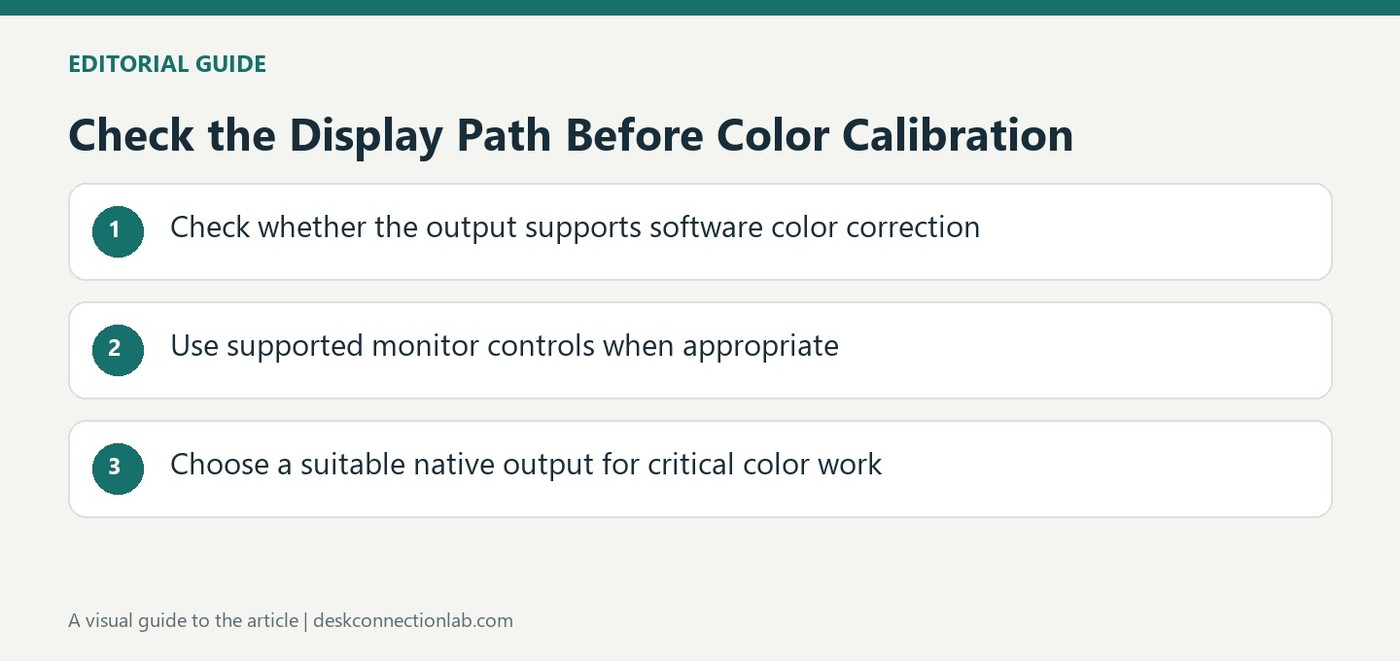
Check the Display Path Before Color Calibration
A working screen may still have calibration limits
A monitor can show a normal desktop while a Windows calibration adjustment has little visible effect. Plugable explains that software gamma correction is not uniformly available across all DisplayLink configurations. Support was added for certain devices beginning with DisplayLink software version nine, but the chipset, output, driver configuration and application still influence behavior. Avoid treating one successful setup or an older limitation as a universal rule for every DisplayLink product. Identify the dock or adapter and the actual output used before deciding whether the Windows calibration tool should affect that particular monitor connection.
Use the monitor's own controls for basic adjustments
For settings such as brightness, contrast, color temperature and RGB levels, Plugable recommends the monitor's on screen controls where available. These provide a different adjustment route from a software gamma ramp. Check the display's own manual for what its controls change and how settings are stored. A visible improvement from those controls does not establish that a software profile is being applied across the whole workflow. If software correction is required, consult the current guidance for supported DisplayLink hardware rather than repeatedly running the same Windows tool and assuming the lack of change means the panel is defective.
Plan professional color work around a suitable output
For work requiring accurate or hardware calibrated color, Plugable recommends a native graphics connection from the computer where possible. Depending on the host, that could use HDMI, DisplayPort, Thunderbolt or USB-C DisplayPort Alternate Mode. Confirm the actual capability of the port and the intended display path before purchasing another adapter. When requesting support, provide the computer, dock and monitor models, Windows version and connection details. This makes the question about calibration support specific enough to answer. A dock that suits ordinary office expansion may still require a different arrangement for a color critical screen.
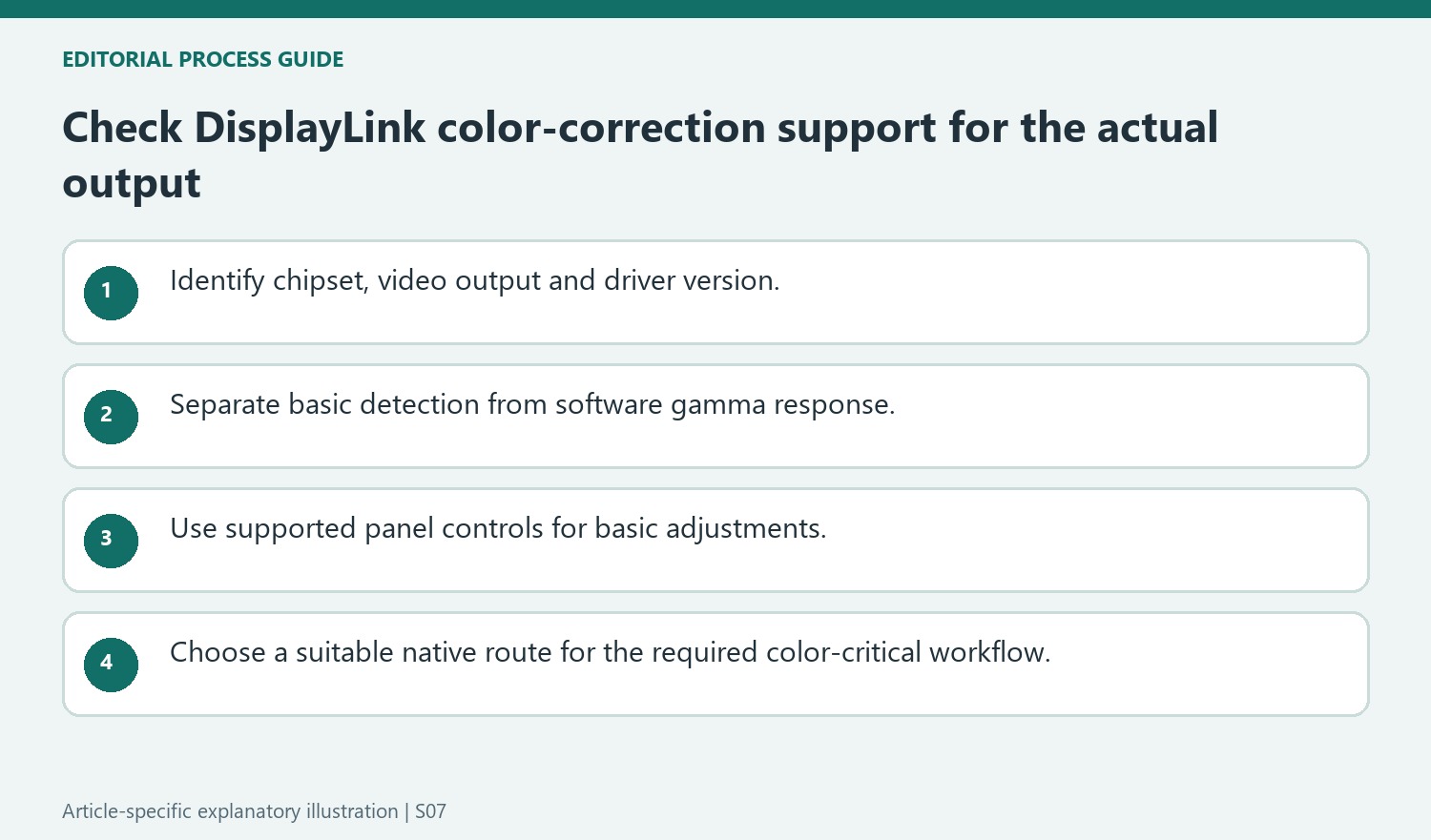
Avoid turning an older limitation into a universal current rule
The source describes gamma-ramp support introduced for certain DisplayLink hardware beginning with version 9.0, while emphasizing that support remains configuration-dependent. Identify the actual chipset, output and installed driver before concluding whether the Windows calibration tool should affect the screen. A remembered limitation from an old setup and a successful result on another dock are both incomplete evidence for this one.
Record the calibration action and observed effect separately from basic detection. A normal desktop that does not respond to a software gamma change presents a different issue from a missing monitor. The distinction helps avoid replacing a functioning panel or repeatedly reinstalling unrelated software when the real question concerns whether a particular correction path is supported and enabled.
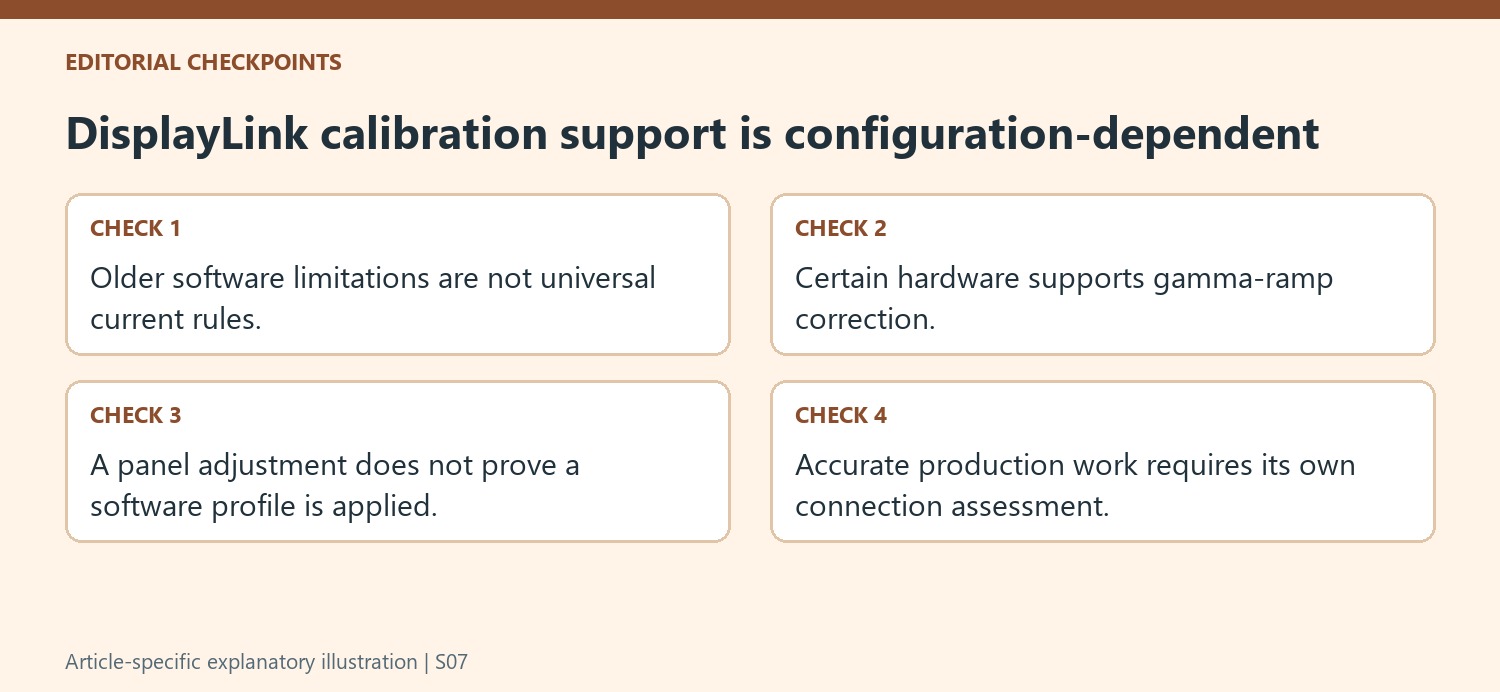
Use monitor controls without overstating the result
The source recommends the panel’s own controls for supported basic adjustments. Check brightness, contrast, color temperature or RGB settings through the monitor’s manual and verify the intended screen when several are present. These controls act through a different route from a Windows software gamma ramp, so one working method does not prove the other has become available.
A visually pleasing adjustment is not a certificate of a color-managed workflow. Define whether the user needs ordinary comfort or reliable color matching for photography, production or print. If supported DisplayLink gamma correction is being investigated, consult the current Synaptics and product guidance for the exact hardware rather than treating every Windows calibration run as equivalent. Keep the actual driver and output information with the result.
Select the connection around the professional requirement
For highly accurate or hardware-calibrated work, Plugable recommends a suitable native graphics route where possible. Verify the computer port’s real video capability and the complete display path before choosing an adapter. The connection decision should be made before standardizing an office-expansion dock for a color-critical screen. If support is needed, provide the product, computer, monitor, Windows release and path alongside the correction requirement. This gives a specific compatibility question to answer and avoids confusing a USB graphics configuration limit with a general defect in the monitor’s ability to display an image.
References
- Plugable Help Center. Plugable Knowledge Base.
Plugable notes that Windows calibration behavior varies across DisplayLink configurations and favors native video for color critical work.


Leave a Comment
Comments (0)