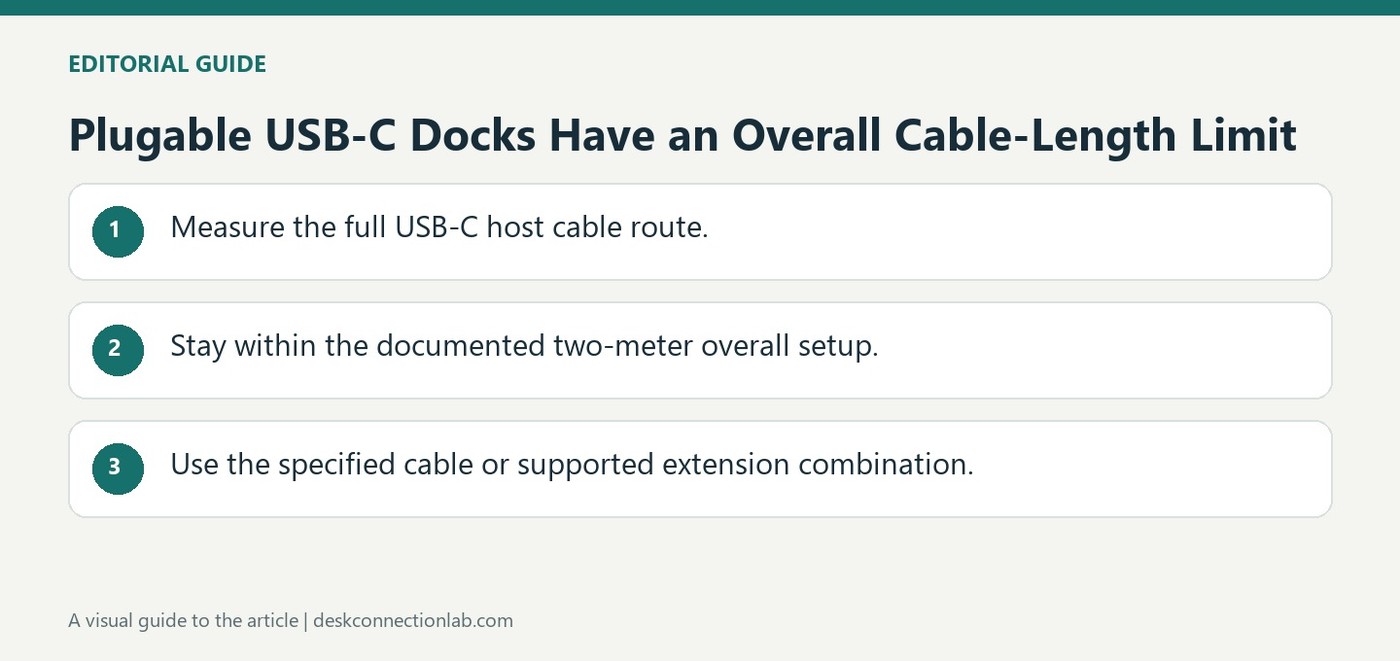
Plugable supports USB-C host cables up to two meters overall for its USB-C docking stations. The guide describes checking the original cable's specifications on its attached flag and choosing a replacement that matches or exceeds them. A longer cable must preserve the complete host connection requirements.
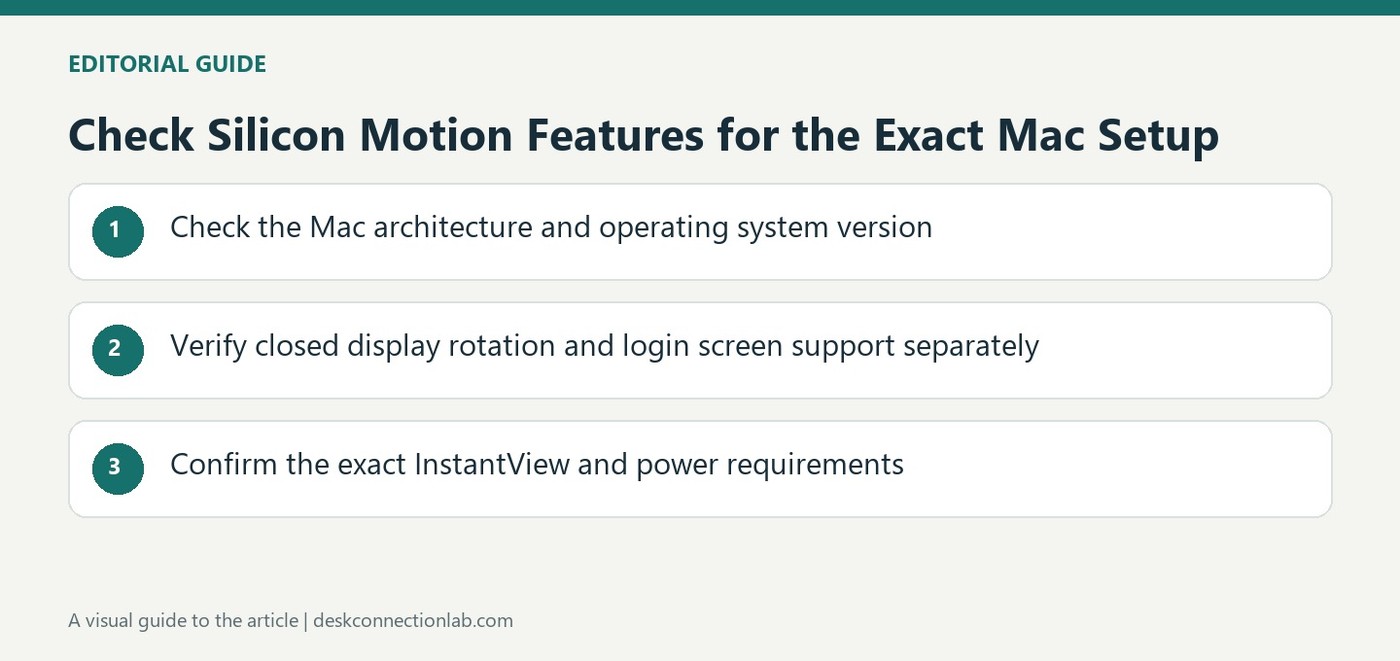
Plugable's macOS guidance distinguishes clamshell, rotation, login display and Night Shift support by configuration.
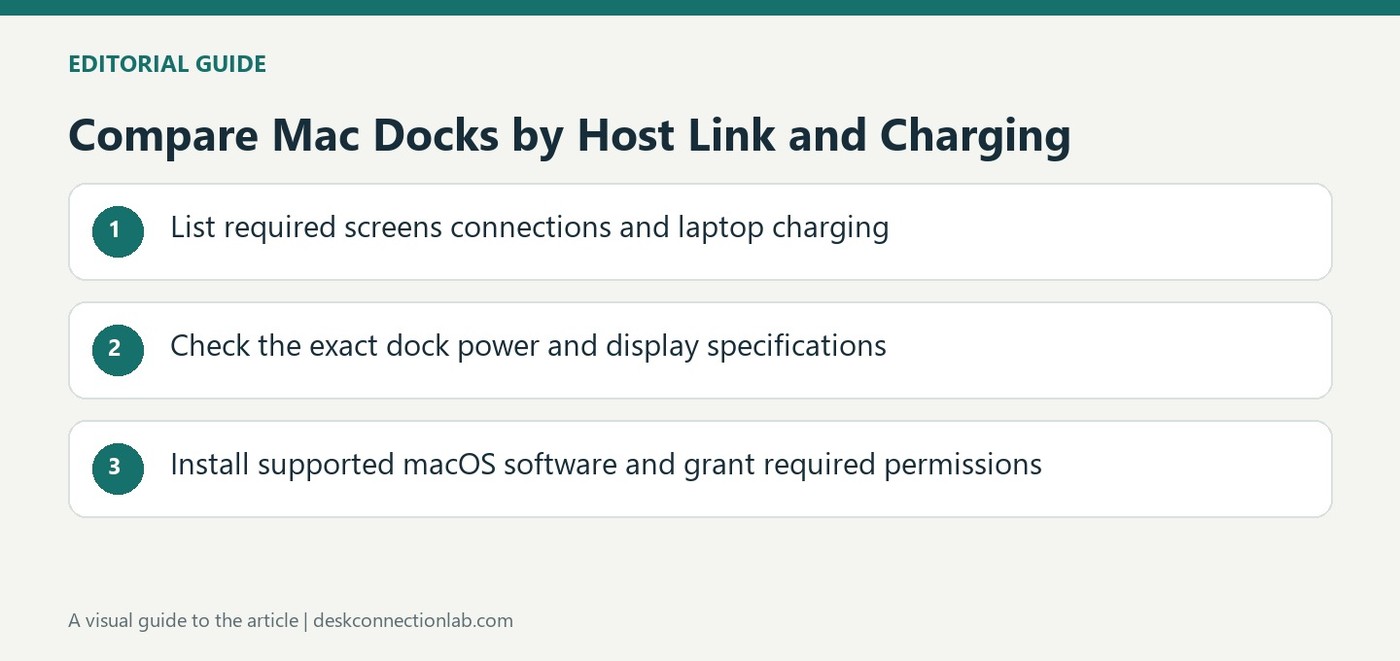
Plugable's macOS list separates USB host docks, USB-C Power Delivery models and graphics adapters with different roles.
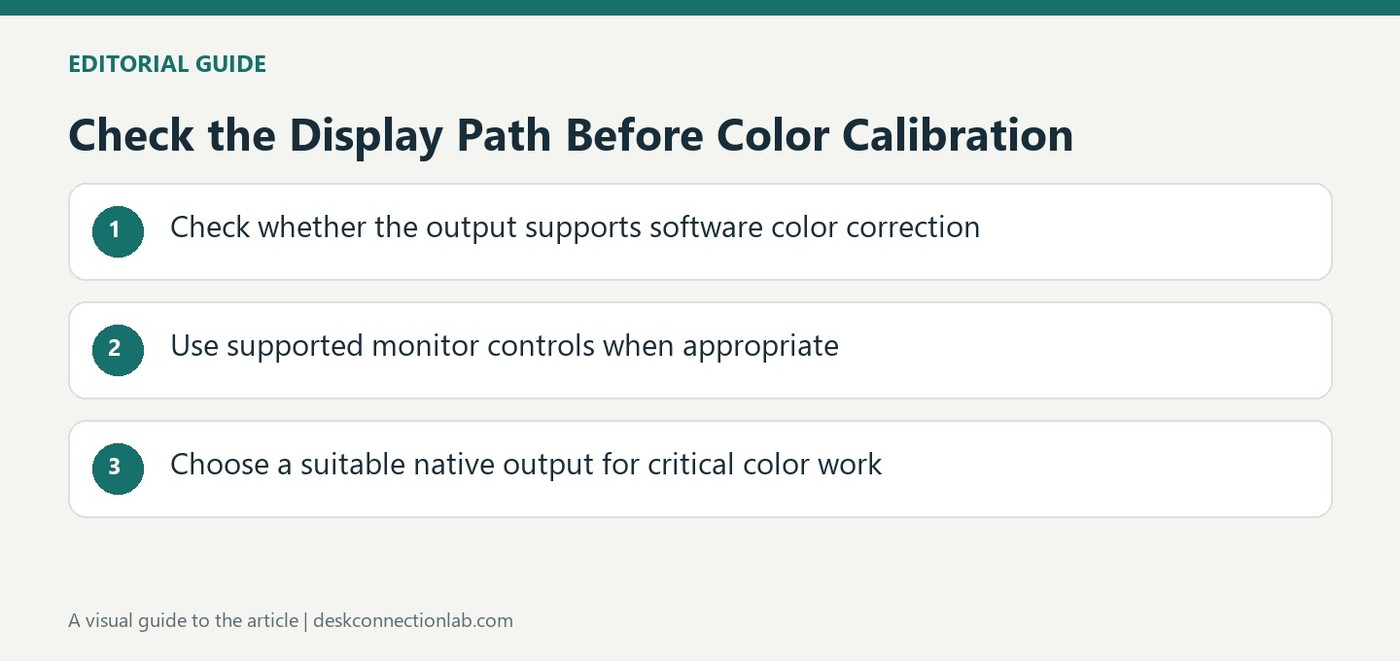
Plugable notes that Windows calibration behavior varies across DisplayLink configurations and favors native video for color critical work.
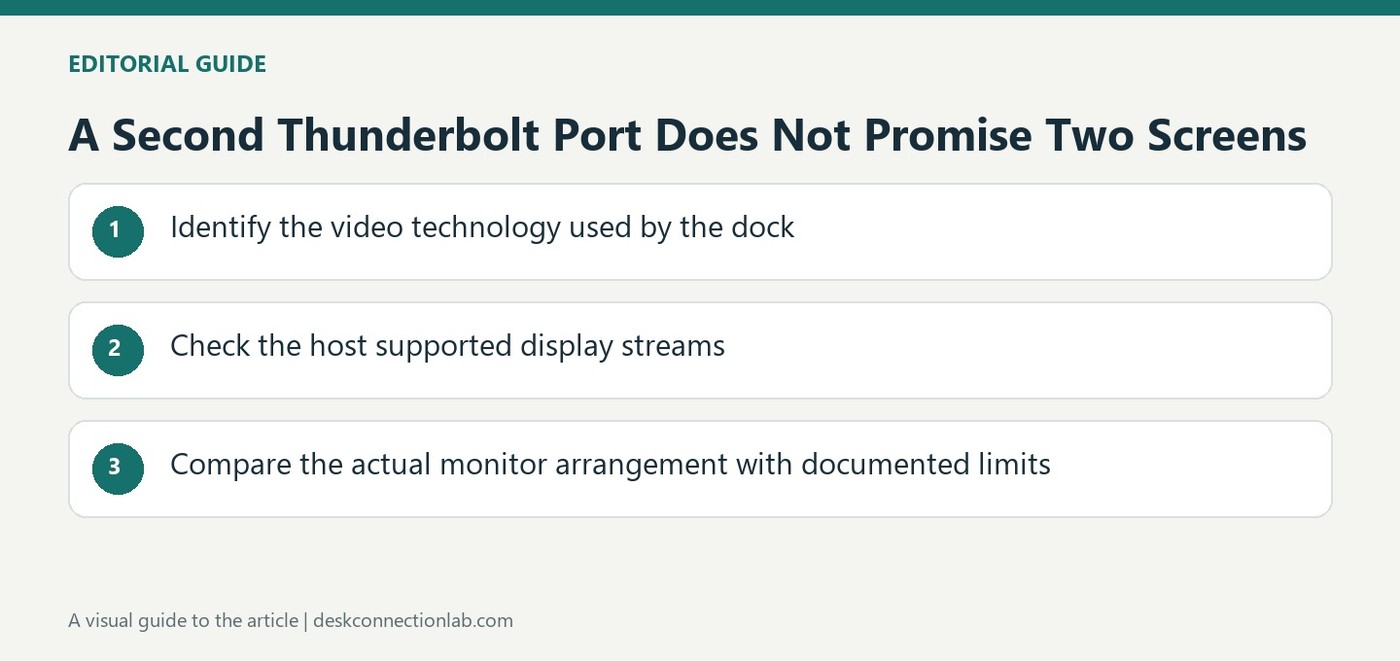
The TBT3-UDV can expose a downstream connection, but the computer determines how many native display streams are available.
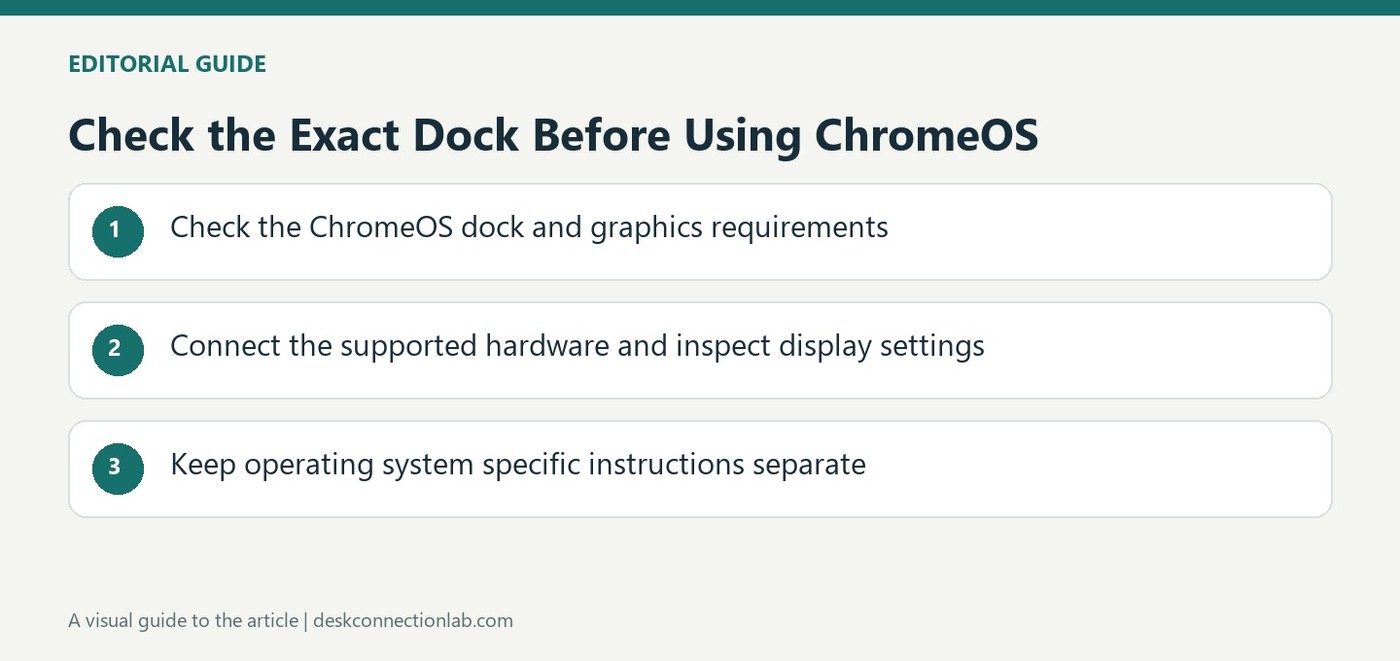
ChromeOS includes DisplayLink support, but Plugable still requires a compatible product and recommends current Stable channel updates.
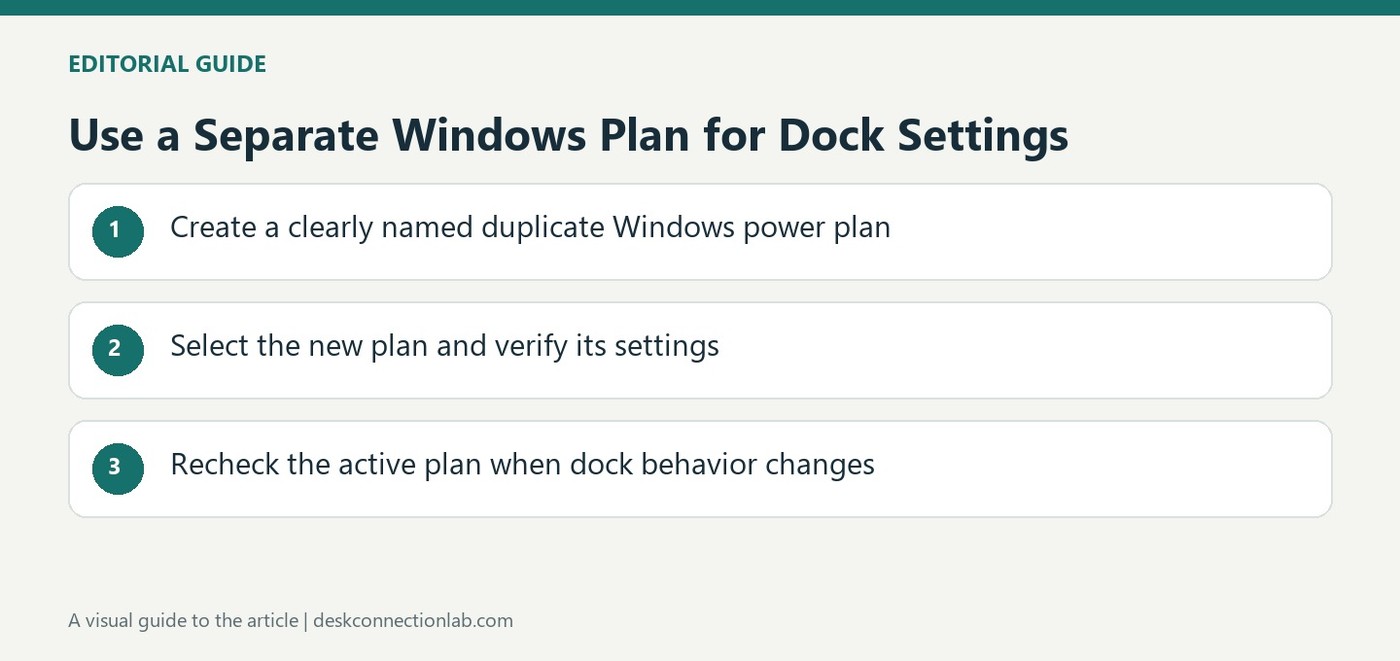
Plugable suggests duplicating a Windows power plan when recurring changes interfere with a DisplayLink docking setup.
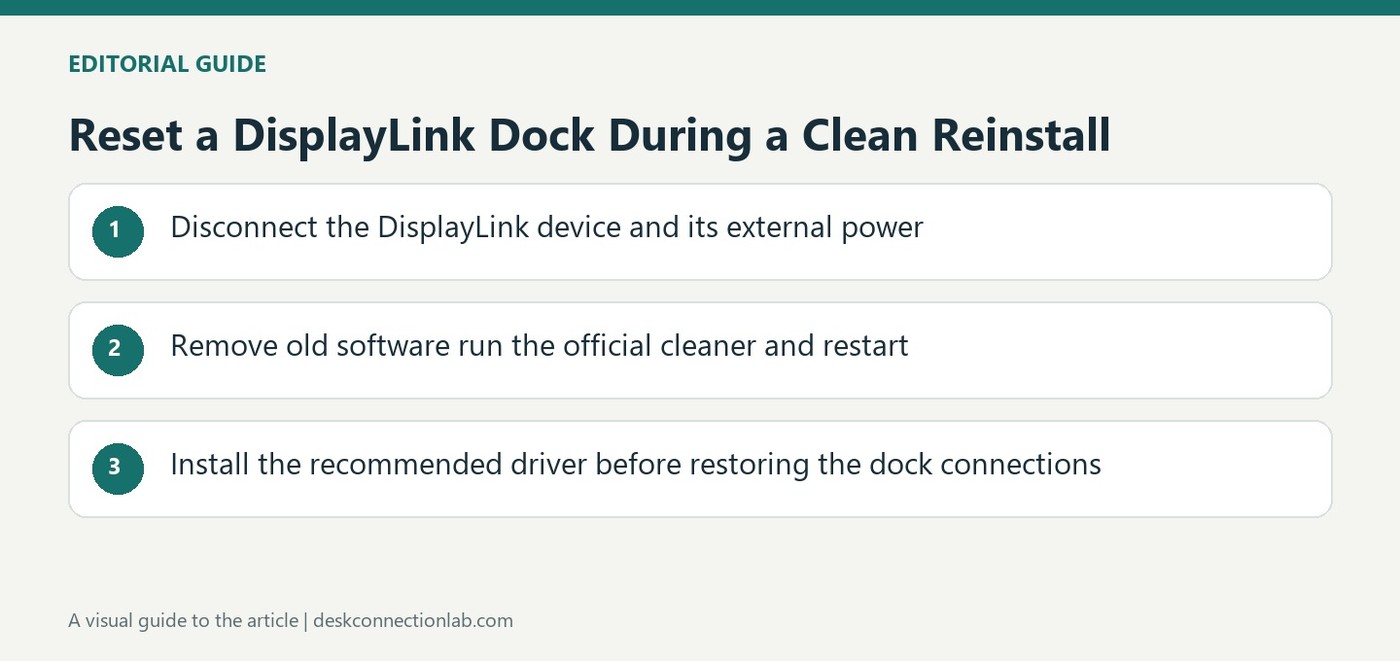
Plugable's Windows procedure combines software cleanup with disconnecting dock power, then reconnects hardware after driver installation.
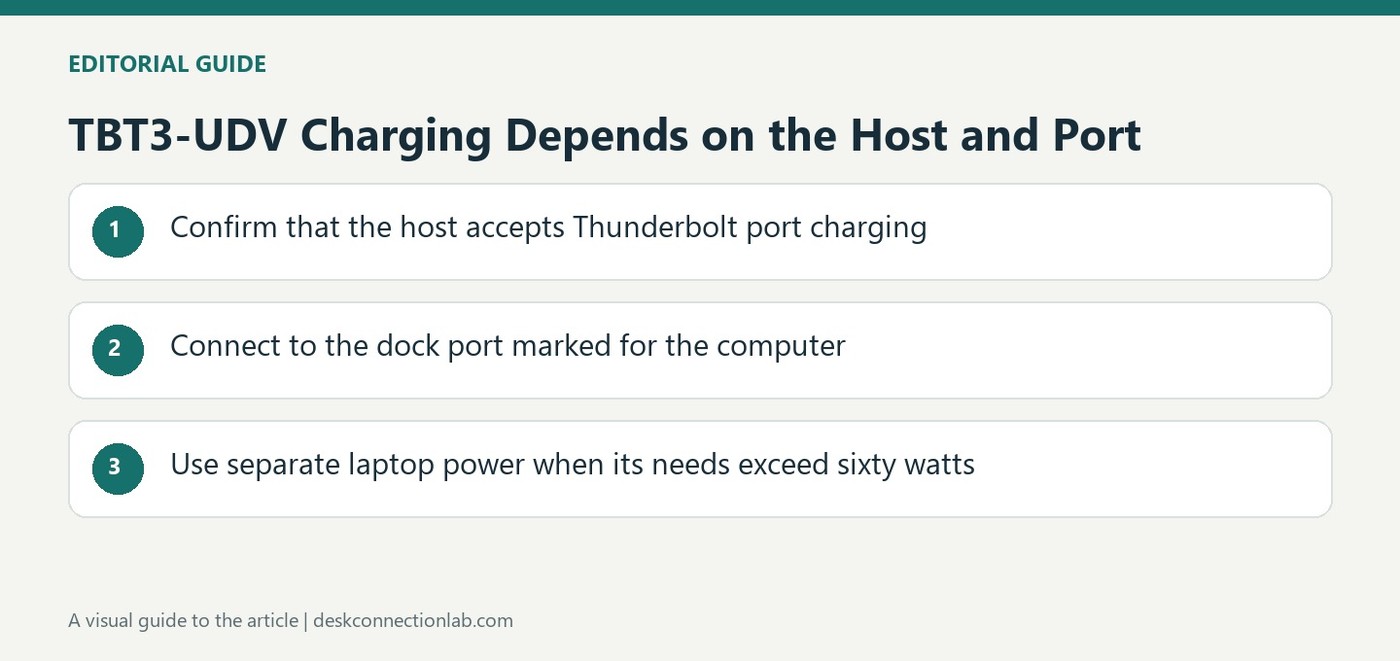
Plugable rates the TBT3-UDV host connection at up to 60 watts and requires a computer that accepts charging through Thunderbolt.
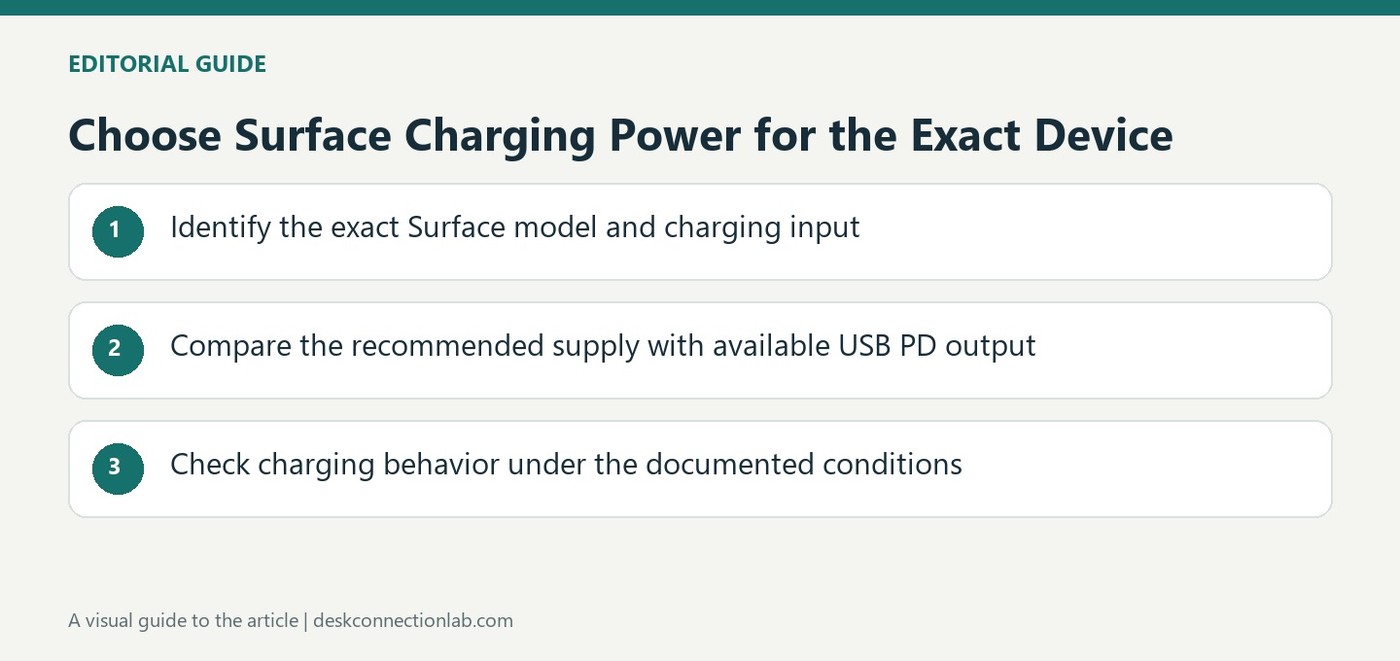
Microsoft recommends a suitable USB-C PD supply and notes that a lower power connection may charge slowly or fail to charge.
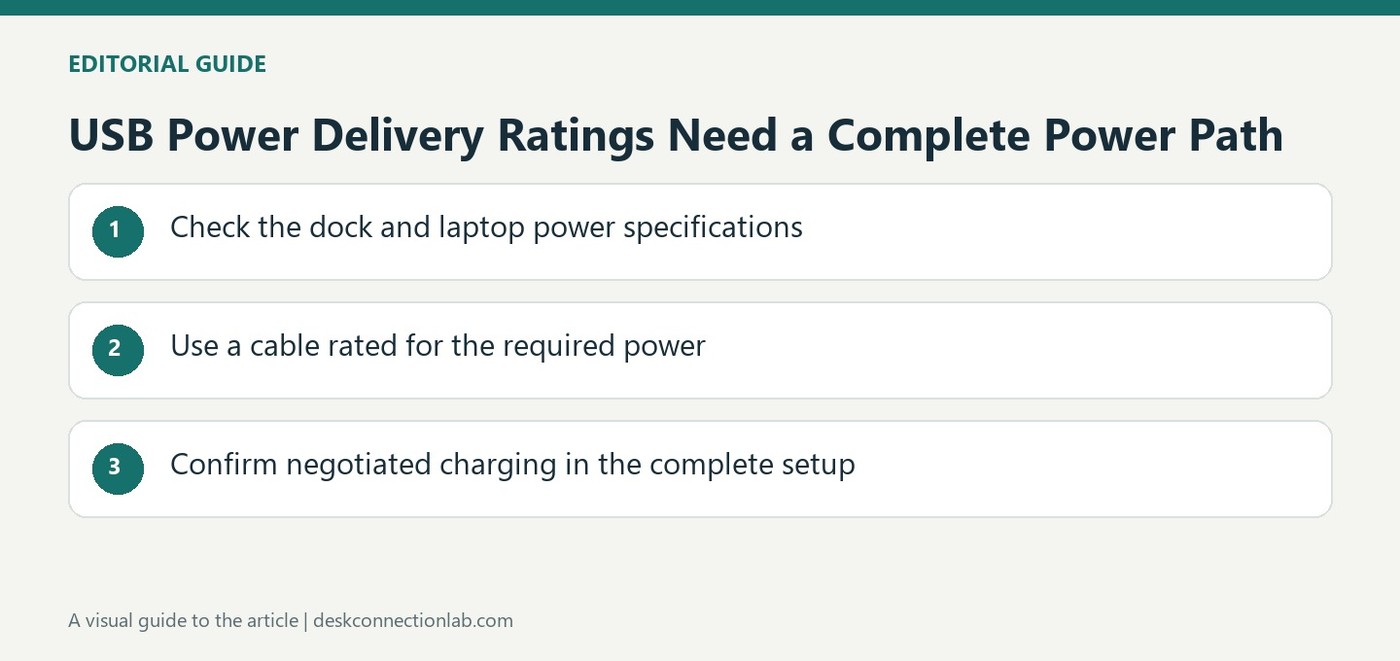
USB PD defines negotiated power capabilities, but a dock, cable and computer must all support the required charging level.
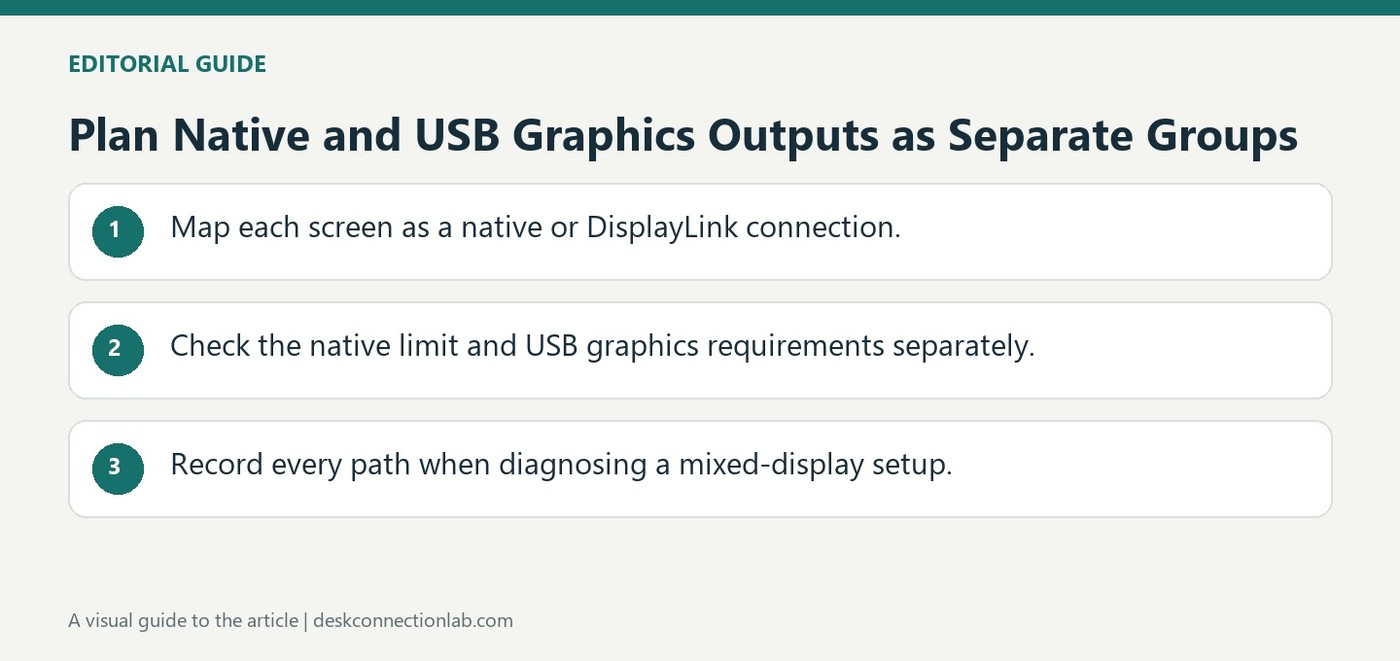
Plugable explains that native video outputs and DisplayLink displays can generally operate together on supported computers. The dock's USB graphics route does not normally switch off the built-in HDMI, DisplayPort, USB-C, or Thunderbolt video outputs. This can offer flexibility when arranging an existing workstation.
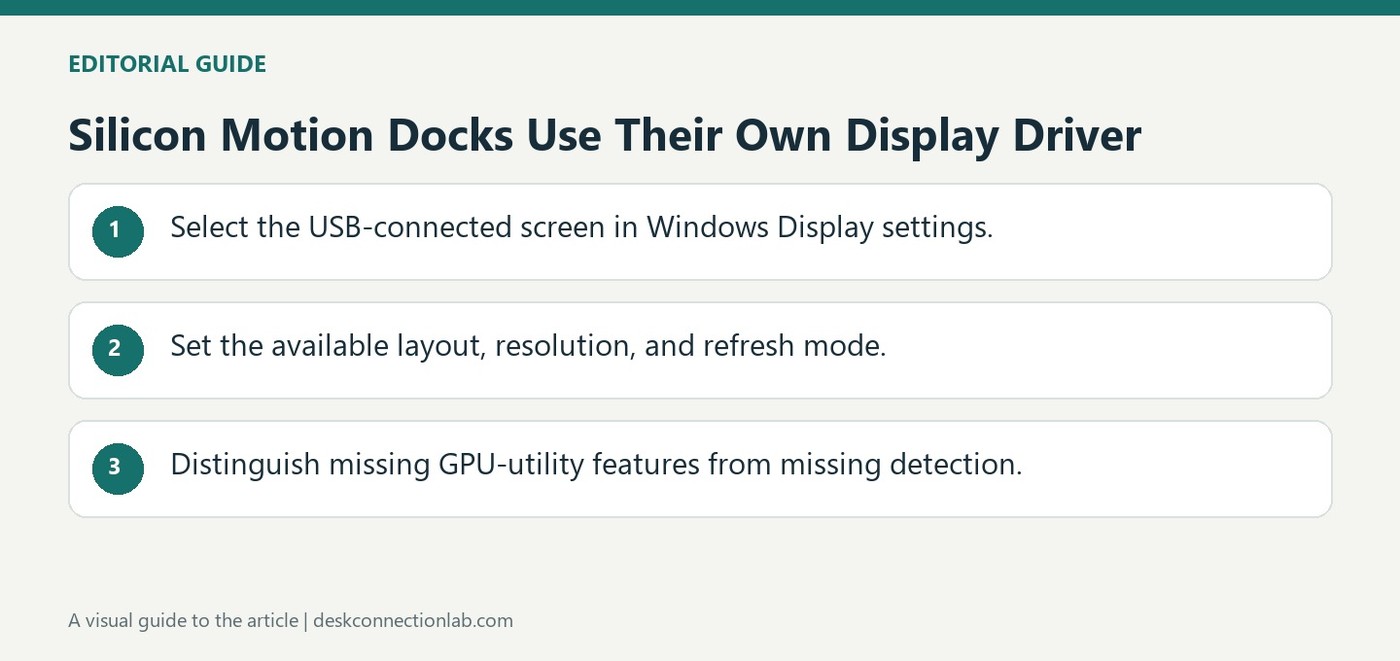
Plugable's Silicon Motion guidance explains that its USB-connected displays are handled by Silicon Motion software. They are not equivalent to monitors wired directly to Intel, NVIDIA, or AMD graphics outputs. This can limit which vendor-specific tools and features appear for a dock-connected screen.
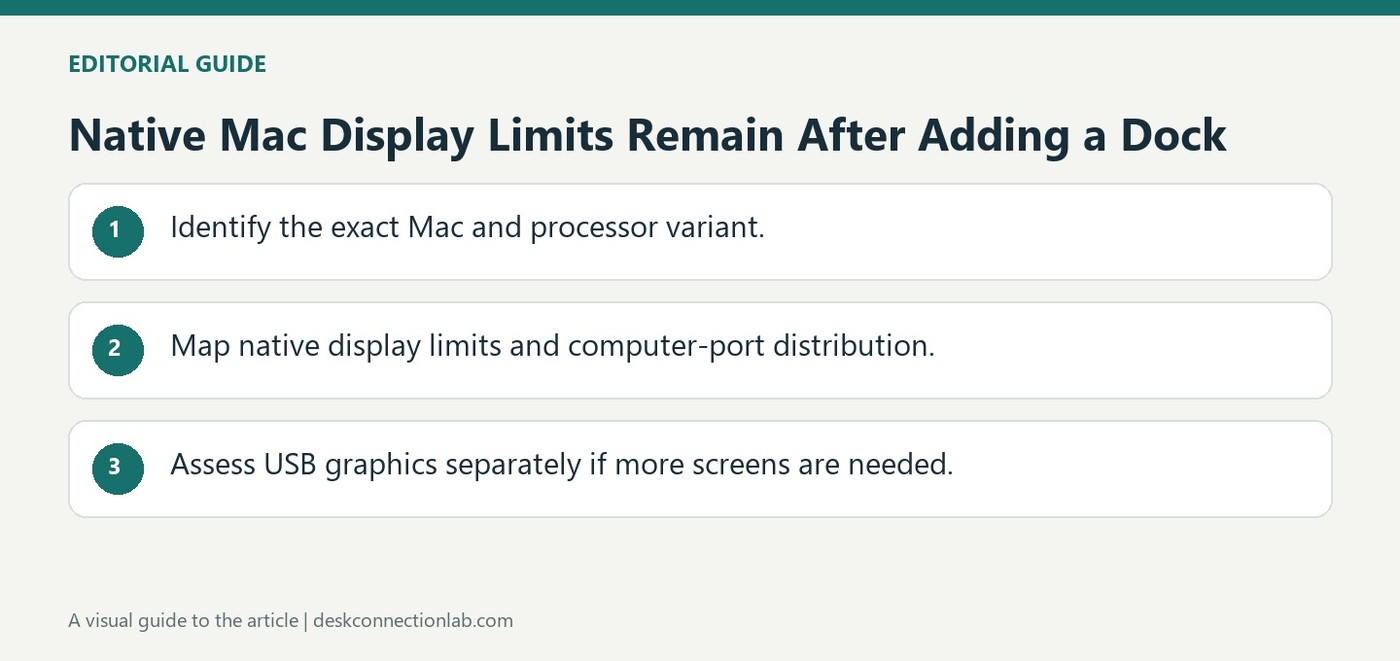
Plugable's Apple Silicon guide emphasizes that a Thunderbolt dock cannot exceed the host's native display support. Base M1 and M2 MacBooks, for example, do not gain additional native Thunderbolt displays merely by adding more dock outputs. Other processor variants and generations support different configurations.
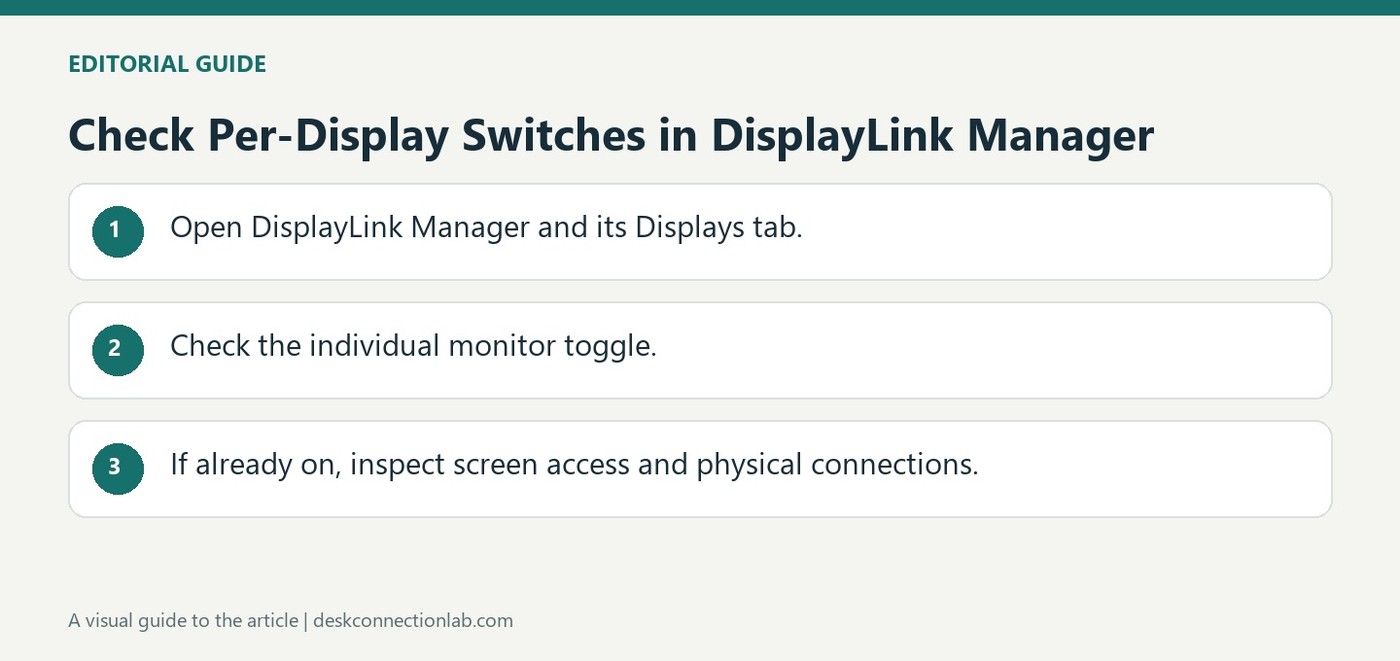
When a DisplayLink dock has power and its application is active but a monitor remains blank, Plugable recommends opening DisplayLink Manager's Displays tab. Each connected screen has a toggle that should be On if it is intended for use. The application state and individual display state are separate checks.
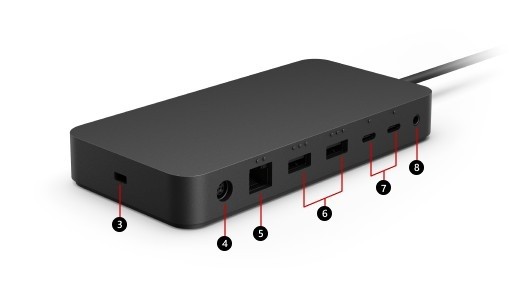
Surface Thunderbolt 4 Dock offers USB4 and Thunderbolt 4 USB-C connections, USB-A accessory ports, networking and audio. Microsoft explains that a Thunderbolt 4 host provides the intended capability, while other compatible USB-C computers may have reduced features. The plug shape is therefore only the beginning of a compatibility check.
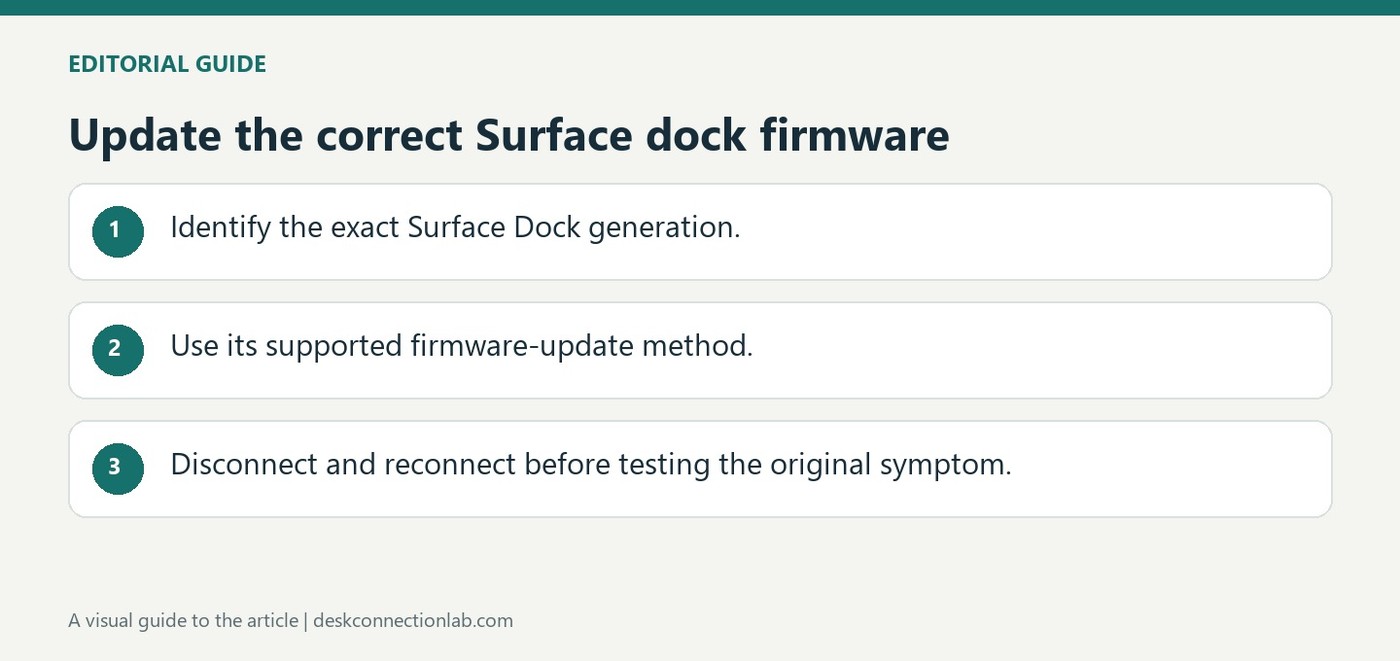
Microsoft's update page covers Surface Thunderbolt 4 Dock, Surface Dock 2 and the original Surface Dock. The available update method differs between models. With a supported dock connected, the Surface app can show relevant firmware information and update status; the original dock also has a specific firmware update tool.
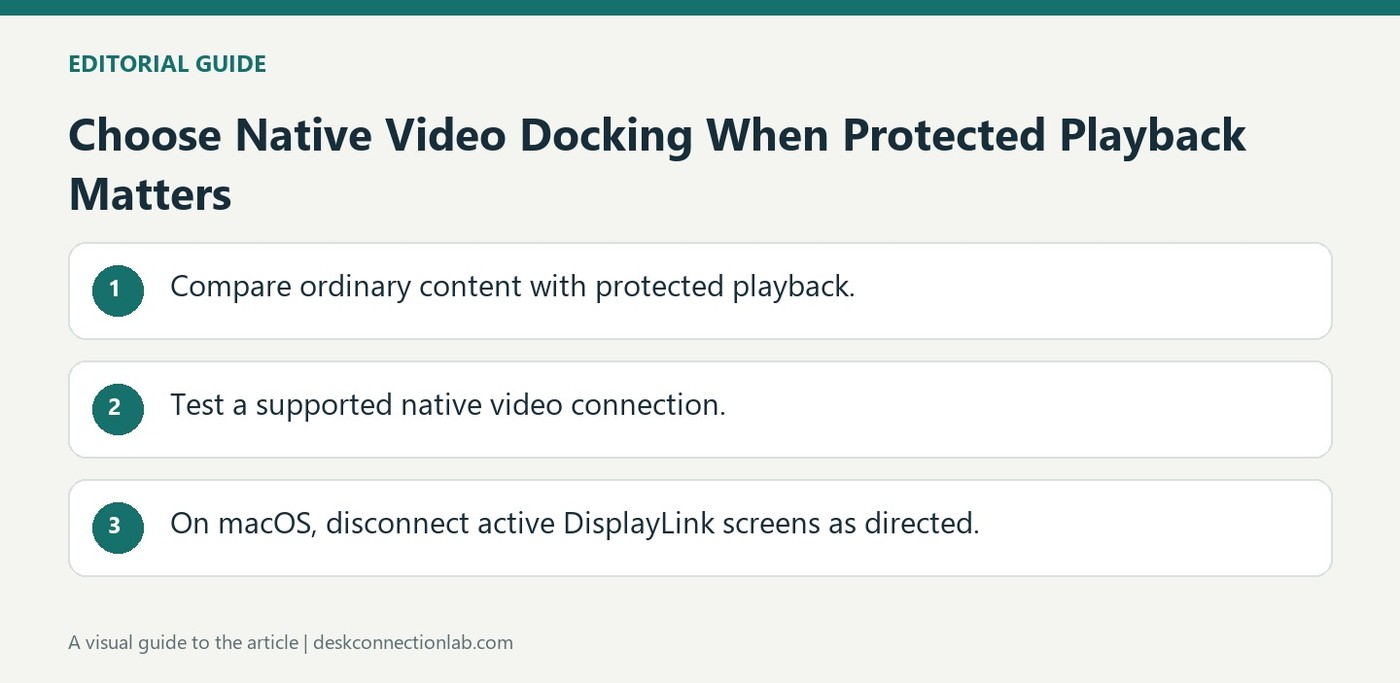
A DisplayLink dock may suit desktop applications while failing a protected-video requirement. Plugable states that HDCP-protected playback is unsupported through its DisplayLink outputs, with symptoms including black video, audio-only playback, errors, or reduced resolution. Service, browser, and operating system differences affect the observed behavior.
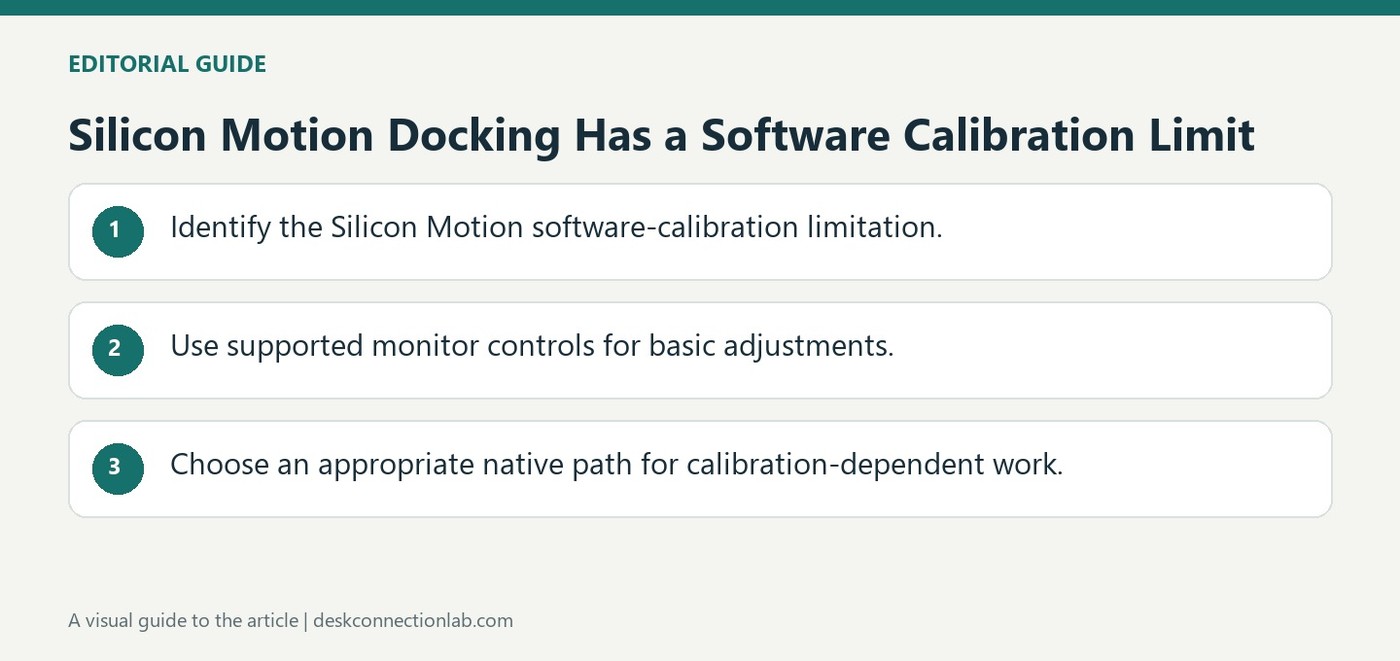
Plugable states that its Silicon Motion driver does not support software-based color calibration through the Windows calibration tool. A dock-connected screen can continue displaying normally while ignoring those changes. That limitation should be distinguished from a hardware defect or an incorrect monitor input.
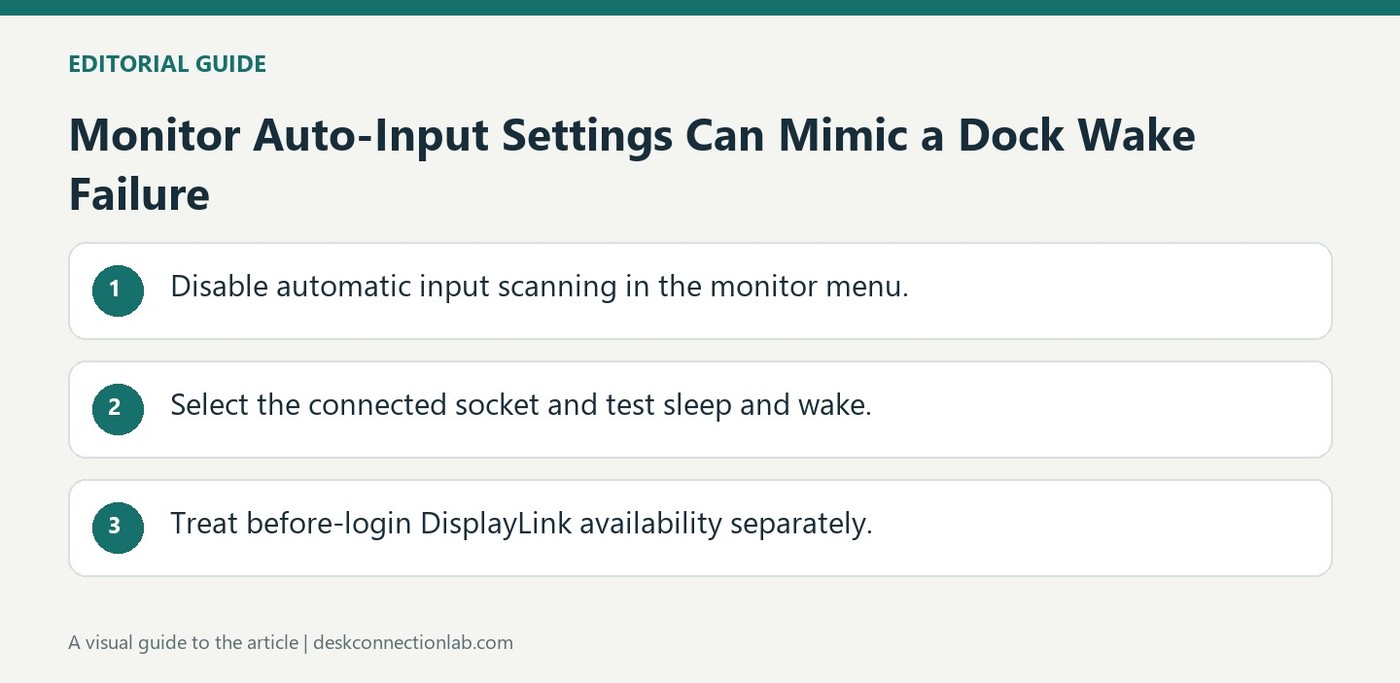
A monitor attached through a Mac docking station can remain blank after wake because its automatic input selection interferes with detection timing. Plugable describes disabling that scan and manually choosing the connected HDMI, DisplayPort, or USB-C source through the monitor's own menu.