
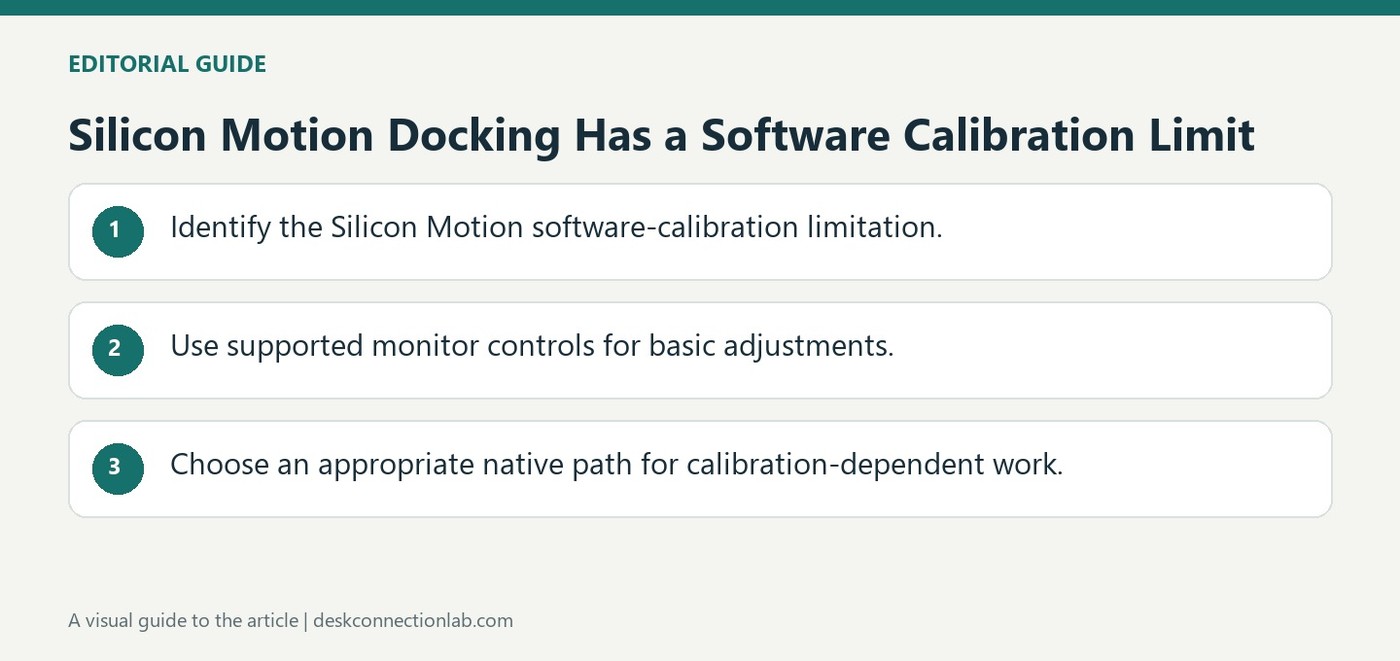
Silicon Motion Docking Has a Software Calibration Limit
Plugable states that its Silicon Motion driver does not support software-based color calibration through the Windows calibration tool. A dock-connected screen can continue displaying normally while ignoring those changes. That limitation should be distinguished from a hardware defect or an incorrect monitor input.
Use the monitor's built-in controls for the adjustments they support, such as contrast, brightness, color temperature, and RGB levels. For workflows requiring accurate software calibration, Plugable recommends native graphics output. Define that requirement before selecting a Silicon Motion dock for users whose work depends on reliable color matching.
Use the monitor menu for basic adjustments
Open the affected monitor's on-screen display and inspect the controls it actually provides. Brightness, contrast, color temperature, or individual RGB levels may be available, but their presence and names vary by model. These changes are made at the screen rather than through the unsupported Windows software-calibration path. They can improve a basic viewing setup without establishing that a color-managed professional workflow has been calibrated accurately.
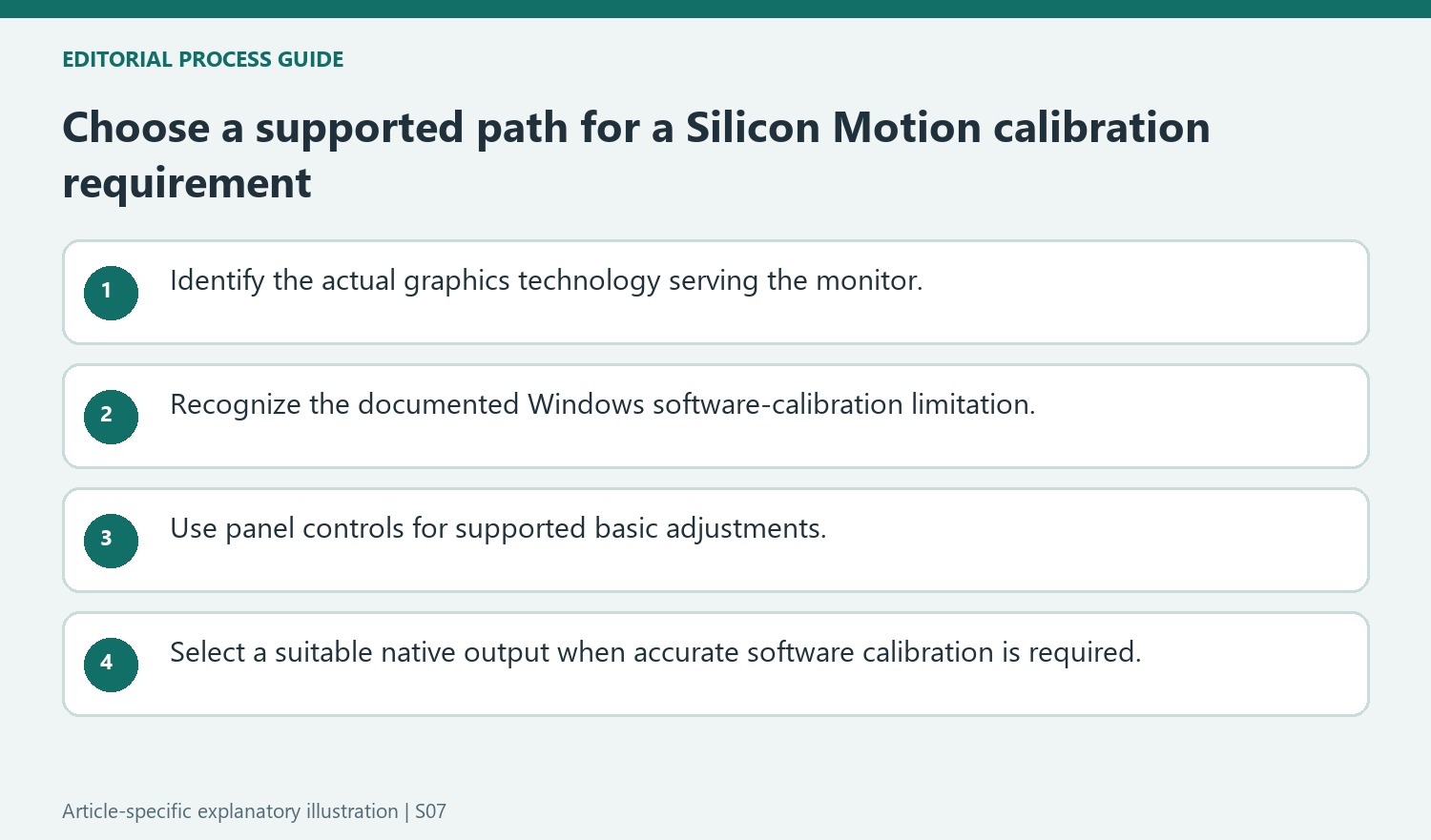
Make calibration support part of the connection decision
A photography, print-matching, or video workflow may need more than a visually pleasing manual adjustment. Plugable recommends a suitable native graphics connection when software-based calibration is required. That could be HDMI, DisplayPort, or an appropriate native USB-C or Thunderbolt video path, depending on the computer. Identify the actual technology behind the screen connection before replacing a monitor or repeating the calibration tool. For support, provide the Silicon Motion product, computer and monitor models, Windows version, and connection details. The expected driver limitation is different from a screen that is absent from Windows or cannot display an image at all.
Confirm that the affected output uses Silicon Motion graphics
Identify the dock or USB adapter model and the video path serving the screen before repeating the Windows calibration tool. The source’s limitation concerns Silicon Motion-based outputs. A similar USB-C connector on another device can use a different technology, so model and driver identity provide more useful evidence than the appearance of the cable.
Distinguish a normally displayed desktop that ignores calibration changes from a monitor that is not detected or shows no picture. Those observations address different requirements. Plugable describes the unsupported software-calibration behavior as expected for this driver, so repeatedly reinstalling an otherwise functioning monitor does not establish a way around that documented capability boundary. Record the actual symptom before choosing a repair action.
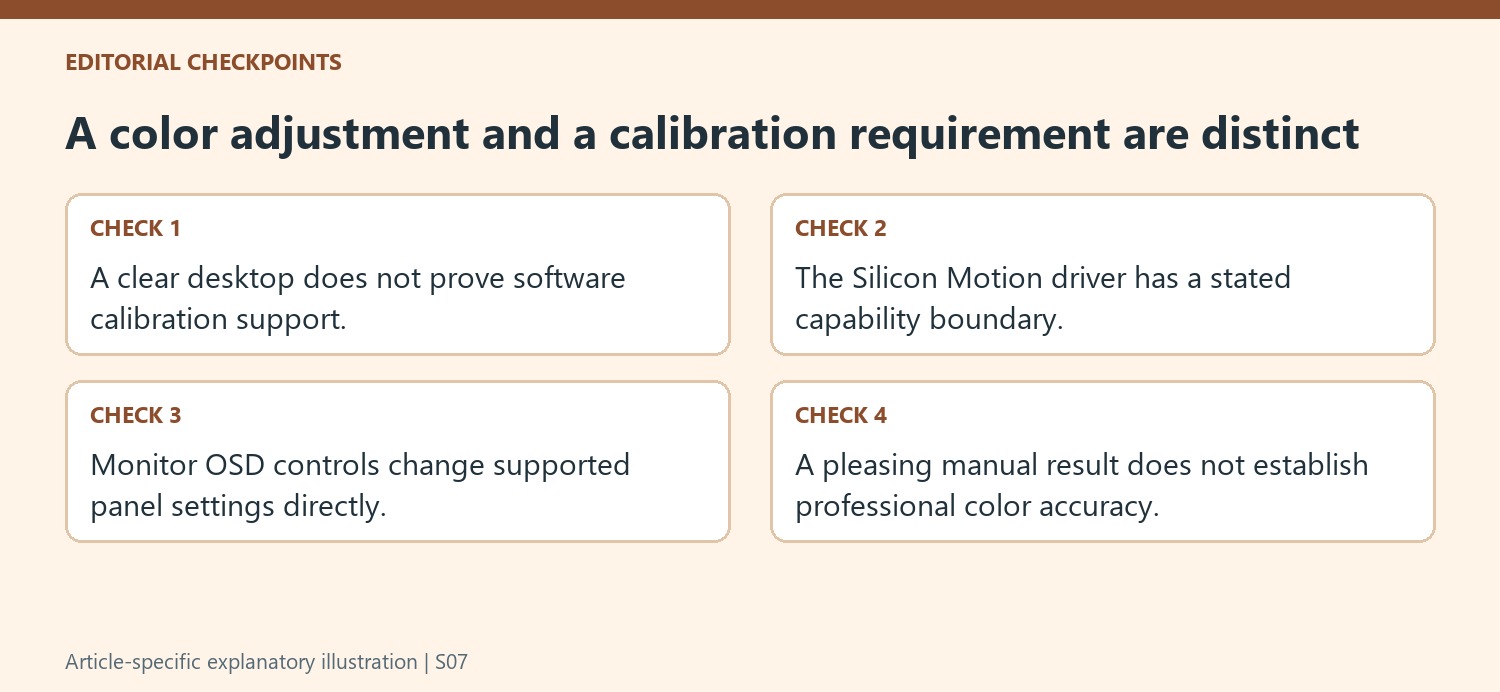
Use panel controls for the basic adjustments they provide
Open the affected monitor’s on-screen display and inspect its available brightness, contrast, color-temperature or RGB settings. Follow the screen’s manual because names and options vary by model. These changes occur in the monitor’s own controls rather than through the unsupported Windows software path, giving a direct way to adjust basic viewing characteristics.
A visually improved picture should not be described as proof of an accurately calibrated professional workflow. Manual adjustment and software-based calibration address different expectations. If the task is ordinary office readability, the panel controls may serve the practical need; if the task requires dependable color matching, define that requirement explicitly before assuming that a pleasing appearance satisfies it. Keep the distinction visible when explaining the result to another user. Document which panel controls were changed and which software workflow remains unsupported.
Select a supported connection for color-critical work
The source recommends native graphics output where highly accurate reproduction and software calibration are required. Check the computer’s supported HDMI, DisplayPort or appropriate native USB-C or Thunderbolt route and the complete intended display arrangement. A connector name alone does not replace that compatibility review. Verify the actual calibration requirement with the chosen products before standardizing the workspace. If help is needed, provide the Silicon Motion product, computer, monitor, Windows version and connection details. This allows support to assess an appropriate alternative path rather than treating an expected software limitation as a defect in a screen that continues to display normally.
References
Plugable states that its Silicon Motion driver does not support software-based color calibration through the Windows calibration tool. A dock-connected screen can continue displaying normally while ignoring those changes. That limitation should be distinguished from a hardware defect or an incorrect monitor input.


Leave a Comment
Comments (0)