
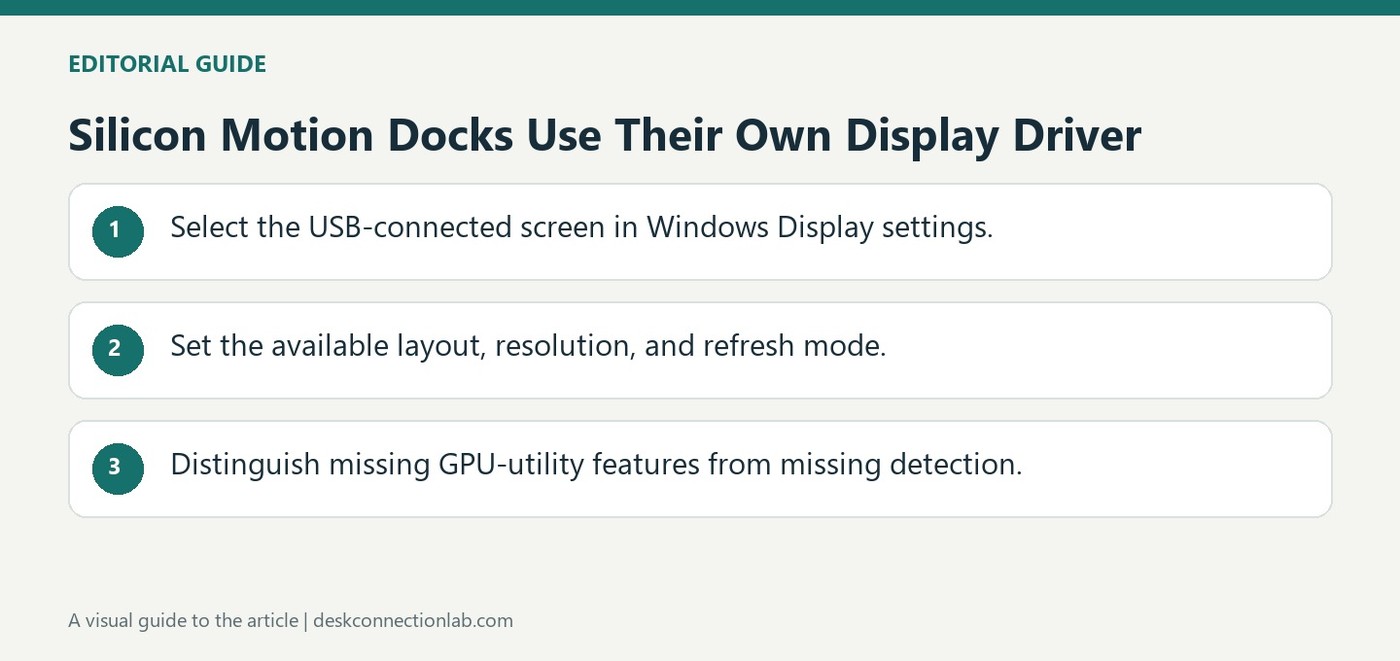
Silicon Motion Docks Use Their Own Display Driver
Plugable's Silicon Motion guidance explains that its USB-connected displays are handled by Silicon Motion software. They are not equivalent to monitors wired directly to Intel, NVIDIA, or AMD graphics outputs. This can limit which vendor-specific tools and features appear for a dock-connected screen.
Arrange the workspace and choose duplicate or extended mode through Windows Display Settings instead. Available resolution and refresh options can be changed there. If a monitor is absent from Windows as well, record the dock model and physical connection for support; that is a different issue from a screen simply missing in a native GPU utility.
Start with the monitor selected in Windows Display settings
Right-click an empty desktop area and open Display settings, or go through Settings, System, Display. Select the intended numbered screen before changing its arrangement, duplicate or extended mode, resolution, or refresh rate. These controls are the appropriate starting point for the supported USB graphics connection described by Plugable. A screen missing from an NVIDIA, AMD, or Intel utility can still be operating normally through Silicon Motion.
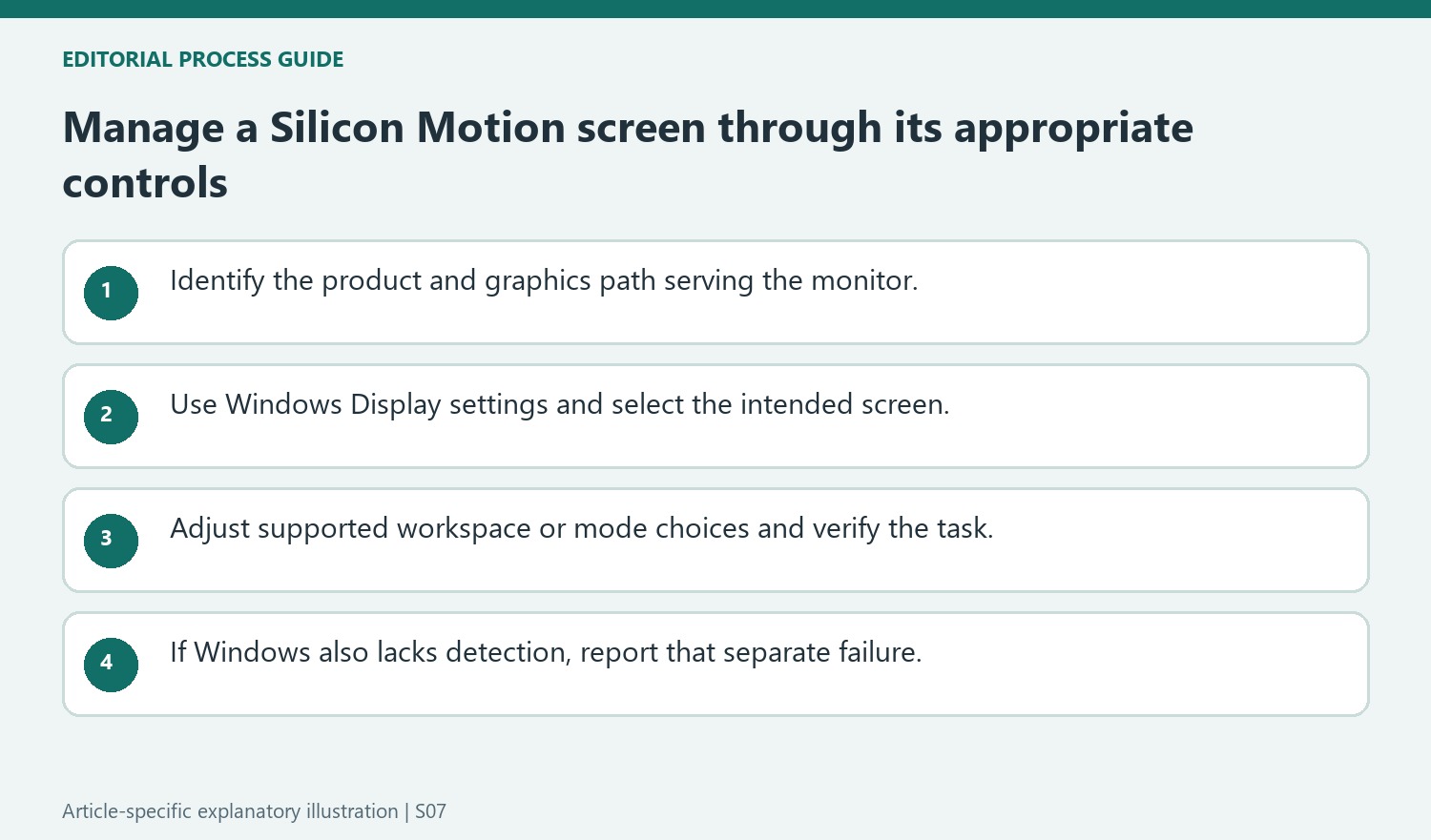
Distinguish a missing vendor feature from missing detection
GPU-specific utilities commonly manage the outputs directly associated with that GPU. The Silicon Motion display follows a different driver path, so some of those vendor-specific features remain unavailable even when ordinary Windows display controls work. Reinstalling the native GPU utility does not establish that it will gain control of the USB-connected monitor. If Windows itself cannot see the screen, that is a separate connection or software issue for the dock's support process. Record the Plugable model, Windows version, video cable, monitor input, and whether the screen appears in Windows. That description prevents a normal management limitation from being mistaken for an absent video signal.
Identify which driver actually manages the screen
The source explains that Silicon Motion USB graphics provides a different display path from a direct Intel, NVIDIA or AMD output. Confirm the product model and connection before interpreting a missing screen inside one of those GPU utilities. A panel can work through the USB graphics driver while remaining outside the controls intended for native GPU outputs.
That distinction affects expectations for vendor-specific features as well as recognition inside a utility. Reinstalling a native GPU management application does not establish that it will gain control over a screen served by another driver. Describe the actual missing control or observed behavior first, rather than treating every unavailable vendor option as evidence of a broken monitor or failed dock connection.
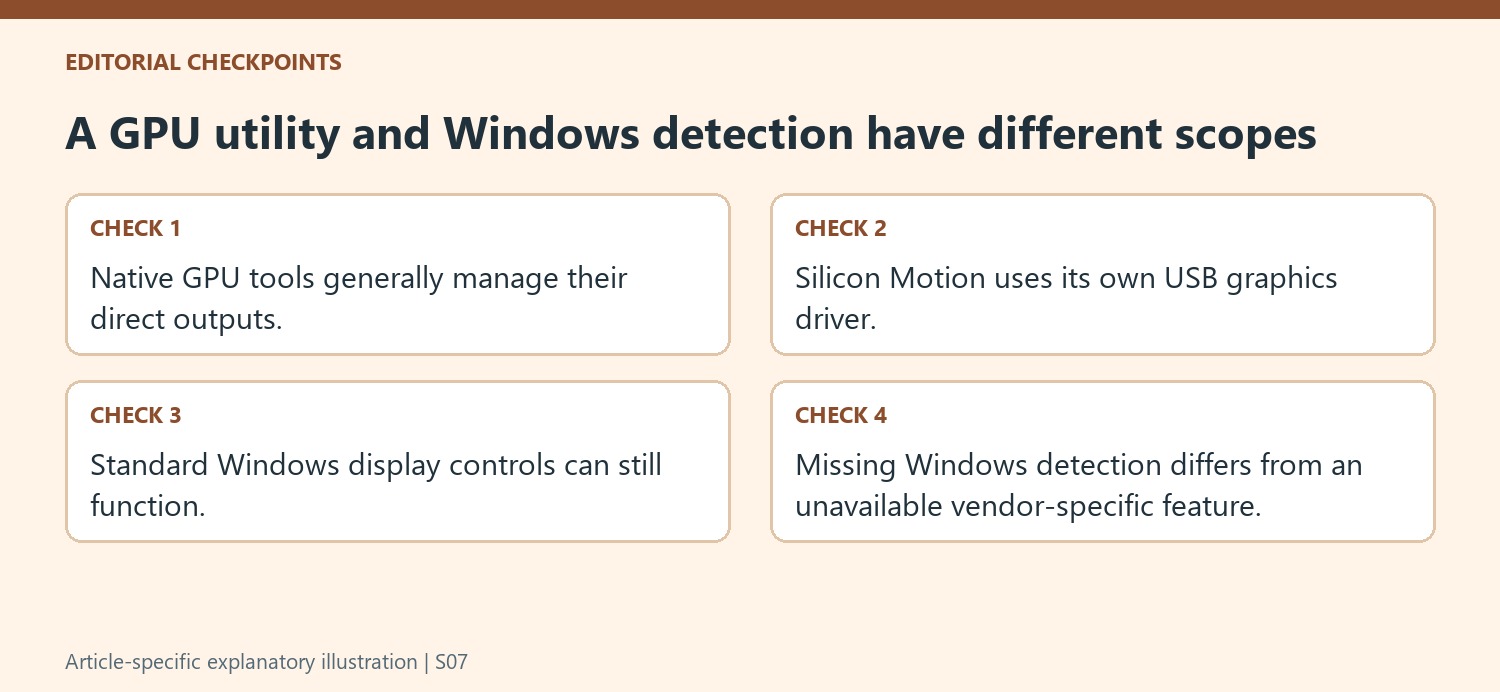
Use standard Windows controls for the supported workspace changes
Open Windows Display settings and select the intended monitor before arranging it or changing the available mode. The source recommends those controls for duplication, extension, resolution and refresh choices on the described USB graphics connection. A multi-monitor desk can expose different choices for different panels, so checking the selected screen remains important even when the correct settings application is open.
Apply one relevant adjustment and verify the result through the original task. For example, confirm that an intended extended workspace allows separate content rather than another mirrored picture. Keep the cable path steady during the comparison. Standard controls working correctly establish a useful baseline, while they do not imply that every advanced native-GPU feature becomes available through Silicon Motion. Those are separate capability questions.
Separate absent Windows detection from a limited management utility
If the screen is also missing from Windows Display settings, investigate the dock’s connection and software through the relevant support guidance. That is a different condition from a working desktop absent only in a GPU utility. Record the Plugable model, Windows release, monitor input, video cable and the exact place where detection is missing. Include what works, such as another screen on a native output, without assuming both screens share one driver path. A precise report preserves the distinction between normal management scope and a genuine display failure, making the next check more useful than reinstalling unrelated utilities.
References
Plugable's Silicon Motion guidance explains that its USB-connected displays are handled by Silicon Motion software. They are not equivalent to monitors wired directly to Intel, NVIDIA, or AMD graphics outputs. This can limit which vendor-specific tools and features appear for a dock-connected screen.


Leave a Comment
Comments (0)