
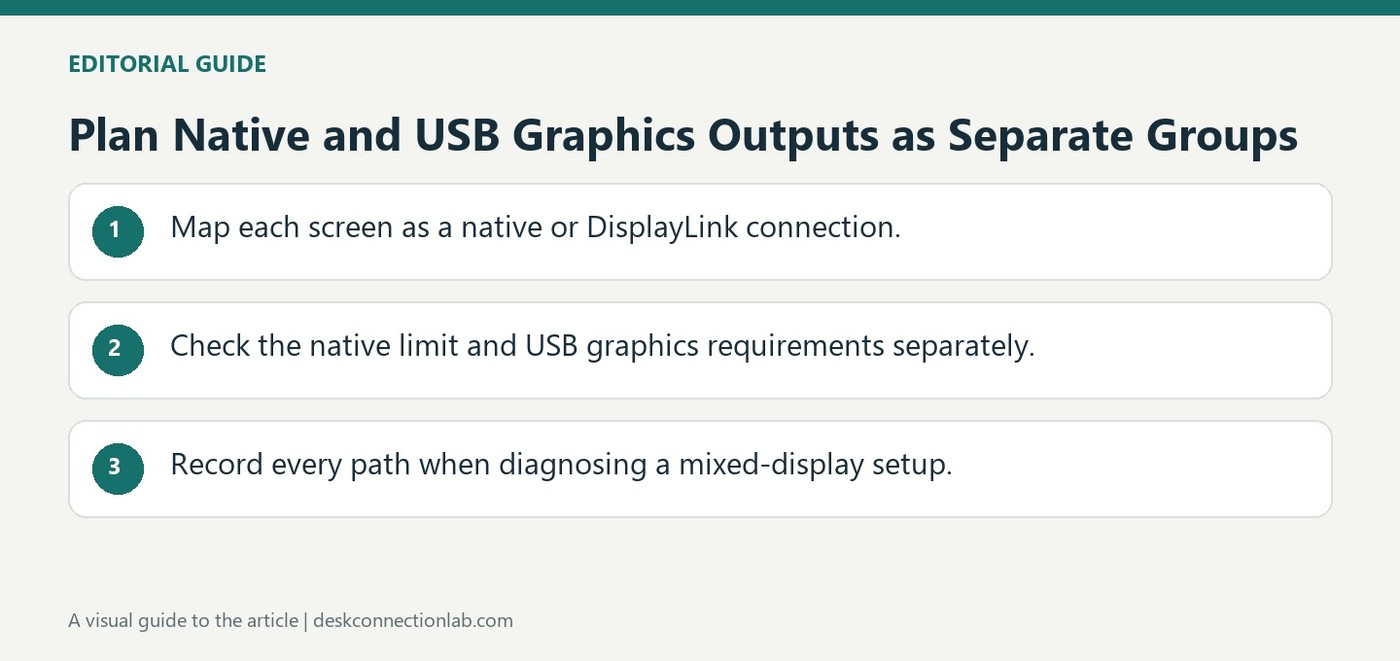
Plan Native and USB Graphics Outputs as Separate Groups
Plugable explains that native video outputs and DisplayLink displays can generally operate together on supported computers. The dock's USB graphics route does not normally switch off the built-in HDMI, DisplayPort, USB-C, or Thunderbolt video outputs. This can offer flexibility when arranging an existing workstation.
Native display limits still apply to native connections, while DisplayLink has its own software and product requirements. On a Mac, the relevant application and screen permissions remain necessary. Map each monitor's connection path in the setup record so a mixed dock arrangement can be checked without assuming every screen uses the same technology.
Draw the connection path for each monitor
A mixed workspace might place one screen on a built-in HDMI socket and another on a DisplayLink dock. Label those routes independently when checking support or changing the layout. The native output relies on the computer's graphics capabilities, while the USB graphics output depends on its product and software requirements. The number of screens visible on the desk alone does not reveal which limit or setting applies to a particular monitor.
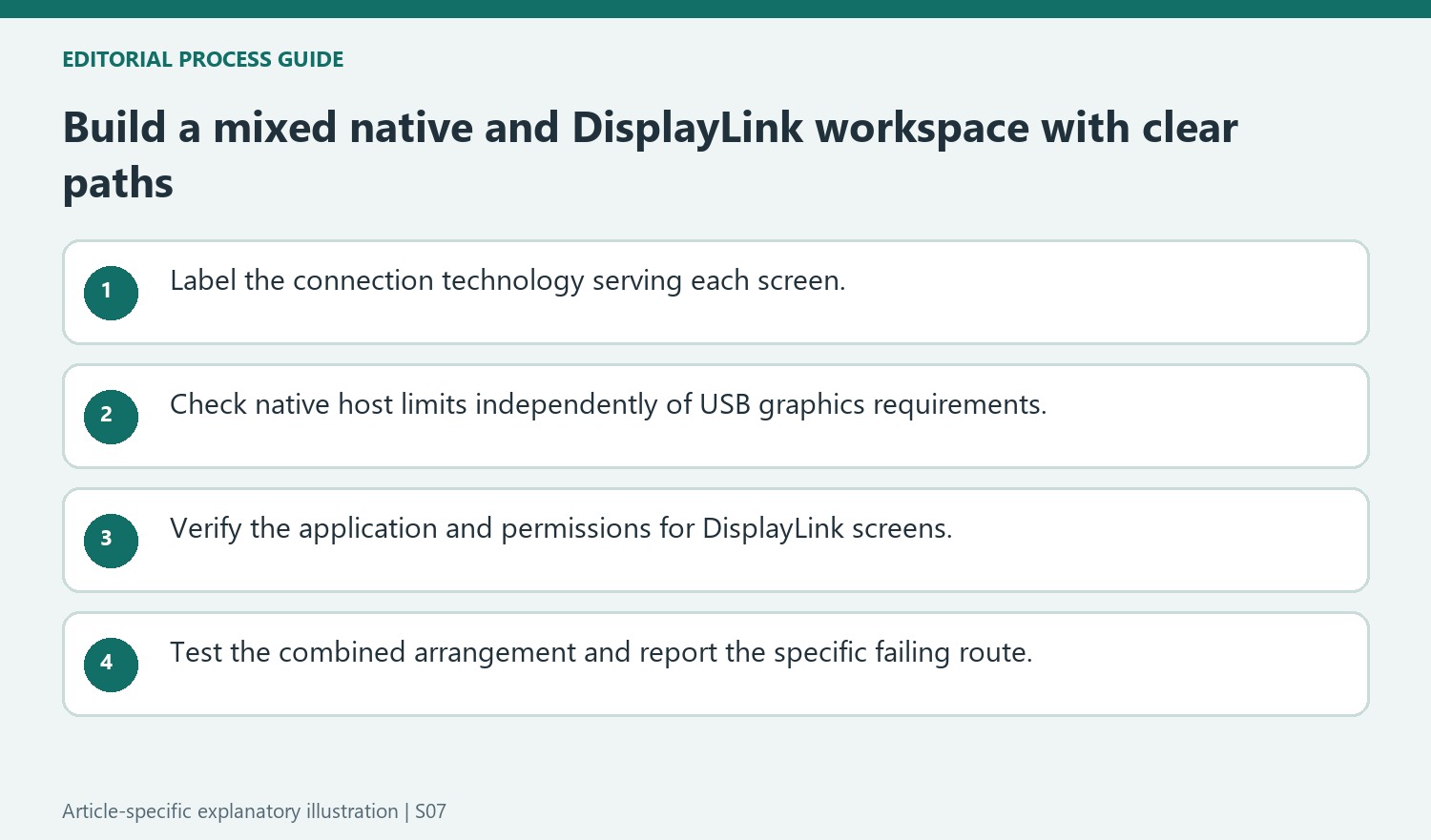
Check each technology before changing a working output
On macOS, confirm that DisplayLink Manager is installed, running, and allowed the screen access required by the USB-connected display. That requirement does not mean the directly connected HDMI screen is also driven by DisplayLink. Conversely, adding DisplayLink does not remove the host's native display-count limit for other native connections. If a built-in output stops working after docking, preserve the exact arrangement and describe the observed change to support. Include the computer and operating system, dock model, and each screen's path. This makes it possible to assess the mixed setup without assuming that one technology has automatically disabled the other.
Map the technology serving each panel in a mixed workspace
A built-in HDMI connection and a DisplayLink dock can generally serve screens together when the complete setup is supported. Record each monitor’s route instead of counting screens alone. This identifies which output relies on the host’s native graphics capability and which relies on the USB graphics product, application and data connection.
The source states that connecting DisplayLink does not ordinarily disable the computer’s built-in video outputs. Keep that general behavior distinct from a promise that every proposed mixed arrangement is supported. Actual display count and performance still depend on the computer, operating system, connection and product requirements. A clear map preserves those conditions when a new screen or replacement dock changes the desk.
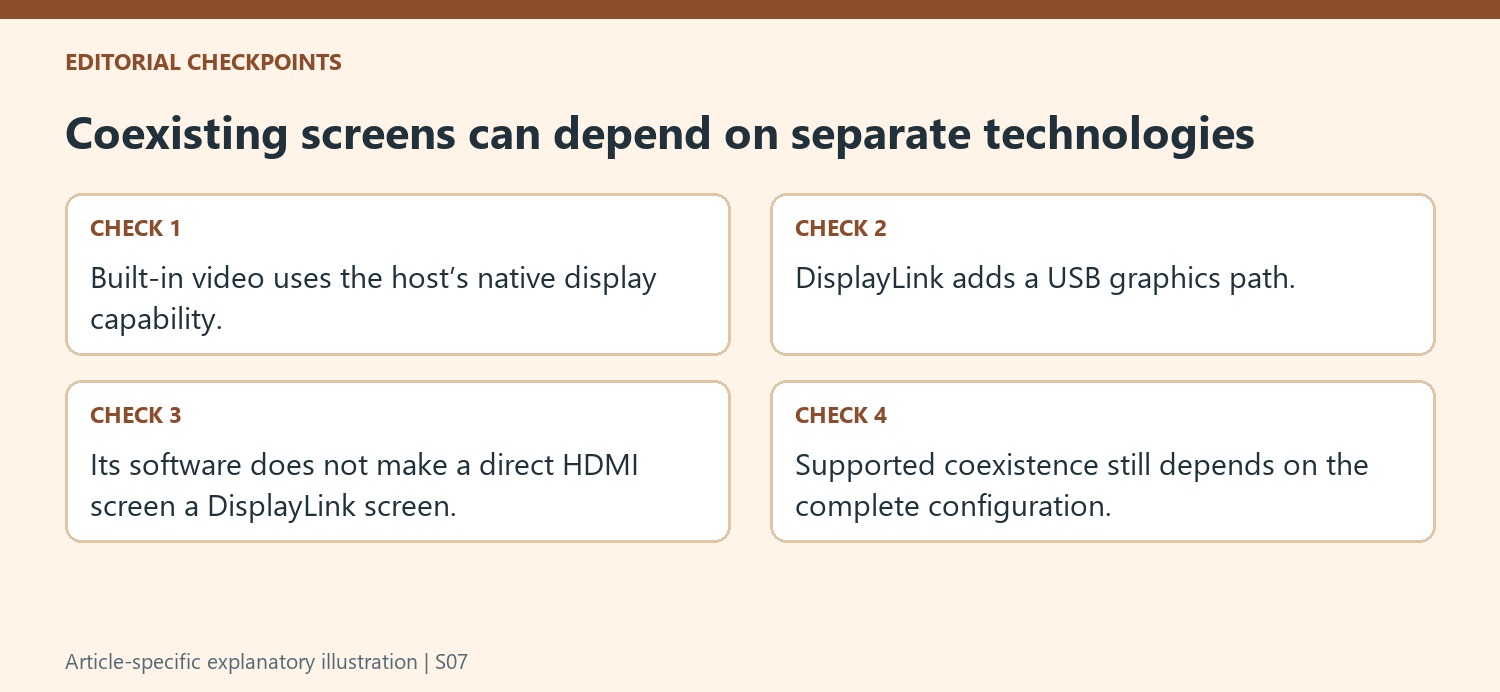
Check native and USB graphics requirements independently
For native screens, consult the host’s display limits and supported connection arrangement. Adding USB graphics does not change the limit that applies to other native outputs. For DisplayLink screens, check the relevant product and software support, including the application running and screen-access permission required on a Mac. A direct HDMI screen need not depend on that same app merely because another screen on the desk does.
Establish a working reference for each path and then verify the combined setup. This avoids diagnosing every failure through whichever technology was most recently installed. If a native screen works alone but changes after docking, preserve the exact observed sequence. That evidence is more informative than assuming DisplayLink intentionally switched the output off or that every screen on the dock follows one identical graphics route.
Keep the combined task and support report concrete
Test the intended independent workspace, monitor modes and ordinary reconnection routine with the chosen paths. Record which screen fails, whether it remains detected and which software applies to that route. Include the computer model, operating system, Plugable product and each monitor connection in an unresolved support request. The source’s coexistence guidance provides a useful starting expectation, while the actual combination still needs validation. Treating native and USB graphics as clearly labeled groups makes expansion easier to plan and keeps later troubleshooting focused on the dependency affecting the particular screen rather than a vague total monitor count.
References
Plugable explains that native video outputs and DisplayLink displays can generally operate together on supported computers. The dock's USB graphics route does not normally switch off the built-in HDMI, DisplayPort, USB-C, or Thunderbolt video outputs. This can offer flexibility when arranging an existing workstation.


Leave a Comment
Comments (0)