
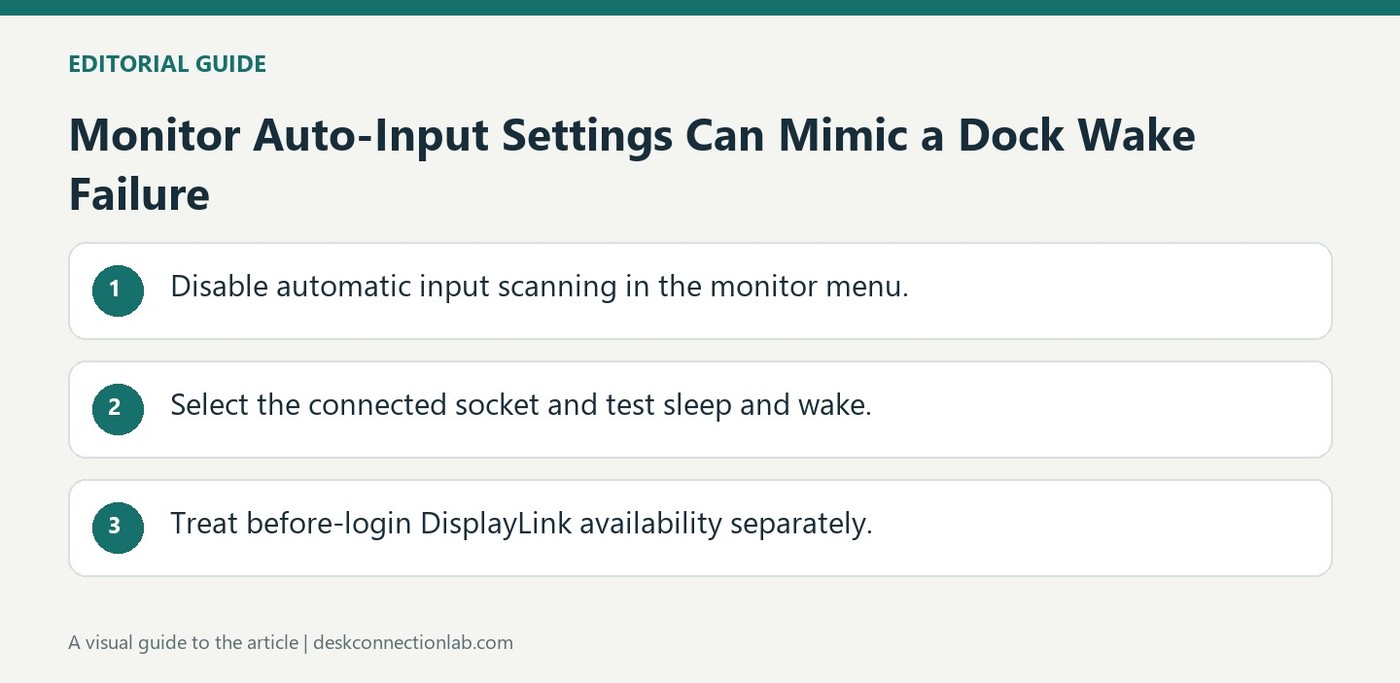
Monitor Auto-Input Settings Can Mimic a Dock Wake Failure
A monitor attached through a Mac docking station can remain blank after wake because its automatic input selection interferes with detection timing. Plugable describes disabling that scan and manually choosing the connected HDMI, DisplayPort, or USB-C source through the monitor's own menu.
This check matters when a dock otherwise reconnects its peripherals correctly. Labels such as Auto Select and Input Auto Switch vary between monitor manufacturers, so consult the screen's controls. Establishing a fixed input helps separate the monitor's source-selection behavior from a genuine dock or macOS reconnection problem before more disruptive changes are attempted.
Test a fixed monitor input through one sleep cycle
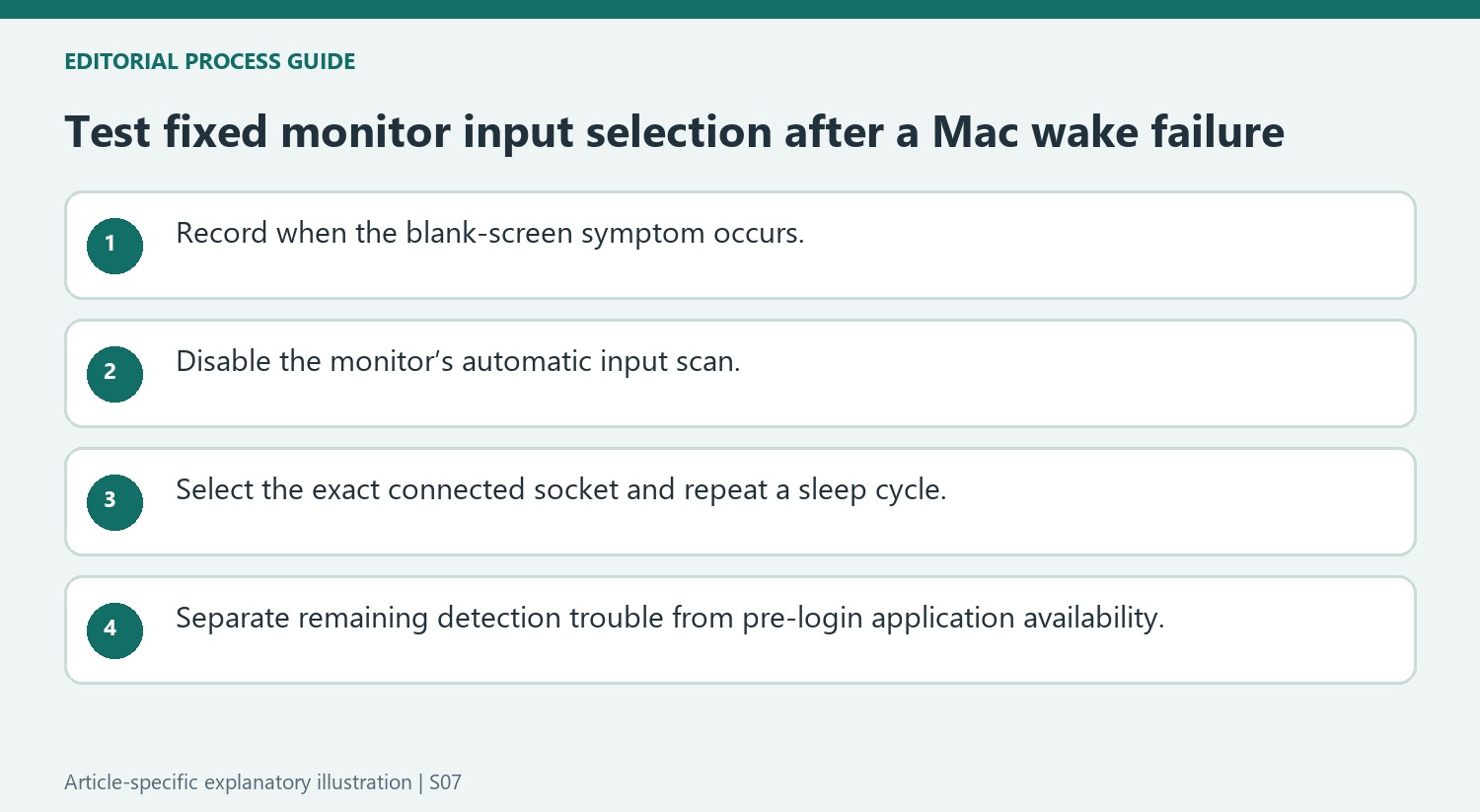
Disable the monitor's automatic input scanning and select the connected socket manually. If the screen has two HDMI inputs, select the numbered input actually used rather than only the interface family. Put the Mac to sleep and wake it again without changing cables, then observe whether detection improves. That comparison tests the timing explanation in the support article while leaving the rest of the setup stable.
Distinguish wake detection from the login-screen requirement
If the screen is still missing, Plugable describes opening macOS Displays settings and holding Option to reveal Detect Displays. Other checks include reconnecting the dock, power cycling the monitor, or testing another video cable. A DisplayLink screen that works after login but remains blank before login presents a different condition: DisplayLink Manager normally starts after the user signs in, and an optional login-screen extension addresses earlier availability. Describe exactly when the screen becomes active when requesting support. The Mac, macOS version, dock model, monitor model, and connection path are all relevant to determining which branch of the guidance applies.
Make the monitor’s source selection part of the wake test
Record when the screen becomes blank: initial connection, wake from sleep or the period before login. The source describes automatic input scanning as a possible contributor to detection timing in certain configurations. That is a targeted explanation to test, not proof that every Mac dock wake failure originates inside the monitor.
Open the monitor’s own menu and locate the input or source controls using its manual where necessary. Disable the automatic selection option and select the exact connected socket, including the numbered input where several sockets share an interface type. A choice such as HDMI without identifying which HDMI connection is actually used can leave the original ambiguity unresolved.
Keep the rest of the arrangement steady during comparison
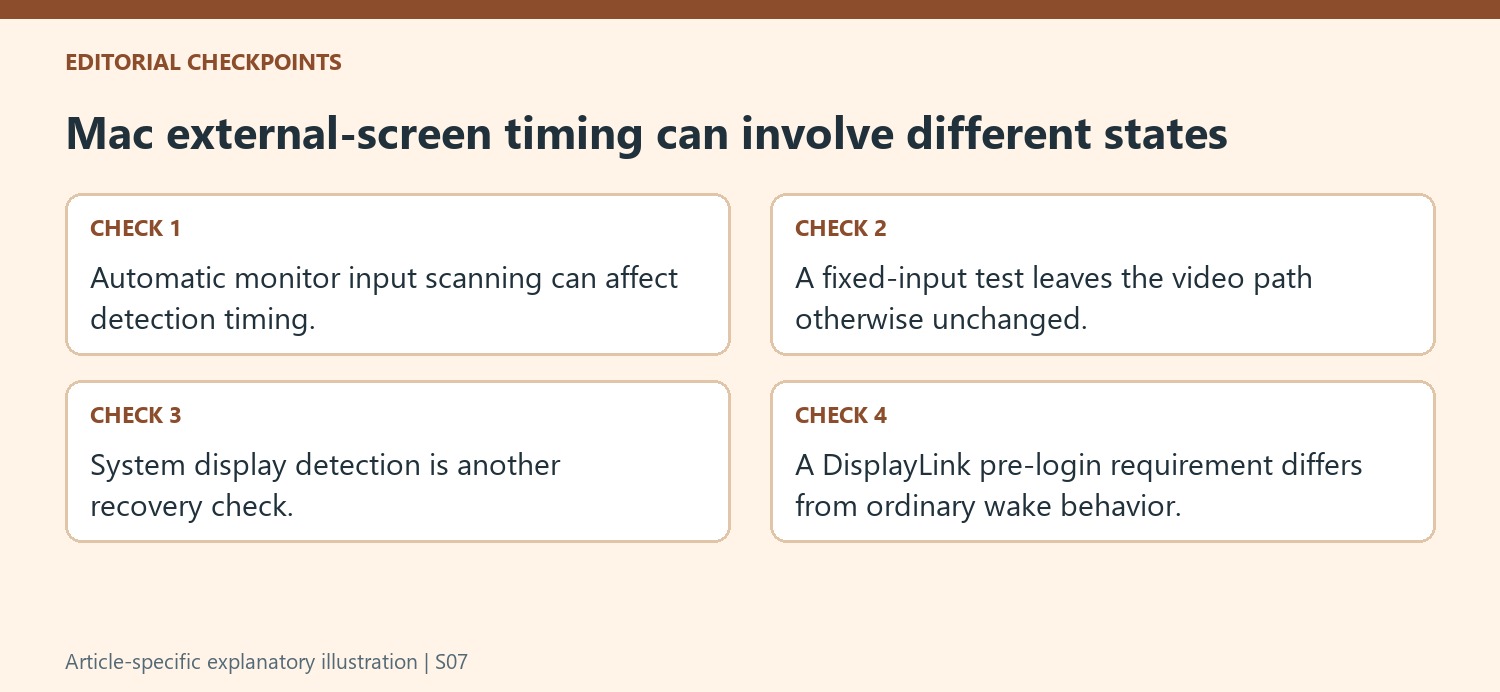
Put the Mac to sleep and wake it with the same cables, dock and selected input. Observe whether the screen reconnects more reliably and whether it appears in macOS display settings. This isolates the input-selection change better than simultaneously swapping cables, restarting applications and changing display modes. Record the result in terms of the original symptom. Note whether the image returns after wake, only after reconnection or only after the user signs in.
If the monitor remains absent, the guide describes additional detection and connection checks, including the Option-key Detect Displays control, reconnecting the dock and power cycling the screen. Use those as separate comparisons with a clear observation after each one. A successful reconnection narrows the investigation, but it should not be described as a guaranteed permanent cure for every future wake event or every connected monitor model.
Distinguish application availability before login from waking a working screen
DisplayLink screens that work after login but remain blank beforehand present a different requirement. The source explains the normal startup timing of DisplayLink Manager and points toward its optional login-screen extension. State exactly when an image appears before deciding which guidance applies. Include the Mac model, macOS release, dock, monitor and connection path in any support report. This keeps the monitor’s automatic-source timing, system detection and application pre-login availability separate, allowing a specific observed behavior to lead to the relevant next check rather than a generic conclusion that the entire docking setup has failed.
References
- My monitors not detected when my mac wakes from sleep or boots what can i do . Plugable Knowledge Base.
A monitor attached through a Mac docking station can remain blank after wake because its automatic input selection interferes with detection timing. Plugable describes disabling that scan and manually choosing the connected HDMI, DisplayPort, or USB-C source through the monitor's own menu.


Leave a Comment
Comments (0)