
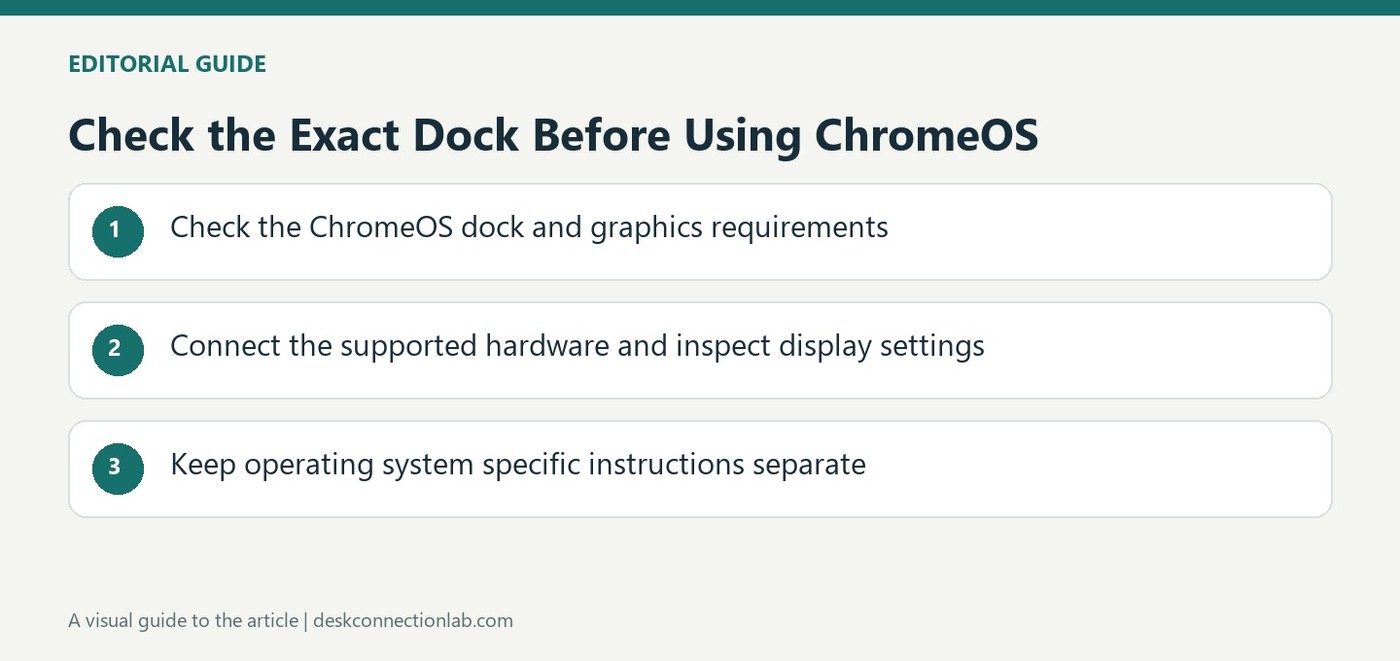
Check the Exact Dock Before Using ChromeOS
Built in support does not cover every complete dock
Plugable explains that DisplayLink support is integrated into ChromeOS, so a separate DisplayLink driver normally is not installed for a supported product. The important qualification is product compatibility. A dock can combine DisplayLink with other technologies and requirements, meaning the presence of one graphics chipset does not establish support for the entire device. Check the exact product's supported operating systems before purchase or connection. The source recommends ChromeOS version one hundred or later with current Stable channel updates for compatible Plugable products. Treat that as vendor guidance for the listed hardware rather than a guarantee about every USB display accessory.
Connect and arrange displays through ChromeOS
For a supported setup, update ChromeOS, connect the dock directly to a compatible host USB port and attach the external displays. Use the operating system's display settings to arrange, mirror or extend them as required. Driver fixes arrive through ChromeOS updates rather than a separate package downloaded for manual installation. The Stable release channel is recommended for normal use and troubleshooting, since prerelease channels may introduce unvalidated behavior. Record the exact computer model and version if something fails; two Chromebooks with similar looking ports can still differ in their capabilities and available software support.
Allow for host processing and workload differences
DisplayLink generates and transports display content using host resources, so performance depends on processor capability, memory, USB connection and workload. Higher resolutions, several screens and demanding video can change the experience compared with ordinary office tasks. Plugable notes that compatibility is not determined solely by Intel, AMD or ARM branding; the specific system's supported instructions and resources matter. When requesting help, include dock and computer models, ChromeOS version, monitor details and intended resolutions. PlugDebug is not available for ChromeOS, so supplying accurate configuration information is particularly useful. A clear compatibility check is more informative than assuming an integrated driver makes every configuration equivalent.
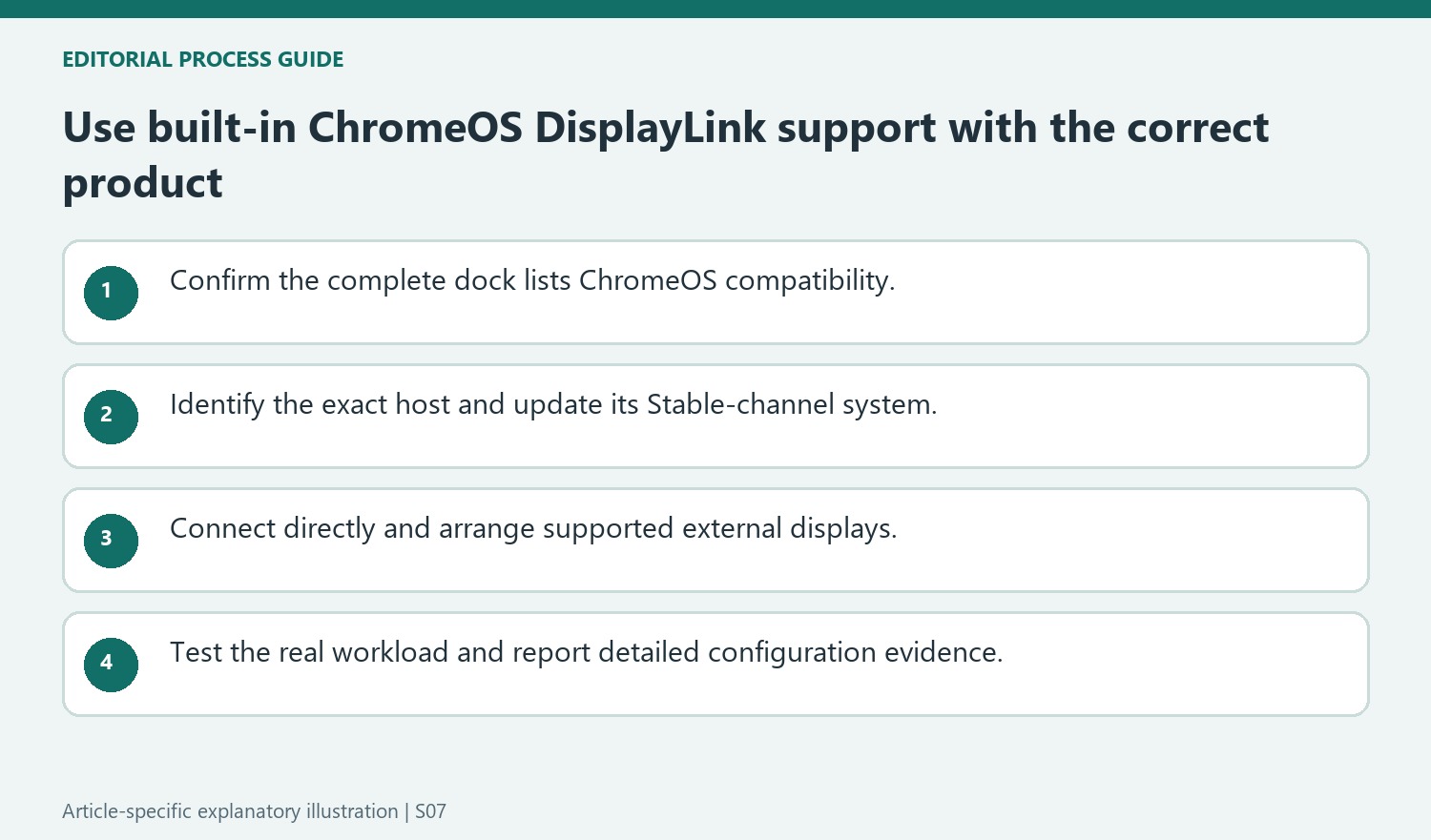
Confirm complete-product support before relying on the built-in driver
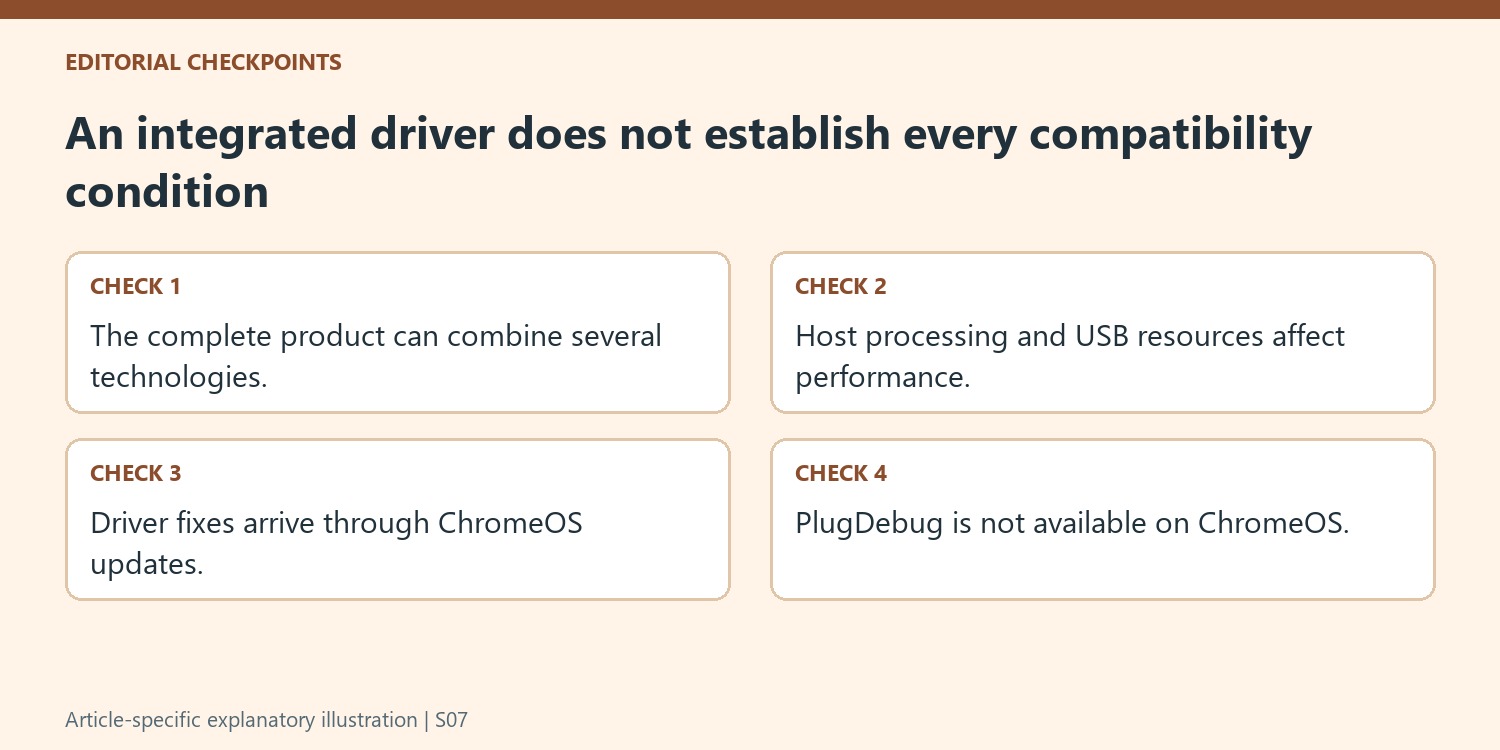
DisplayLink support being integrated into ChromeOS removes the usual separate driver-installation step for supported products. It does not establish that every dock containing the technology is compatible as a whole. Check the individual product’s operating-system list because another video or power feature in the same dock can have additional host requirements.
Identify the exact Chromebook or ChromeOS device, not simply its processor brand or connector shape. The source discusses host resources and instruction support, illustrating why Intel, AMD or ARM branding alone is incomplete evidence. Keep the product model, system version and intended monitor modes together when assessing the arrangement rather than assuming all ChromeOS systems behave identically.
Establish the Stable-channel reference before evaluating performance
Update the supported system through its normal ChromeOS route and use the recommended Stable channel for ordinary operation and troubleshooting. DisplayLink fixes arrive through operating-system updates in this environment, so searching for a separate Windows-style driver package does not match the described setup. A prerelease channel can introduce another unvalidated variable.
Connect the supported product directly to an appropriate host USB port, attach the screens and configure the intended layout through ChromeOS display settings. Verify whether the task requires mirroring or independent extended content. Then test the actual applications and requested resolutions. Host processing, memory, USB speed and screen count all affect the workload, so a successful office task is not a guarantee of equal performance with demanding video or graphics.
Prepare a useful support description without an unavailable diagnostic tool
PlugDebug is not available for ChromeOS, making accurate configuration details particularly important. Supply the computer and dock models, current ChromeOS version, display count and models, intended resolution and observed behavior. State which direct connection and Stable-channel checks were completed. This gives support a reproducible question without requesting a diagnostic package that cannot run on that platform. The integrated driver simplifies installation, while the complete product, host capability and workload still determine whether the proposed docking arrangement is appropriate.
References
- Plugable Help Center. Plugable Knowledge Base.
ChromeOS includes DisplayLink support, but Plugable still requires a compatible product and recommends current Stable channel updates.


Leave a Comment
Comments (0)