
Use a Separate Windows Plan for Dock Settings
Understand which behavior the plan controls
Windows power plans contain more than a screen timeout. Plugable's guide notes that they affect sleep timing, lid behavior and aspects of USB power and communication. Changes to the default Balanced plan can therefore influence a docking setup even when the dock itself has not changed. The article describes cases where updates or other software alter these settings, leading to inconsistent behavior. Its proposed approach is to use a separately named duplicate plan. This is a targeted configuration method for experienced Windows users, rather than evidence that the Balanced plan causes every DisplayLink fault or that another plan guarantees permanent stability.
Create and select a recognizable duplicate
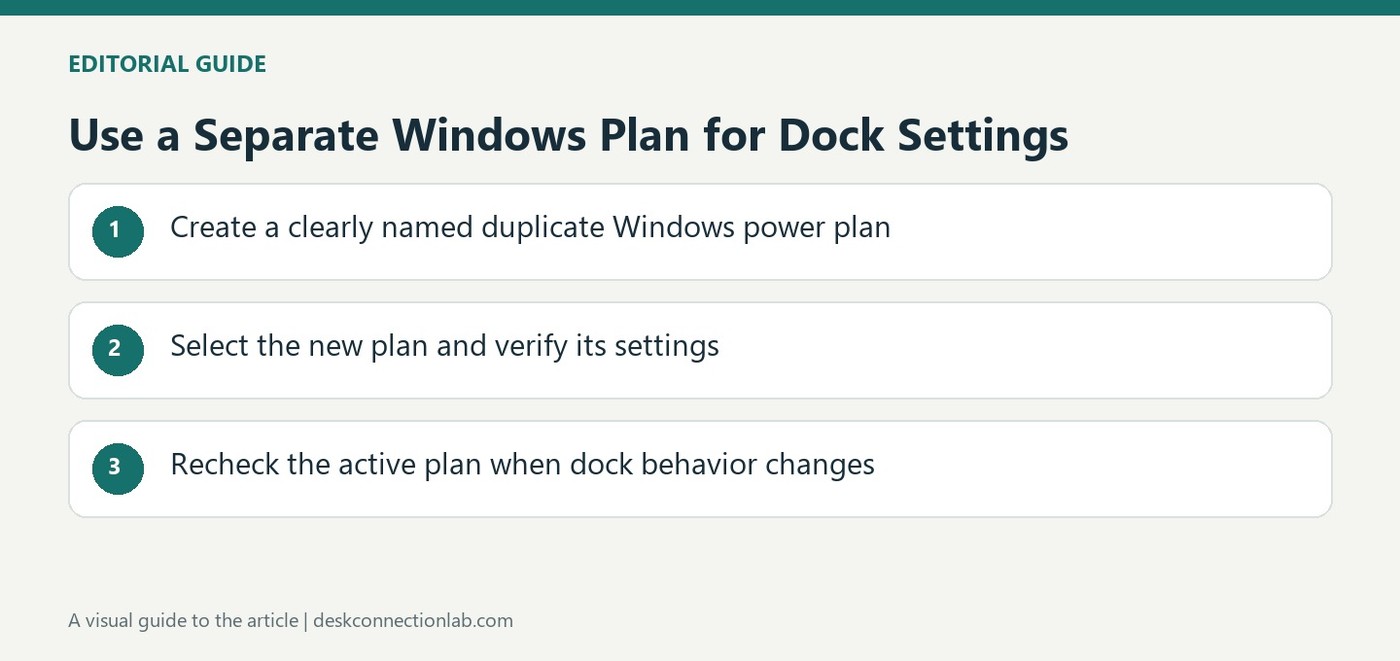
Plugable describes both Control Panel and terminal routes for creating the plan on Windows 10 or Windows 11. In the graphical route, open Power Options, choose to create a plan based on Balanced and give it a descriptive name. Select the new plan after creation and verify that it is active. A recognizable name makes later checking easier than leaving several indistinguishable copies. The source recommends creating a restore point before its wider configuration procedure, since it changes default behavior. Keep a record of the original settings so troubleshooting remains understandable if another change is needed.
Follow the complete instructions for advanced changes
The guide also covers settings hidden from the normal interface, using powercfg commands tied to the selected plan's identifier. Do not substitute an example identifier or blindly apply only part of that procedure. Refer to the current vendor instructions for the intended setting and whether it affects plugged in or battery operation. Verify the active plan afterwards rather than assuming a command changed the one currently in use. If a fault persists, distinguish power management behavior from driver, connection or compatibility issues. A separate plan is useful for preserving a known configuration, not for replacing the rest of a systematic dock diagnosis.
Treat a separate plan as a defined configuration experiment
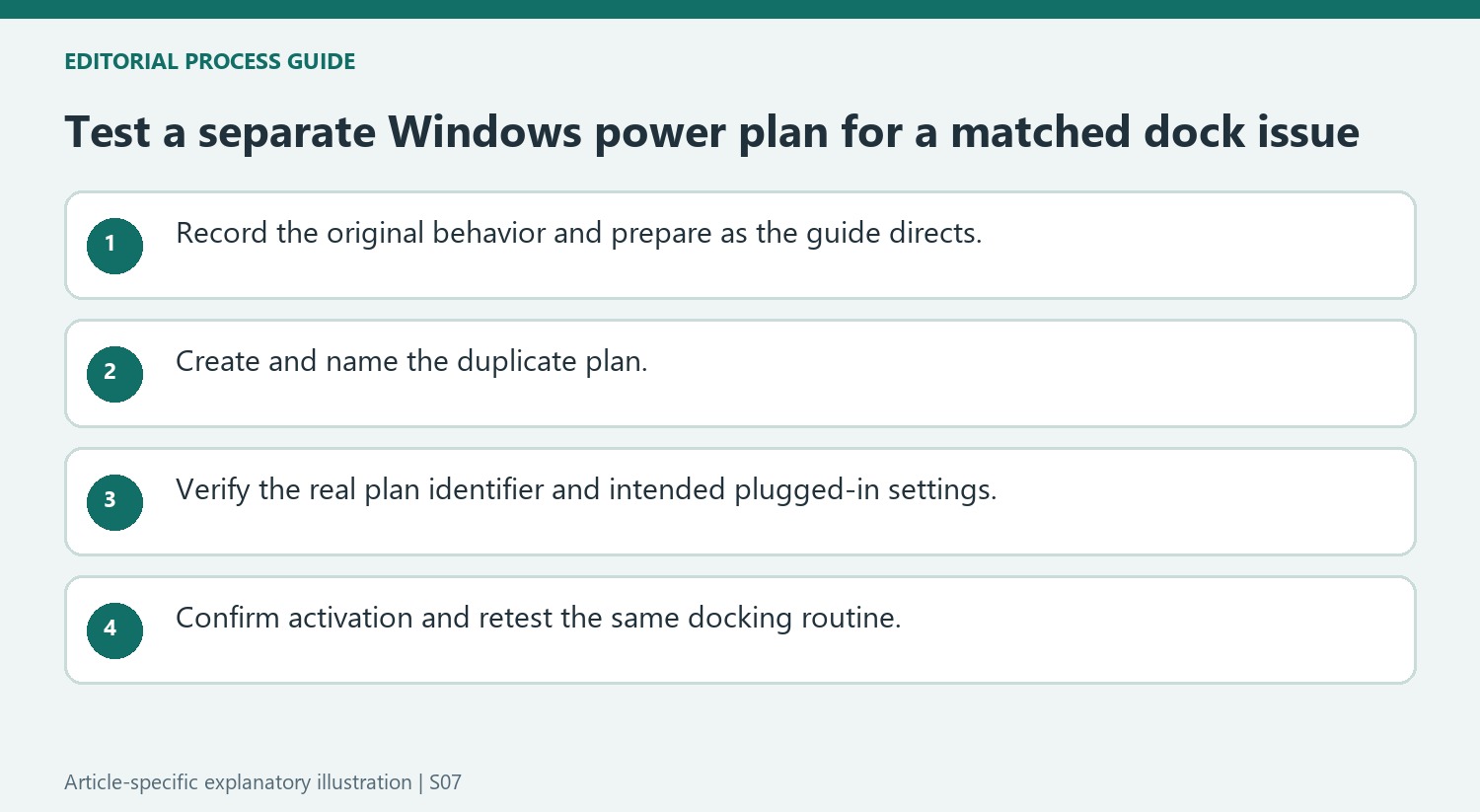
The guide addresses cases where Windows power settings change and affect a DisplayLink setup. It proposes a named duplicate plan as a way to retain a known configuration more clearly. Keep that purpose distinct from a claim that the default Balanced plan necessarily causes every dock failure or that creating another plan guarantees permanent stability.
Record the current plan and relevant behavior before changing it, and follow the source’s restore-point recommendation for its wider procedure. The article is aimed at experienced users because it changes default behavior and includes terminal commands. Preserve the instructions and the original state so that the resulting test can be explained or reversed through the appropriate system tools if it does not address the matched symptom.
Keep plan identity and activation explicit
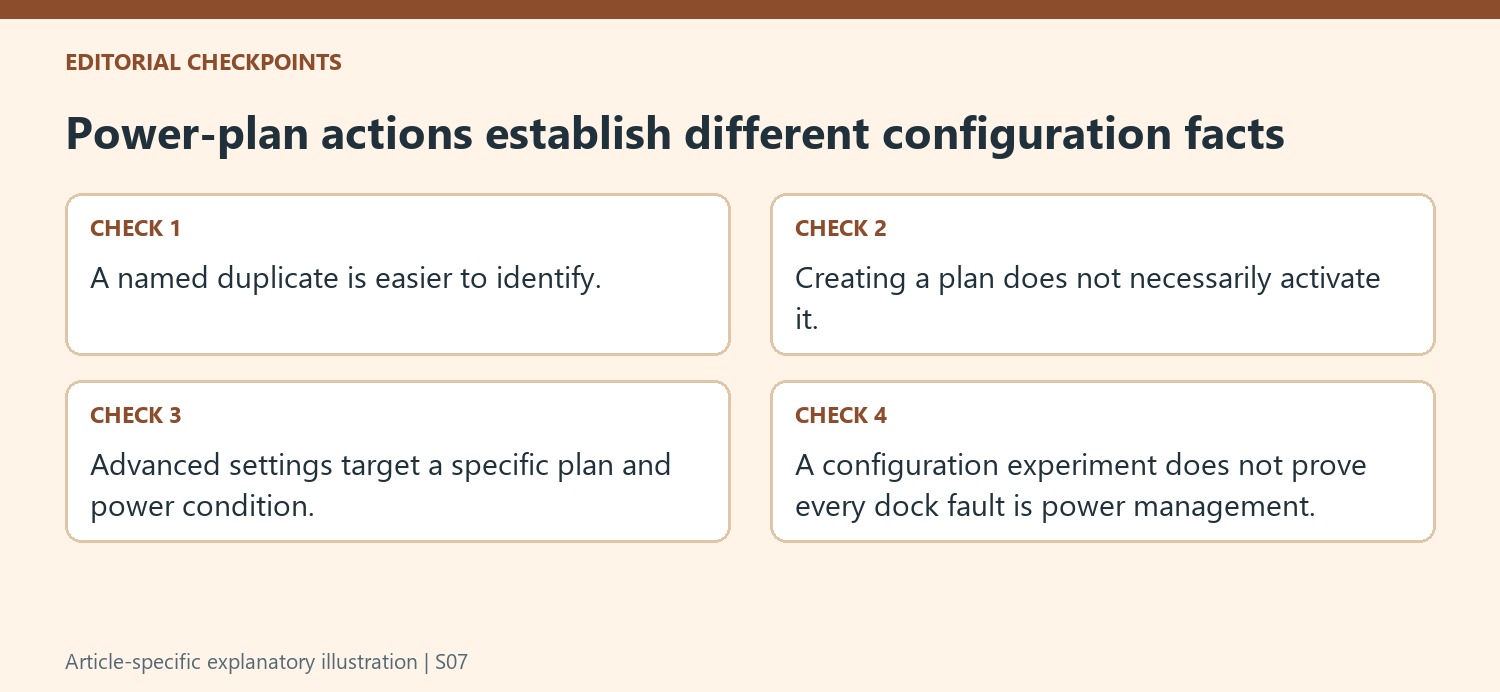
Use a descriptive name for the duplicate and confirm that it is actually selected. Creating a plan and making it active are separate actions. A collection of similarly named copies can obscure which settings Windows is using, so retain the unique identifier where the terminal method requires it and verify the active plan after the change.
The advanced commands in the source target a particular plan identifier and distinguish plugged-in behavior. Use the actual identifier from the system rather than an example copied from a screenshot. Follow the complete current vendor procedure for the intended setting instead of changing a fragment without understanding the plan or power condition affected. This keeps the scope tied to the specific USB and link power-management checks being investigated.
Retest the same docking routine after the change
Restart where directed and repeat the sleep, reconnection or accessory task that demonstrated the problem. Note whether the behavior improved and whether the intended plan remains active. If the fault persists, preserve that result and investigate driver, connection or compatibility conditions separately. A named plan can make a configuration easier to recognize, while the observed working routine determines whether the particular power-management experiment helped the actual dock arrangement.
References
- Plugable Help Center. Plugable Knowledge Base.
Plugable suggests duplicating a Windows power plan when recurring changes interfere with a DisplayLink docking setup.


Leave a Comment
Comments (0)