
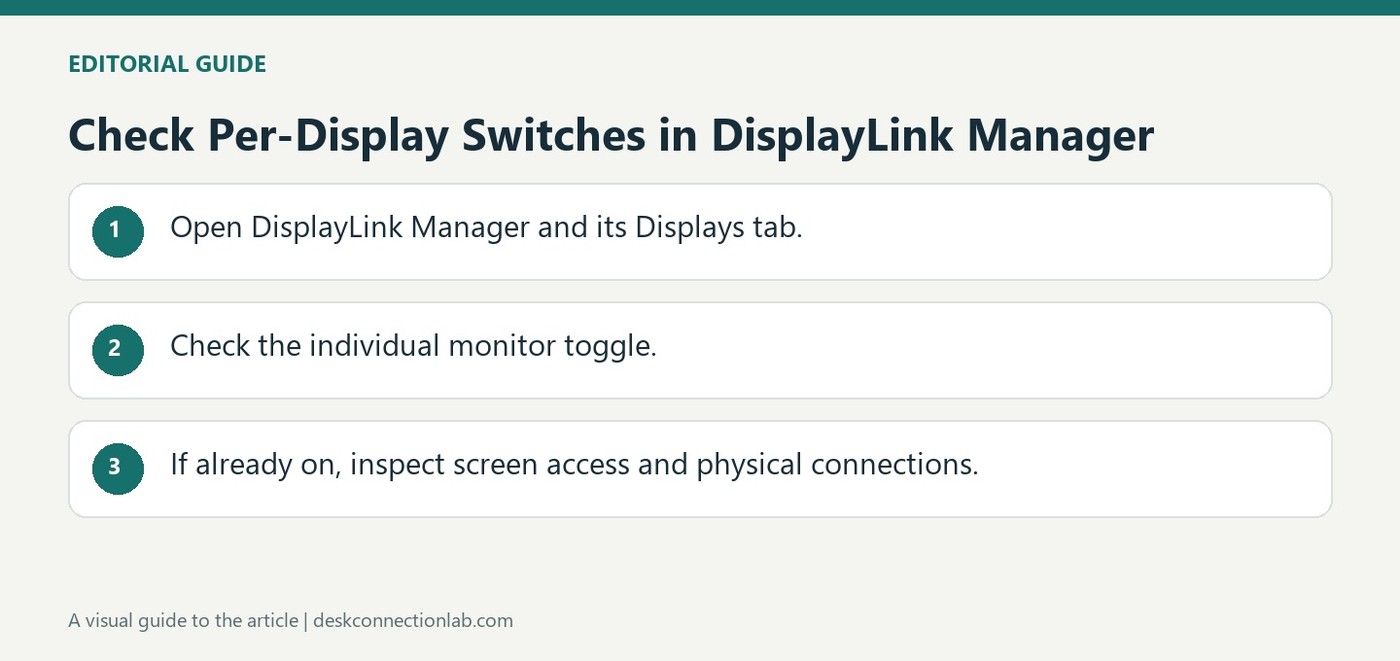
Check Per-Display Switches in DisplayLink Manager
When a DisplayLink dock has power and its application is active but a monitor remains blank, Plugable recommends opening DisplayLink Manager's Displays tab. Each connected screen has a toggle that should be On if it is intended for use. The application state and individual display state are separate checks.
If the monitor is not listed or its toggle is already enabled, move on to permissions and physical connections rather than repeating the same setting change. Include both application visibility and macOS Displays visibility in a support report. Those details help locate where the docking video path stops functioning.
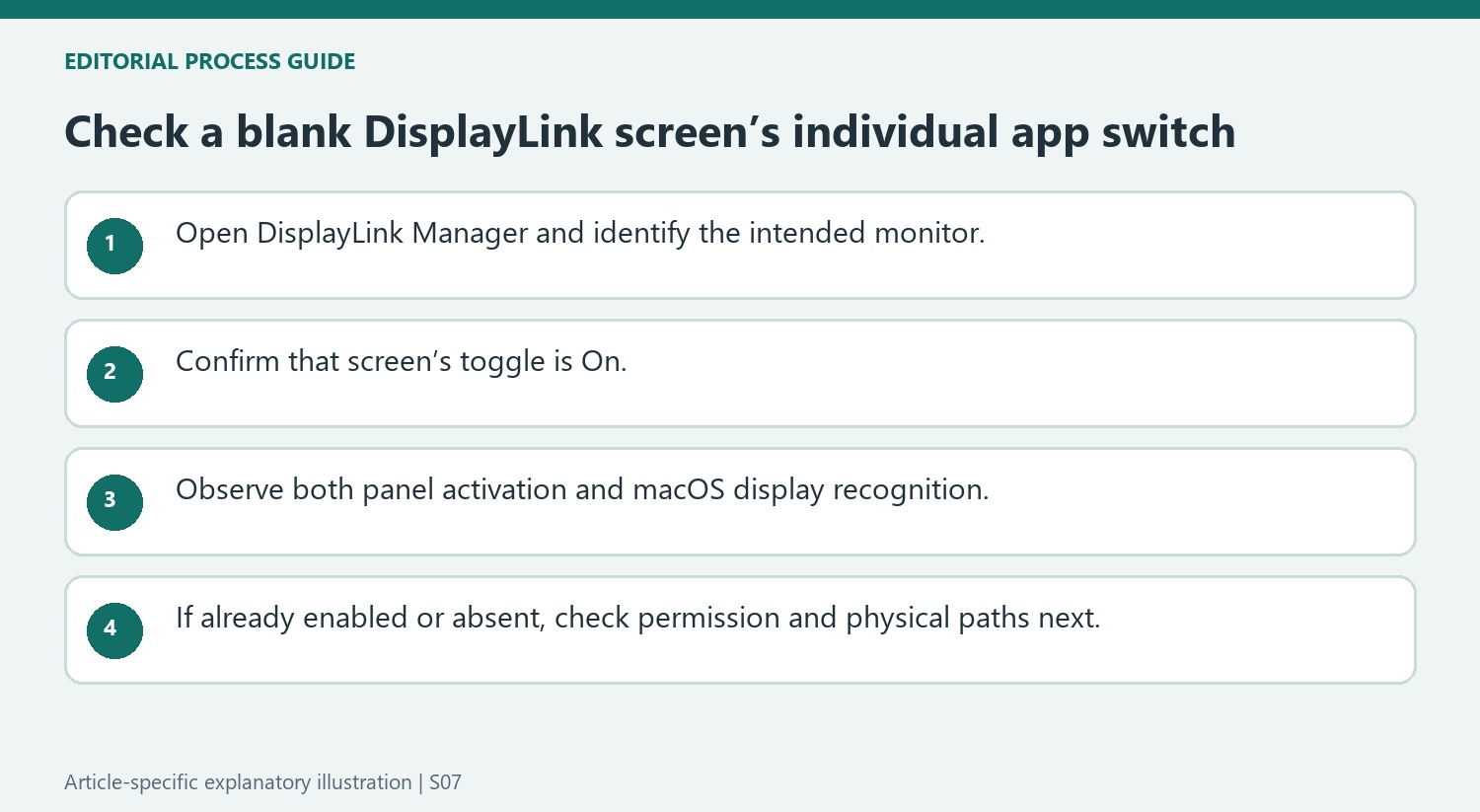
Check each display independently inside the application
Open the DisplayLink Manager menu-bar icon and its Displays tab, then locate the screen intended for use. Make sure its own toggle is on; another screen working through the same dock does not establish that every application-level switch is enabled. After changing the toggle, check whether the screen becomes active and appears in macOS Displays settings. That links the application's state with the operating system's view of the monitor.
Move to another diagnostic branch when the toggle is not responsible
If the screen is absent from the app or already enabled, repeatedly turning the same switch off and on is unlikely to explain the fault. Plugable directs users toward screen-access permission and the physical dock, cable, and monitor connections in its wider setup guide. Keep those observations separate when contacting support: say whether the monitor appears in DisplayLink Manager, whether its switch is on, and whether macOS lists it. Include the application version as well as the Mac, macOS, and dock models. Those details help distinguish an intentional per-display disablement from an earlier failure in the connection path.
Inspect the intended screen rather than the app’s presence alone
A running DisplayLink Manager establishes that the application is active, but its individual display switches can still disable a connected screen. Open the Displays tab and identify the monitor meant to be used. Check that specific toggle rather than assuming that another working screen or the visible menu-bar icon proves every output is enabled.
After changing the toggle, observe whether the panel becomes active and appears in macOS display settings. Keep those two observations together: the application’s view and the operating system’s view help describe where the display path is recognized. This makes the test more informative than merely stating that the dock has power or that the application was installed at some point in the past.
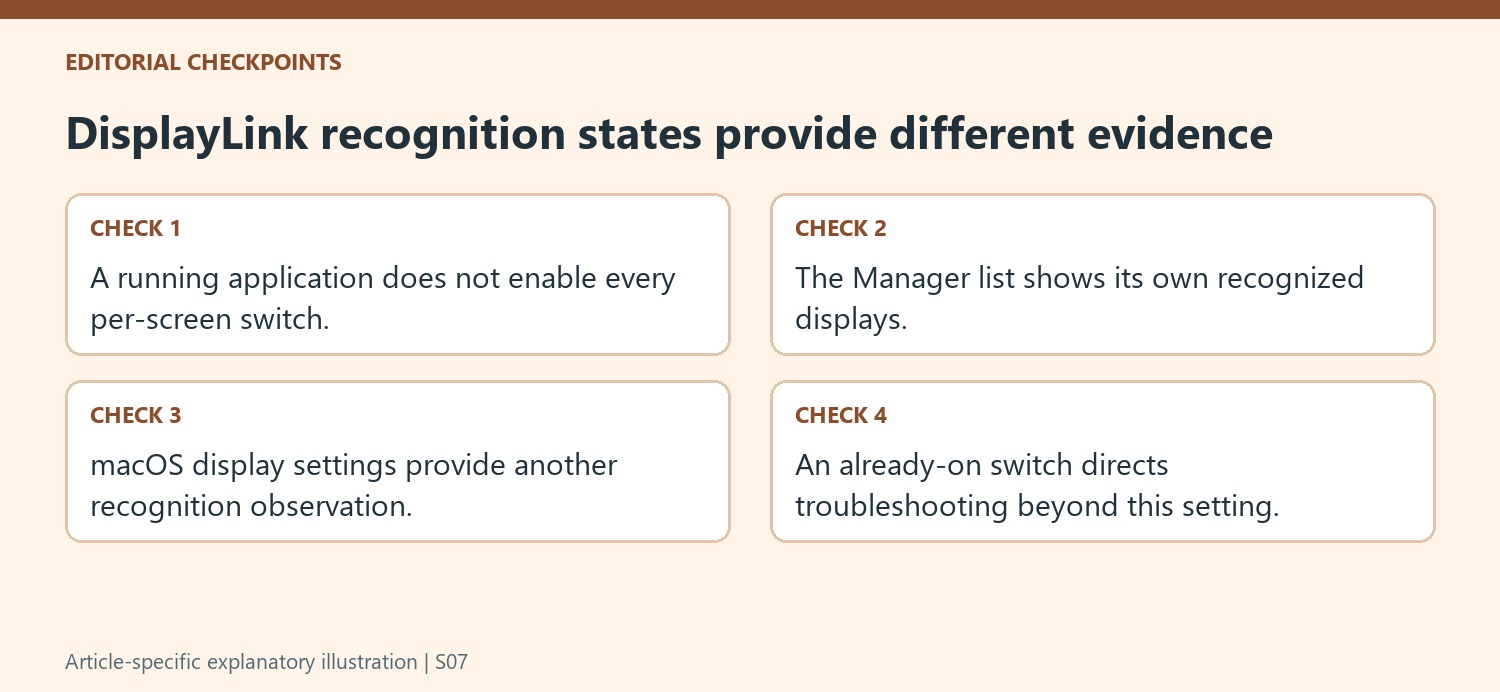
Move to another branch when the observed state rules this one out
If the monitor is absent from DisplayLink Manager, or it is listed with the switch already on, the source says this particular setting is unlikely to explain the blank screen. Repeatedly changing the same toggle does not add evidence. Preserve its state and continue through the broader setup guidance for permissions and physical connections instead.
Check screen-access permission separately from the cable, monitor input and dock connection. They are different dependencies, and a successful change to one should not be described as proof that the others were already correct. Use the actual product and macOS guidance for those checks. Keep the equipment arrangement stable where possible so that a new result can be associated with a defined action rather than several simultaneous changes. Record the affected monitor?s name when several panels look alike.
Report both application and system recognition
Include the Mac model, macOS release, Plugable product and DisplayLink Manager version in an unresolved support request. State whether the affected screen appears in the application, whether its switch is on and whether macOS lists it. Describe what changed after the test and which physical path serves the monitor. Those details distinguish intentional per-display disablement from a failure earlier in detection or image generation. The narrow toggle check is valuable because it is easy to verify, while its usefulness depends on recognizing when its outcome directs the investigation elsewhere instead of repeating it as a universal solution.
References
- The displaylink manager is running on my mac but my monitors are still blank what can i do. Plugable Knowledge Base.
When a DisplayLink dock has power and its application is active but a monitor remains blank, Plugable recommends opening DisplayLink Manager's Displays tab. Each connected screen has a toggle that should be On if it is intended for use. The application state and individual display state are separate checks.


Leave a Comment
Comments (0)