
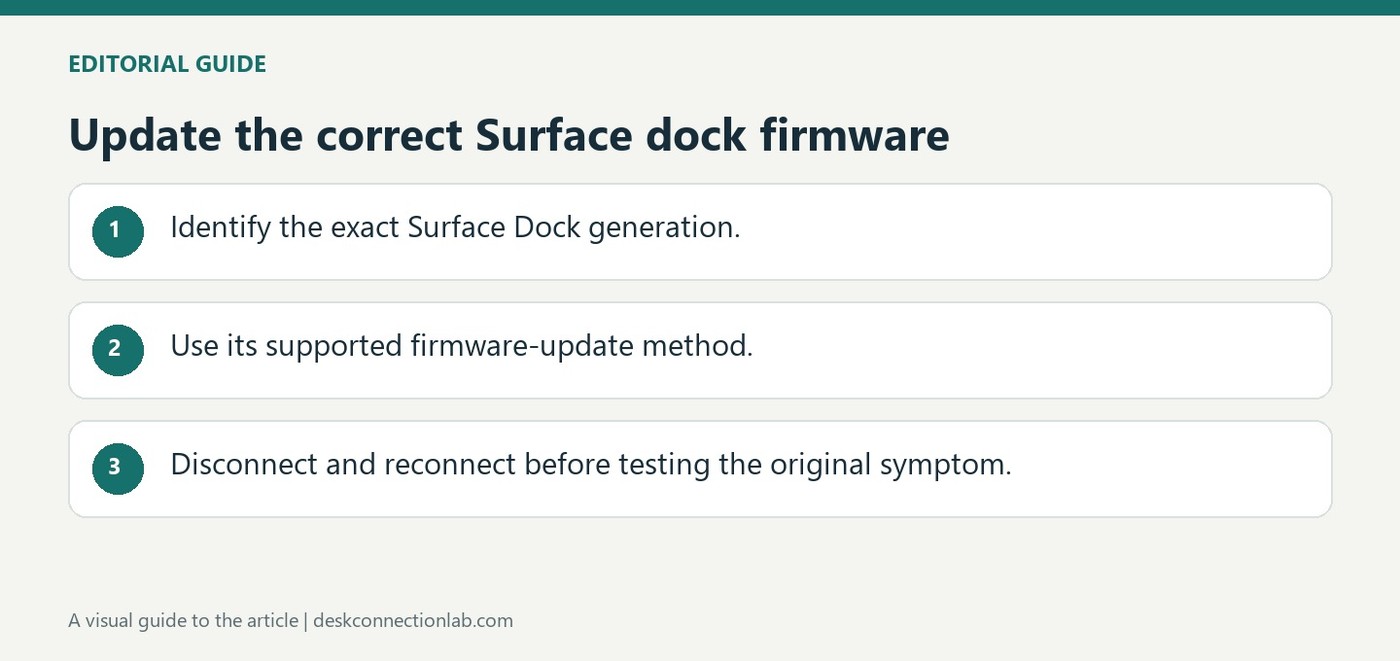
Update the correct Surface dock firmware
Select instructions for the actual dock
Microsoft's update page covers Surface Thunderbolt 4 Dock, Surface Dock 2 and the original Surface Dock. The available update method differs between models. With a supported dock connected, the Surface app can show relevant firmware information and update status; the original dock also has a specific firmware update tool.
Complete the reconnection step
Downloadable driver and firmware packages must match the identified dock. Microsoft notes restrictions for computers running Windows in S mode, so an installer is not automatically suitable for every system. After installing a dock update, disconnect the Surface from the dock and reconnect it. If the update does not complete, the guide suggests trying another supported, updated Surface rather than repeatedly applying unrelated packages.
Inspect update status with the supported dock attached
For Surface Thunderbolt 4 Dock and Dock 2, the Surface app exposes the connected accessory and its firmware information. The sections used in the app differ by model, so begin by identifying the device rather than following a screenshot for another generation. The original Surface Dock uses its dedicated firmware-update package from Surface Tools for IT. Other docks are explicitly outside this update page's scope.
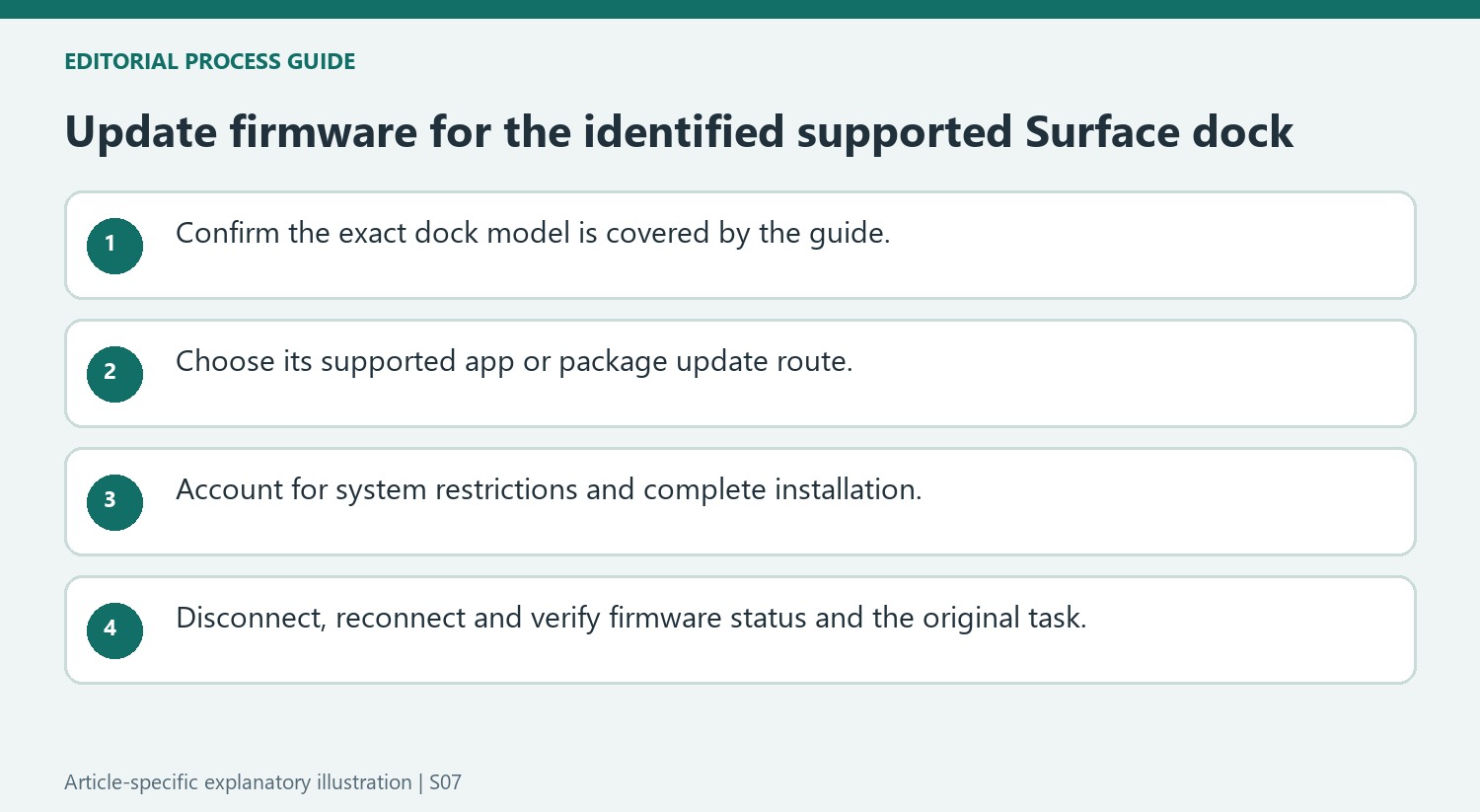
Record the result after disconnecting and reconnecting
After installation, Microsoft requires the Surface to be disconnected from the dock and reconnected. Check firmware status and the original display symptom after that step. A downloaded MSI is an alternative update method for the supported model, with Windows in S mode restrictions noted in the guidance. Do not treat an installer that cannot run as evidence that the monitor itself is defective. If the update fails, the guide suggests another compatible Surface with current Windows updates. Keep the dock model, update method, and observed result together so that support can distinguish an installation issue from an unsupported display configuration.
Confirm the firmware page applies to the identified hardware
Microsoft limits this update guidance to the original Surface Dock, Surface Dock 2 and Surface Thunderbolt 4 Dock. Identify the unit before downloading a package, especially when several generations appear similar on a desk. A newer dock with another name is not automatically covered by software intended for one of these three supported products.
Record the Surface model and current update state as well. The relevant method can differ by dock, with the Surface app exposing particular accessory information for supported newer models and a dedicated update package used for the original dock. Use the model-specific route rather than following an unrelated screenshot or assuming all dock firmware shares one installer.
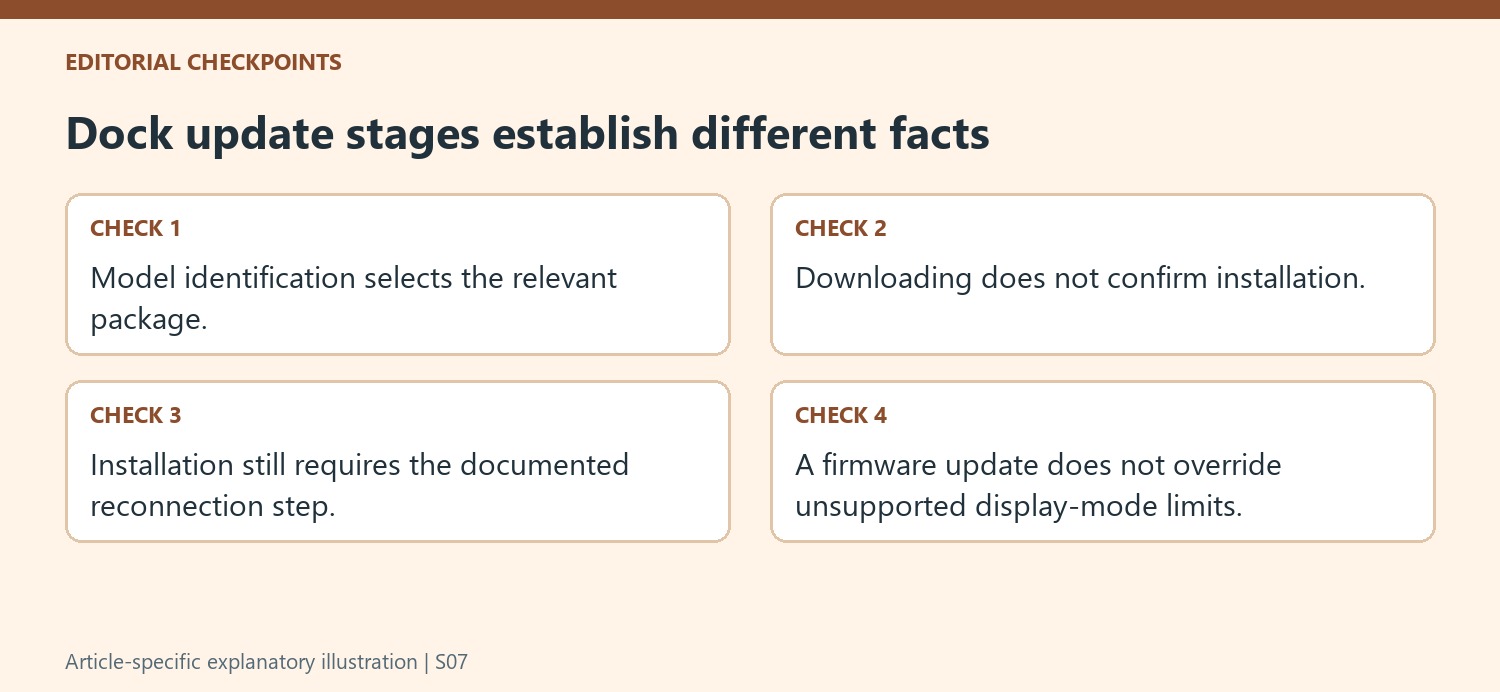
Check the update method and system conditions together
With the appropriate dock connected, inspect its firmware status through the described app section where supported. If choosing a downloadable package, verify the product and instructions before installation. The source notes Windows in S mode restrictions, so inability to run that method should be interpreted in its system context rather than as evidence of a defective display or cable.
For the original dock, select the intended firmware-update package from the tools collection rather than downloading every available component. Preserve the update method and version information in the maintenance record. Include the model and any system restriction affecting the chosen method. A bounded package choice keeps the action reviewable and prevents unrelated utilities from becoming part of troubleshooting merely because they share a download page or Surface branding.
Complete reconnection and verify both status and the original task
Disconnect the Surface from the dock and reconnect it after installation as Microsoft requires. Then check the reported firmware state and repeat the function that prompted the update, keeping the working cable arrangement understood. A successful download alone does not confirm that the dock updated or that an unsupported display mode has become supported. If the firmware does not update, the source suggests trying another compatible, updated Surface. Record that result with the dock model and method used so that support can separate package installation, firmware application and the original workstation symptom.
References
- Update your Surface Dock. support.microsoft.com.
Microsoft's update page covers Surface Thunderbolt 4 Dock, Surface Dock 2 and the original Surface Dock. The available update method differs between models. With a supported dock connected, the Surface app can show relevant firmware information and update status; the original dock also has a specific firmware update tool.


Leave a Comment
Comments (0)