
Prepare Power and Input Devices for Closed-Lid Docking
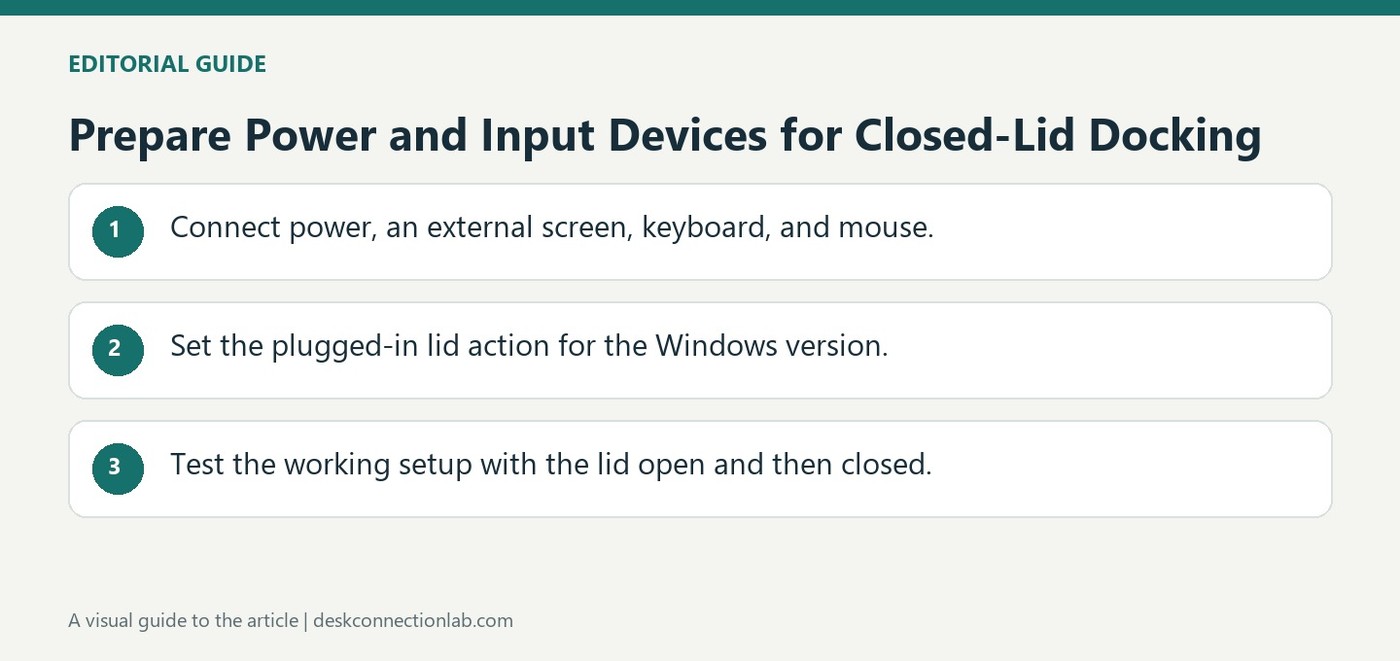
A Windows laptop can go to sleep when its lid closes even while connected to a dock. Plugable recommends providing power, an external monitor, and an external keyboard and mouse before enabling closed-lid operation. The dock can supply power only if its host charging and the laptop are compatible.
Change the plugged-in lid action to Do Nothing using the instructions for the installed Windows release. Newer Windows 11 versions expose different controls from older ones. Test the complete setup with the lid open first, then verify closed-lid behavior so a power-policy change is not confused with a display connection failure.
Change the plugged-in policy for the intended Windows release
Plugable provides different paths for newer Windows 11 releases, earlier Windows 11 versions, and Windows 10. Use the instructions matching the installed system rather than looking for a control that has moved. Select Do Nothing for the plugged-in lid action when that is the intended desk behavior, and apply or save the change where required. The battery-powered policy is a separate choice and should not be assumed to change with it.
Verify the complete closed-lid workstation
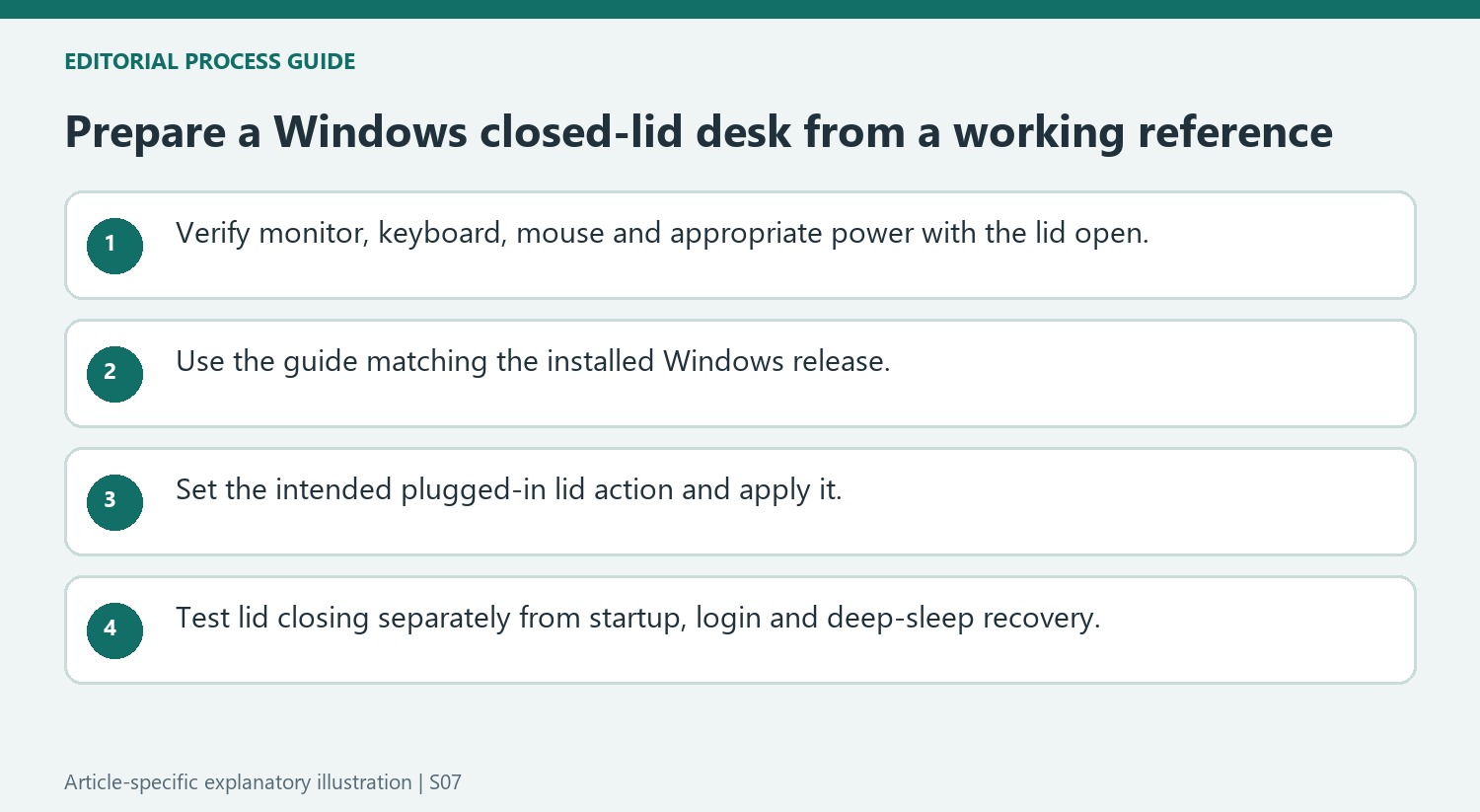
First confirm that the external monitor, keyboard, and mouse function while the lid is open and that the computer is receiving appropriate power. Then close the lid and test the external input devices and screen. If the display disappears only when the lid closes, recheck the lid policy and power condition before rebuilding the cable arrangement. If it fails with the lid open as well, return to the underlying display connection. Keep a way to reopen the laptop and access its built-in controls during setup. This staged test distinguishes a deliberate sleep action from a dock detection problem.
Establish a working open-lid reference first
Connect the intended external monitor, keyboard and mouse while the laptop remains open. Confirm that they function and that the computer receives appropriate power from a compatible charging dock or its own supply. This reference matters because the lid-policy change affects sleep behavior; it does not repair an external display that already fails while the built-in screen is available.
Record the Windows release before following a menu path. The source separates newer Windows 11 controls from earlier interfaces and Windows 10. Use the matching instructions instead of assuming a moved setting is absent or that an unrelated power option provides the same function. Keep access to the laptop’s own controls available during the initial test.
Change only the intended plugged-in lid action
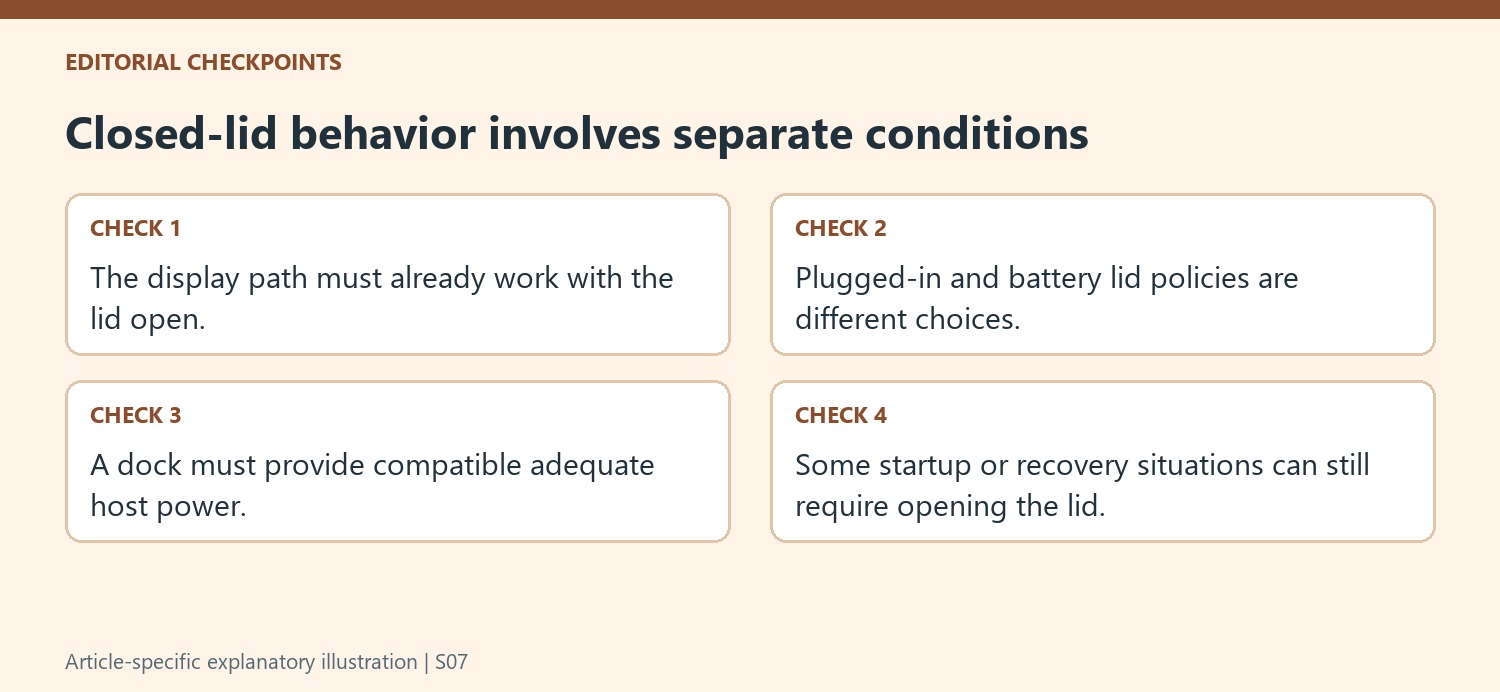
Select Do Nothing for the plugged-in lid behavior when continued desk operation is the goal, and save or apply the change where the interface requires it. The battery-powered policy is a separate setting. Changing the plugged-in column should not be described as a blanket decision that the computer will behave identically without external power.
Check that the laptop actually recognizes the intended power source before closing the lid. A dock with an inadequate or unsupported host-charging path can leave the machine under a different power condition from the one the policy was configured for. Keep the video and input devices unchanged during this test so that the observed effect can be related to lid state and power rather than several simultaneous cable changes.
Verify the full routine rather than only one lid-close event
Close the lid and confirm that the external display and input devices continue to serve the task. If only that transition fails, inspect the relevant policy and power condition first. The source notes that powering on from a fully off state, login after some restarts and waking from deeper sleep can still require opening the lid. Include those ordinary situations in the workstation plan rather than promising completely lid-free use. A successful setup distinguishes continued operation while closing the lid from the separate ability to start, authenticate or recover the computer in every possible power state.
References
A Windows laptop can go to sleep when its lid closes even while connected to a dock. Plugable recommends providing power, an external monitor, and an external keyboard and mouse before enabling closed-lid operation. The dock can supply power only if its host charging and the laptop are compatible.


Leave a Comment
Comments (0)