
Set up the original Surface Dock
Recognize a Surface Connect desktop dock
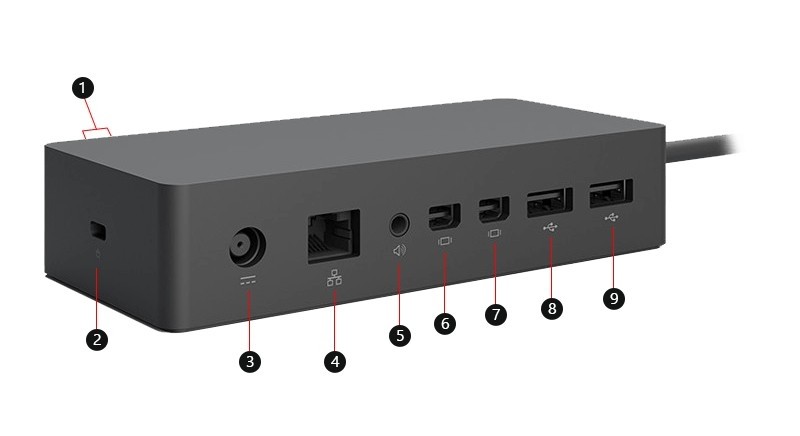
The original Surface Dock combines USB 3 ports, Mini DisplayPort outputs, Ethernet and an audio socket through a Surface Connect host connection. Its external power supply is part of the setup. These connections differ from newer USB-C docks, so cable selection and display compatibility should be checked against this particular model.
Separate supply rating from laptop charging
Microsoft lists a 90W power supply and up to 60W of power delivered to the host. The larger supply number is not the amount guaranteed to reach the computer. Connect power and the required peripherals, then check the compatible Surface models and supported display configuration. This product-specific information is more useful than assuming all docks with two video sockets have identical capabilities.
Use the original dock specifications for display planning
The original Surface Dock uses Mini DisplayPort outputs, not the USB-C display connections of newer generations. Microsoft's guide also gives dock-specific resolution and refresh limits even when the attached Surface supports more in another configuration. Check those limits and the compatible model table before ordering high-resolution screens. Two visible video sockets do not establish the same dual-screen capability as a newer dock with a different host interface.
Finish the workspace with independent sound and screen checks
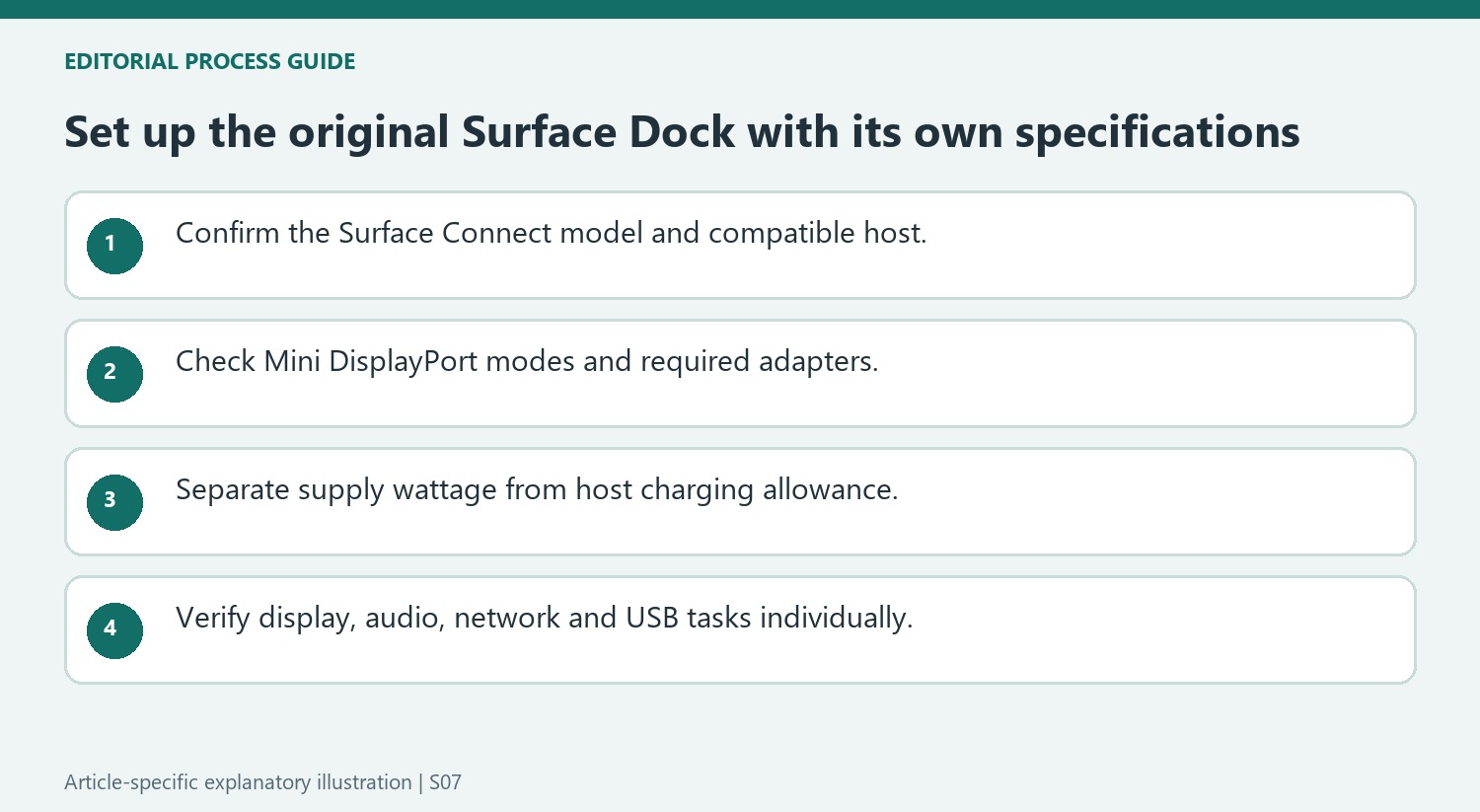
After connecting the power supply, peripherals, video leads, and Surface Connect cable, open Windows Display settings to choose duplication or extension and identify the screens. Then visit Sound settings to select the intended output and input. The guide's compatibility table lists audio output behavior separately from USB data and networking, so do not infer microphone support from the presence of an audio socket. Keep the Surface powered and connected while applying the relevant updates. A record of the dock model, supply, video adapters, and selected display mode makes later troubleshooting much more specific than a general description of a Surface workstation.
Identify the original model before reusing newer-dock advice
The original Surface Dock uses Surface Connect for its host link and Mini DisplayPort for monitor output. Those details distinguish it from later USB-C and Thunderbolt products with similar names. Confirm the physical model and consult its dedicated guide before choosing a cable, supply or firmware instruction from another generation.
Check the compatible Surface entry as well as the dock. A computer can support higher modes through another connection while remaining subject to this dock’s stated display limits. Keep the dock-specific mode conditions with the intended resolution and refresh rate. This prevents a newer host’s headline graphics capability from being mistaken for a guarantee that every older accessory can pass the same signal.
Build power and peripherals around their actual roles
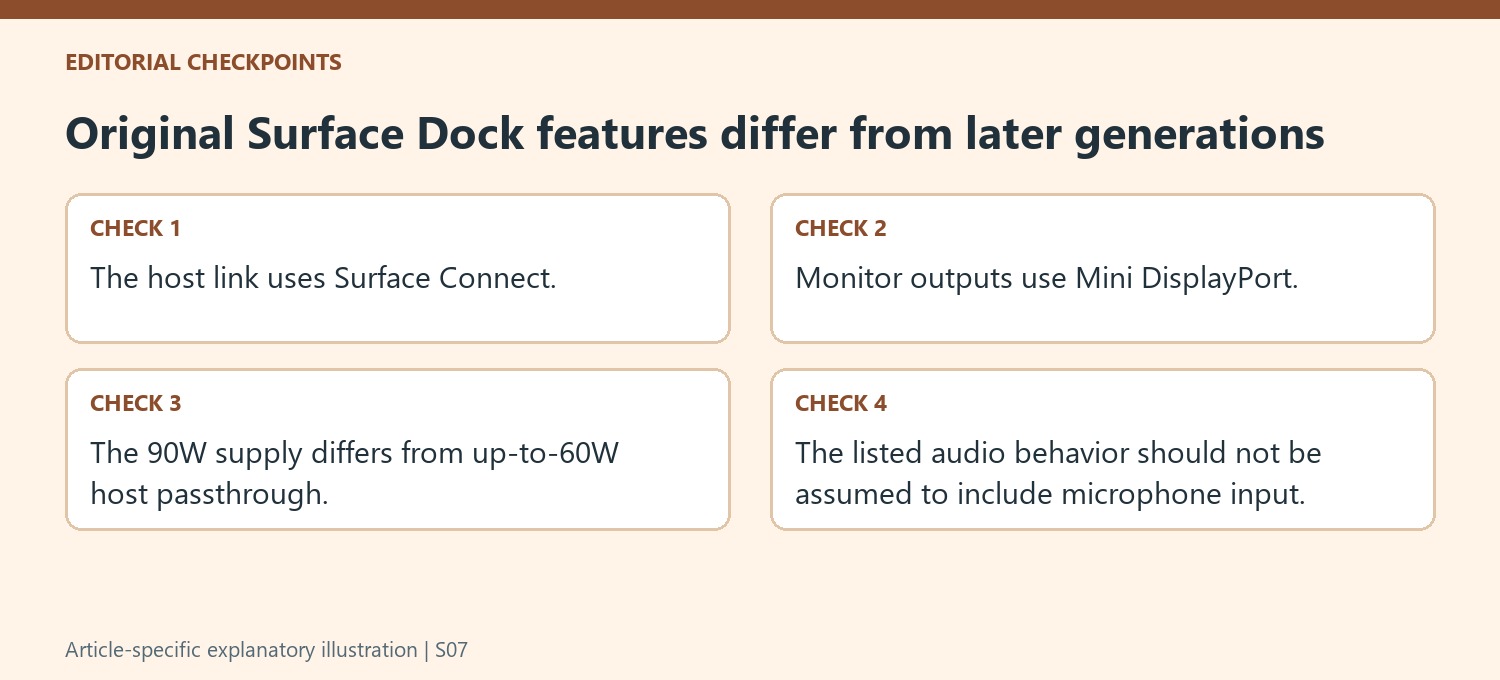
Use the intended dock supply and separate its 90W rating from the up-to-60W charging allowance to the Surface. The supply powers the complete accessory arrangement, so the larger printed number should not be described as a guaranteed host charging rate. Confirm that the available charging meets the intended computer’s requirement in the supported configuration.
Connect required peripherals and video leads before attaching the host, following the guide’s setup order. Where a monitor needs an adapter, verify the appropriate conversion and target mode rather than choosing solely by plug appearance. Start with an understood display path and retain its cable details when expanding the workspace. Each extra stage should have a purpose that can be explained and checked independently.
Validate sound and display behavior after the connection succeeds
Use Windows Display settings to choose the intended workspace behavior and identify the screens. Then verify the required audio output and input separately. The source’s compatibility information specifies audio output only, illustrating why a visible 3.5mm socket should not be treated as a promise of every microphone function. Check network and USB devices through the tasks they are meant to perform. Apply supported updates with the powered dock attached as directed, and keep a record of the model, supply, adapters and working screen mode. That record gives later troubleshooting a concrete baseline instead of relying on the generic claim that a Surface workstation used to work.
References
- Use Surface Dock. support.microsoft.com.
The original Surface Dock combines USB 3 ports, Mini DisplayPort outputs, Ethernet and an audio socket through a Surface Connect host connection. Its external power supply is part of the setup. These connections differ from newer USB-C docks, so cable selection and display compatibility should be checked against this particular model.


Leave a Comment
Comments (0)