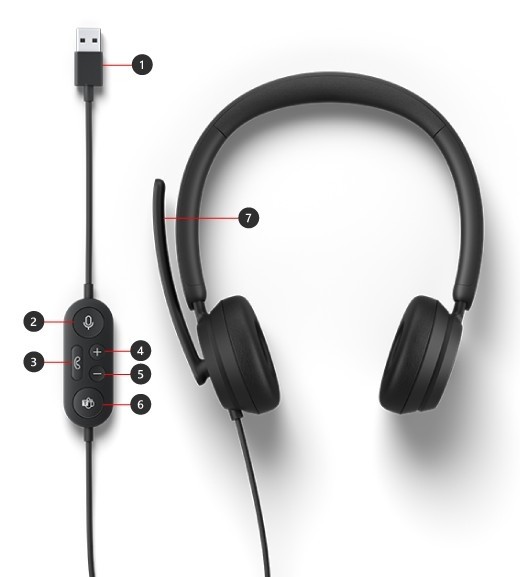
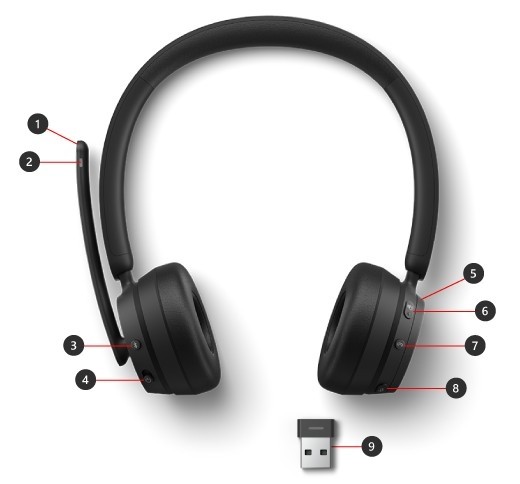
Microsoft Modern USB Headset connects through a USB port on a supported Windows PC. In the Teams desktop application, open Settings, Devices and select the headset under Audio devices. Check that both Speaker and Microphone use the headset, since hearing a call through it does not prove that the headset microphone is also selected.
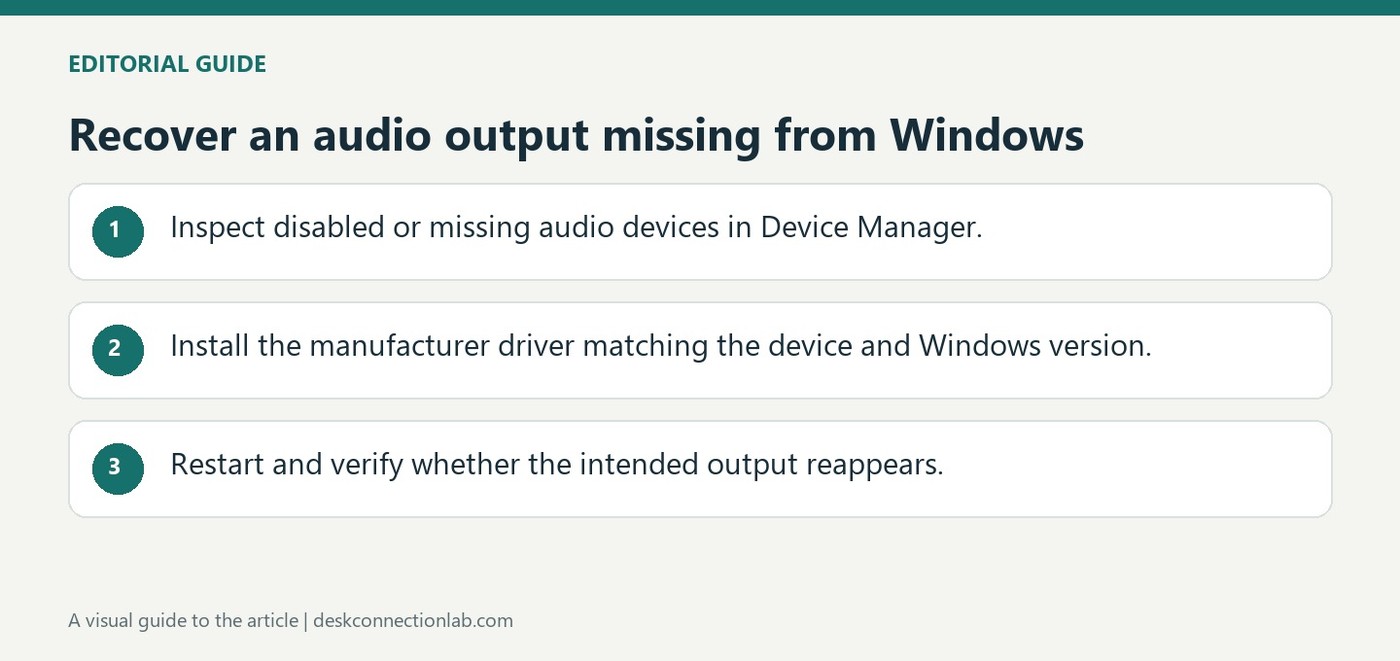
Microsoft explains that missing, disabled or incompatible drivers can make speakers and headphones disappear from Sound settings. In Device Manager, inspect Sound, video and game controllers, enable the device if that option is available, and use Show hidden devices or Scan for hardware changes when necessary.
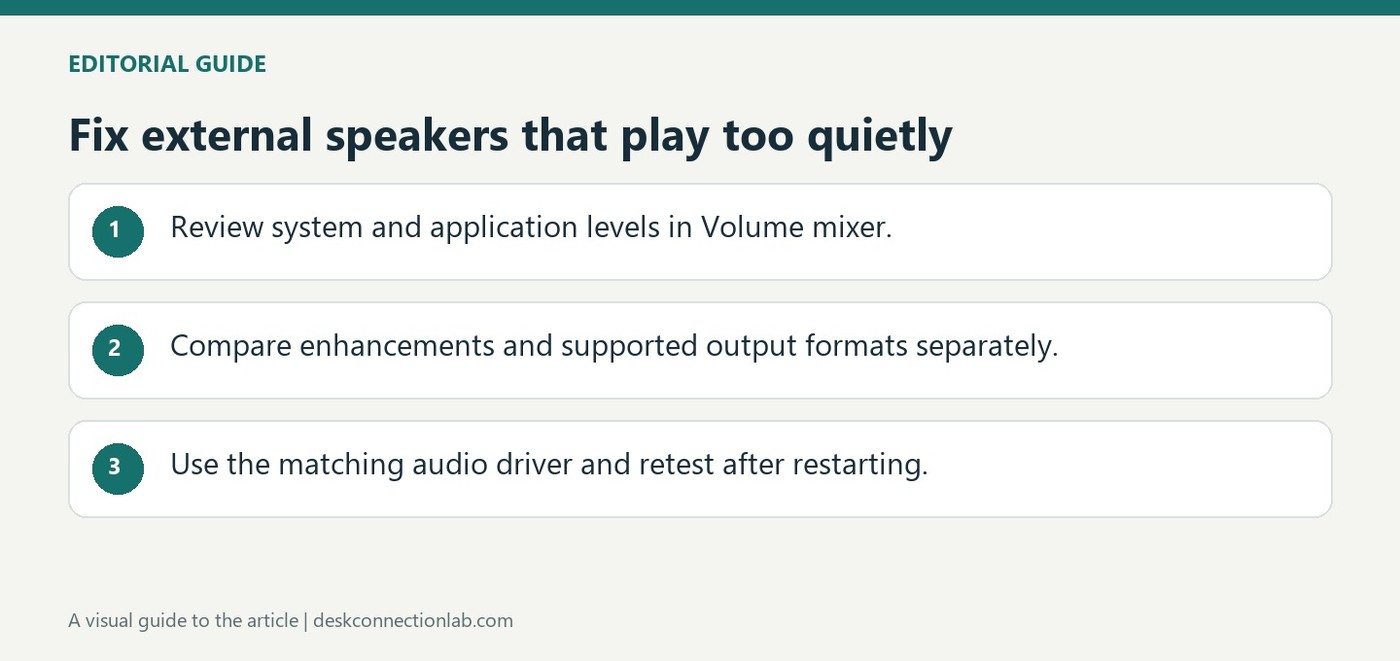
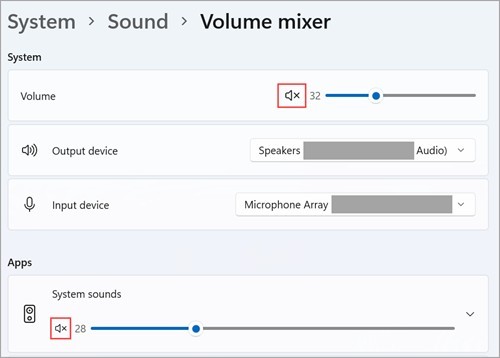
Microsoft recommends reviewing the Windows Volume mixer when an application sounds unusually quiet or muted. Check the system and application levels rather than assuming the speaker's connection is bad. A separate volume control on powered speakers can also affect what is heard, so adjust the accessory and computer deliberately during a short playback test.
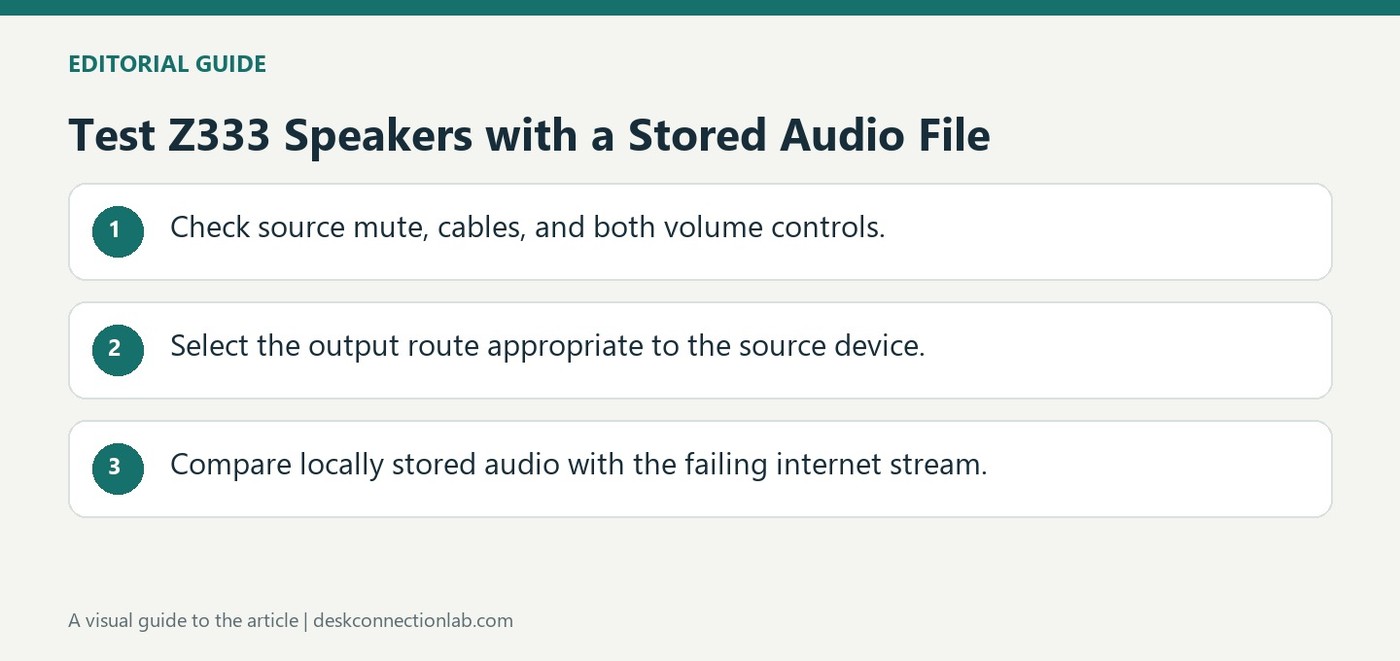
When Z333 speakers produce no sound, check the cables and raise volume at both the speaker system and source. Confirm the source is not muted and, on a computer, that the correct output is selected for the connection being used.
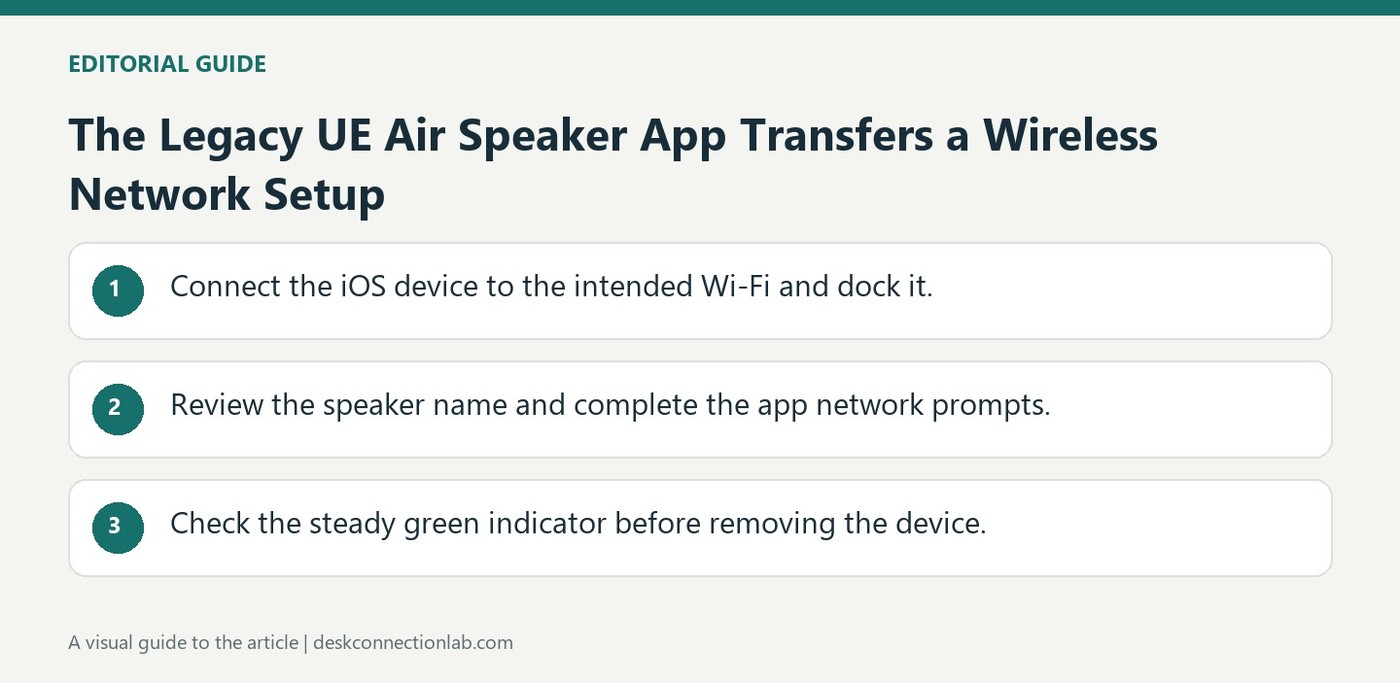
The UE Air Speaker's app-based setup begins with an iOS device already connected to the desired Wi-Fi network. Dock the device, open the speaker app and follow its prompts to name the speaker and select the network, entering the wireless password when requested.
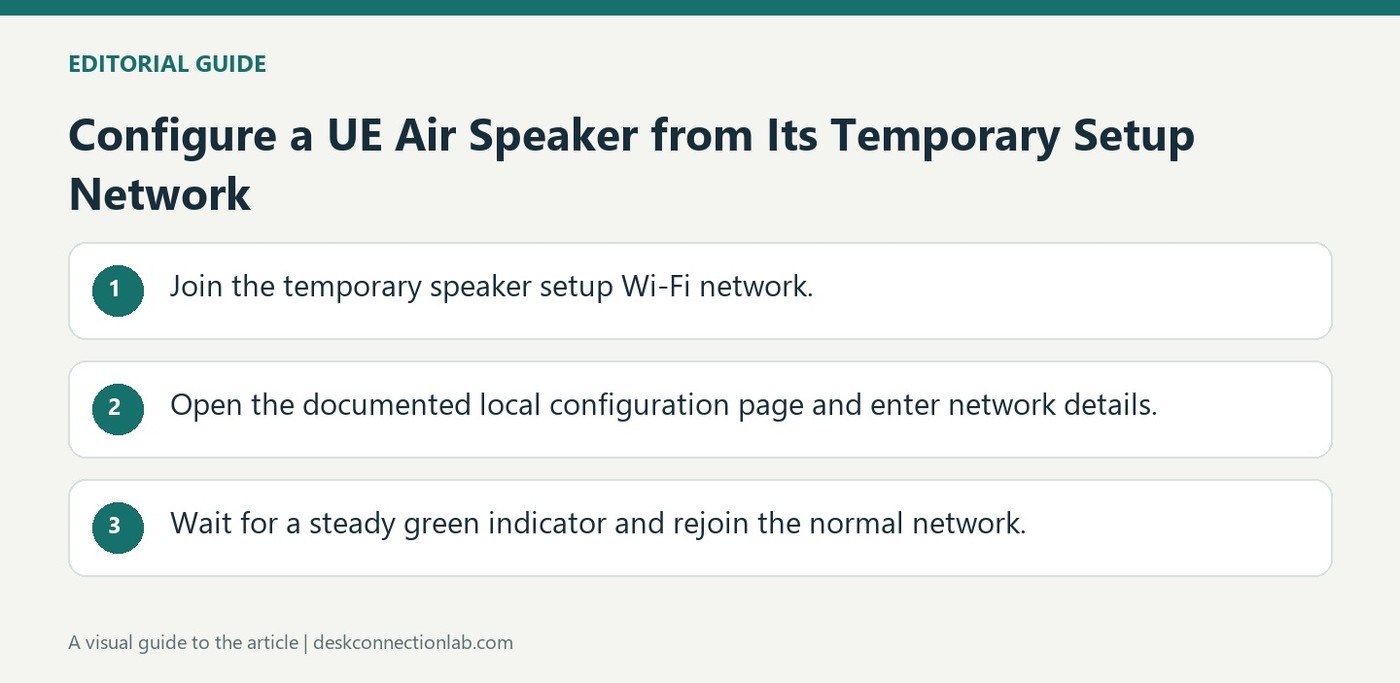
The UE Air Speaker can be configured without docking an iOS device. Turn it on, press Wi-Fi Connect and join the temporary Logitech UE Air Speaker Setup network from a computer or mobile device. The setup network may take a short time to appear.
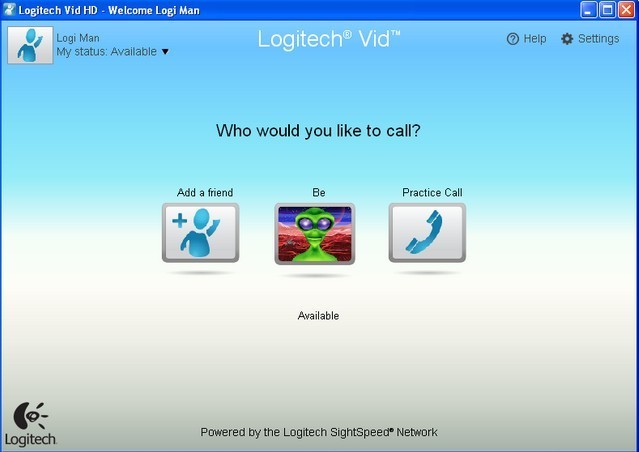
Logitech's legacy C270 and Vid HD guide describes a call that begins before reaching its final resolution. After the other person accepts, the software stabilises the connection, then may increase video to 1280 by 720 if the system meets the required conditions.
TechRadar reported resolution and frame-rate controls discovered in a Windows 11 Insider Canary preview build. The article described automatic or manual stream choices and possible multi-app and basic troubleshooting modes. Because it was a preview report, its instructions do not establish that the same hidden feature is present on every Windows 11 computer.
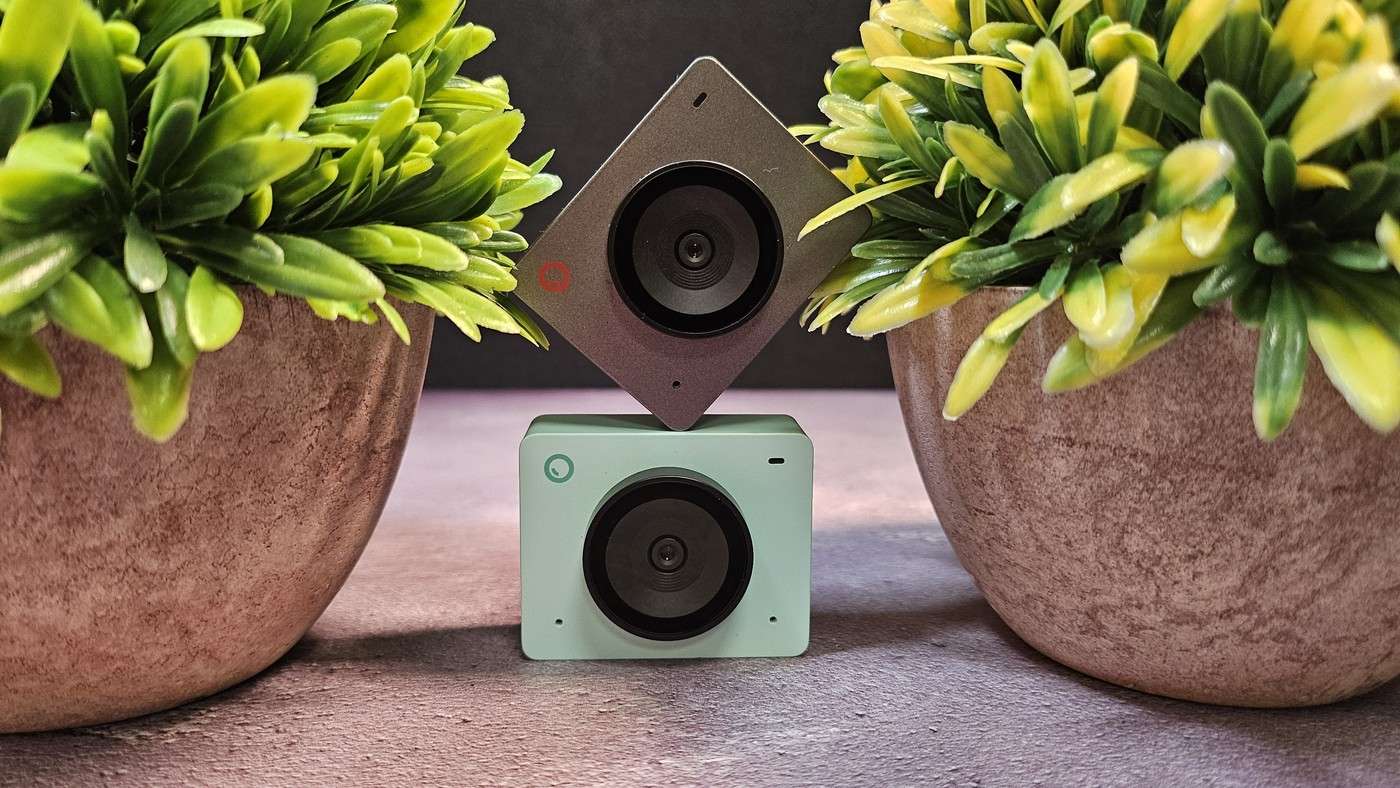
TechRadar's webcam guidance treats 1080p as a sensible starting point for new purchases, while recognizing that a working 720p camera can still be adequate for ordinary calls. It distinguishes casual meetings from content creation, where additional detail is more valuable. That makes the intended use more important than replacing equipment solely because a larger number is available.
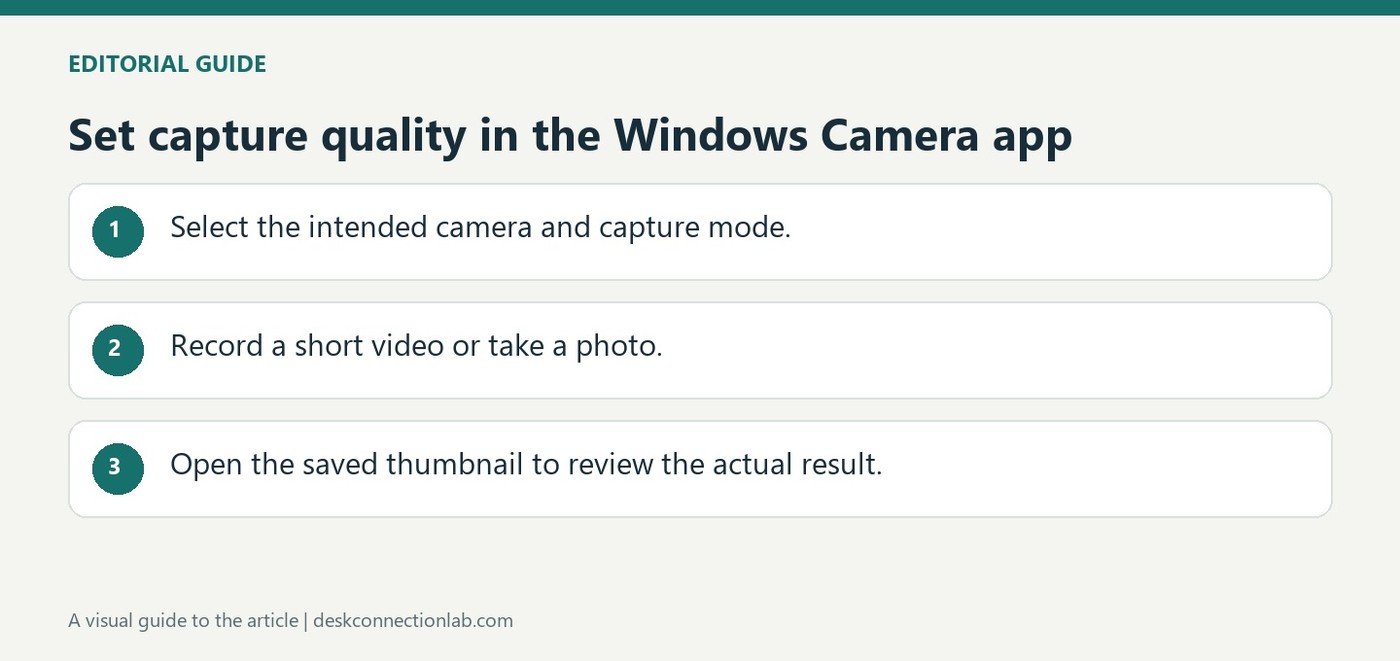
Microsoft's Camera app guide explains how to switch between connected cameras before taking a photo or recording video. This matters when a laptop's internal camera remains active after an external USB webcam is connected. Open the Camera app and use its change-camera control so quality adjustments and test recordings apply to the intended device.
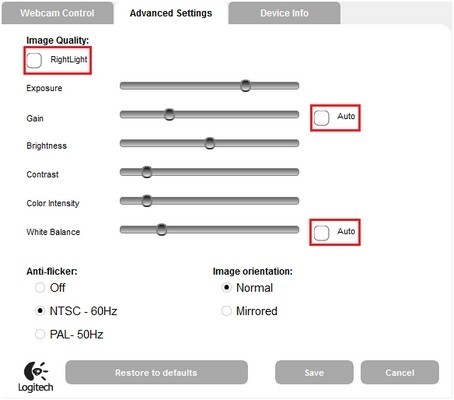
In Logitech Webcam Software, the documented route to manual image settings starts in Quick Capture, then Controls and Advanced Settings. Clearing RightLight and the automatic options allows the user to move the image-quality sliders rather than leaving those values under automatic control.
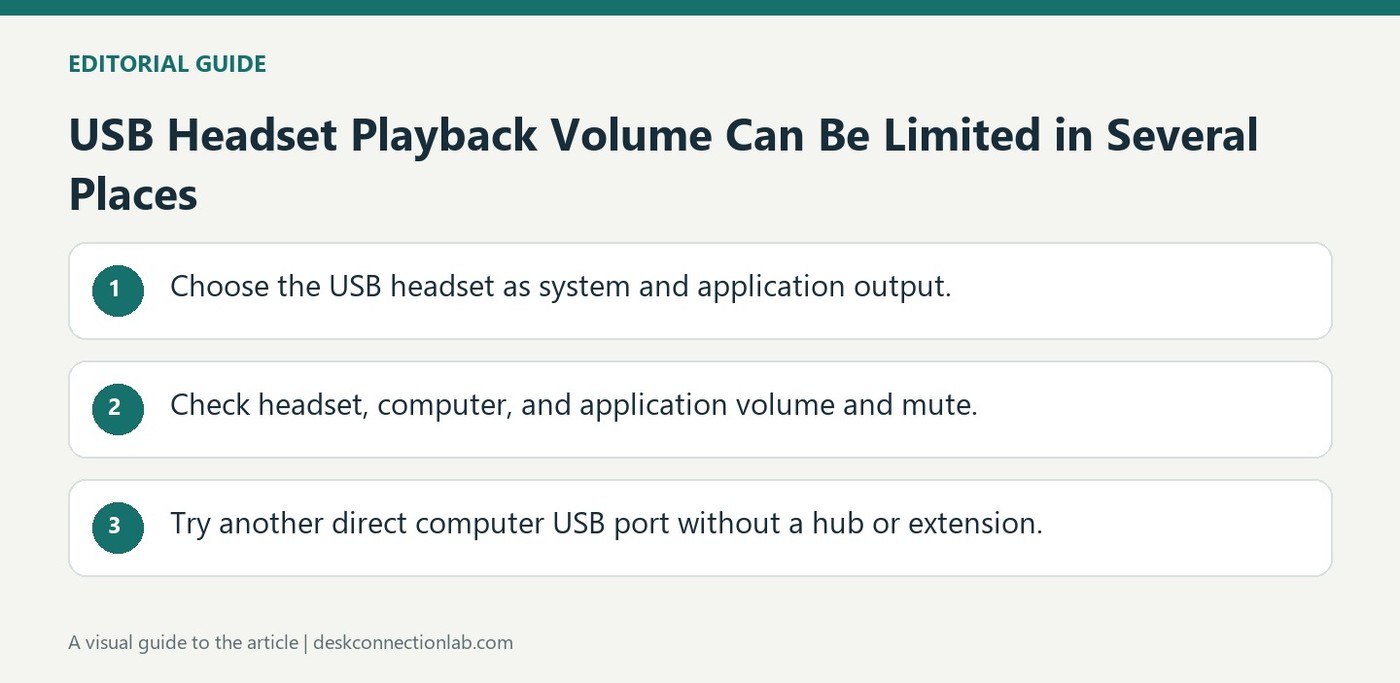
For a USB headset with no playback, Logitech recommends selecting it as the computer's audio output and checking the same selection in the chat or music application. These choices can differ, especially when a computer has built-in speakers or other connected sound devices.
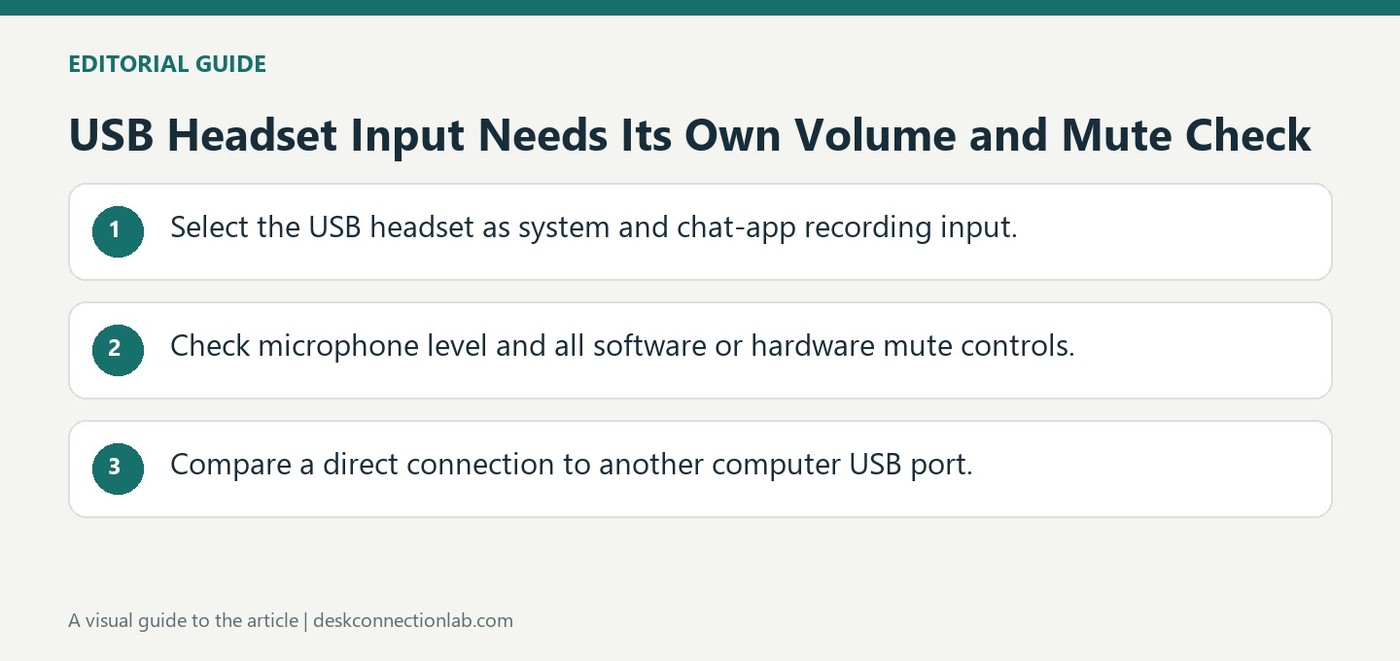
When a USB headset microphone does not work, select the headset as the computer's audio input and confirm that the chat application uses the same device. Logitech recommends checking microphone volume in the relevant settings rather than raising speaker playback volume.
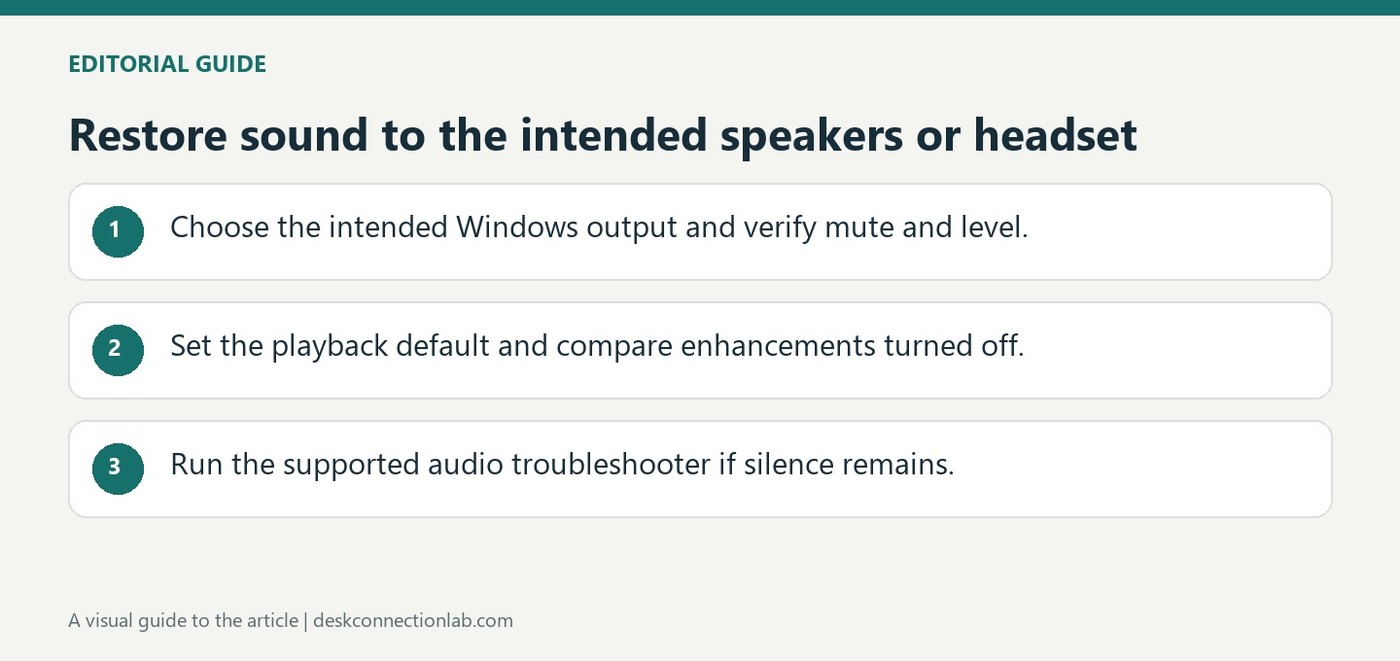
Microsoft's broad audio troubleshooting guide starts with the selected speaker device, secure cables and the appropriate jack. Systems with several audio outputs can route sound somewhere unexpected, particularly after connecting a monitor or USB headset. Hardware volume and mute controls should be checked alongside the Windows sound level.
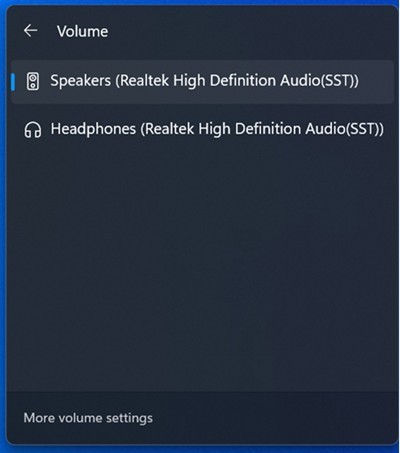
Microsoft's no-sound guide begins by selecting the appropriate playback device from the taskbar sound controls. A monitor, headset and built-in speakers can all appear as outputs, so audio may be sent to a device that is connected but not being used. Choose the intended speakers before changing more complex settings.
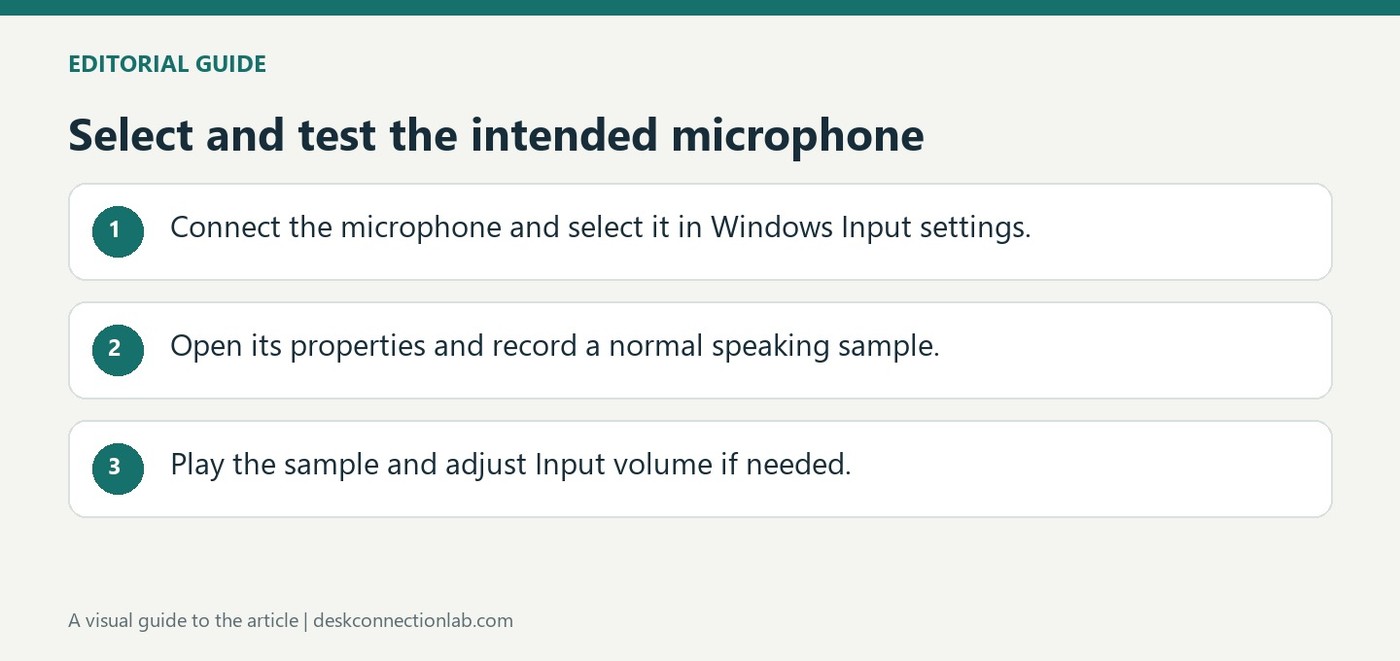
Microsoft's setup guide directs users to Settings, System, Sound after connecting a microphone. The Input section lists the available recording devices. Select the microphone you intend to use; a laptop can have an internal array as well as a USB microphone, headset microphone or camera microphone, so the first visible device may not be the desired one.
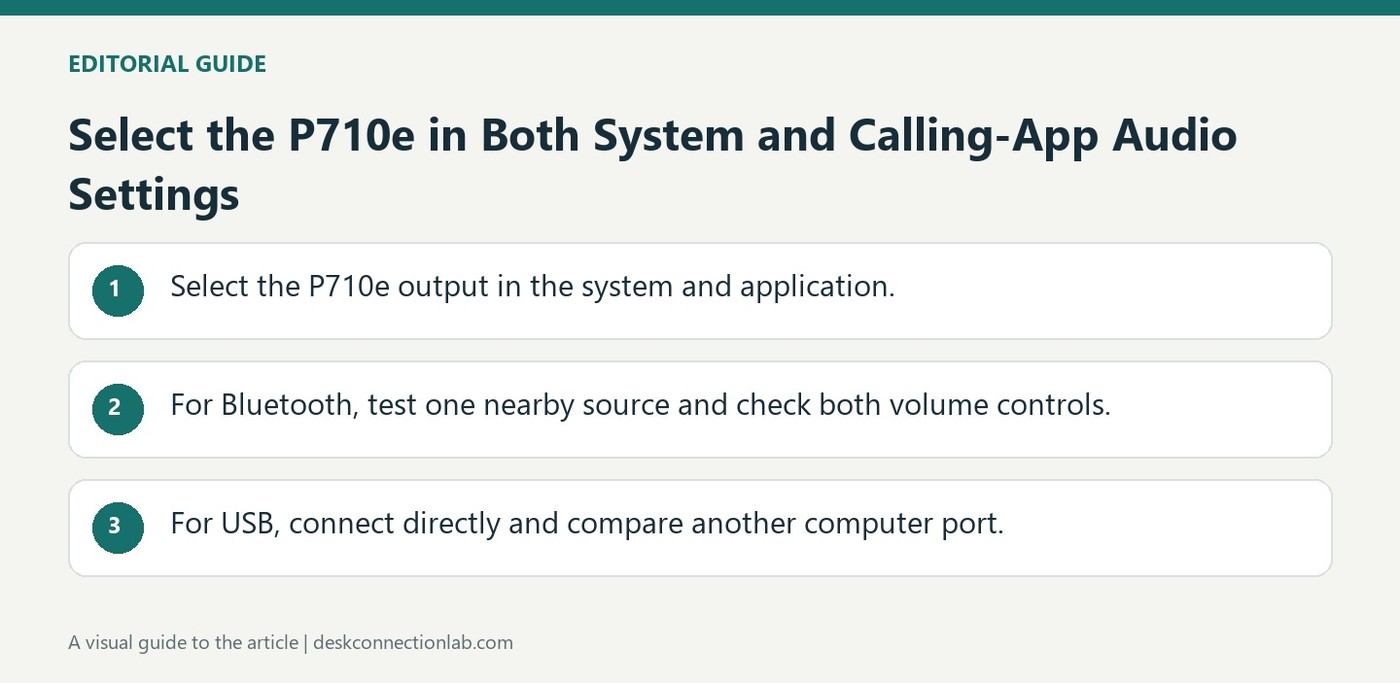
If a P710e produces no sound, verify the source device and the playback selection in both the operating system and calling application. Logitech recommends adjusting volume on the speakerphone and source, because either side can make an otherwise functioning connection seem silent.
Microsoft's Surface audio guide supports USB and Bluetooth accessories alongside the built-in speakers and microphones. Use the taskbar speaker control to select the desired playback device. This is especially useful after attaching a dock, headset or external speaker, when the newly available output may not be the one Windows is currently using.
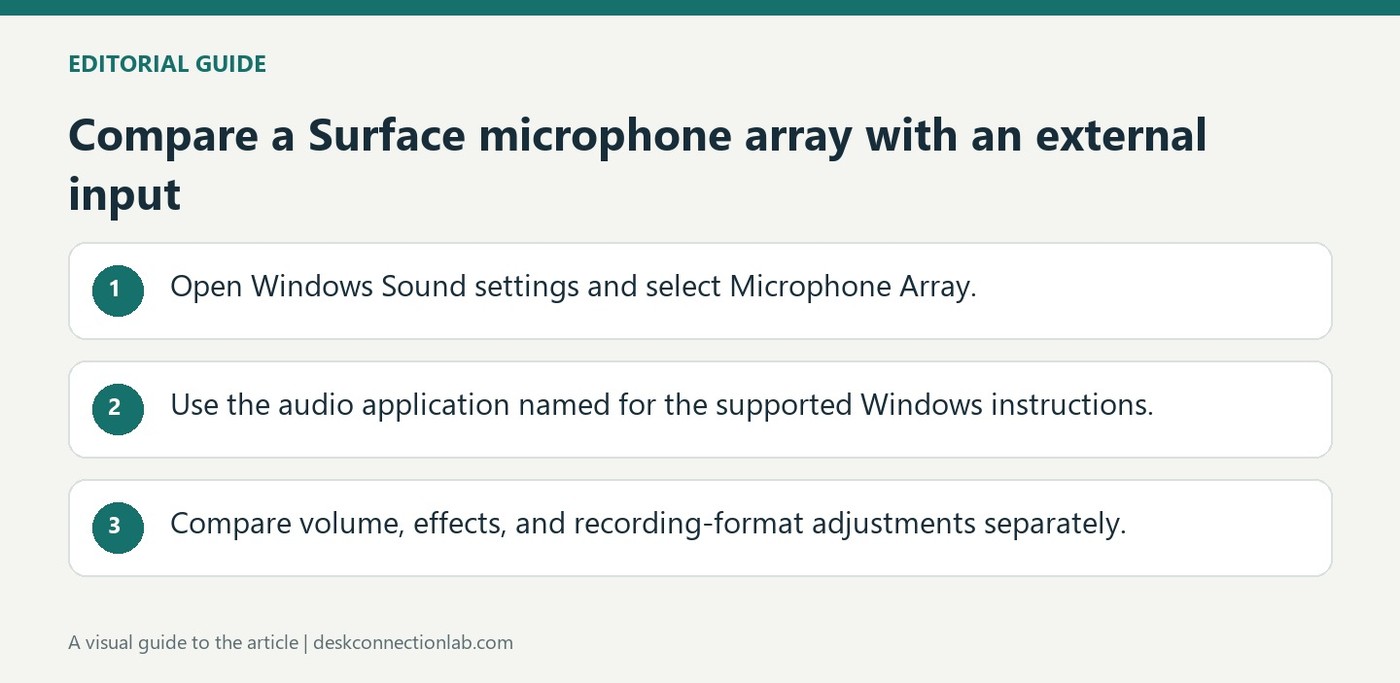
Microsoft's Studio Mics guide identifies the built-in Surface input as Microphone Array in Settings, System, Sound. That name matters when a USB microphone or headset is attached alongside the internal microphones. Selecting the wrong input can make a working external accessory seem ineffective because the computer is still recording from the laptop.
Microsoft Modern Wireless Headset is certified for Teams when used through Microsoft USB Link on a supported PC or Mac. The supplied headset and receiver are already paired, but Teams still needs the correct device selected within its own settings.