
Configure a UE Air Speaker from Its Temporary Setup Network
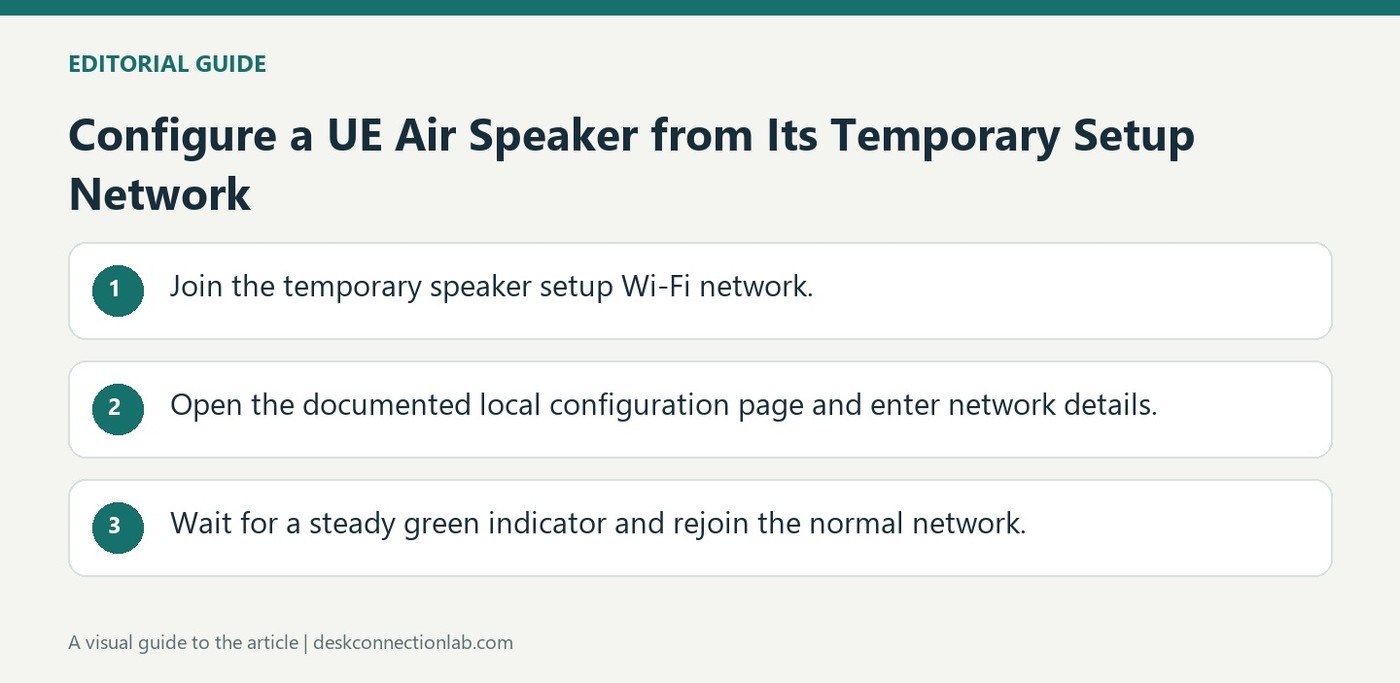
The UE Air Speaker can be configured without docking an iOS device. Turn it on, press Wi-Fi Connect and join the temporary Logitech UE Air Speaker Setup network from a computer or mobile device. The setup network may take a short time to appear.
Open the speaker's configuration page at its documented local address and enter the home Wi-Fi network name and password. Once the status indicator becomes steady green, reconnect the computer to its normal network. The process moves the speaker from a temporary configuration link to the intended wireless network.
Use the setup address only on the temporary network
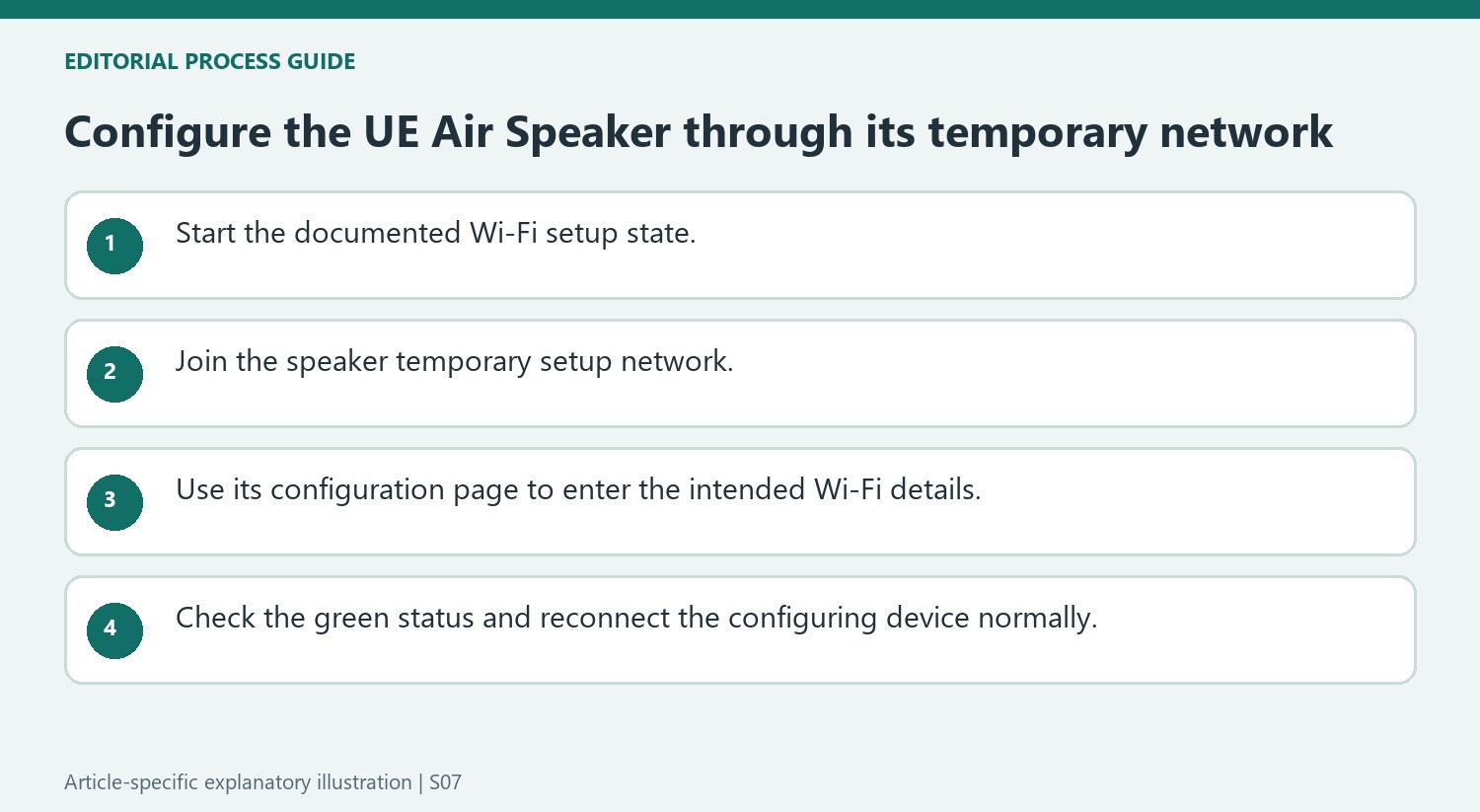
For the wireless method, Logitech specifies opening http://192.168.1.12 after joining the speaker’s temporary setup network. That is a local configuration address in this workflow, not the address of a public support website or a universal address for every speaker. The temporary network can take up to thirty seconds to appear. Follow the configuration page’s prompts for the intended SSID and password, then use the steady green status indicator as the documented connection check. Rejoining the normal Wi-Fi network afterward is a separate step on the computer or mobile device.
Consider the Ethernet route when router information is available
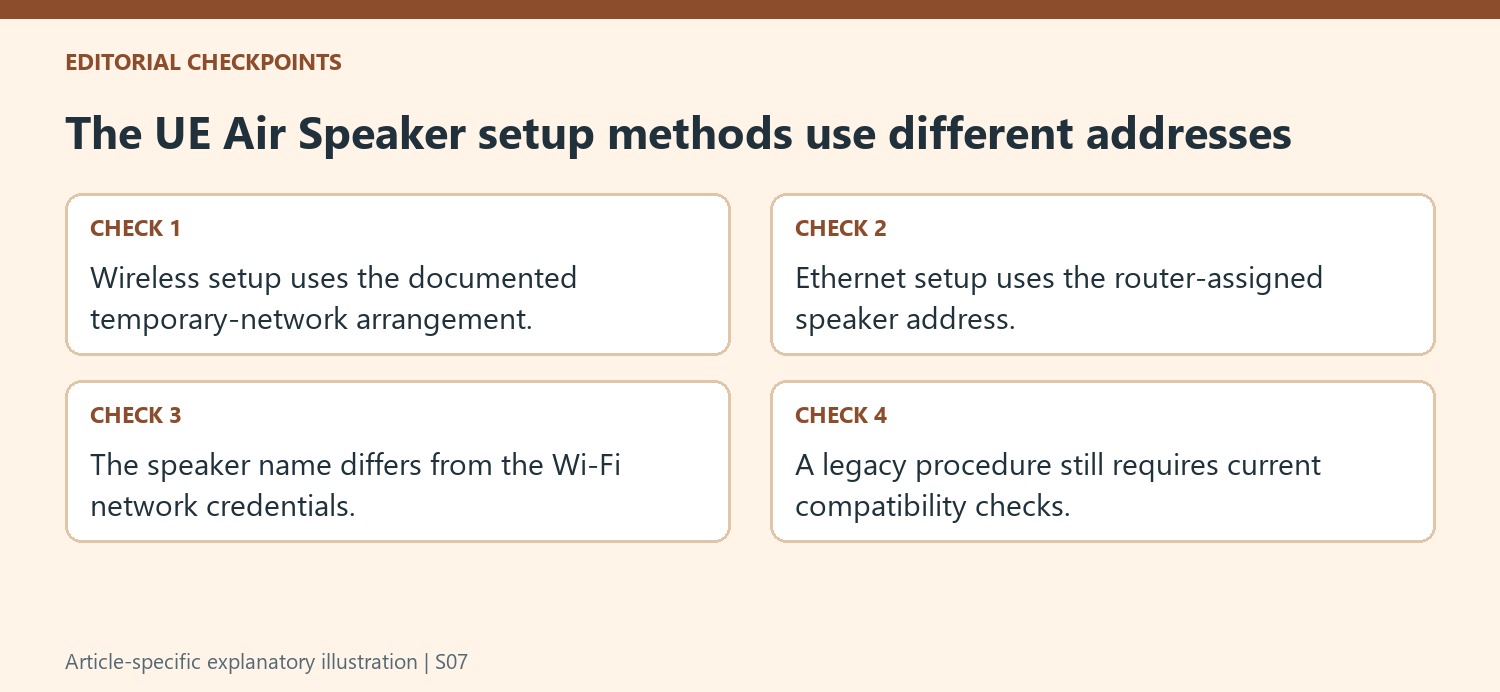
The alternative procedure connects the speaker to a router with an Ethernet cable, powers it on and obtains its assigned IP address from the router. Enter that address in a browser to reach the configuration page and follow the displayed setup instructions. Logitech labels this an advanced-user method because it depends on router information. The cable is used for configuration and can be disconnected for subsequent wireless playback after setup. Keep the router-assigned address distinct from the fixed address used by the temporary wireless method so the browser is directed to the speaker on the network actually in use.
Recognize the temporary speaker network as a setup stage
The wireless procedure first connects the computer or iOS device to the speaker's temporary setup network. That is different from the home Wi-Fi network the speaker will ultimately join. The browser address in the note belongs to that temporary configuration arrangement, so typing it while connected somewhere else does not reproduce the intended path. Logitech also allows a short period for the setup network to appear after the Wi-Fi Connect button is pressed. Identify the selected network and indicator state before retrying. This makes the setup easier to understand: the computer temporarily talks directly to the speaker so the speaker can receive the credentials for the normal network.
Return the configuring device to the ordinary network
After entering the home network name and password, the procedure uses a solid green status as its connection cue and explicitly tells the computer or mobile device to rejoin its own Wi-Fi network. That final step is easy to overlook because the speaker may already have completed its part. A configuring device still on the temporary setup network is not in the same final arrangement described by the instructions. Review the selected network on both sides and use the correct network credentials rather than confusing them with a different sign-in password. The option to name the speaker is also part of identifying the device in later use, separate from choosing the Wi-Fi network itself.
Treat the Ethernet alternative as a different discovery route
The wired method connects the Air Speaker to the router and uses the speaker's router-assigned address, obtained from the router interface. That differs from blindly reusing the fixed temporary-network address of the wireless method. The support page calls this an advanced route because router information is required. Follow the instructions for the actual router when identifying the device and its address. The procedure then configures the speaker for wireless use before the temporary cable is removed. Keep the two methods distinct so a step from one is not inserted into the other. Since this is legacy product guidance, confirm present device and software support before treating either historical setup path as a guaranteed current solution.
References
- Setting up the Logitech UE Air Speaker without using the dock. Logitech Support.
The UE Air Speaker can be configured without docking an iOS device. Turn it on, press Wi-Fi Connect and join the temporary Logitech UE Air Speaker Setup network from a computer or mobile device. The setup network may take a short time to appear.


Leave a Comment
Comments (0)