
Legacy Webcam Software Exposes Manual Image Controls
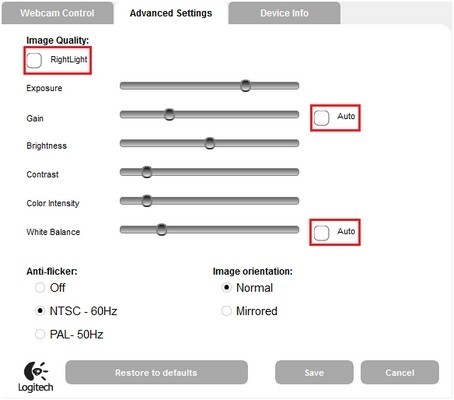
In Logitech Webcam Software, the documented route to manual image settings starts in Quick Capture, then Controls and Advanced Settings. Clearing RightLight and the automatic options allows the user to move the image-quality sliders rather than leaving those values under automatic control.
The same legacy guidance emphasises good room lighting and a high-speed USB connection. Manual settings can change the image, but they cannot replace sufficient illumination or bandwidth. The procedure applies to cameras and software supported by that older application rather than every current Logitech webcam interface.
Compare manual controls with automatic behavior
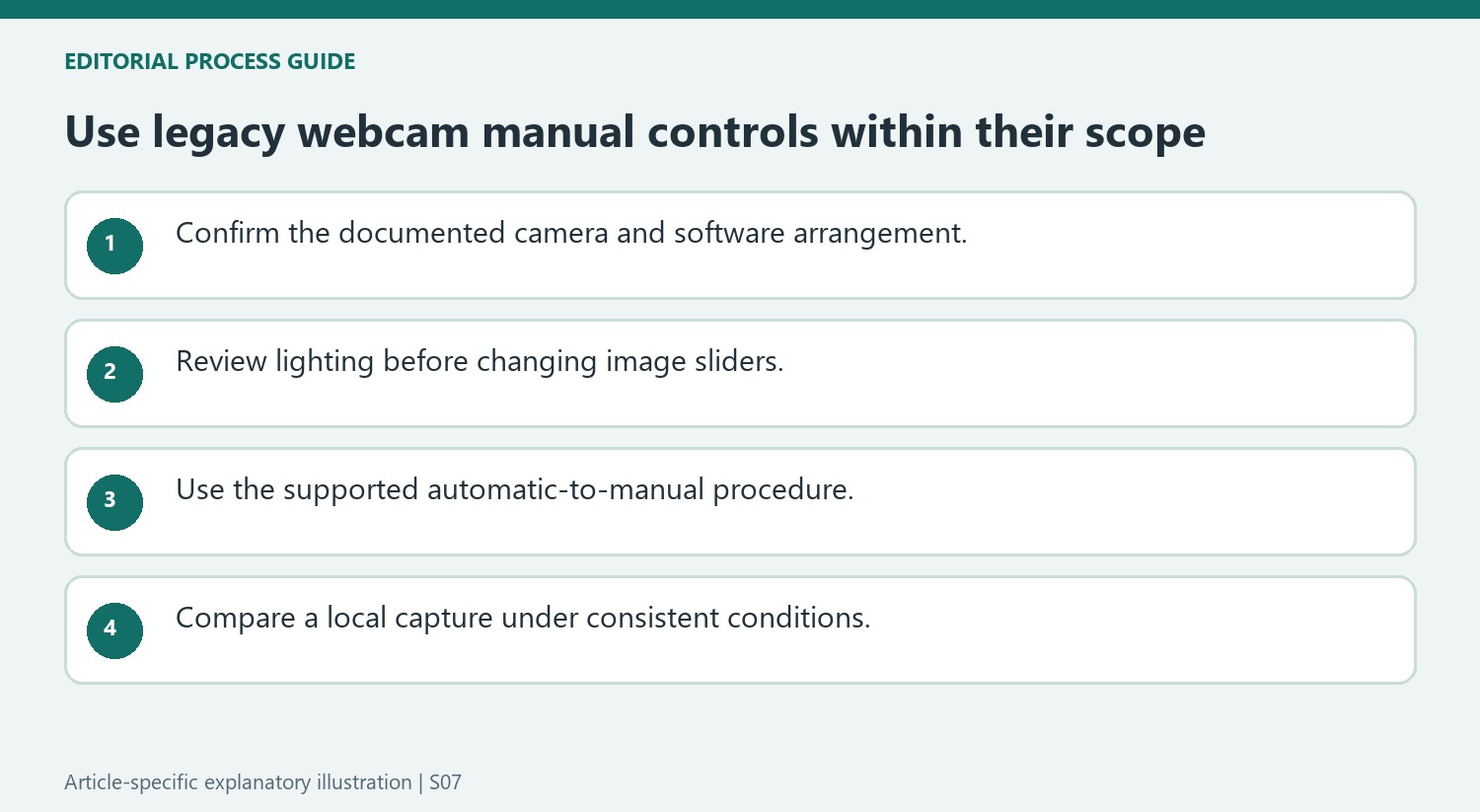
The source’s sequence deliberately clears RightLight and both Auto options before moving the sliders. That step matters because an automatic control can otherwise continue determining an image setting the user expects to adjust manually. Work from the live image in Quick Capture and change a setting deliberately before comparing the result. The guide does not prescribe one universal slider position for every room. A preferred setting should be judged in the actual lighting conditions, with awareness that this procedure trades automatic adjustment for the manual choices exposed by that version of Logitech Webcam Software.
Read the old hardware requirements as historical guidance
The article names an Intel Pentium 4 processor, 256 MB of memory and a high-speed USB 2.0 connection. Those figures locate the advice in a legacy software environment; they should not be presented as the requirements for every current Logitech camera or conferencing application. The more general point is that the supported computer, connection and room illumination all participate in image quality. Check the documentation for the exact camera and installed software before hunting for controls that belong to an older interface. If modern software uses different labels, retain the diagnostic comparison rather than copying obsolete menus as current instructions.
Recognize the software generation before following the menu path
The support note uses Logitech Webcam Software, Quick Capture, Controls, and Advanced Settings, with old computer requirements that place it in a legacy context. Those names should not be assumed to appear in every current Logitech application or modern Windows installation. Confirm that the camera and installed software belong to the documented arrangement before looking for the controls. The useful distinction is between automatic image adjustment and manual adjustment in software that actually supports them. A missing legacy menu on a newer setup does not by itself indicate a faulty webcam. Use the current product's support information to find its equivalent controls rather than installing unrelated software solely to reproduce an old screenshot.
Separate room lighting from the manual sliders
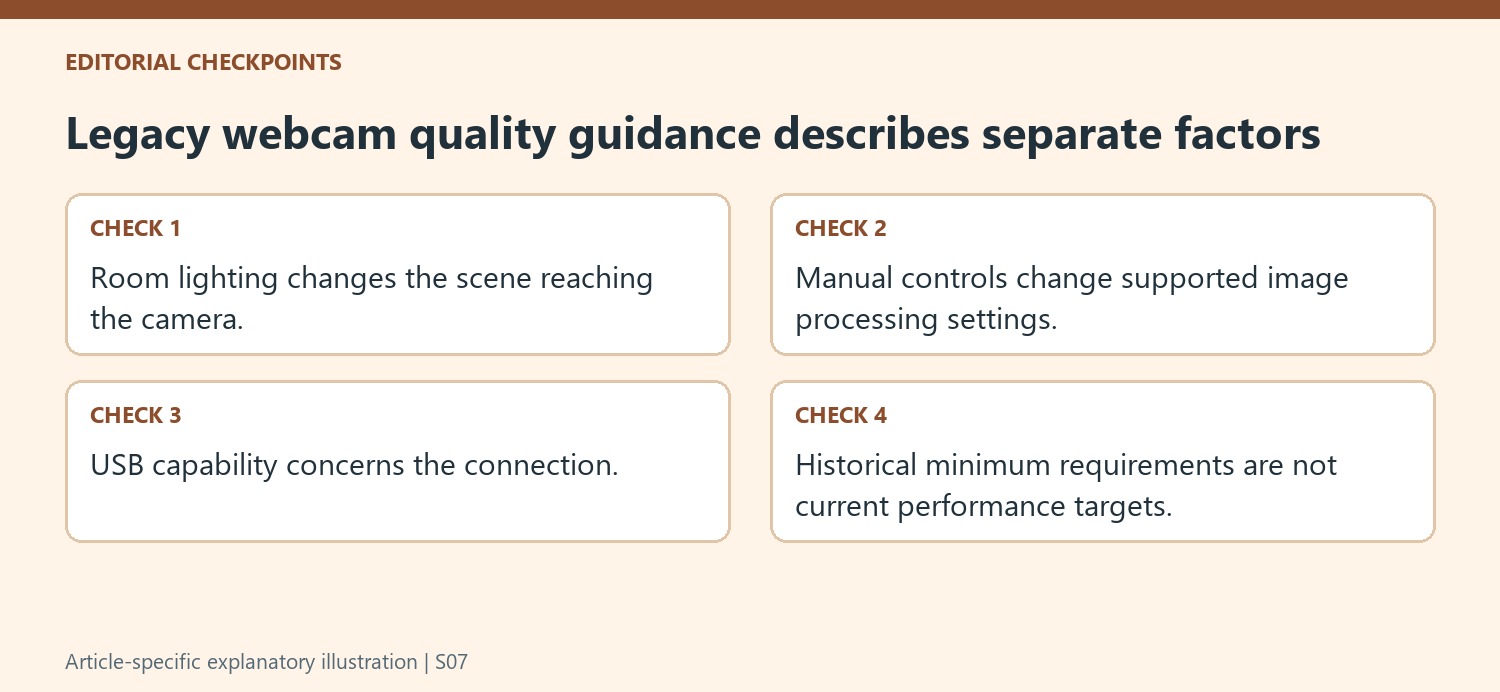
The article identifies good room lighting alongside its software adjustments. That is important because changing a slider and improving the actual light are different interventions. A useful comparison holds the scene steady while one supported control is adjusted, then reviews the preview. If several automatic options are active, the source's manual procedure clears them before moving the image sliders, allowing the user to understand which setting is being changed. Record an acceptable baseline before experimenting further. A manual arrangement may need review when the room changes, so do not assume the values that looked suitable under one lighting condition will be equally appropriate later in the day or another space.
Keep connection capability in the quality investigation
The note also calls for a high-speed USB 2.0 connection and provides historical minimum hardware requirements. Read those as qualifications for the documented legacy system rather than modern performance targets or a guarantee of sharp video from any machine meeting them. The camera connection, available processing, lighting, and chosen image controls contribute different parts of the result. Confirm the actual product and port support before attributing every poor preview to the image sliders. Then compare a local capture with the application where the problem was noticed. Preserving that distinction makes it easier to understand whether the issue appears in the camera's own software or only in a separate calling arrangement, without claiming that one manual setting fixes every kind of blur.
References
In Logitech Webcam Software, the documented route to manual image settings starts in Quick Capture, then Controls and Advanced Settings. Clearing RightLight and the automatic options allows the user to move the image-quality sliders rather than leaving those values under automatic control.


Leave a Comment
Comments (0)