
USB Headset Input Needs Its Own Volume and Mute Check
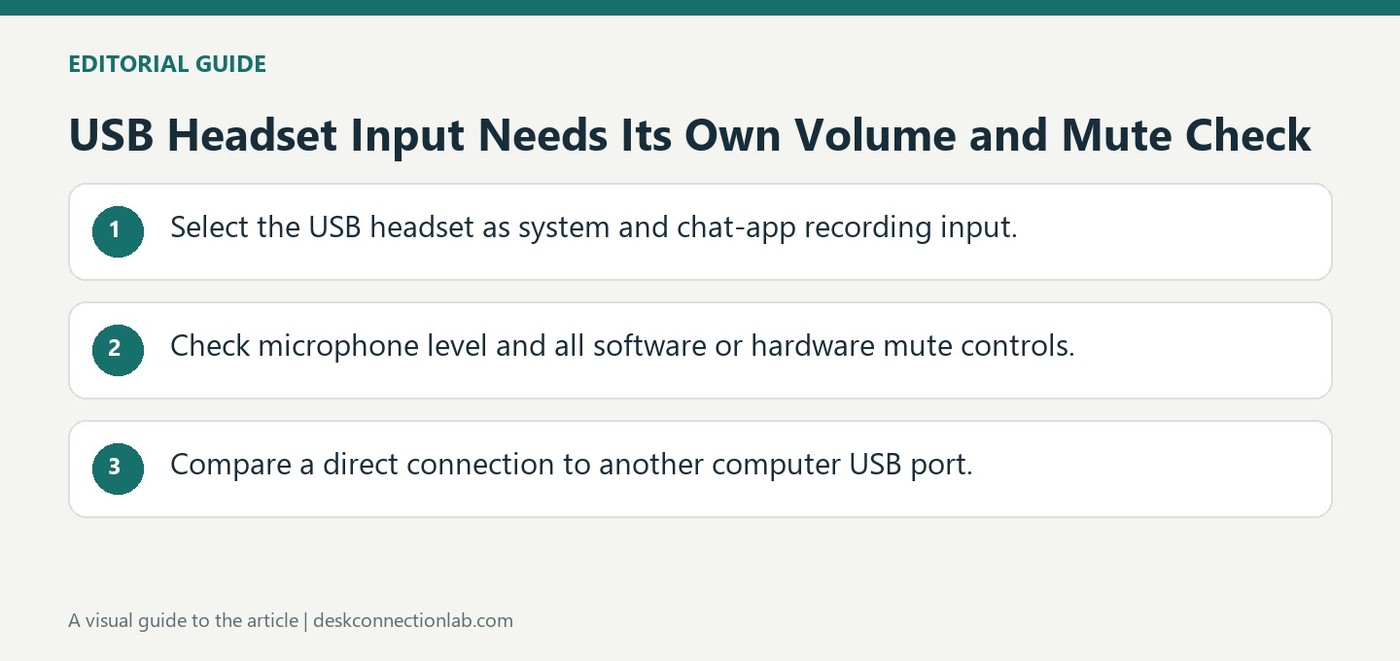
When a USB headset microphone does not work, select the headset as the computer's audio input and confirm that the chat application uses the same device. Logitech recommends checking microphone volume in the relevant settings rather than raising speaker playback volume.
Inspect mute state on the headset, operating system and application, since any one can block the outgoing signal. Connect directly to another USB port if necessary, avoiding hubs and extensions during testing. This isolates recording selection and connection behaviour without assuming that audible headphones prove the whole headset is configured correctly.
Trace the outgoing path at each selection point
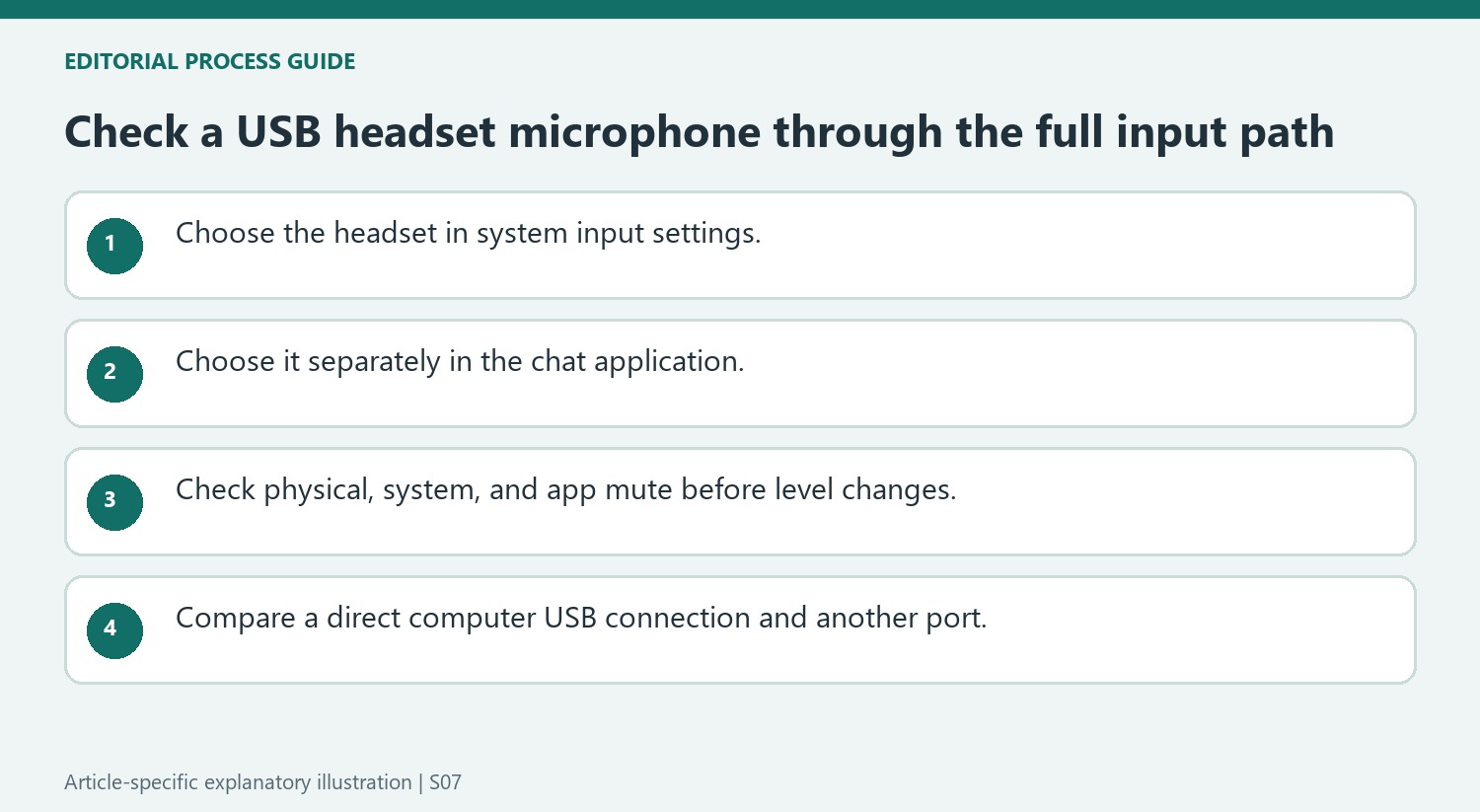
The problem in Logitech’s article concerns sound leaving the headset microphone, not sound arriving at its earcups. The operating system’s input selection and the chat application’s input choice are separate checkpoints. Write down the headset name visible in each place and confirm that the same recording source is intended. If another microphone is selected in either location, a successful USB connection alone will not make the chat application record from the headset. This comparison gives the volume and mute checks a specific device to work on rather than an ambiguous system-wide setting.
Retest after one recording change at a time
Adjust microphone volume in the computer or chat application, then compare the outgoing recording before changing a second setting. Check software mute at both levels and any physical mute button supplied by the headset. A higher microphone level cannot overcome an active mute, and a louder headphone setting does not increase recording volume. If these checks do not resolve the issue, use the direct-to-computer USB connection and another port that Logitech recommends. The article does not specify a driver replacement or a model-specific reset, so obtain those instructions separately if this basic input and connection procedure proves insufficient.
Verify the headset microphone at both software selection points
Logitech begins with the headset selected as the computer's audio input and separately selected in the chat application's input settings. That repetition is deliberate: the system and application can point to different microphones. A headset that plays audio correctly may still be unused for recording. Read the input name in both places before adjusting levels or changing the USB connection. If the computer has a built-in microphone or webcam, those alternatives make an accidental selection easier to overlook. The useful target is a clear path from the headset microphone to the intended chat app, rather than merely proving that a headset entry appears somewhere in the device list.
Check every applicable mute control before increasing gain
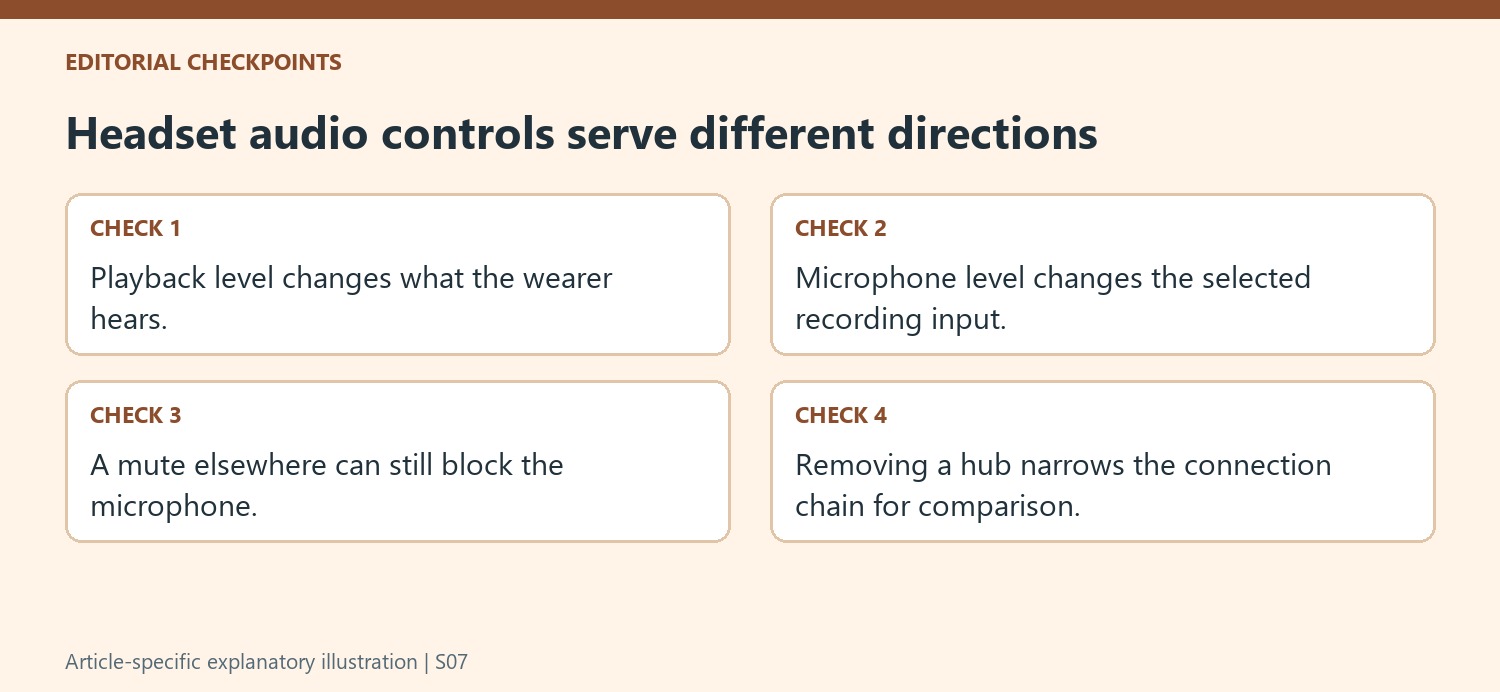
The support note identifies operating-system mute, application mute, and a possible physical headset button as separate checks. Raising a microphone slider does not overcome an active mute at another point. Confirm the actual state of each relevant control, then adjust microphone volume for the selected input. This is a different task from increasing the headset's playback loudness. A user hearing others more loudly does not prove that their own speech level has changed. Test a short recording or the chat application's input check after the intended adjustment, using a normal speaking position. That gives the level change an observable result instead of relying on repeated requests to speak louder during a live call.
Use the direct USB test to narrow the connection chain
Logitech suggests another computer USB port and a direct connection without a hub or extension. That removes intermediate equipment from the comparison and can help determine whether the problem follows that part of the arrangement. Keep the same headset and software input selection while changing the port so the result remains meaningful. If the direct connection works, investigate the previous path before assuming the microphone itself needs replacement. If it does not, retain the results of the selection, mute, level, and port checks for the next support step. The note provides a concise sequence of practical isolation checks, not a claim that every silent USB microphone has the same cause or requires the same replacement hardware.
References
- Microphone problems on USB headset. Logitech Support.
When a USB headset microphone does not work, select the headset as the computer's audio input and confirm that the chat application uses the same device. Logitech recommends checking microphone volume in the relevant settings rather than raising speaker playback volume.


Leave a Comment
Comments (0)