
Set capture quality in the Windows Camera app
Select the correct camera first
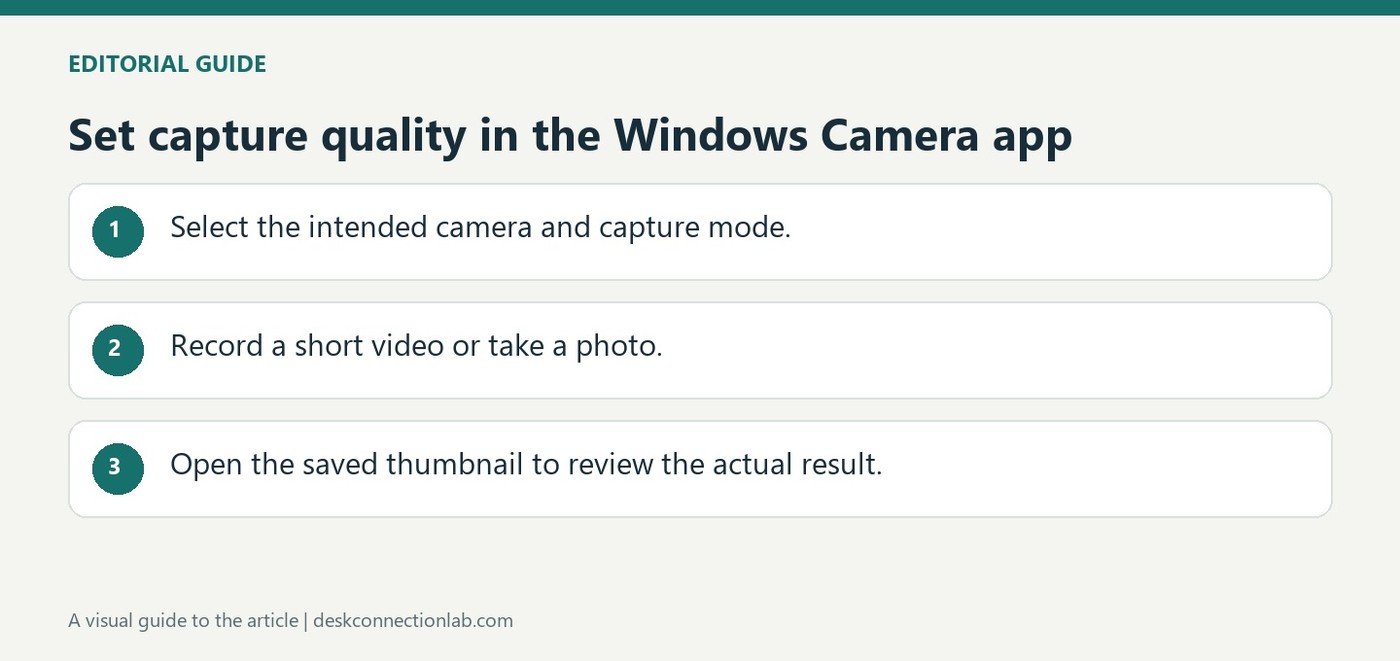
Microsoft's Camera app guide explains how to switch between connected cameras before taking a photo or recording video. This matters when a laptop's internal camera remains active after an external USB webcam is connected. Open the Camera app and use its change-camera control so quality adjustments and test recordings apply to the intended device.
Review photo and video settings separately
The app's settings include photo quality, video quality and flicker reduction, alongside links to system camera and privacy controls. Supported choices depend on the device. Record a short video after changing a setting, then play it back to judge the result. A quality option inside the Camera app should not be assumed to force the same capture format in a different meeting or recording application.
Review a capture rather than relying only on the preview
For video, Microsoft describes selecting Video, pressing Take video to begin, and using the red Stop control to finish. The resulting thumbnail opens playback so the saved recording can be reviewed. The photo workflow similarly places a thumbnail in Camera roll after capture. Open Folder can reveal where the saved item is stored, while the Photos app provides another viewing route. This distinction between preview and saved output is useful when comparing quality: check the actual captured file before deciding that a setting produced the intended result.
Recognize supported scanning modes and their limits
The Camera app also scans QR codes and barcodes. Put the code in focus and the app displays a corresponding link or text action after recognition. Document and whiteboard scanning depend on camera support; Microsoft notes that a missing Document button means the camera does not support that function. Supported document captures can be cropped and exported through the app’s controls. These features extend the app beyond ordinary video capture, but their presence should not be assumed on every device or interpreted as a requirement for a webcam to function normally in a call.
Select the intended camera and capture mode first
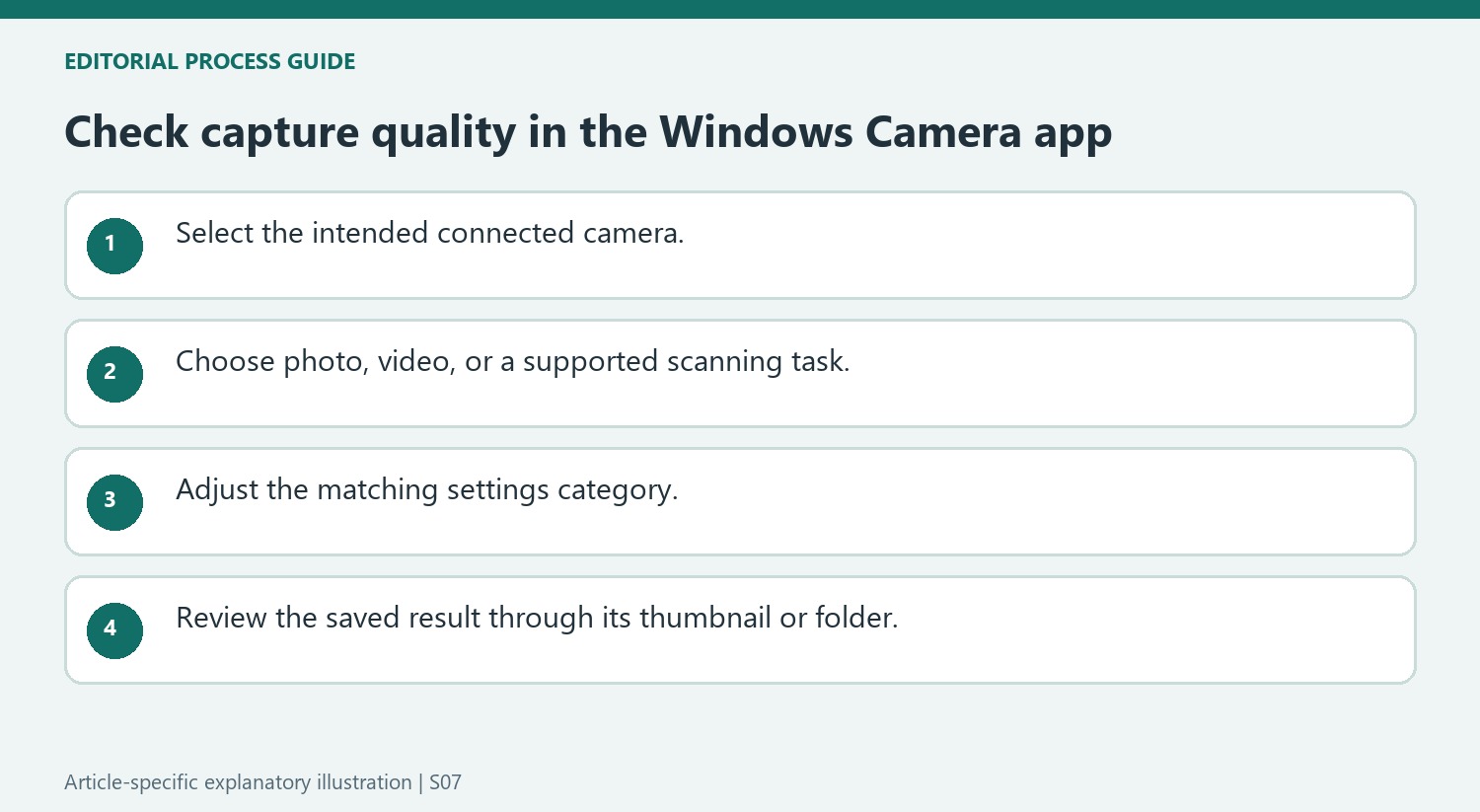
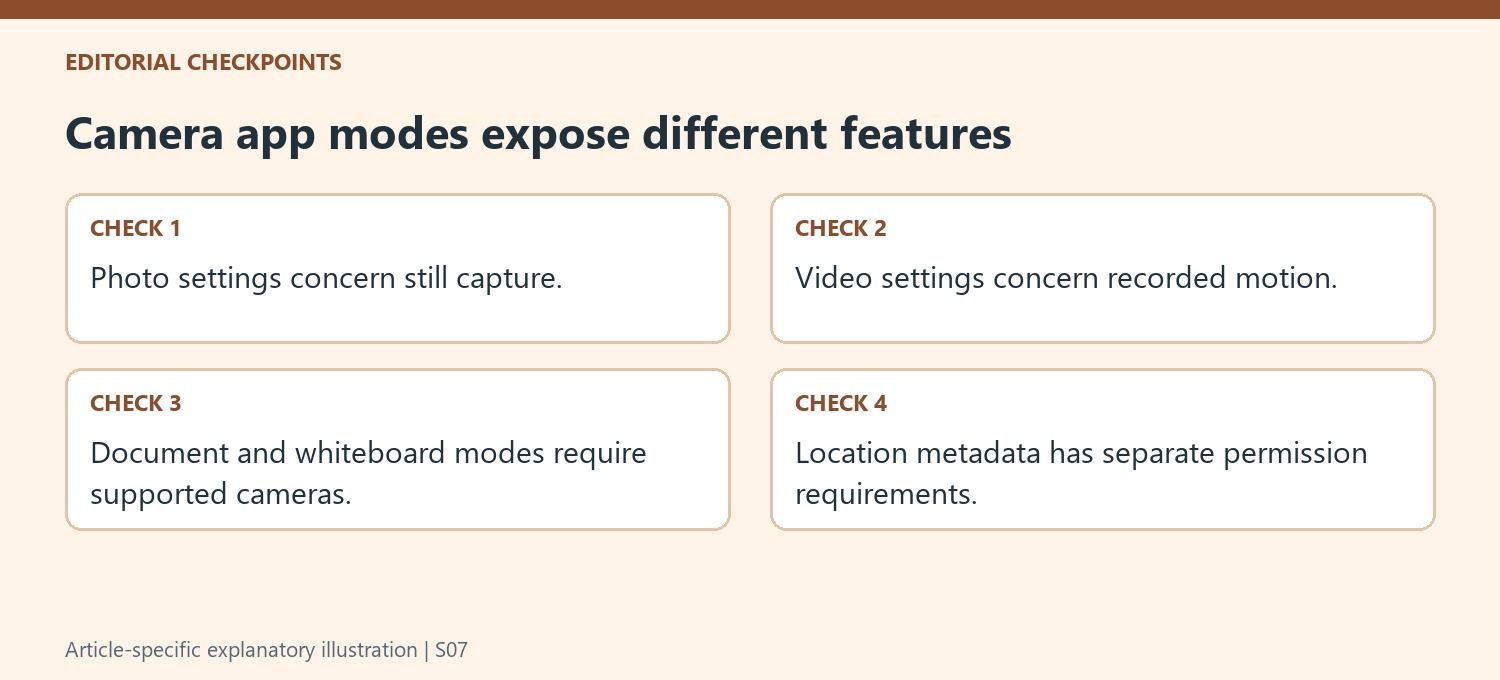
The Camera app can switch between connected cameras, so the preview's device identity belongs at the beginning of a quality check. A setting changed while the front-facing camera is active does not demonstrate what an external webcam will capture. The app also separates photos, video, code scanning, documents, and whiteboards. Choose the intended task before interpreting which button or setting is available. Microsoft's guidance explicitly limits document and whiteboard modes to supported cameras, so their absence is not automatically a general camera failure. A simple photo or video test from the intended device provides a clearer starting point than changing several modes while unsure which camera supplies the preview.
Check the saved result as well as the live preview
The documented capture process produces a thumbnail that opens the saved photo or video. That creates an opportunity to review what was actually recorded rather than judging only the live view. Photo and video quality choices sit in separate settings categories, with additional controls such as grids, advanced controls, and flicker reduction. Select the setting that belongs to the task and test a short result. A video choice does not necessarily describe a still image, and a useful preview alone does not prove that the saved file used the intended quality. The Open Folder and Photos routes provide ways to inspect the output further when needed.
Treat scanning and location options as specific features
Document and whiteboard capture add detection boxes, cropping, and export options that differ from a normal photo. A scanned document may be cropped after capture, while the source identifies different editing availability for ordinary photos. Code scanning also performs a specific action, such as presenting a link or copying barcode text, rather than changing the camera's general resolution. Location information has its own Windows permission requirements and hardware qualification. Enable it only when that metadata is wanted and supported. Keeping these features separate from basic image quality makes the settings page easier to navigate: choose the camera, choose the capture task, adjust its relevant controls, and review the saved result before changing an unrelated permission or mode.
References
- How to use the Windows Camera app. support.microsoft.com.
Microsoft's Camera app guide explains how to switch between connected cameras before taking a photo or recording video. This matters when a laptop's internal camera remains active after an external USB webcam is connected. Open the Camera app and use its change-camera control so quality adjustments and test recordings apply to the intended device.


Leave a Comment
Comments (0)