
Recover an audio output missing from Windows
Inspect detection in Device Manager
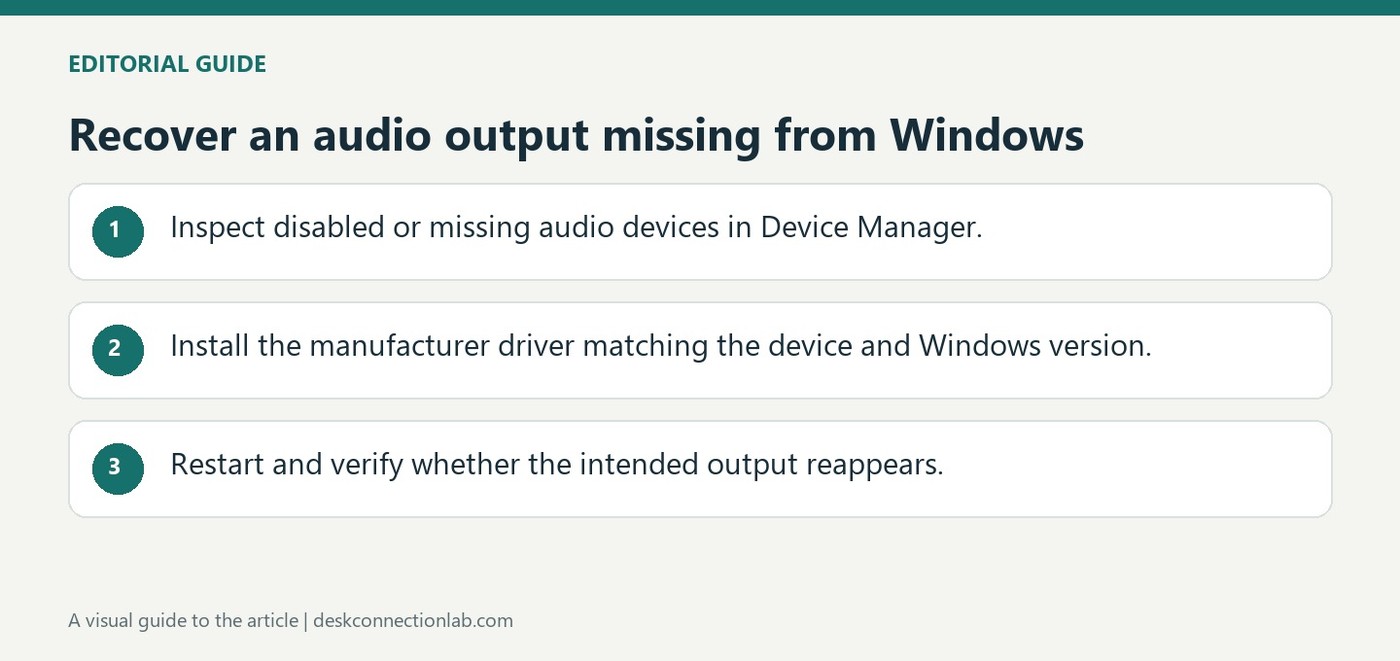
Microsoft explains that missing, disabled or incompatible drivers can make speakers and headphones disappear from Sound settings. In Device Manager, inspect Sound, video and game controllers, enable the device if that option is available, and use Show hidden devices or Scan for hardware changes when necessary.
Install a matching driver and retest
Obtain an audio driver for the exact PC or sound device and Windows version from the manufacturer's support site. After installation, restart and check whether the output returns. The Windows audio troubleshooter is another documented option. These steps address a device that is not detected; once it reappears, select it as the intended playback output and check its volume before concluding that another hardware fault remains.
Describe missing-output symptoms precisely
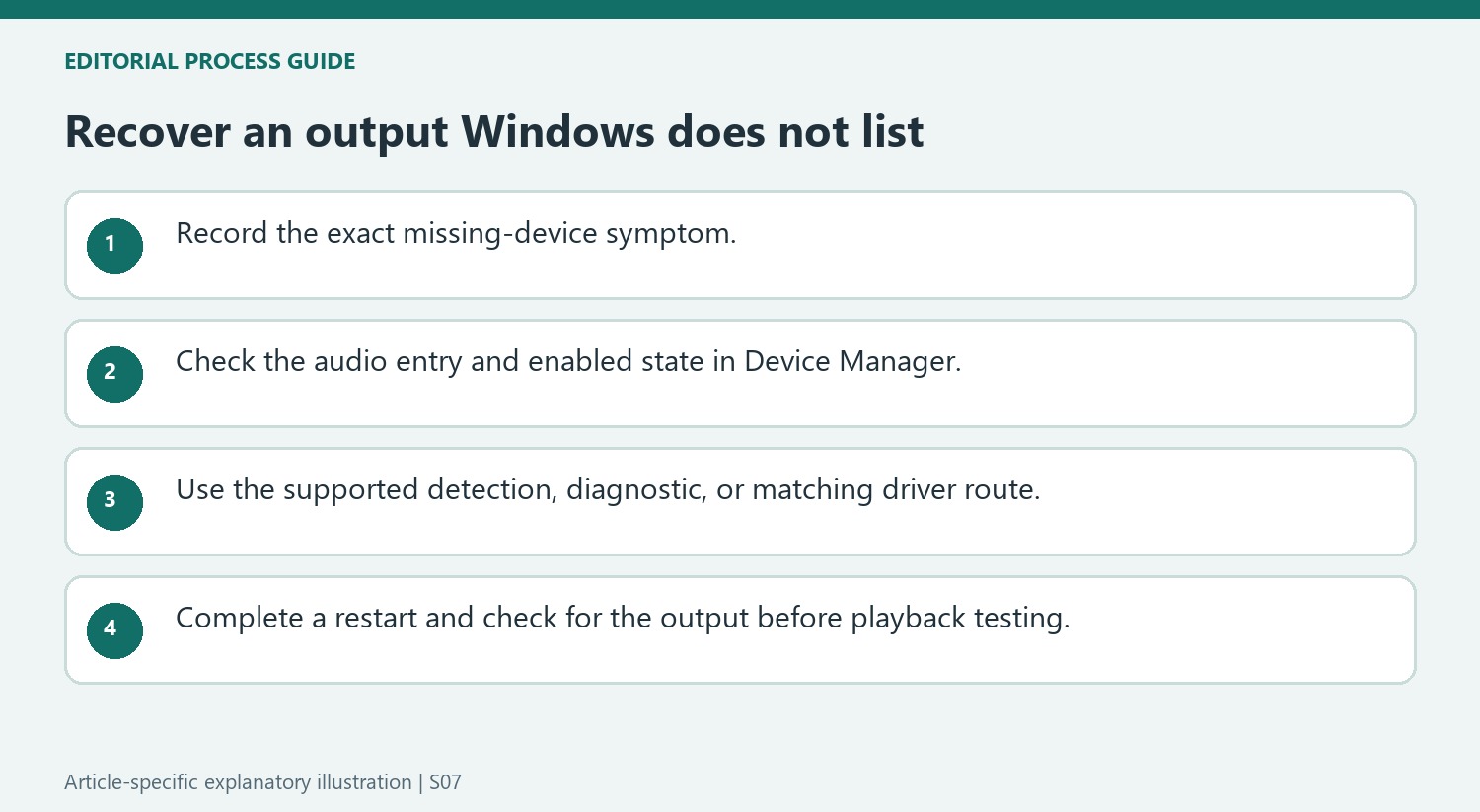
The source groups an unavailable Output list, grayed sound settings and the message No audio output device is installed as detection symptoms. They differ from ordinary low volume on a visible device. Note whether the problem followed a Windows update or driver change, because that timing helps frame the driver investigation. In Device Manager, a visible but disabled entry has a different next action from an entry that remains absent even after showing hidden devices. Preserve those observations so a later support conversation starts with the actual detection state rather than an imprecise report of no sound.
Evaluate the result after a supported restart
The guide includes restarting Windows as its own remedy for temporary detection failures, as well as requiring a restart after installing the manufacturer’s driver. Use Start, Power, Restart, then return to Sound settings and check whether the expected output appears. If it does, verify the playback selection and listening level before declaring the entire problem unresolved. If it remains absent, the Get Help audio troubleshooter provides a documented Windows route. The article does not establish that missing output always means failed hardware, so avoid treating an empty list alone as sufficient evidence that the speakers or sound card must be replaced.
Distinguish an absent output from one that is merely quiet
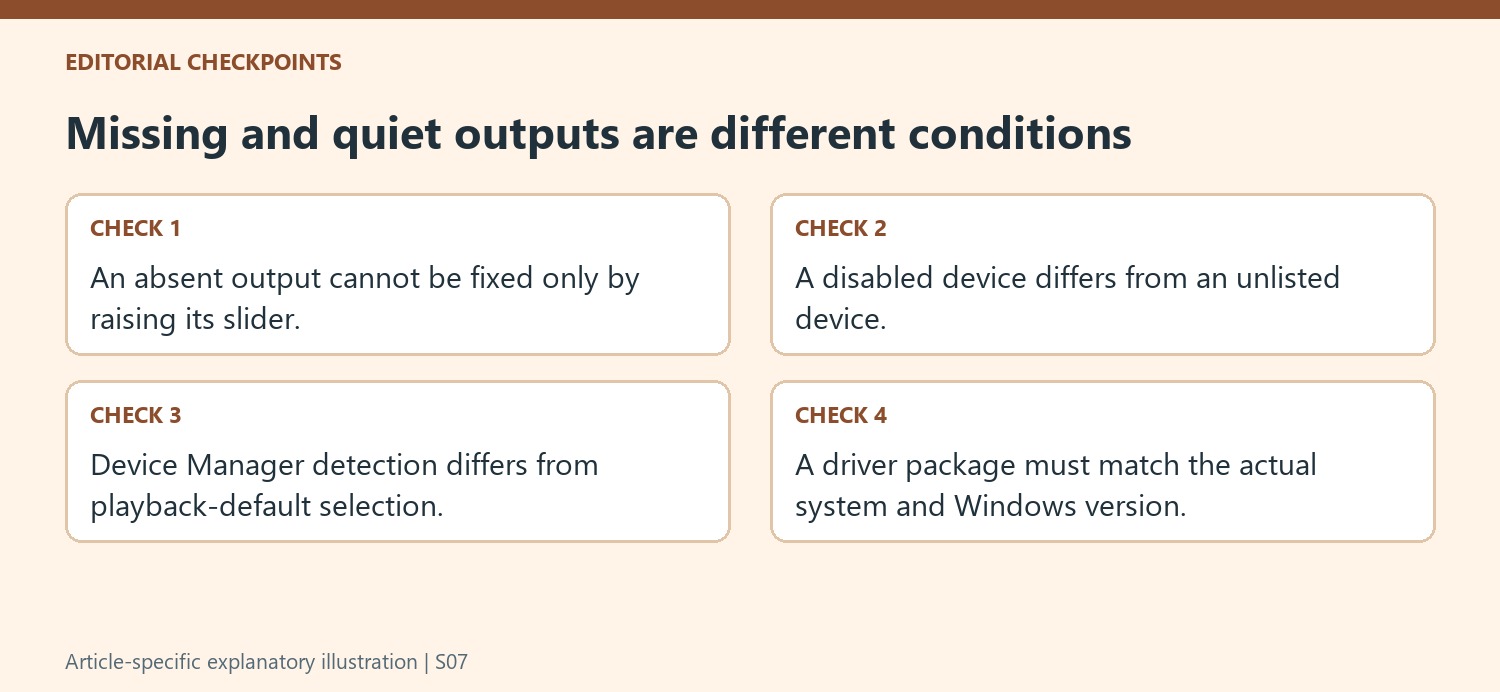
The article addresses cases where Windows does not list the speaker or headphone output, greys out sound options, or reports that no audio output device is installed. Those symptoms differ from an available output whose level is too low. Record which condition is actually present before changing volume controls that may not apply. The source identifies missing, incompatible, disabled, or unloaded driver states as possible explanations, particularly after an update or driver change. That history is useful context rather than proof of one cause. Confirm the exact message and the device expected to appear so later checks target the right hardware and avoid confusing recording inputs with playback outputs.
Use Device Manager to check detection and enabled state
Microsoft directs users to Sound, video and game controllers and distinguishes a visible device with an available Enable action from a device that is not shown. Showing hidden devices and scanning for hardware changes provide additional documented checks. These actions help describe what Windows currently recognizes; they are not the same as selecting a playback default in Sound settings. Read the actual device entry before making a change, especially when the computer contains several audio components. If the output returns, confirm that it is then available for the intended playback task. Detection is a necessary step in this situation, but a separate sound test verifies the result the user needs.
Match any replacement driver to the actual system
The manufacturer-download route uses the PC or sound-card support site and the relevant Windows version. Identify those details before installing a package, rather than assuming a similarly named audio device uses the same software. The support page also includes Get Help diagnostics and a restart for temporary detection problems. Complete a chosen action and check whether the device reappears before combining several more changes. If the failure followed an update, preserve that timing and the installed-device information when requesting further help. A clear record of the message, Device Manager state, applicable driver, and restart result makes the continuing investigation more precise than repeatedly moving a volume slider for an output Windows has not yet recognized.
References
- Fix missing or undetected audio output device in Windows. support.microsoft.com.
Microsoft explains that missing, disabled or incompatible drivers can make speakers and headphones disappear from Sound settings. In Device Manager, inspect Sound, video and game controllers, enable the device if that option is available, and use Show hidden devices or Scan for hardware changes when necessary.


Leave a Comment
Comments (0)