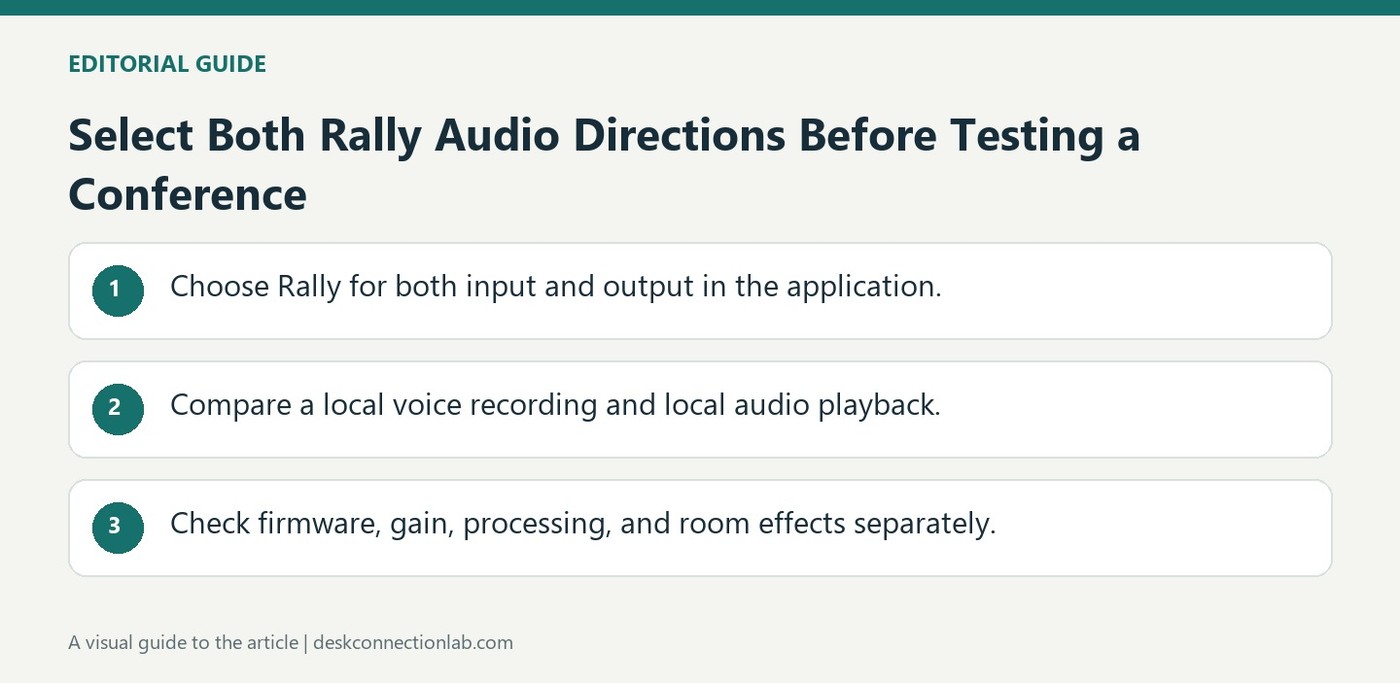
Rally should be selected for both recording and playback in the conferencing application's audio settings. Logitech recommends verifying those choices before evaluating sound quality, since the host may be using one Rally component while routing the other direction through a different device.
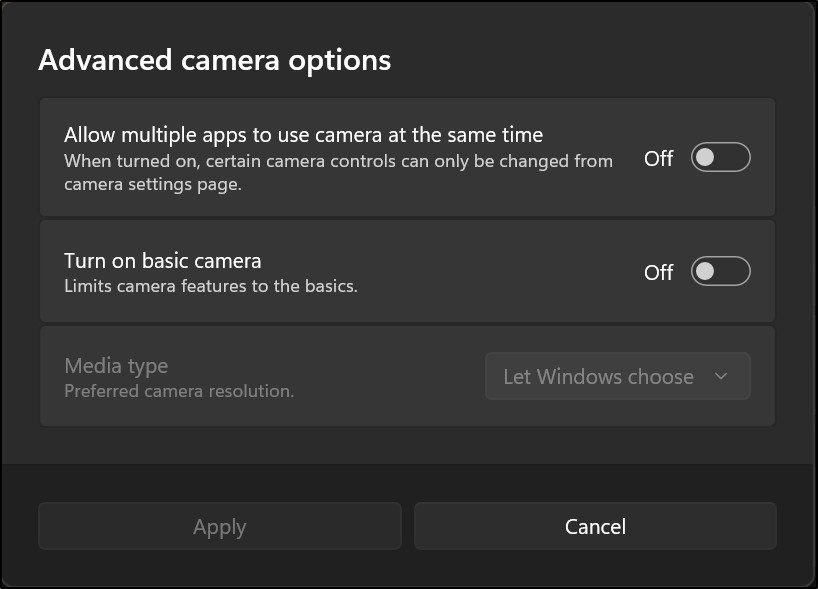
Windows 11 camera management is under Settings, Bluetooth and devices, Cameras. Microsoft explains that connected cameras have individual pages with supported image controls and enable or disable options. Some specialized, infrared or proprietary cameras do not appear here, so absence from this list does not always mean that every application is unable to use the hardware.
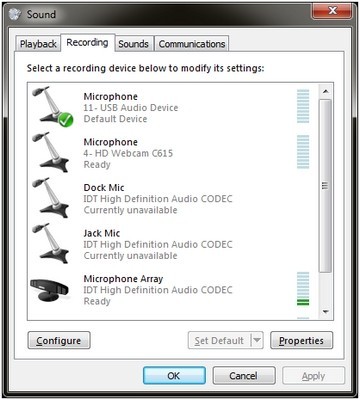
Using a Logitech webcam does not require recording through its built-in microphone. Logitech's guidance explains selecting a separate microphone as the operating system's default recording device, allowing the camera to continue handling video while the external device supplies sound.
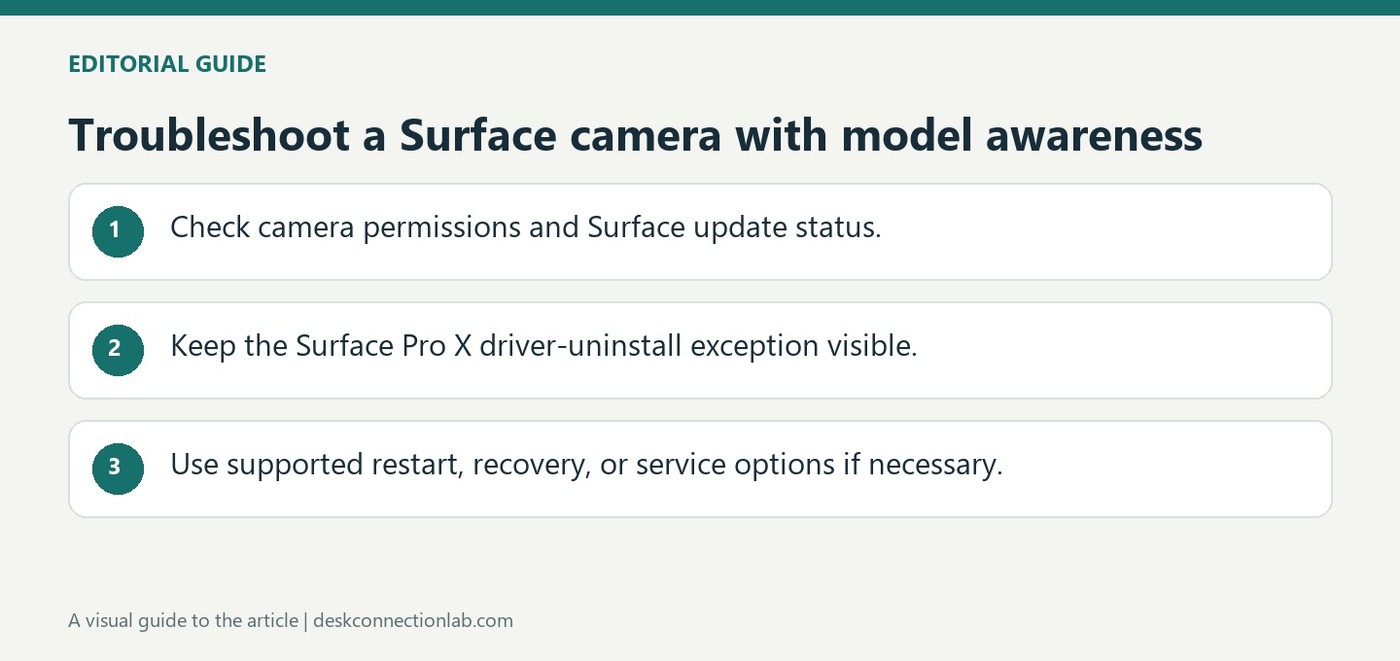
Microsoft's Surface-specific guide recommends the Camera troubleshooter, followed by confirmation that camera access and app access are enabled under Privacy and security. The Surface app can report update status and direct users to Windows Update. These checks address common reasons a built-in camera stops appearing or works in one app but not another.
Microsoft links error 0xA00F4244 to Windows failing to recognize an internal or external camera, frequently because the driver is missing, outdated or damaged. Its recommended starting points include the Camera troubleshooter in Get Help and available Windows driver updates. An external webcam also needs a secure physical connection before software changes can be assessed.
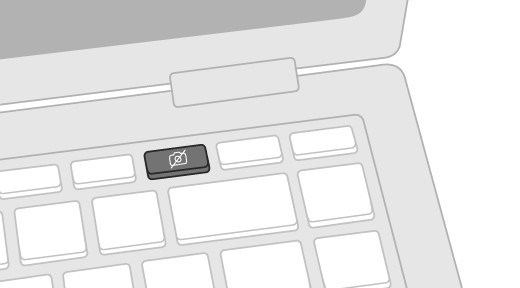
Microsoft recommends checking an external camera's USB cable and trying the device on another computer. Laptops may also have a hardware camera switch, a function-key control or a shutter that needs to be opened. A closed or disabled camera can resemble a software failure even though the cable and Windows application are functioning.
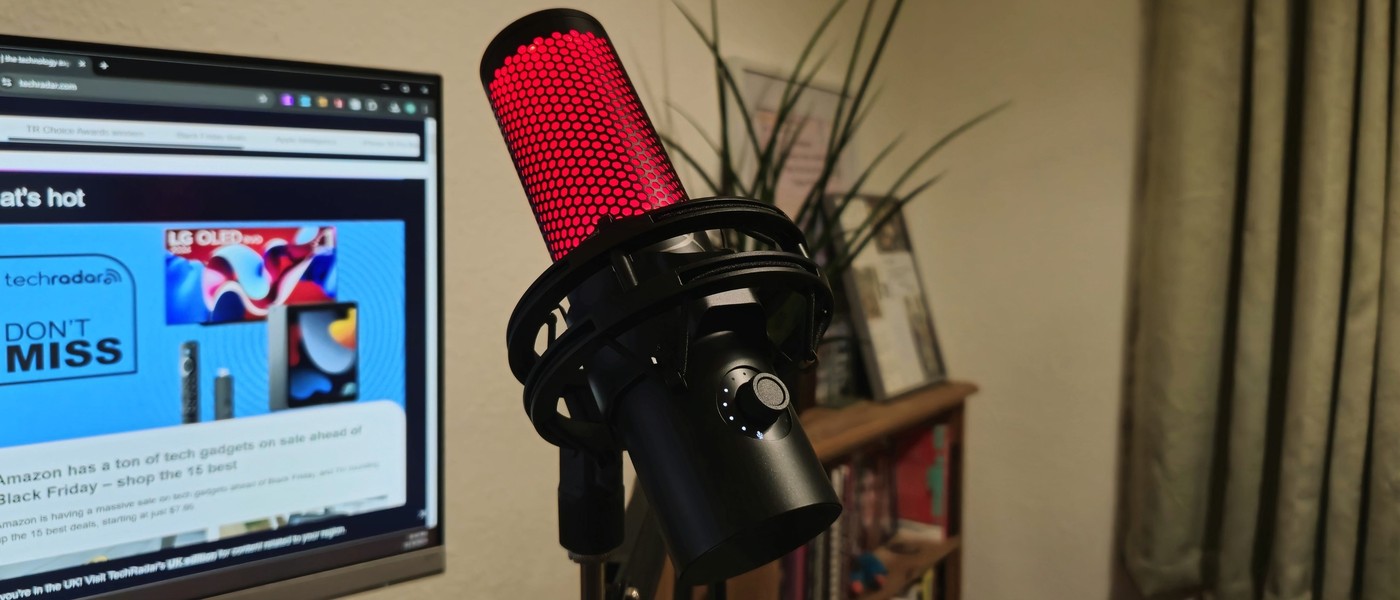
TechRadar's HyperX QuadCast 2 review describes a USB microphone aimed at straightforward recording. Its cable includes an adapter for USB-A or USB-C computer connections, and the supplied stand incorporates a shock mount. The reviewer praised the simple setup while noting that the companion app offers fewer audio adjustments than some alternatives.
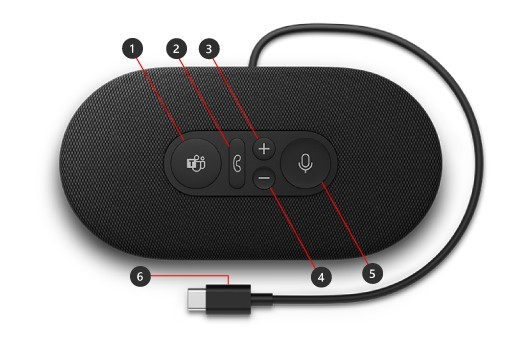
Microsoft Modern USB-C Speaker combines a speaker and microphone for a supported Windows PC. Its guide explains how to unwind the cable stored underneath and connect it to the computer. The accessory can play music as well as provide meeting audio, so it adds both a recording device and a playback device.
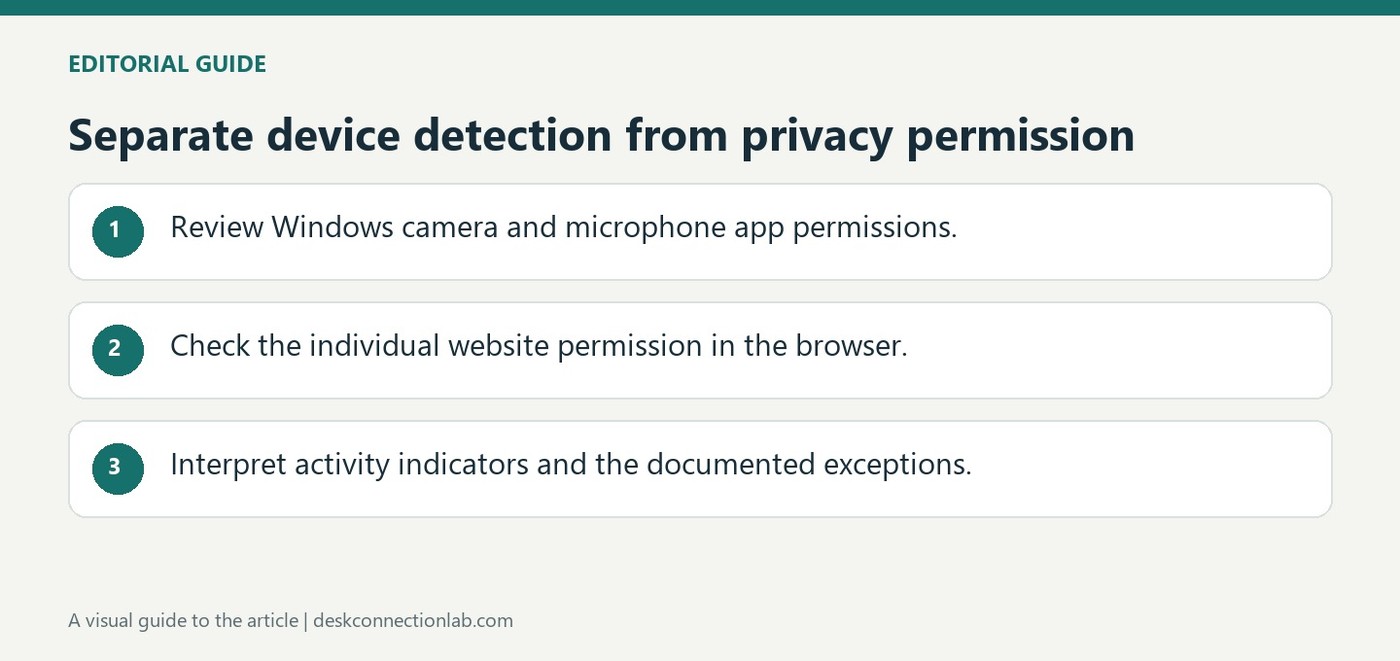
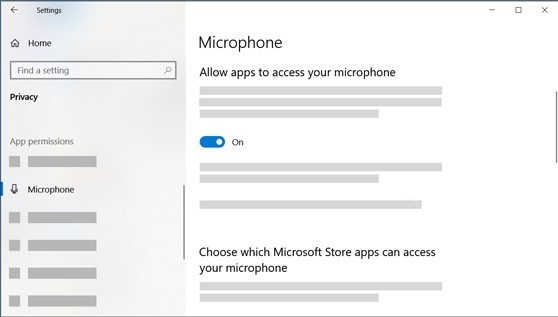
Microsoft explains that camera and microphone access is governed by Windows privacy settings as well as by the application. Under Privacy and security, enable the relevant device access and app controls. Microsoft Store apps can have individual switches, while desktop applications use a broader access control rather than appearing with identical per-app toggles.
Microsoft's microphone troubleshooting explains that Windows privacy settings can block recording even when the device is connected. Enable microphone access and the appropriate app permissions, including the separate desktop-app control where needed. If a headset has a mute button, check that it is not active before changing drivers or buying another cable.