
USB Headset Playback Volume Can Be Limited in Several Places
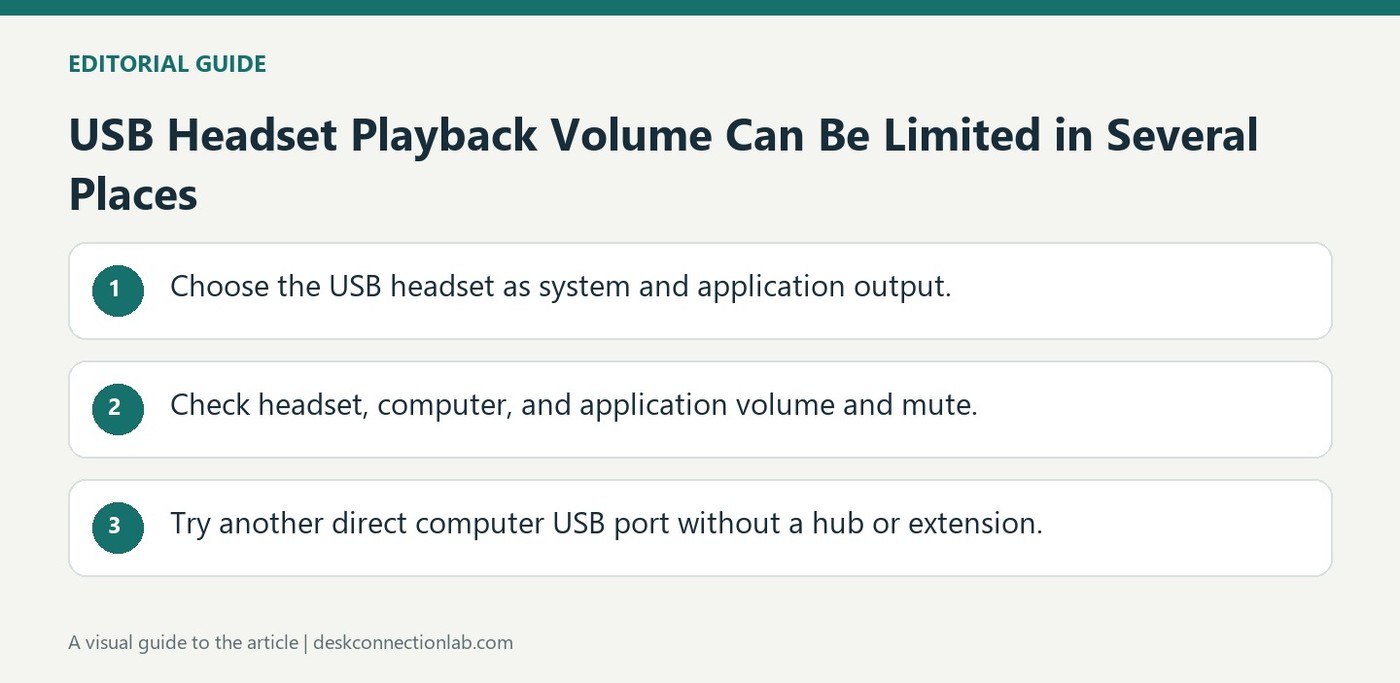
For a USB headset with no playback, Logitech recommends selecting it as the computer's audio output and checking the same selection in the chat or music application. These choices can differ, especially when a computer has built-in speakers or other connected sound devices.
Check volume and mute in the operating system, application and headset itself. If the route appears correct, connect directly to another USB port without a hub or extension. A successful recording test does not replace these output checks because microphone input and headphone playback follow different settings.
Confirm playback selection inside the actual application
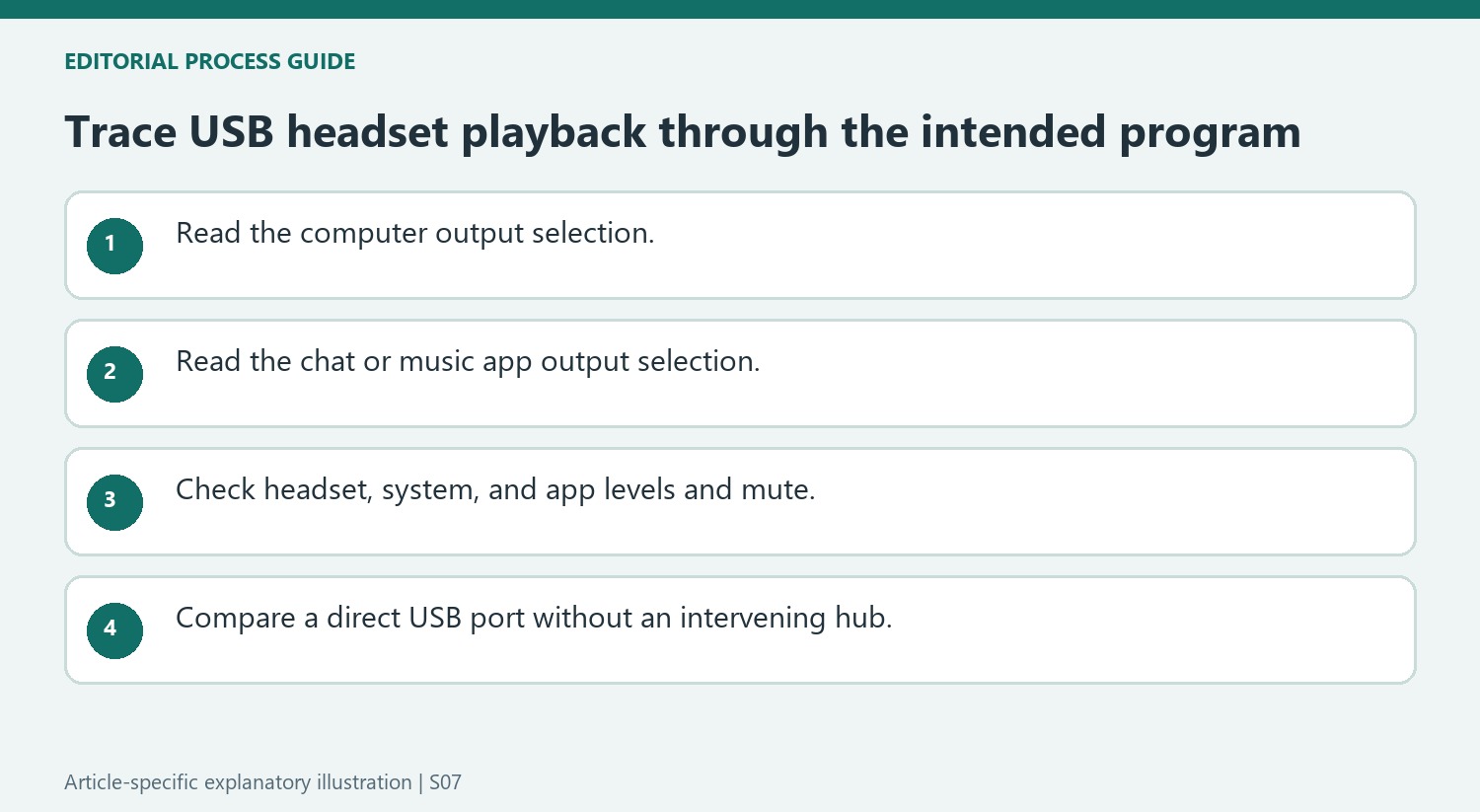
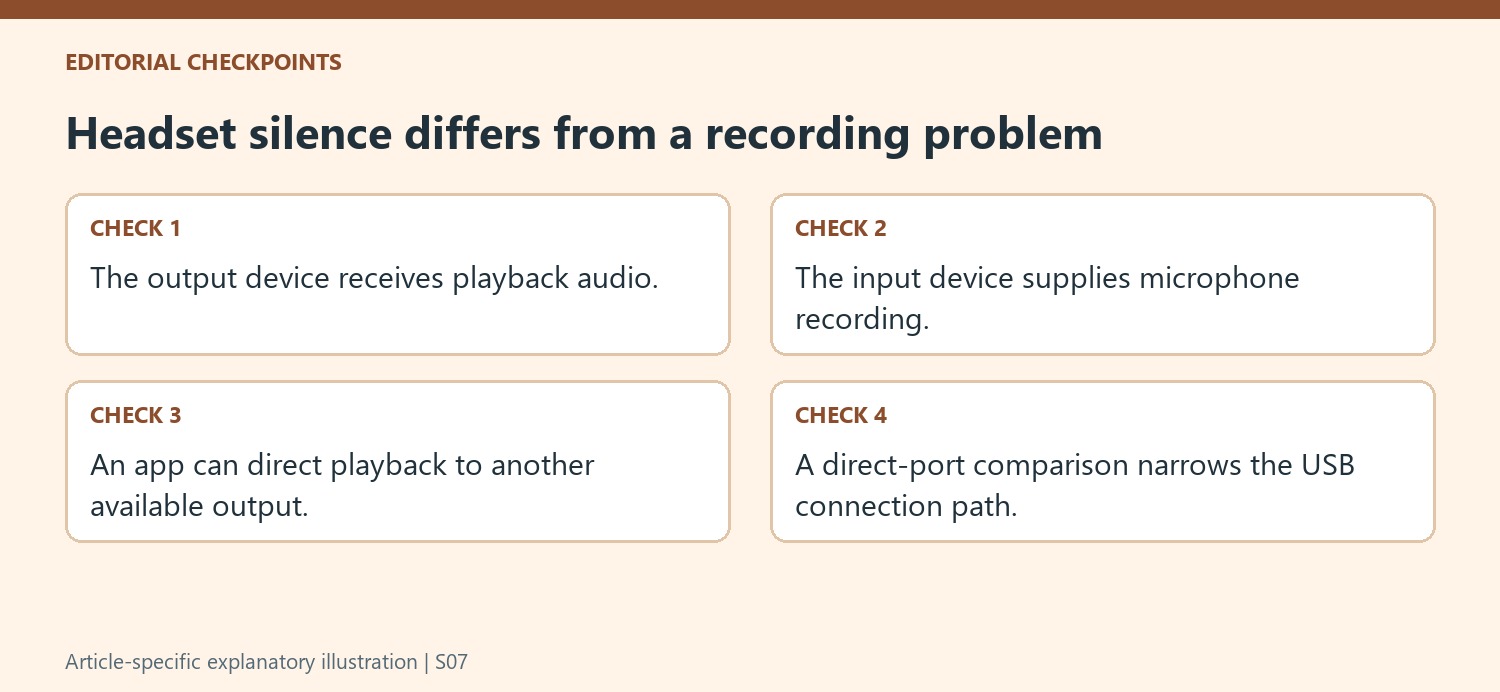
Logitech’s first two checks deliberately name both the computer and the chat or music application. A headset can be available to Windows while a particular application still sends playback to another output. Compare the device name at each level, then play the same material again after correcting the route. This keeps the investigation focused on the missing headphone sound. Microphone selection belongs to recording, so a visible microphone entry or a successful voice capture does not establish that the headset is the active destination for the audio being played.
Compare volume, mute and a direct port connection
The source asks users to check volume on the headset, computer and application, alongside mute in the operating system and application. Review those controls individually so a low application level is not hidden by a high system level. Retest after each correction using the same playback material. If routing and level controls appear appropriate, connect the headset directly to another USB port on the computer, without a hub or extension. That comparison follows Logitech’s documented connection advice; it does not prove that every hub is faulty or prescribe replacing drivers before the basic output path has been checked.
Choose the headset as output in the program actually playing sound
Logitech's note separates the computer's output choice from the chat or music application's selection. A USB headset can be detected while a player still directs audio to built-in speakers or another connected device. Read both choices before changing drivers or replacing the accessory. This is specifically a playback investigation, so selecting the headset microphone as input does not establish the desired output route. Identify the program producing the test sound and the headphones expected to receive it. A known sound played from that program provides a clearer check than relying on an idle device icon or assuming that plugging in the USB connector automatically changes every application's destination.
Work through the level and mute controls as a chain
The support instructions list headset, computer, and application volume, plus mute in the operating system and program. Those controls can create several places where an otherwise valid connection becomes inaudible. Check them deliberately rather than increasing only the taskbar slider and concluding that the headset must be defective. A physical level control on the accessory may still be low, while a music app can remain muted independently. Make a modest adjustment, replay the same sound, and keep track of the result. This is separate from microphone gain: changing recording sensitivity affects what others hear from the user, not the sound delivered through the headphones in this playback test.
Remove intermediate USB equipment for a direct comparison
Logitech recommends trying another computer USB port and connecting directly without a hub or extension. That changes a defined part of the signal and power path while retaining the same headset. Keep the application and intended output selection consistent during the comparison so the result can be associated with the port or intermediate equipment. If direct playback works, return attention to the previous connection path rather than immediately replacing the headset. If silence remains, preserve the selected output names, checked volume and mute controls, and direct-port result for further support. The short note provides practical ways to narrow the failure, not a guarantee that every silent USB accessory shares one cause or can be repaired by the same software change.
References
- No audio from USB headset. Logitech Support.
For a USB headset with no playback, Logitech recommends selecting it as the computer's audio output and checking the same selection in the chat or music application. These choices can differ, especially when a computer has built-in speakers or other connected sound devices.


Leave a Comment
Comments (0)