
Choose the USB headset inside Teams
Connect and select both audio directions
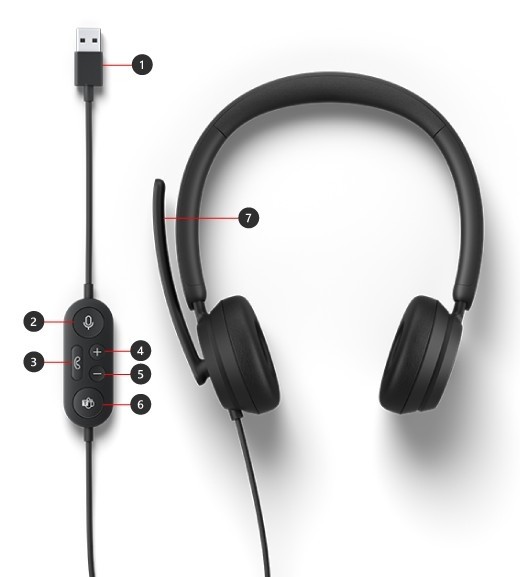
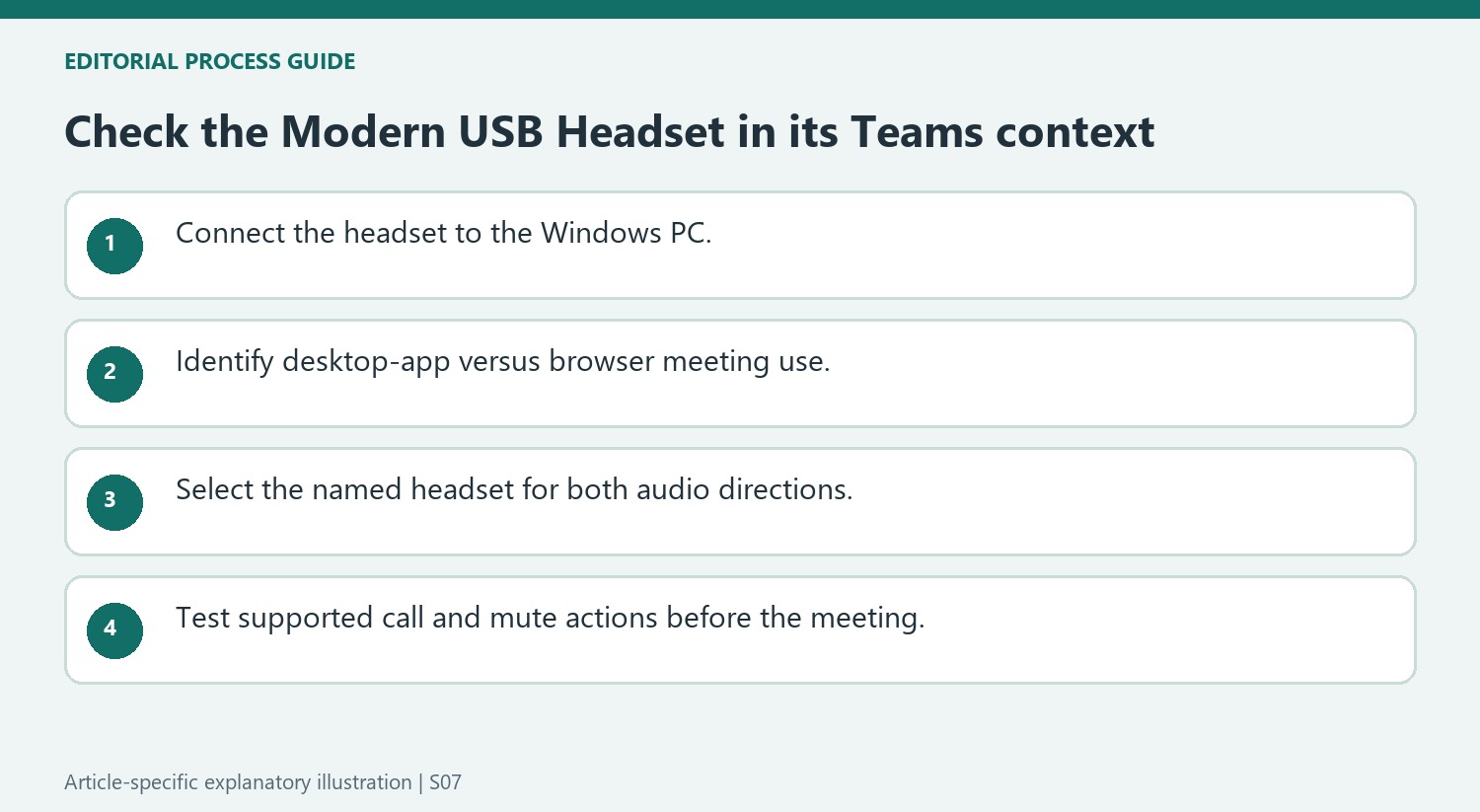
Microsoft Modern USB Headset connects through a USB port on a supported Windows PC. In the Teams desktop application, open Settings, Devices and select the headset under Audio devices. Check that both Speaker and Microphone use the headset, since hearing a call through it does not prove that the headset microphone is also selected.
Know which controls depend on the app
The headset provides volume, mute, call and Teams buttons. Microsoft's guide notes that several call-control actions are unavailable when using Teams through a web browser. This distinction prevents a working USB audio connection from being mistaken for a hardware fault merely because an inline button behaves differently in the browser. Test recording and playback separately before joining a meeting.
Read the inline indicators during desktop calls
In the documented Teams desktop workflow, the Answer/End control flashes white when a call arrives and remains white during a call. Press it to answer or end, or hold it to decline an incoming call. The mute control turns red when the microphone is muted. Holding Mute while already muted lets the user speak temporarily, with the device returning to mute on release. These indicators describe call and microphone state, while the volume buttons control listening loudness; changing one does not establish the state of the others.
Keep desktop integration separate from customization
The Teams button can bring the desktop application forward for Calls or Calendar, and a fading white indicator can signal a meeting-start notification. Those functions depend on the supported Teams context described by Microsoft, so compare the desktop workflow before concluding that a browser limitation is a defective button. Microsoft Accessory Center supplies additional headset settings on Windows through the Microsoft Store. The guide says Accessory Center is unavailable for macOS. Use the source’s supported combination of operating system, application and accessory rather than assuming every device exposing USB audio provides identical meeting controls everywhere.
Check the Teams application context before judging the buttons
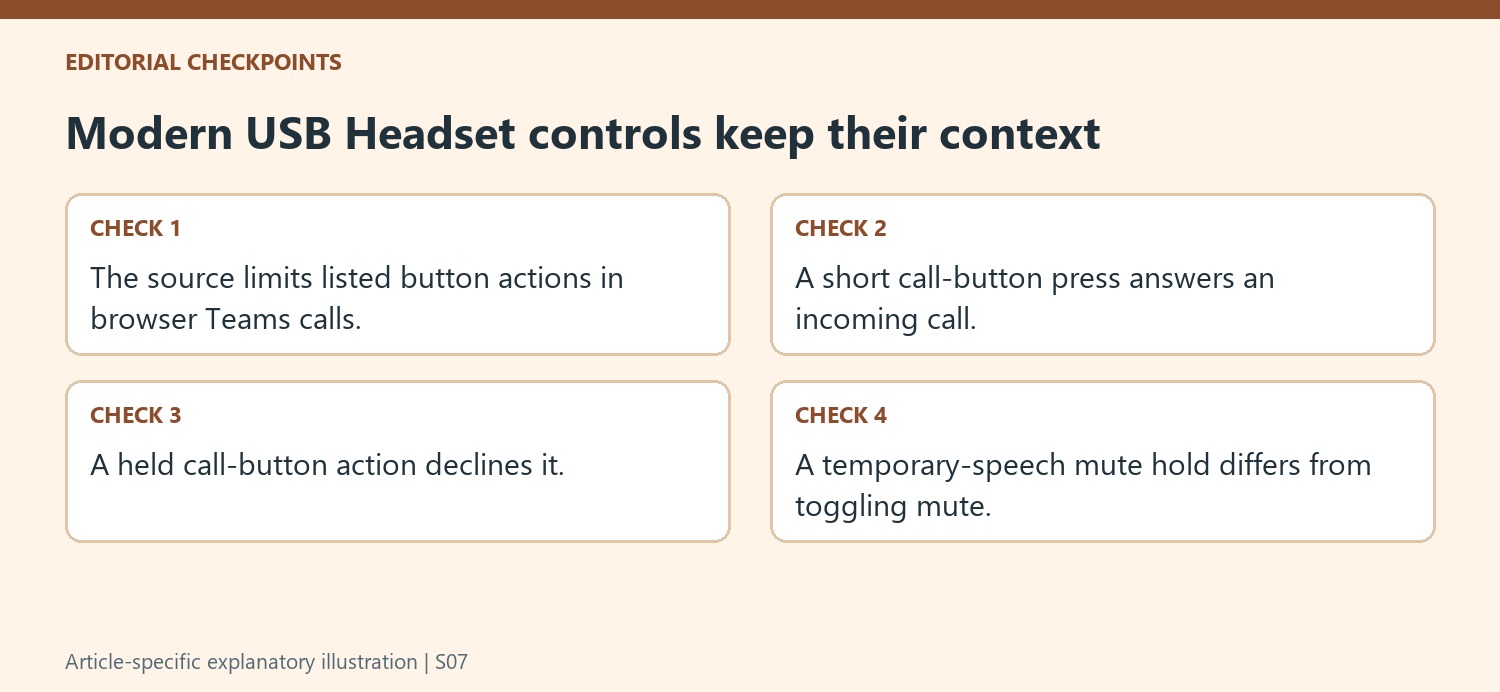
Microsoft's page contains an important qualification for browser-based Teams calls: the listed answer, hang-up, mute, and volume button actions are not available in that context. A headset that supplies audio while those controls do not act as expected may therefore be encountering the documented application limit rather than a failed USB connection. Identify whether the meeting is running in the supported desktop arrangement or a web browser before troubleshooting the inline controls. The physical connection, the selected audio device, and the availability of application commands are separate questions. Keep that distinction attached to the instructions instead of assuming certification makes every software environment behave identically.
Choose the named headset for both input and output
After plugging the Modern USB Headset into the Windows PC, the support procedure selects Microsoft Modern USB Headset in Teams Audio devices. It should then be selected for both Speaker and Microphone. This is worth checking explicitly on a computer that also has monitor audio, built-in microphones, or another accessory connected. Hearing a ringtone through the headset is only a playback check; confirm that the intended microphone captures speech too. The solid white Teams button gives the source's connected-to-Teams indication. Use that cue together with the actual device names and a short audio test rather than treating one light as proof that every input choice is correct.
Practice short and held actions before a live meeting
The call and mute controls distinguish ordinary presses from holds. A call-button press answers, while holding declines an incoming call. A Mute press changes the state, while holding the button when muted permits brief speech and returns to mute on release. Watch the red indication when learning that behavior. Optional customization through Microsoft Accessory Center is another separate task, with the source identifying its Windows availability and lack of a macOS version. Complete basic audio and button checks in the documented environment before changing preferences. That provides a known working baseline and makes a later unexpected control response easier to connect to the application context or a specific setting.
References
- Use Microsoft Modern USB Headset in Microsoft Teams. support.microsoft.com.
Microsoft Modern USB Headset connects through a USB port on a supported Windows PC. In the Teams desktop application, open Settings, Devices and select the headset under Audio devices. Check that both Speaker and Microphone use the headset, since hearing a call through it does not prove that the headset microphone is also selected.


Leave a Comment
Comments (0)